After I enabled and tested MFA for Windows logon, I noticed something odd — users who had already enrolled for MFA were not being prompted for MFA when logging into the ADSelfService Plus web portal (https://mfa-server:9251).
Turns out, MFA for web portal login is not enforced by default — it needs to be configured separately. Here’s how I fixed it:
⚙️ Step-by-Step: Enabling MFA for Web Portal Login
🔧 Step 1: Go to the Right Setting
- I logged into the admin console
- Navigated to:
Configuration → Under MFA> MFA for Applications → ADSelfService Plus Login
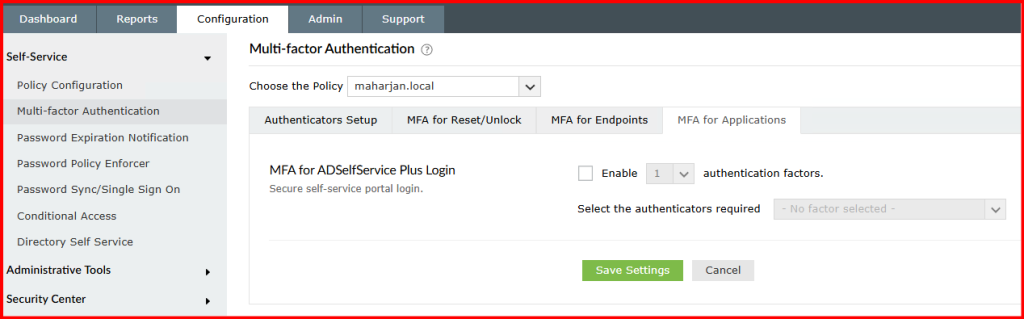
✅ Step 2: Enable MFA for Portal Logins
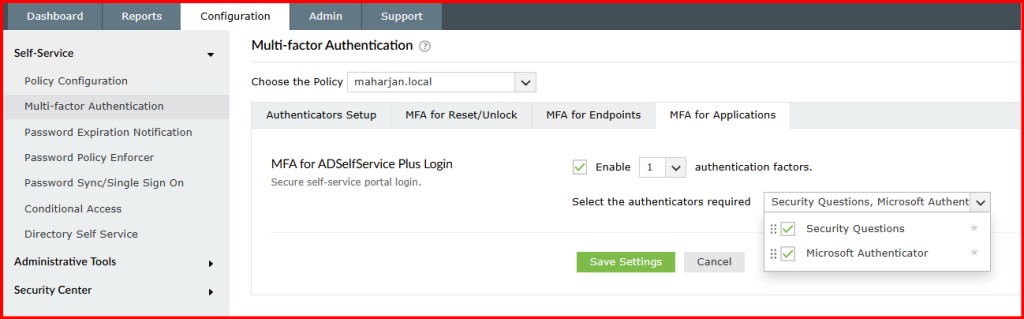
- Checked Enable MFA for ADSelfService Plus Login
- Selected the authentication methods I had allowed users to enroll with (e.g., Security Questions, Microsoft Authenticator)
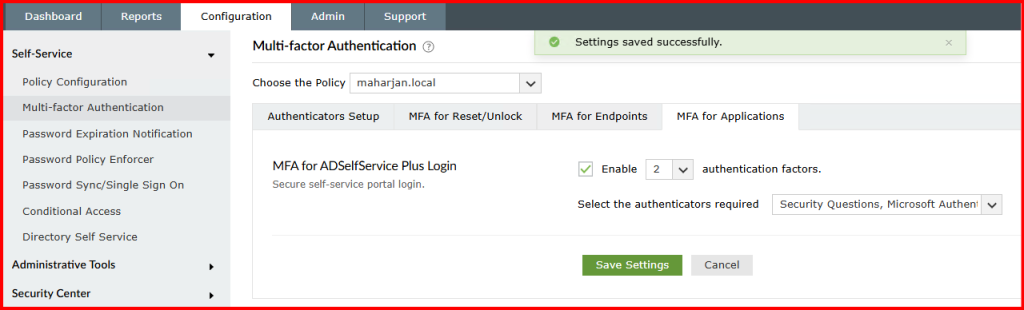
- Set the required number of factors (I chose 2 if two level required)
- Save and Apply changes.
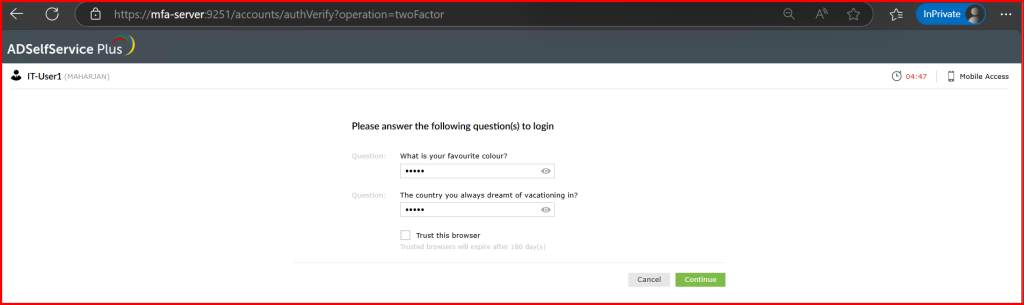
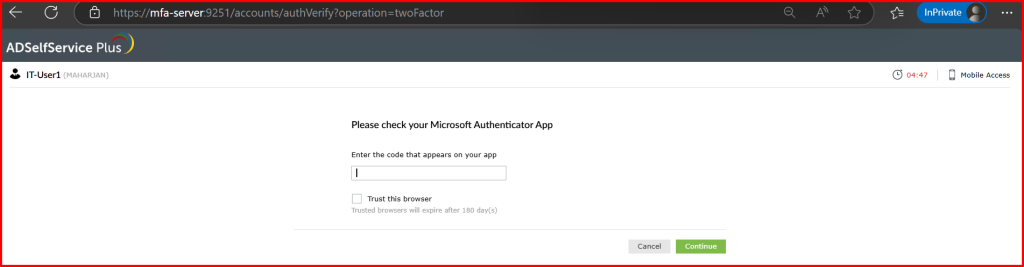
🧪 Step 3: Testing the Experience
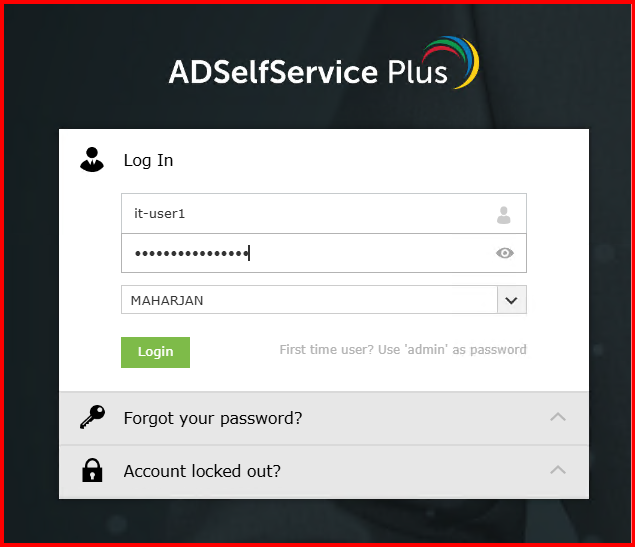
- I opened the ADSelfService Plus portal in an incognito browser
- Logged in as a test user
- This time, after entering the password, the user was correctly prompted for the second factor
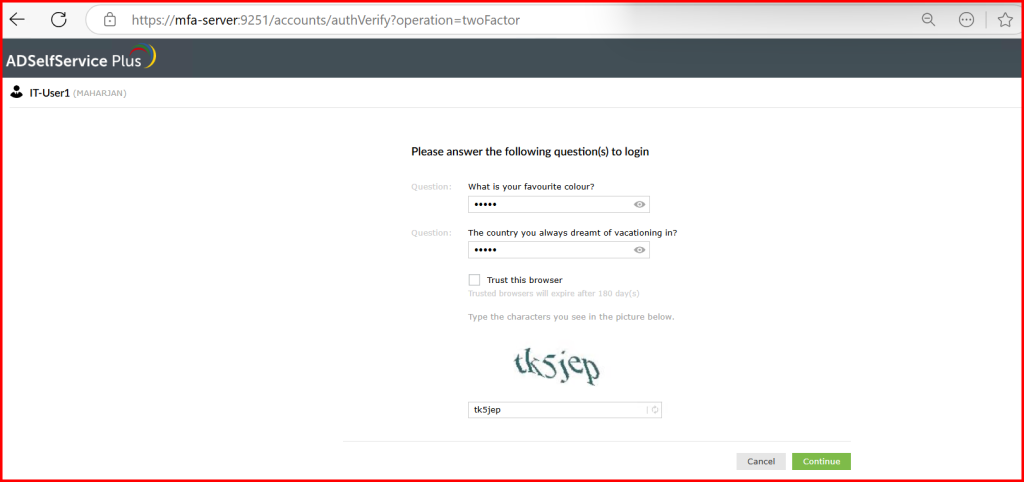
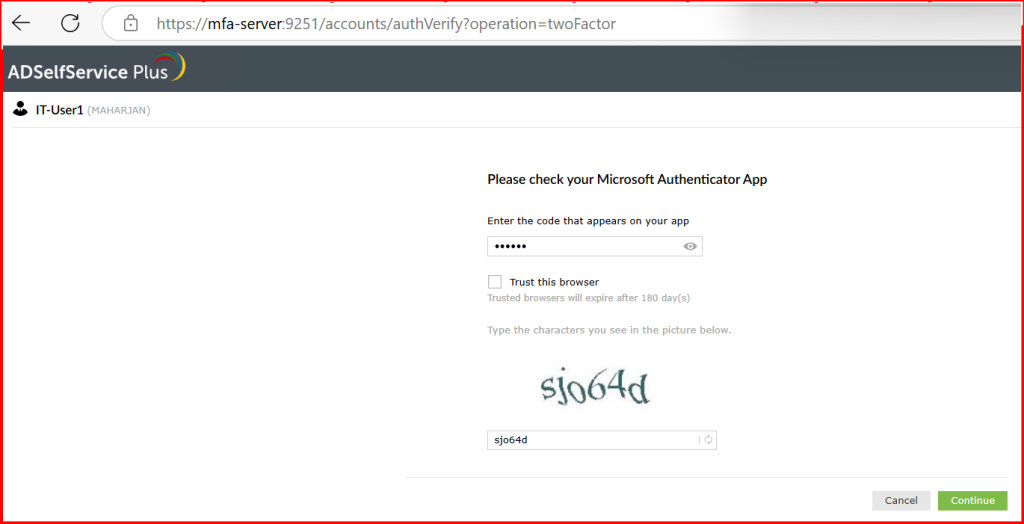
🚫 Removing CAPTCHA from the Web Portal Login
In my testing, users found the CAPTCHA prompt at login unnecessary, especially when MFA was already enabled. Here’s how I removed it from ADSelfService Plus.
🔧 Step 1: Go to Admin → Admin Settings
- I logged into the ADSelfService Plus admin portal
- Navigated to:
Admin → Product Settings → Login Settings
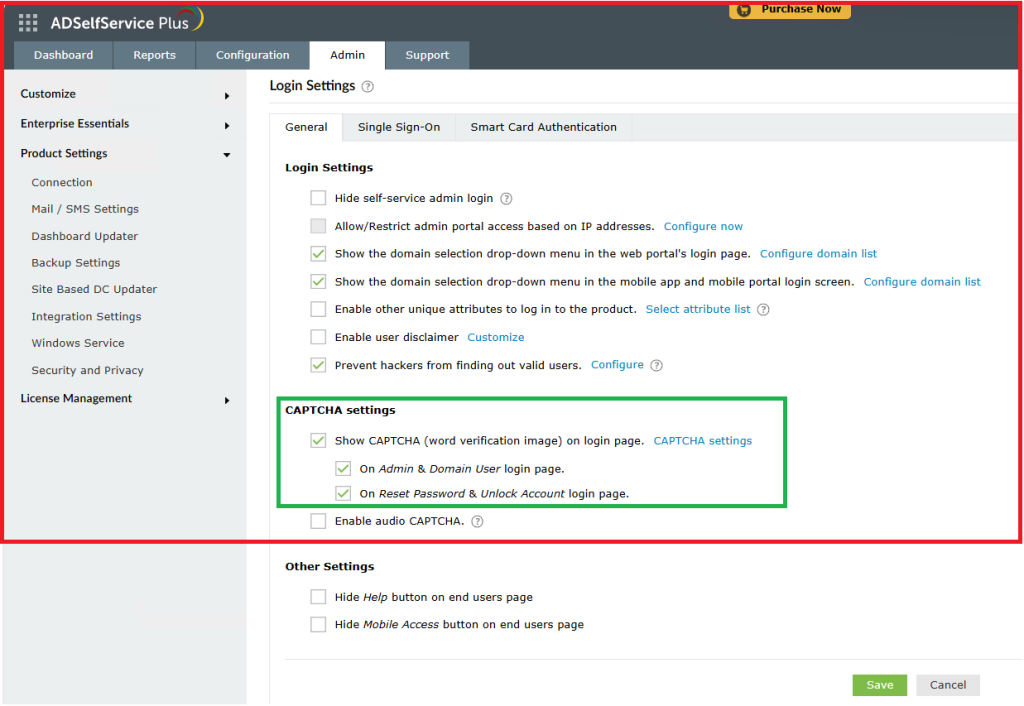
❌ Step 2: Disable CAPTCHA
- Located the option:
✅ Show CAPTCHA in login page - Unchecked it
- Also unchecked Show CAPTCHA in reset/unlock pages, if not needed
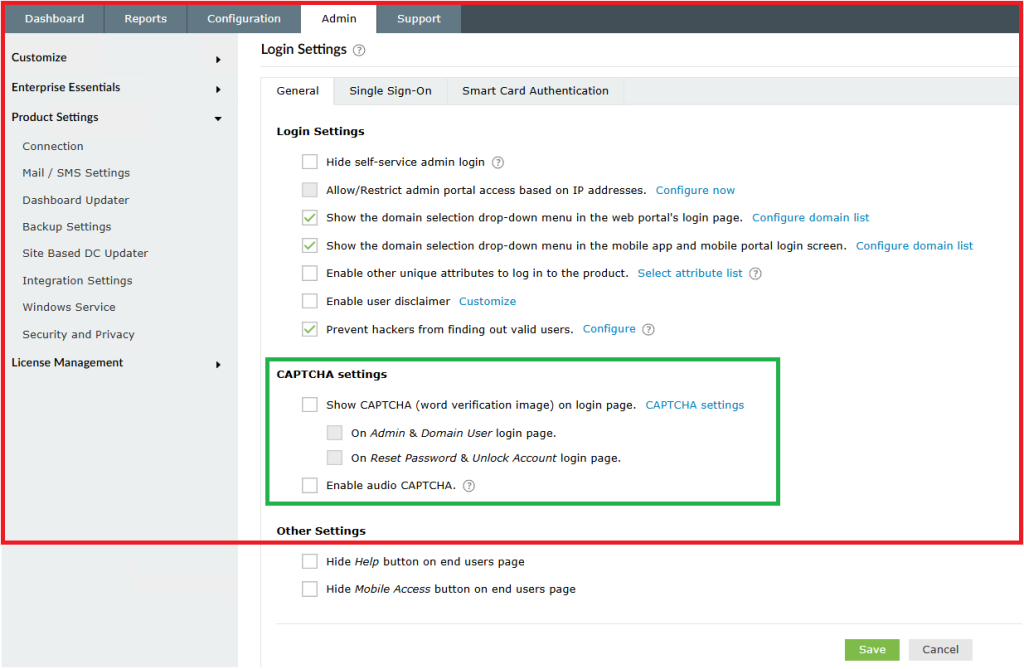
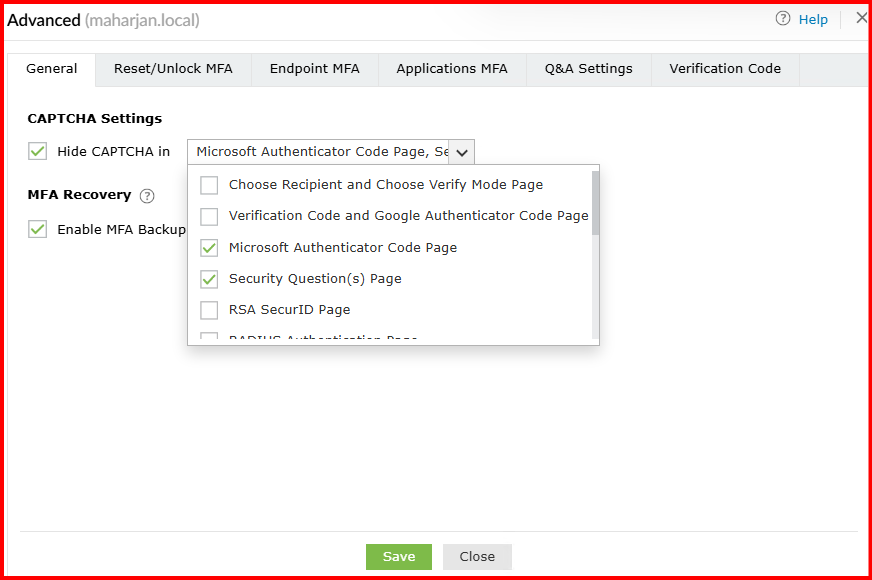
4. Save it.
🧪 Step 3: Testing the Experience

🔍 Things to Keep in Mind
- MFA for the web portal is not enabled by default
- It must be configured separately from endpoint MFA (Windows, OWA, VPN, etc.)
- Make sure users have enrolled in the methods you’ve selected for authentication
- You can use Enrollment Reports to verify readiness