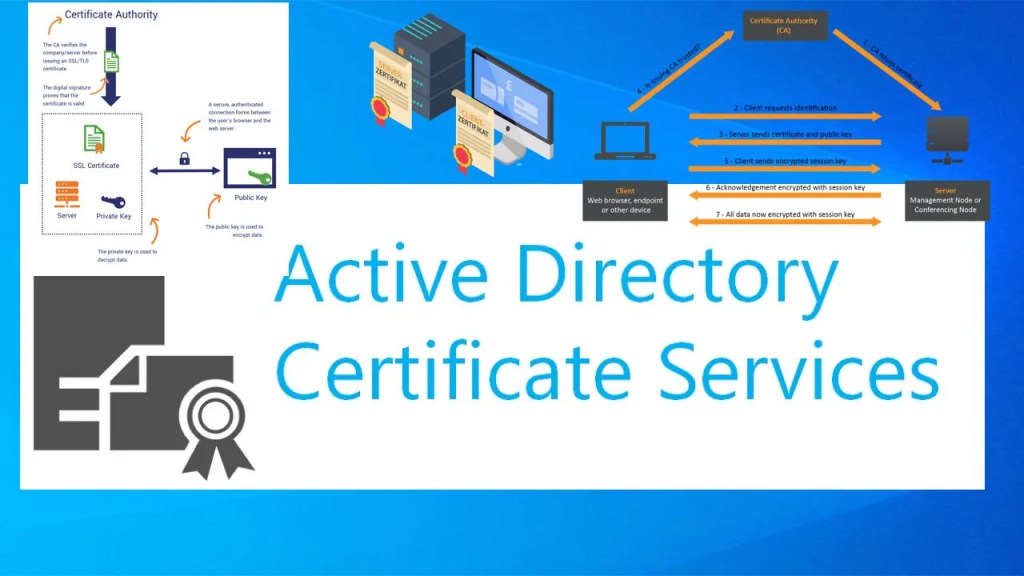
Hi everyone! In this blog series, I’m going to take you on a journey through Active Directory Certificate Services (AD CS)—from the basics to more advanced concepts. If you’ve ever been confused by terms like “PKI,” “Root CA,” or “auto-enrollment,” you’re not alone. I was there too, and that’s why I decided to write this blog in a simple, practical way that system admins like you and me can relate to.
🌐 What is AD CS?
Active Directory Certificate Services (AD CS) is a Microsoft server role that allows me to build and manage a Public Key Infrastructure (PKI) within my organization. In simple terms, it helps issue and manage digital certificates used for securing communications and verifying identities across our network.
🎯 Why Use AD CS?
Here are some real-world scenarios where I’ve seen AD CS in action:
- Secure internal websites with HTTPS (like Exchange OWA or internal portals)
- User and device authentication
- EFS (Encrypting File System) for file encryption
- Email signing and encryption via S/MIME
- Smart card logon
- VPN and Wi-Fi authentication
If your company uses certificates, chances are AD CS is quietly running somewhere behind the scenes making it happen.
🧱 Components of AD CS
Here are the main pieces that make up AD CS. I’ll explain each in more detail in future blogs:
- Certificate Authority (CA) – The engine that issues certificates. This can be a Root CA or a Subordinate CA.
- Certificate Templates – Predefined configurations for certificates (e.g., server authentication, code signing).
- CRL (Certificate Revocation List) – A list of revoked certificates so systems know which ones not to trust.
- OCSP (Online Certificate Status Protocol) – An online way to check if a certificate is valid, faster than CRLs.
- Enrollment Mechanisms – Like manual requests, auto-enrollment through Group Policy, or web enrollment.
🛠️ Standalone vs Enterprise CA
When I installed AD CS the first time, I didn’t know whether to choose Standalone CA or Enterprise CA. Here’s a quick comparison I use to decide:
| Type | Description | Use Case |
|---|---|---|
| Standalone CA | Doesn’t rely on Active Directory | Offline Root CA, isolated systems |
| Enterprise CA | Fully integrated with Active Directory | Auto-enrollment, user/computer certificates |
🏢 Why I’m Focusing on Enterprise CA
In this series, I’ll focus entirely on Enterprise CA deployments—because they integrate with Active Directory and allow us to take advantage of features like:
- Auto-enrollment via Group Policy
- Integration with user and computer accounts
- Simplified management through templates
- Built-in security and trust in a domain environment
Standalone CA setups (like offline root CAs) are used mainly in multi-tiered or isolated environments, and while they’re useful, they’re not my focus in this series.
💡 What You’ll Learn in This Series
I’ll cover everything from installation to hardening and automation, including:
- Installing the Enterprise Root CA and optional Subordinate CAs
- Configuring certificate templates and auto-enrollment
- Issuing certificates for services like IIS, Exchange, and RADIUS
- Setting up OCSP and publishing CRLs
- Hardening the CA and managing the certificate lifecycle
- Troubleshooting common AD CS problems
- Migrating or backing up a CA safely
🧭 Next Up
In the next post, I’ll guide you through the Enterprise Root CA installation, including recommended best practices, naming conventions, and post-install steps to get your CA ready for real-world use.