🧩 Issue Overview
After successfully setting up Office Online Server (OOS) and trying to edit a PowerPoint (or Word/Excel) file in the browser, you may encounter this message:
“Sorry, you don’t have a license to edit this presentation with your PowerPoint Online.”
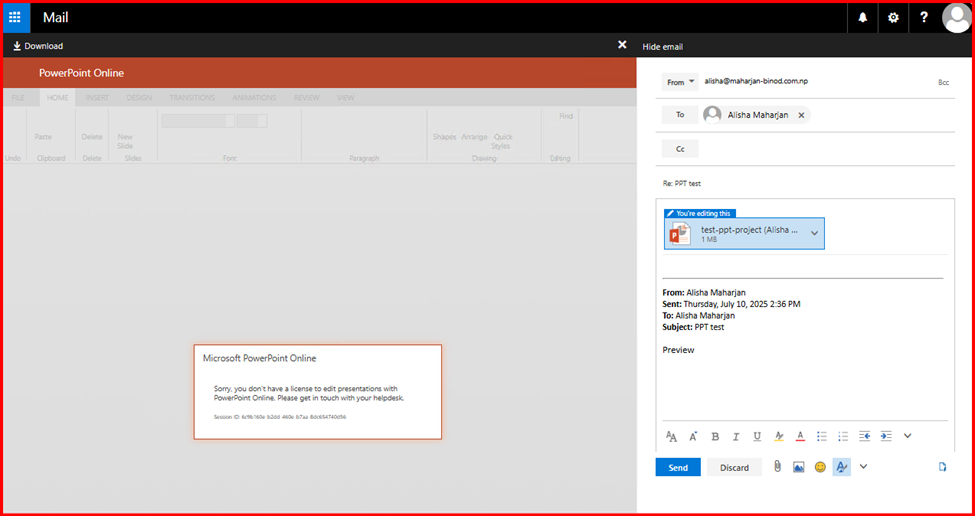
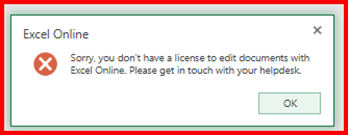
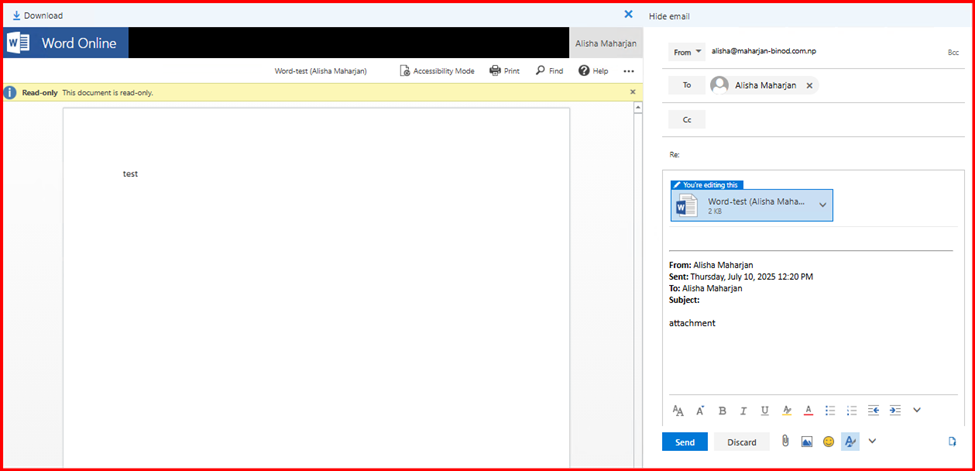
Even though document preview works fine, edit mode is blocked. This isn’t due to a setup error—it’s tied to how you configured the OOS farm and whether Office licensing terms are satisfied.
🧭 Root Cause
By default, Office Online Server only allows viewing unless the server is explicitly enabled for editing AND the users are licensed through one of the following:
- Exchange Server with appropriate licensing
- Volume licensing customers allowed to use Office Online Server for editing
This error means one of two things:
- Editing wasn’t enabled when setting up the OOS farm
- Your setup doesn’t meet licensing terms for editing Office docs in-browser
✅ Resolution Steps
1. Check if Editing Is Enabled in OOS Farm
Run this command on the OOS server:
Get-OfficeWebAppsFarm
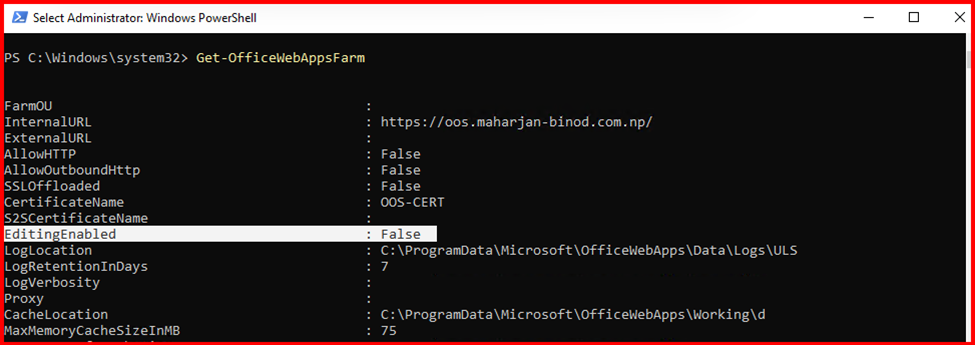
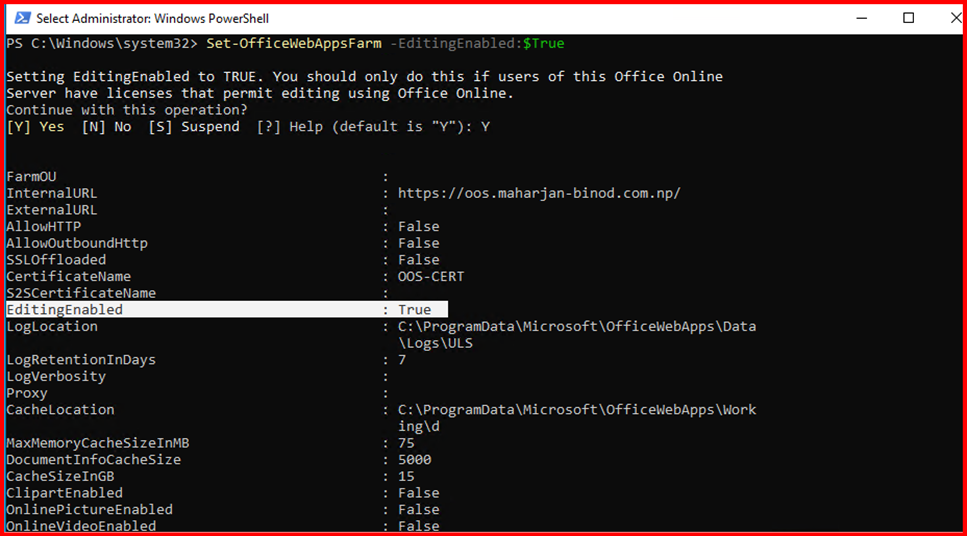
Check if EditingEnabled is set to True.
Set-OfficeWebAppsFarm -EditingEnabled:$true
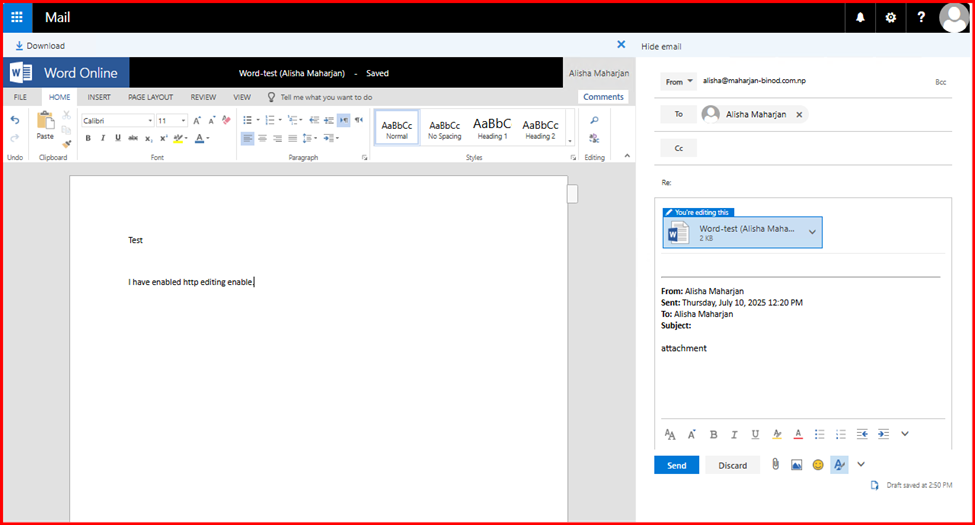
Let’s preview and edit the document:
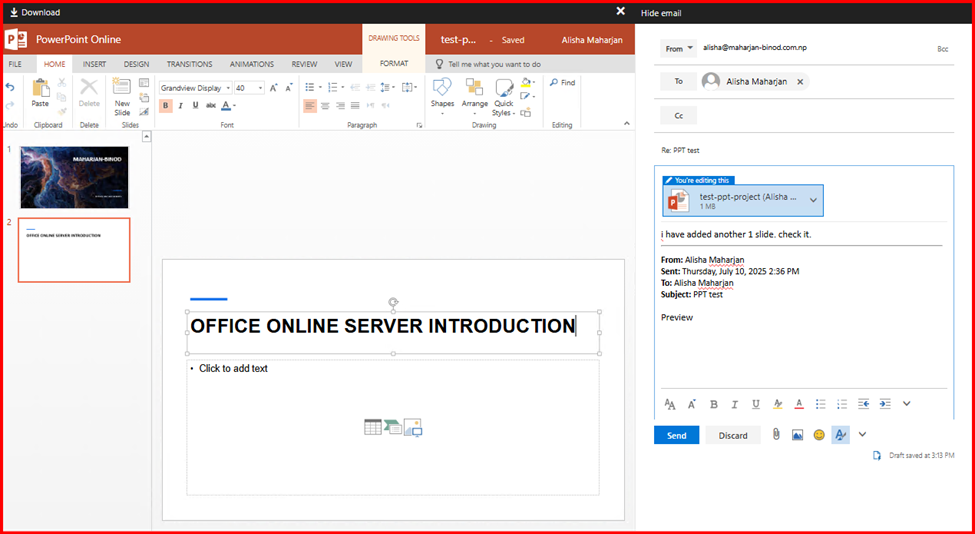
Again, editing the PPT.
🧾 Conclusion
The message “you don’t have a license to edit…” is not a technical error—it’s a licensing enforcement mechanism in Office Online Server. To fix it:
- Ensure you used the
-EditingEnabledflag during OOS setup - Verify you’re properly licensed
- If editing is not needed, configure the farm in view-only mode
This will help keep your deployment compliant and functional for all users.