Scalable Email Infrastructure:
Azure Communication Services & SMTP
Build reliable, enterprise-grade email delivery at scale — with built-in deliverability, domain authentication, and zero server maintenance.
Introduction
Email remains one of the most critical communication channels for modern applications — from transactional notifications and password resets to marketing campaigns and system alerts. But building a reliable, scalable email infrastructure from scratch is genuinely complex.
You need to manage deliverability, handle failures, monitor performance, comply with regulations, and maintain reputation scores across ISPs. Azure Communication Services (ACS) takes all of this complexity off your plate.
What is Azure Communication Services?
Azure Communication Services (ACS) is a cloud-based communication platform built on Microsoft’s battle-tested infrastructure. For email, it provides:
- A fully managed email sending infrastructure
- Built-in email deliverability optimization
- SMTP relay support for easy integration with existing apps
- REST APIs and SDKs for programmatic control
- Domain authentication — DKIM, SPF, DMARC
- Analytics and monitoring dashboards
Sending Methods Comparison
| Feature | SMTP Relay | REST API | SDK |
|---|---|---|---|
| Language Agnostic | ✅ Yes | ✅ Yes | ❌ Limited |
| Easy Setup | ✅ Simple | Medium | Medium |
| Attachment Support | ✅ Yes | ✅ Yes | ✅ Yes |
| Bulk Sending | ✅ Yes | ✅ Yes | ✅ Yes |
| Real-time Status | ❌ No | ✅ Yes | ✅ Yes |
Prerequisites
- An active Azure subscription (free tier works for testing)
- Azure CLI installed, or access to the Azure Portal
- A custom domain you own (e.g.,
yourdomain.com) - Access to your domain’s DNS settings
- A code editor and basic command-line knowledge
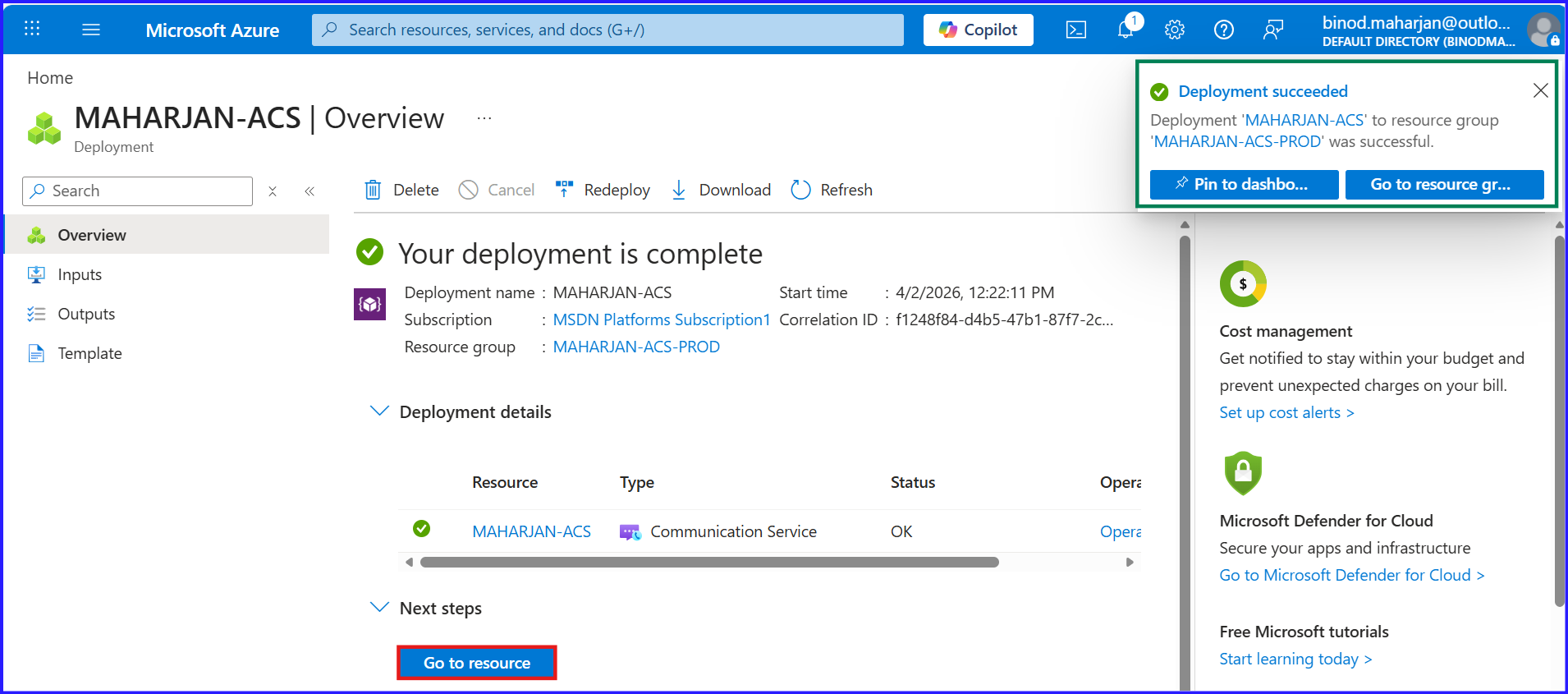
Create an Azure Communication Services Resource
1.1 — Navigate to Azure Portal
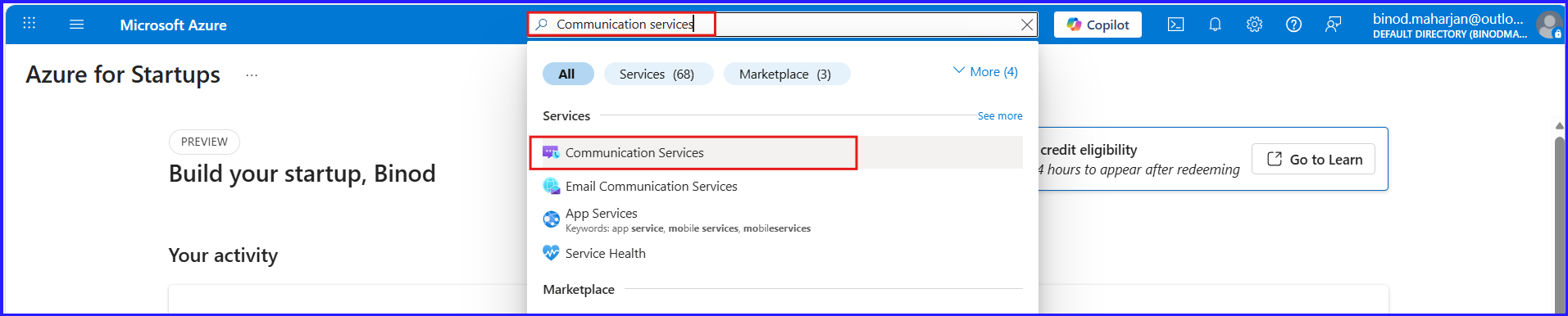
- Go to
portal.azure.comand sign in. - Search for “Communication Services” and select it.
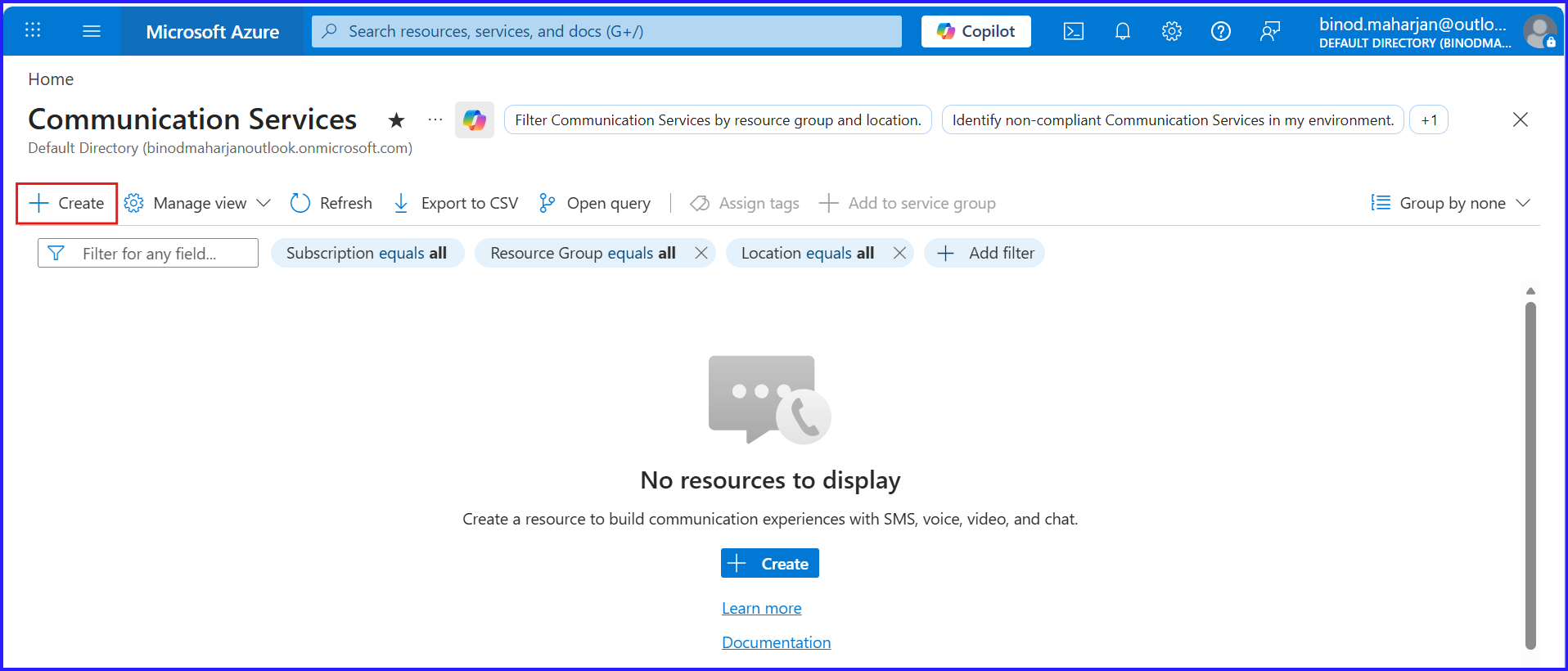
- Click “+ Create”.
1.2 — Configure the Resource
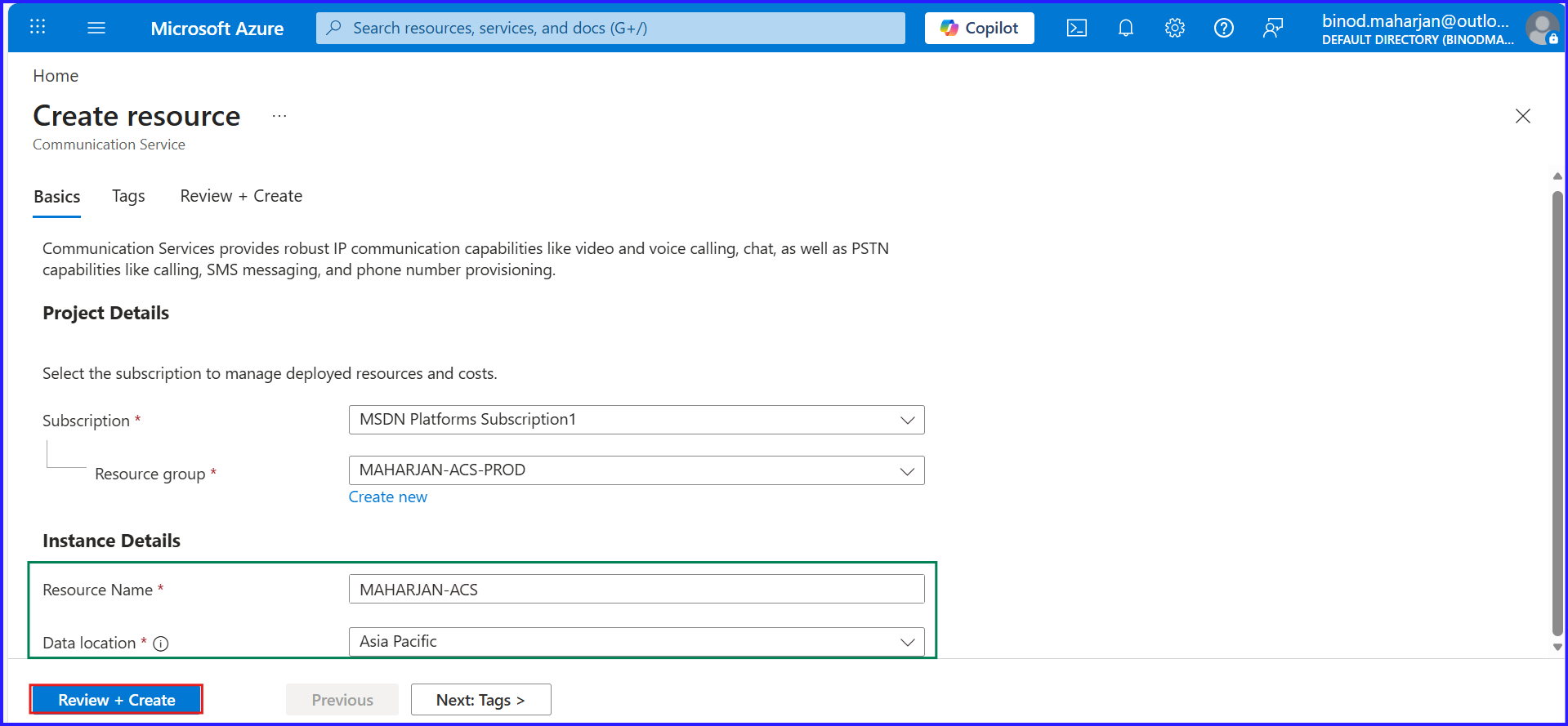
- Select your Subscription and Resource Group.
- Enter a unique Resource Name (e.g.,
MAHARJAN-ACS). - Choose your Data Location.
- Click “Review + Create”, then “Create”.
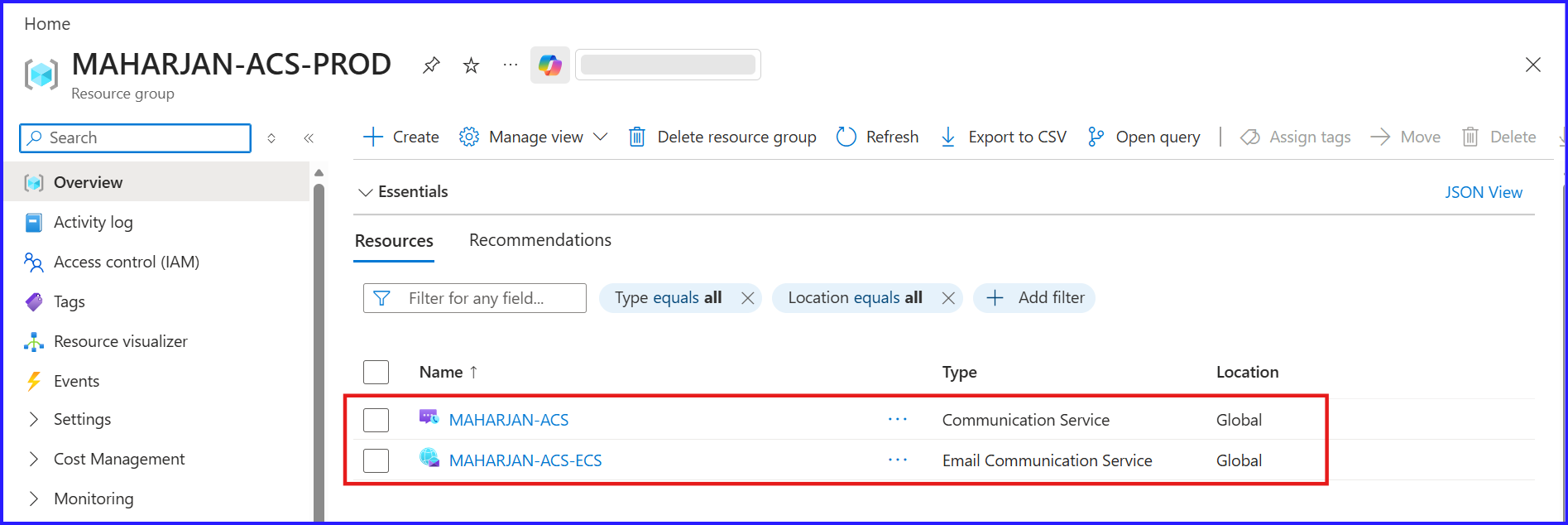
Set Up an Email Communication Service
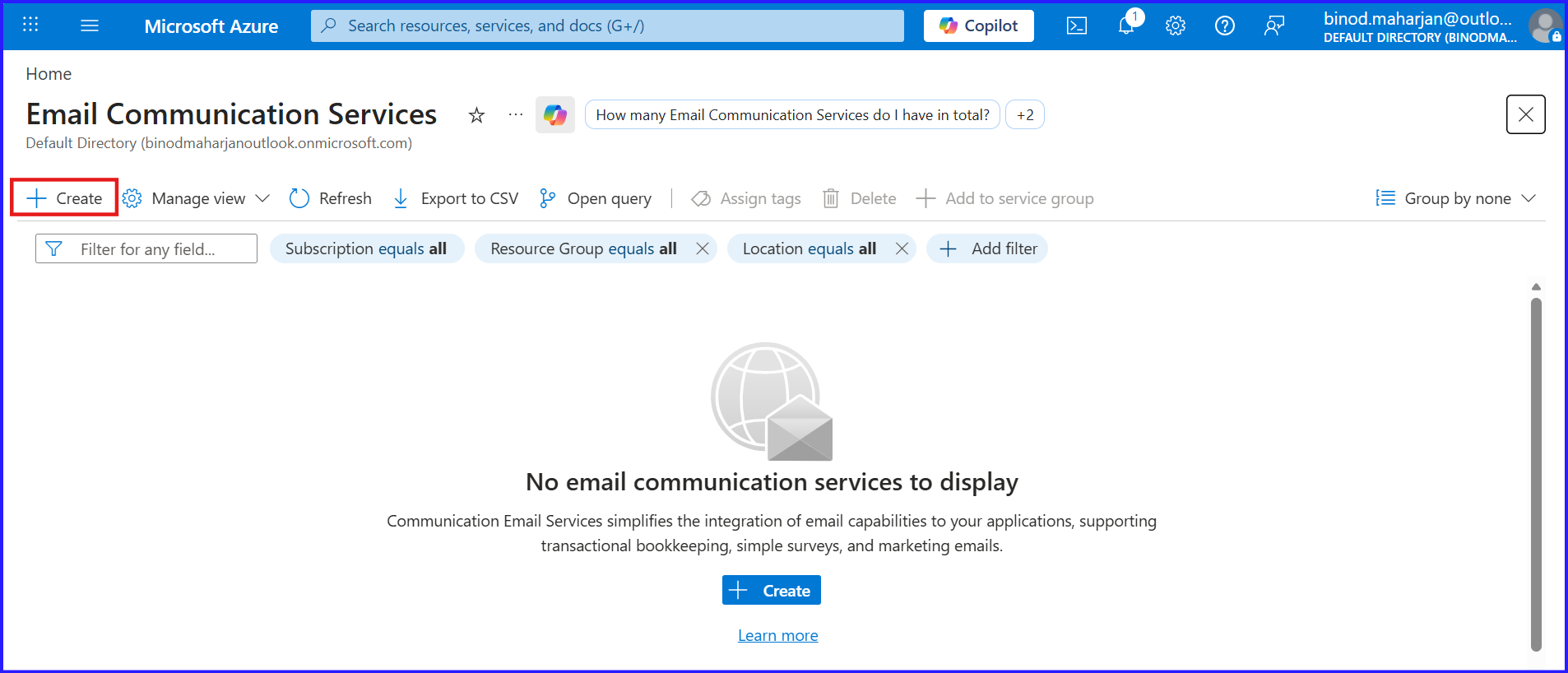
- Inside your ACS resource, navigate to “Email” in the left panel.
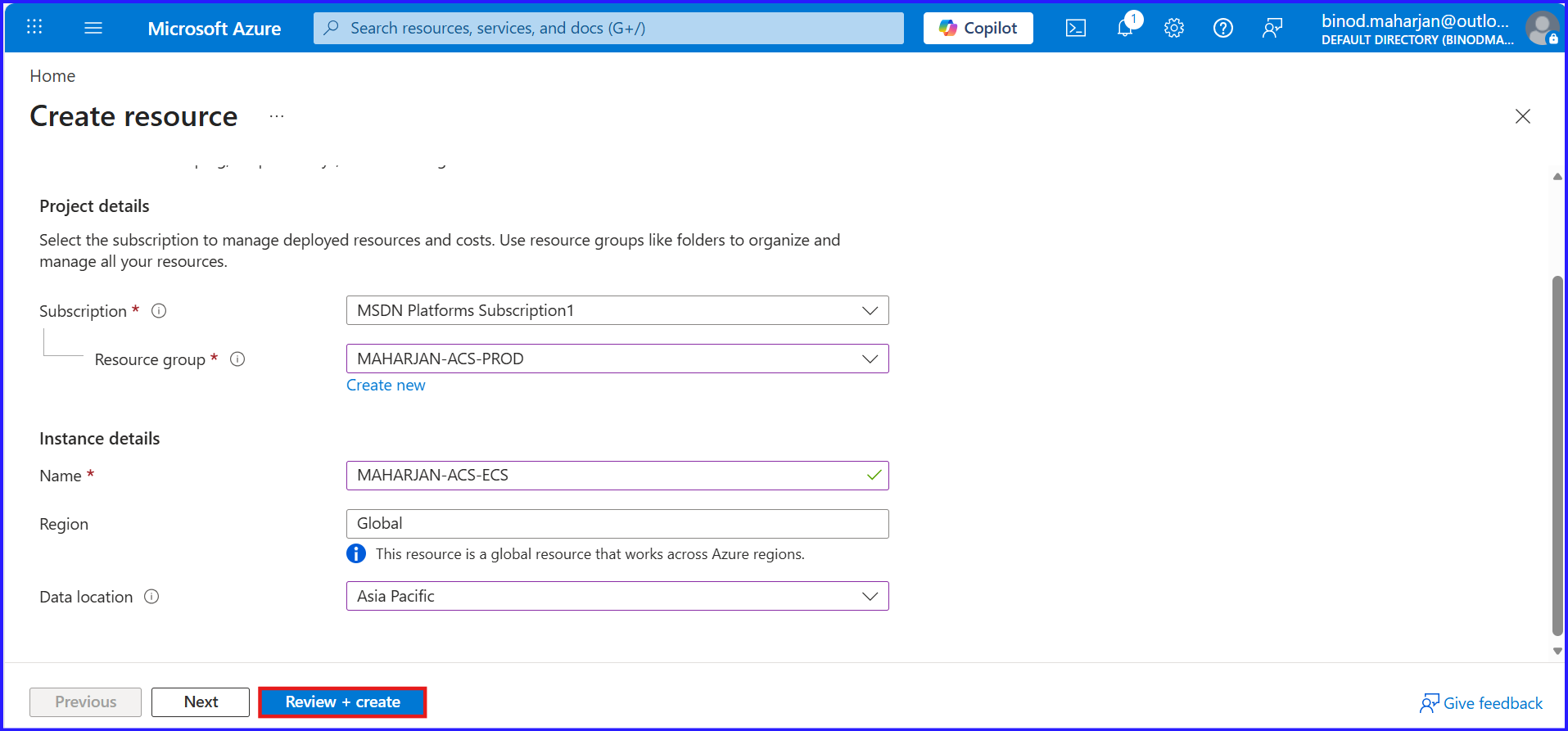
- Search for “Email Communication Services” and click “+ Create”.
- Fill in subscription, resource group, region, and data residency.
- Click “Create”.
Add and Verify Your Custom Domain
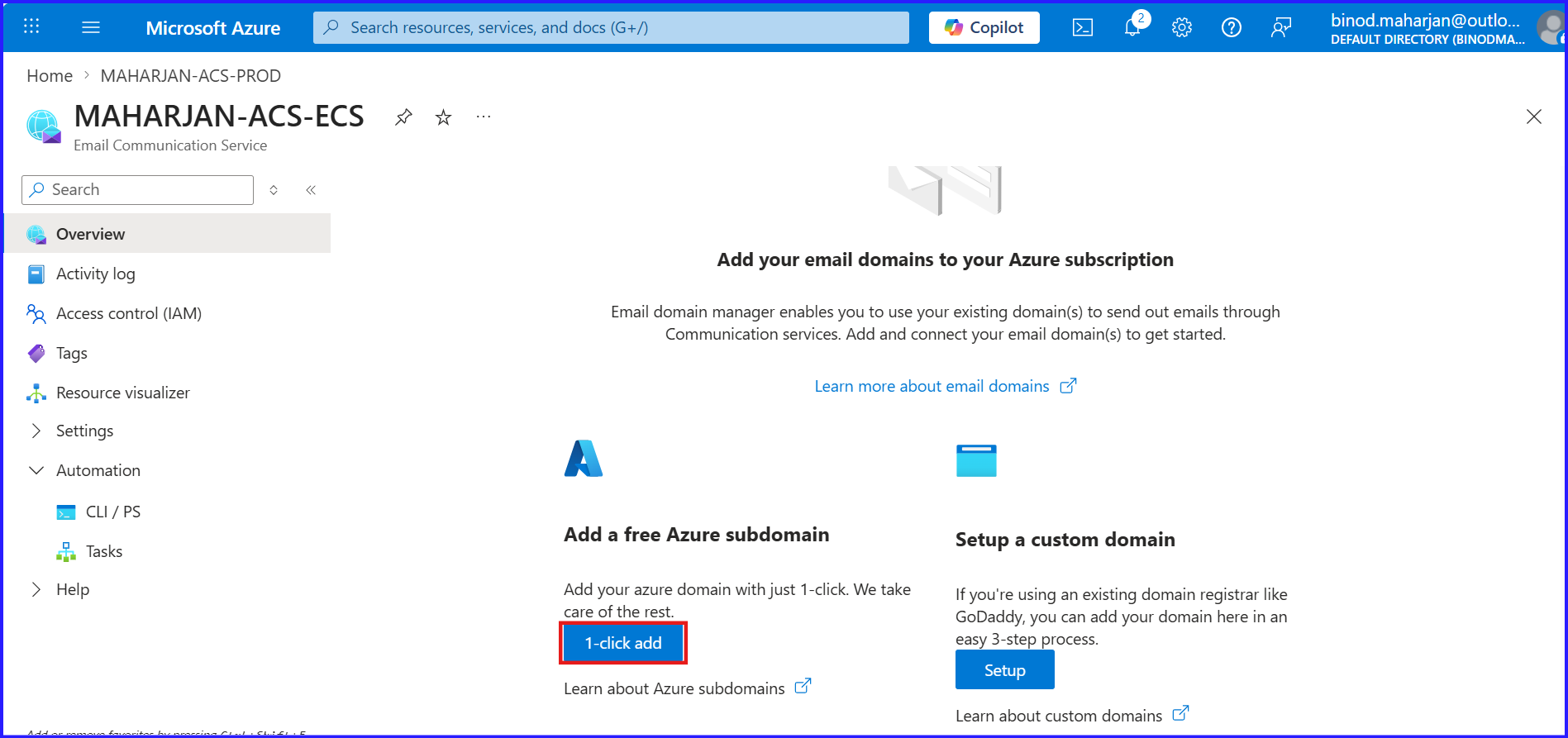
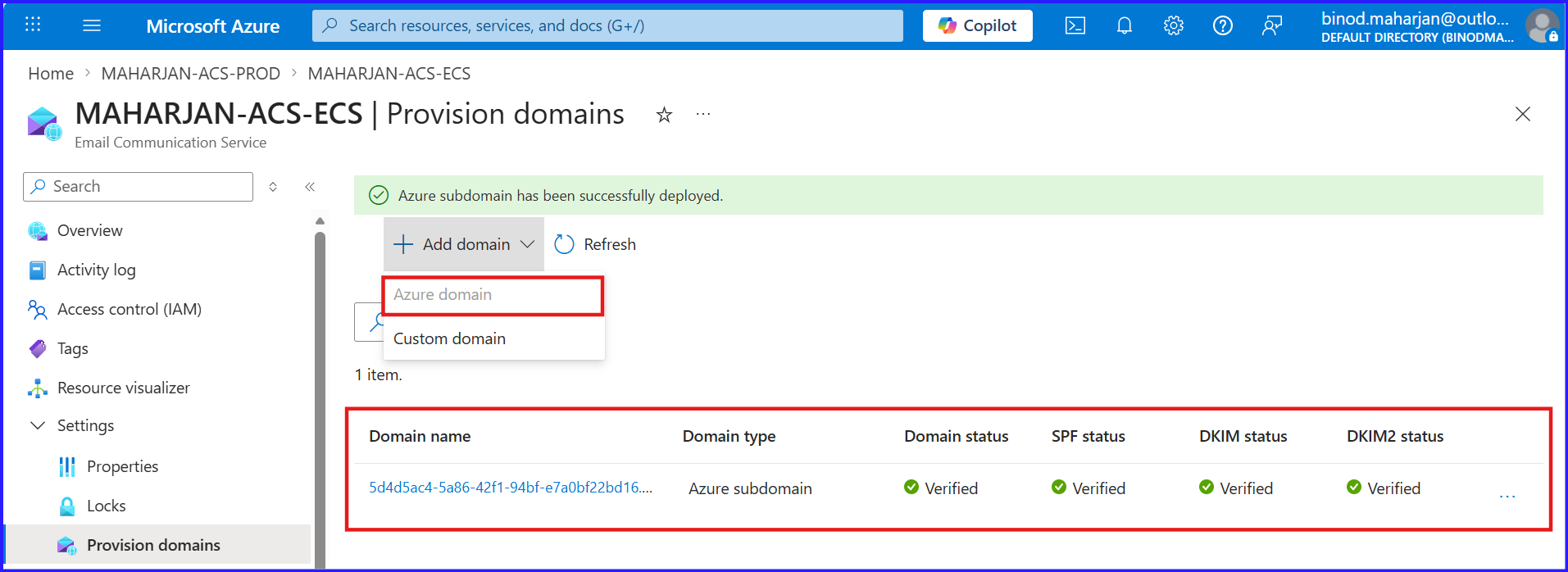
Option A — Azure-Managed Domain (Testing)
- In your Email Communication Service, click “Domains”.
- Click “+ Add domain” → “Azure managed domain”.
- Instantly verified — no DNS steps needed.
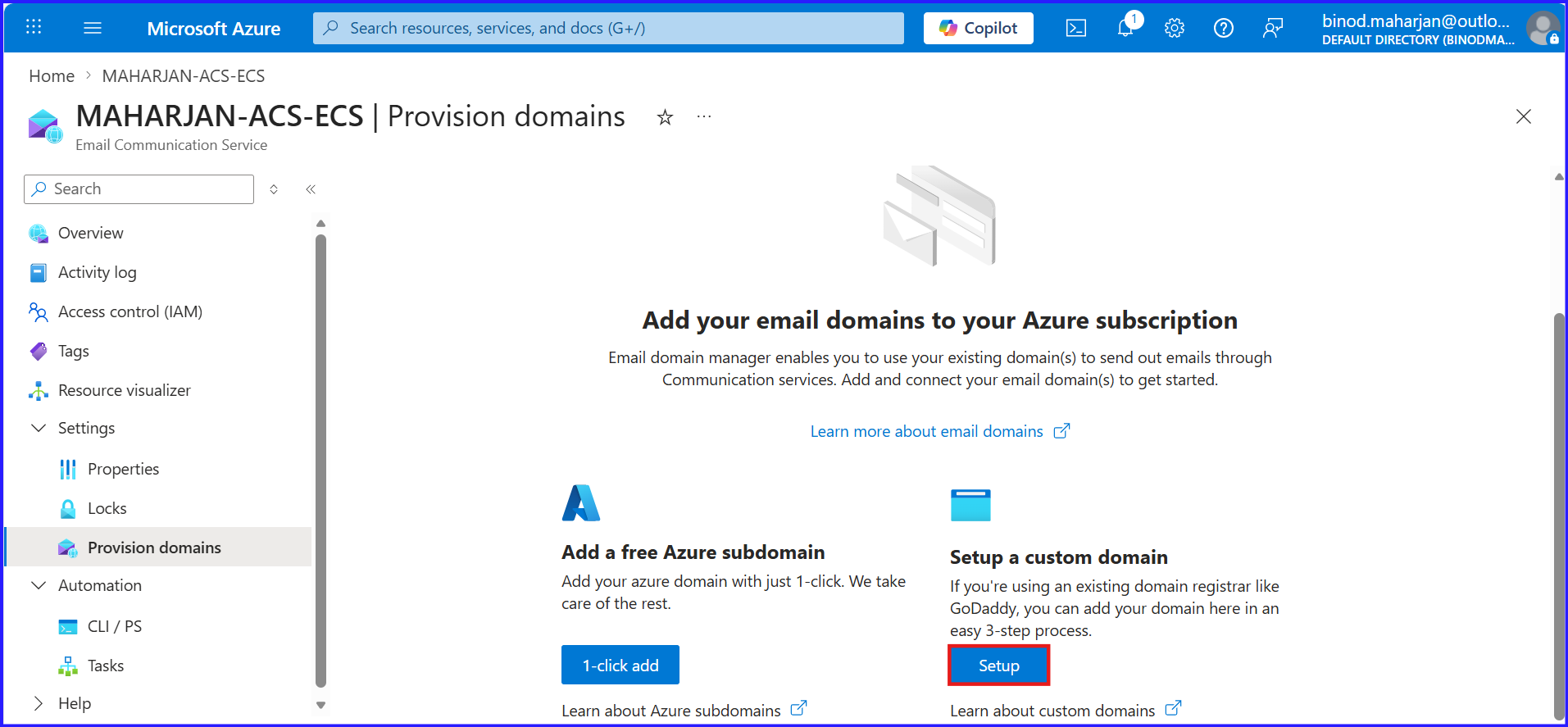
Option B — Custom Domain (Production)
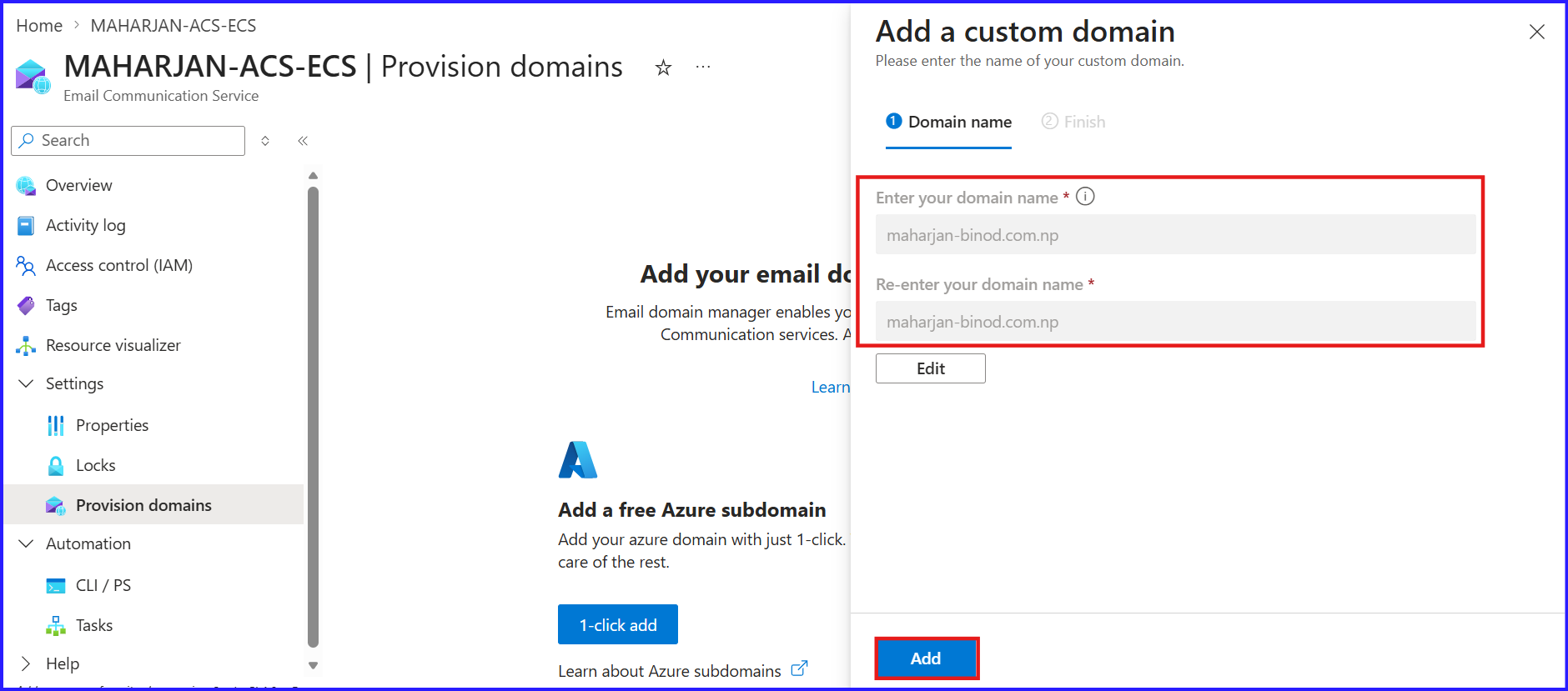
- Click “+ Add domain” → “Custom domain”.
- Enter your domain (e.g.,
maharjan-binod.com.np). - ACS generates SPF, DKIM, and DMARC DNS records.
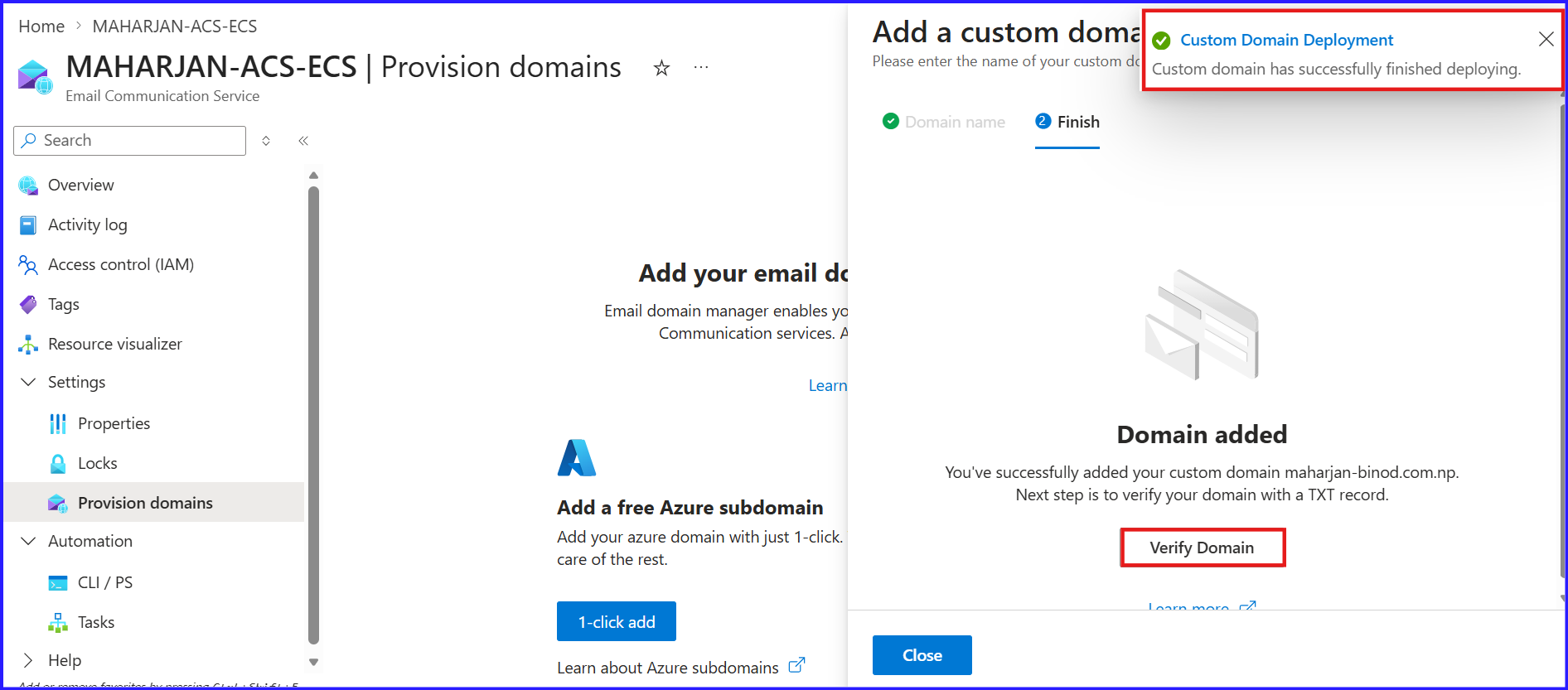
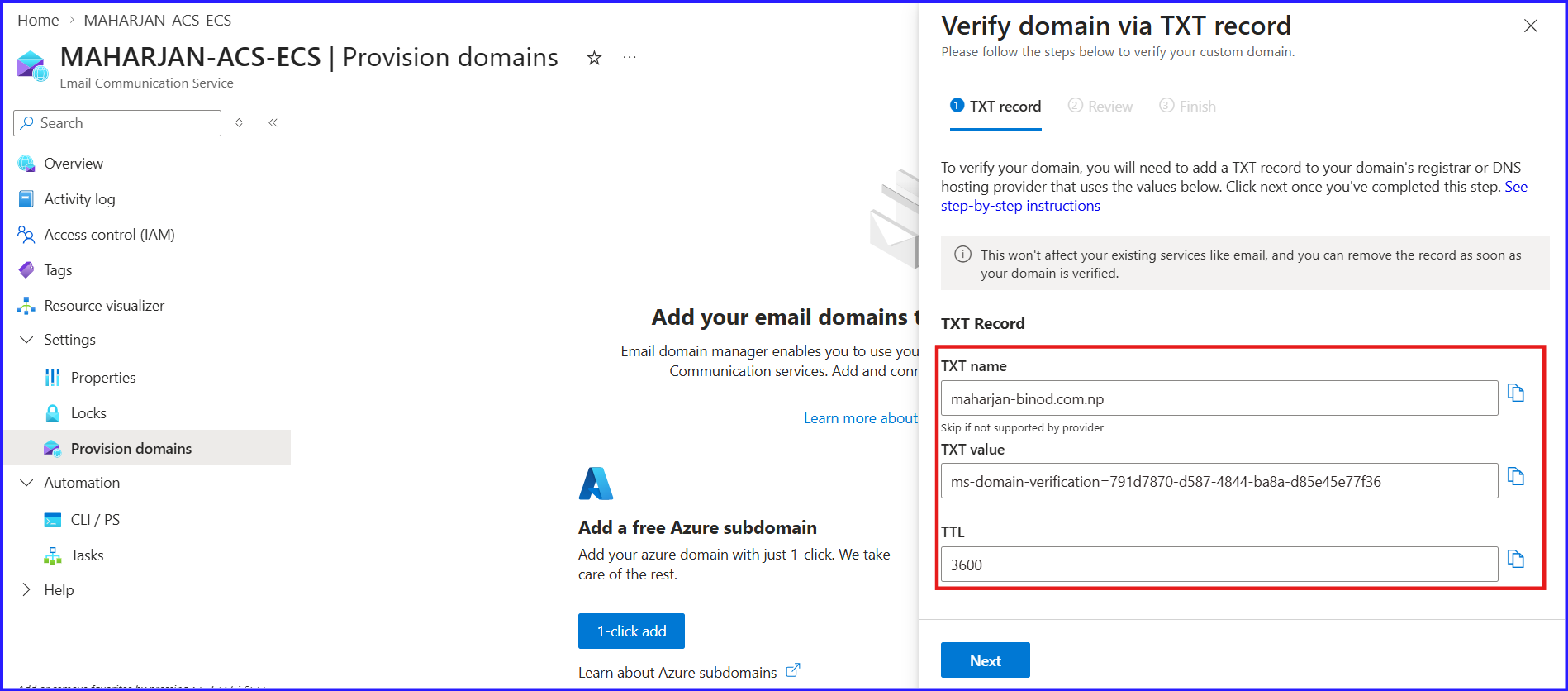
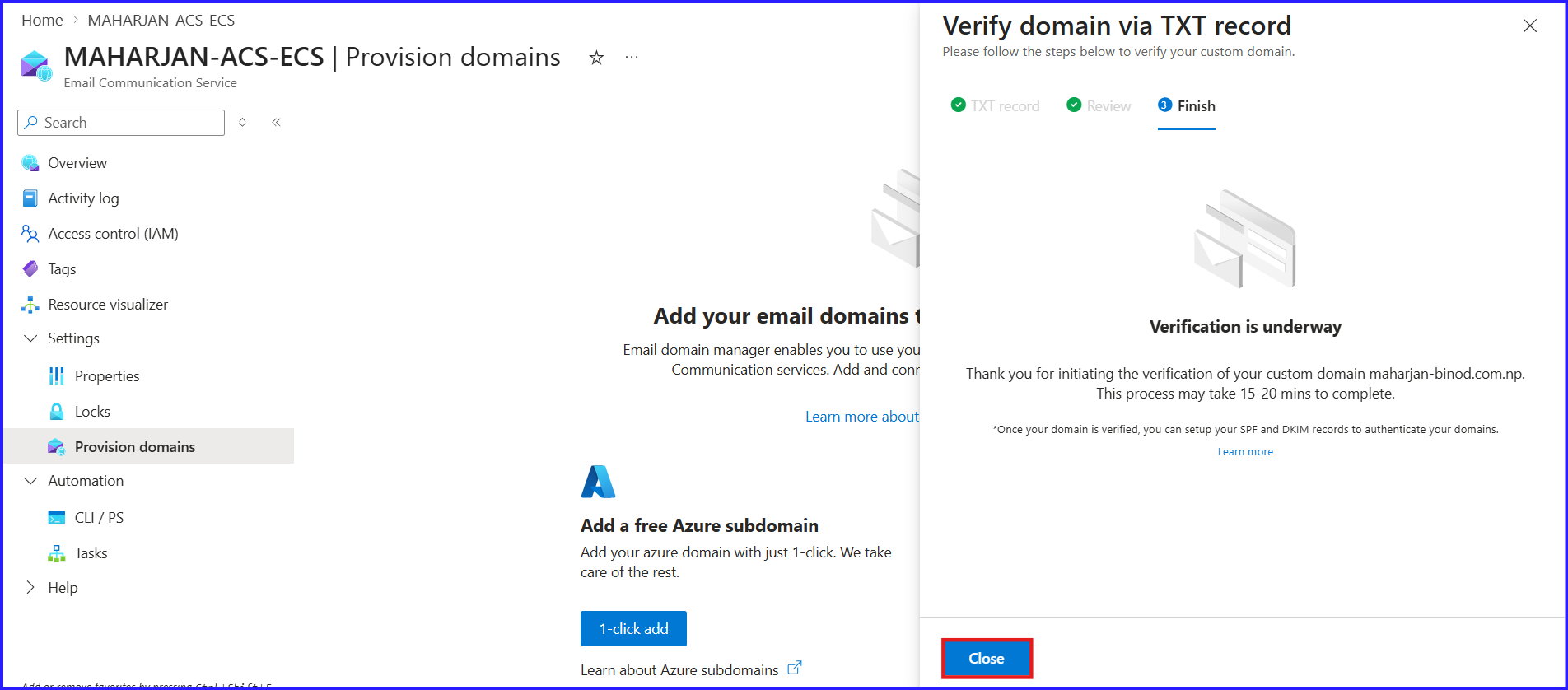
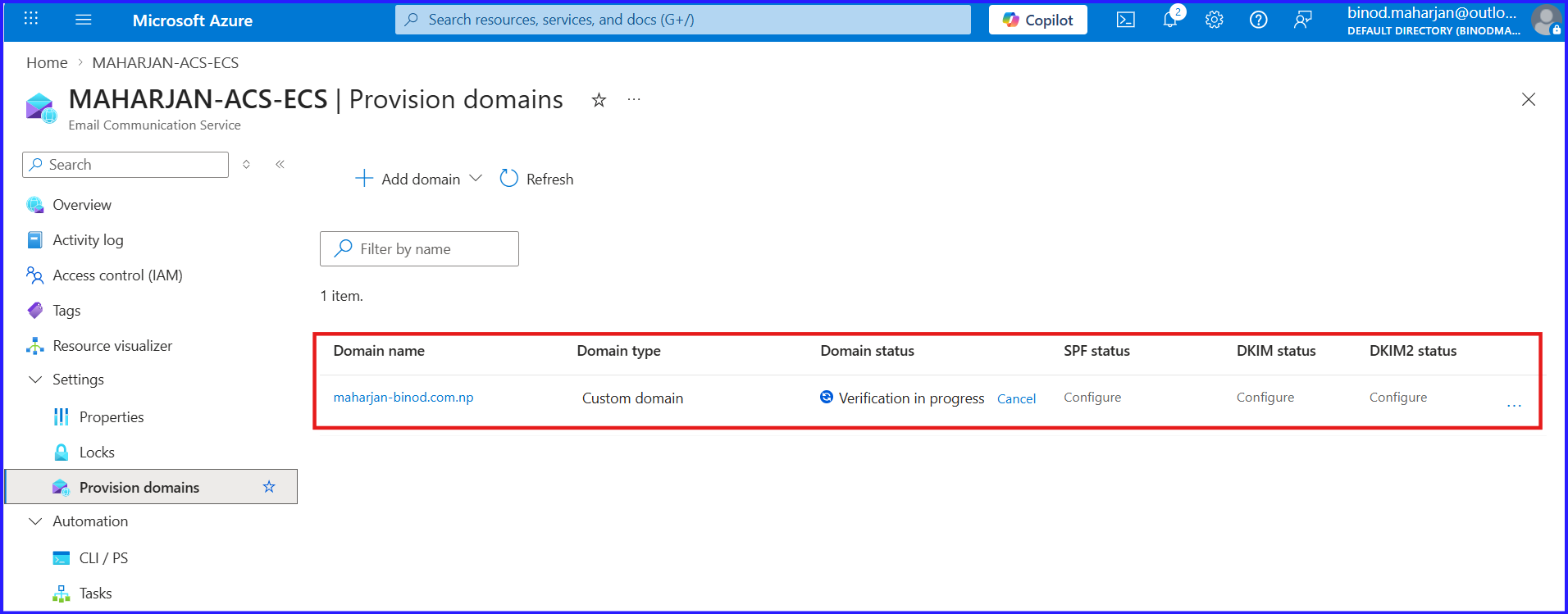
- Add all TXT and CNAME records to your DNS provider.
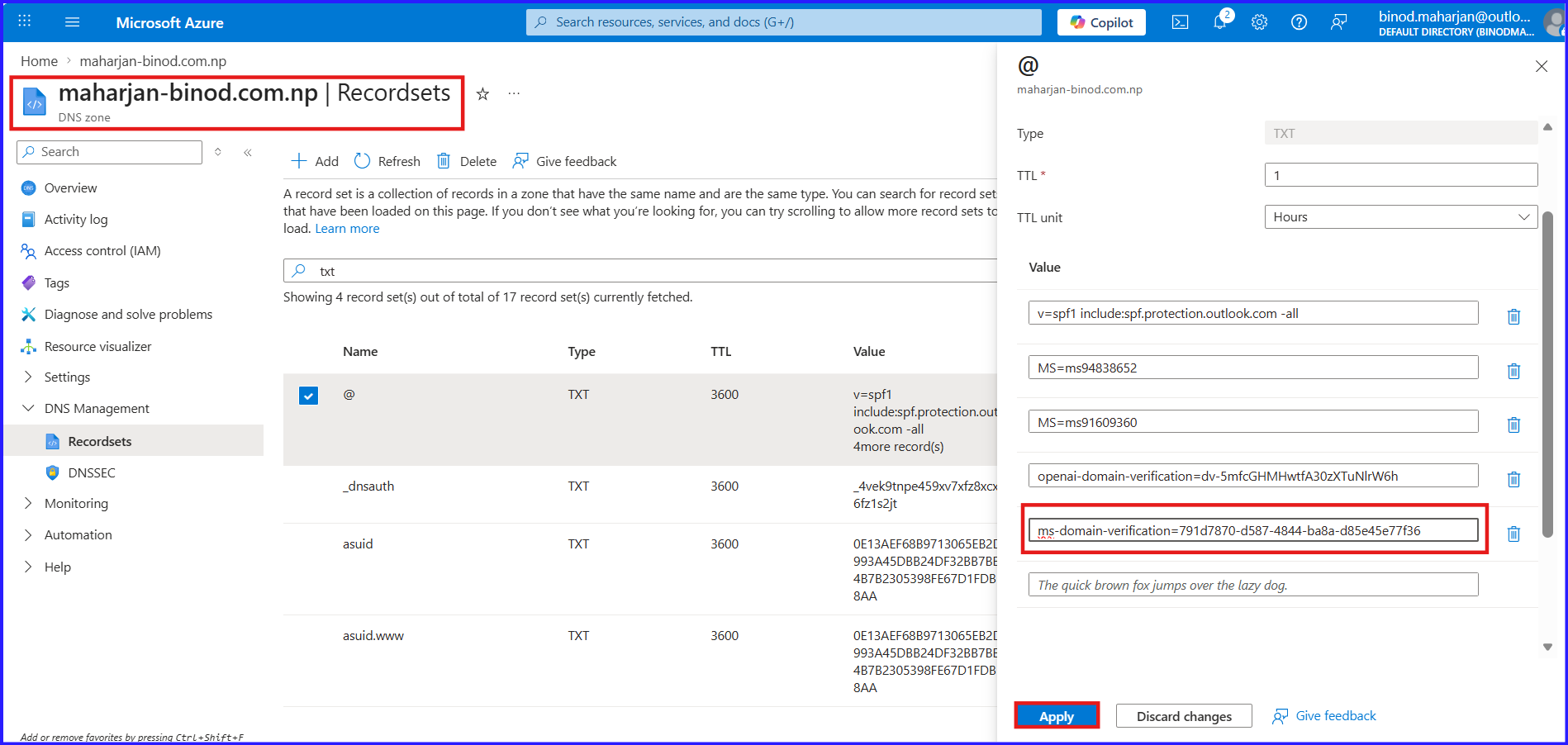
- Return to ACS and click “Verify” (propagation: 5–60 min).
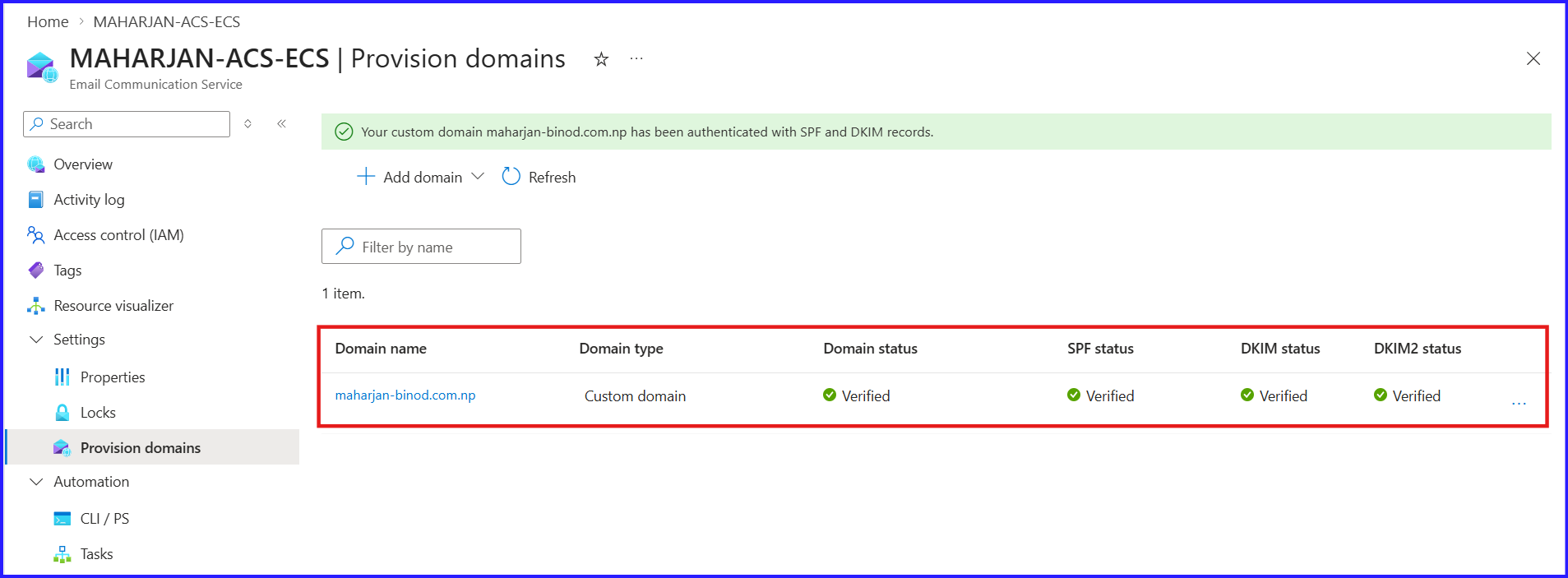
Link Domain to Your ACS Resource
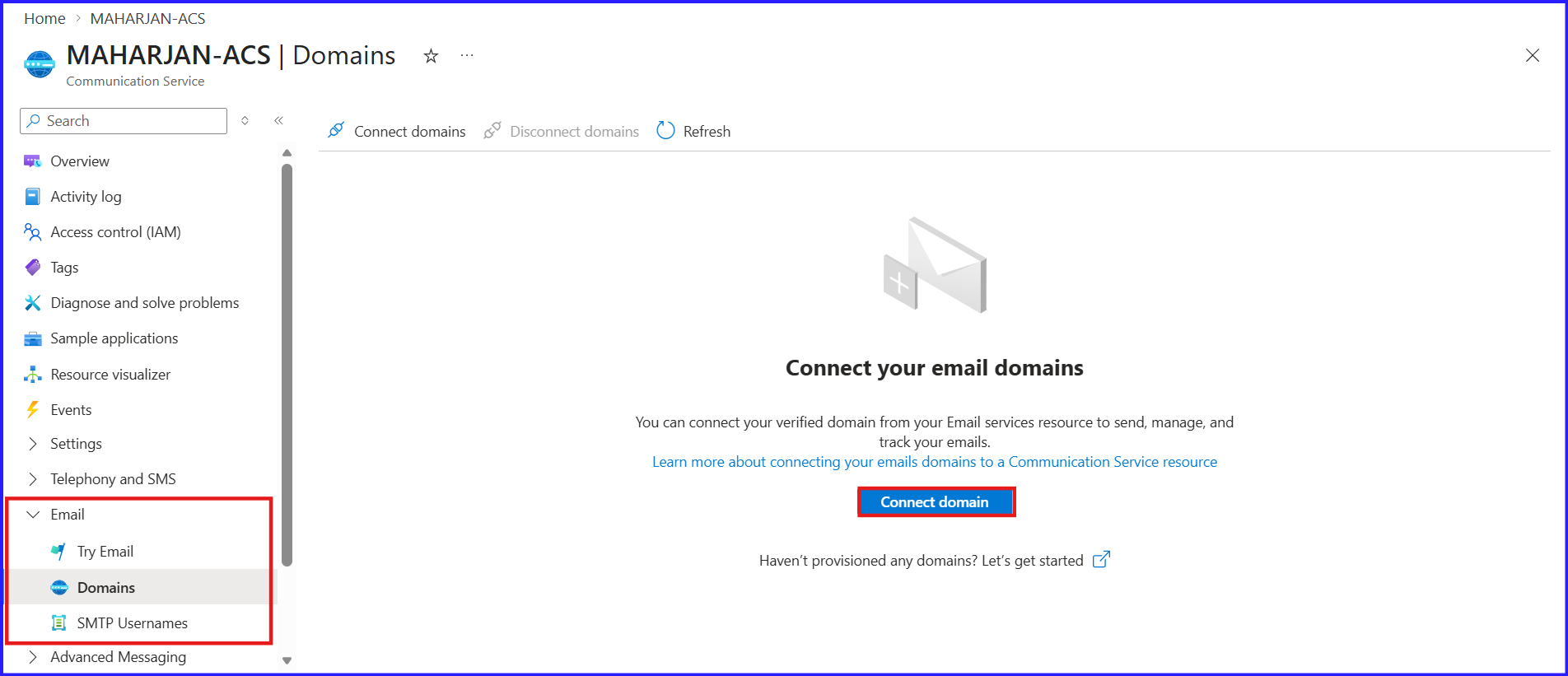
- Go to your ACS resource → “Email” → “Domains”.
- Click “+ Connect domain”.
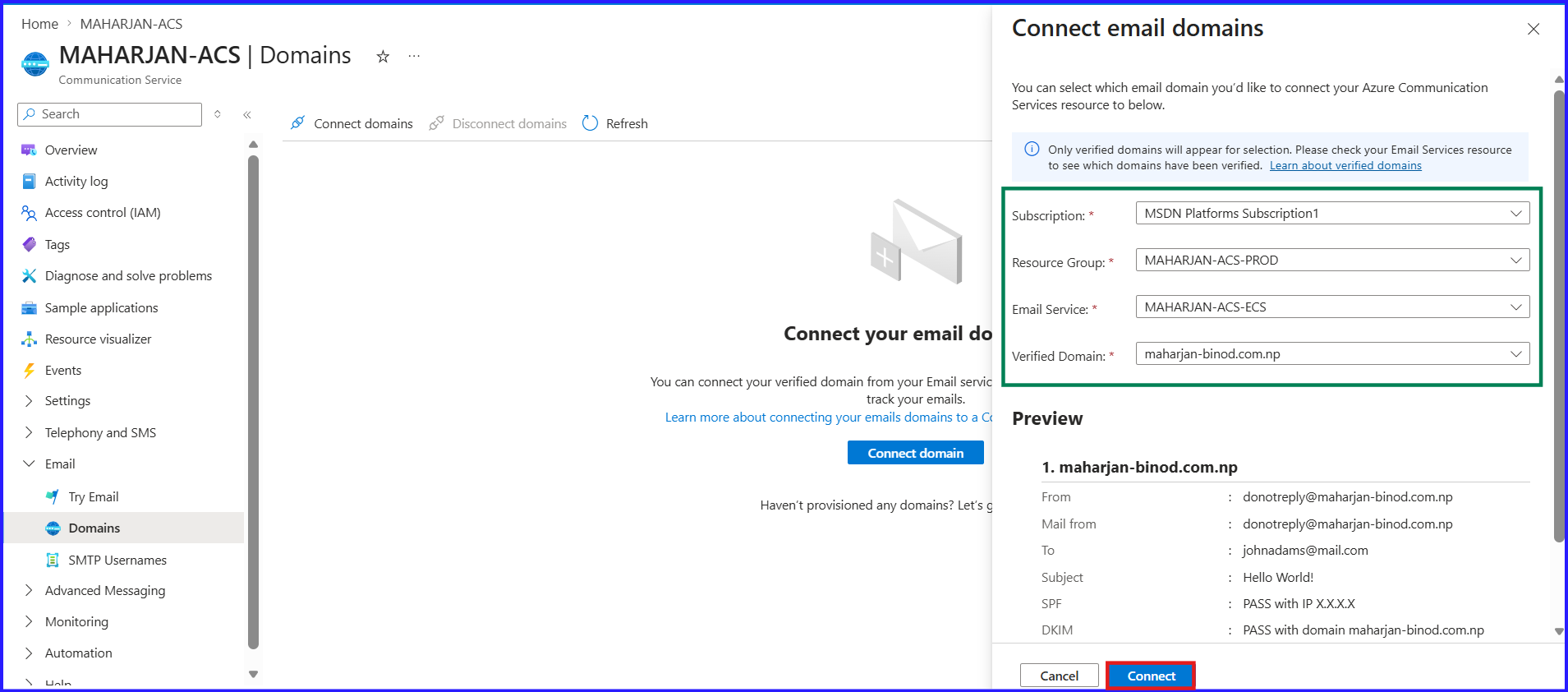
- Select your Email Communication Service and verified domain.
- Click “Connect”.
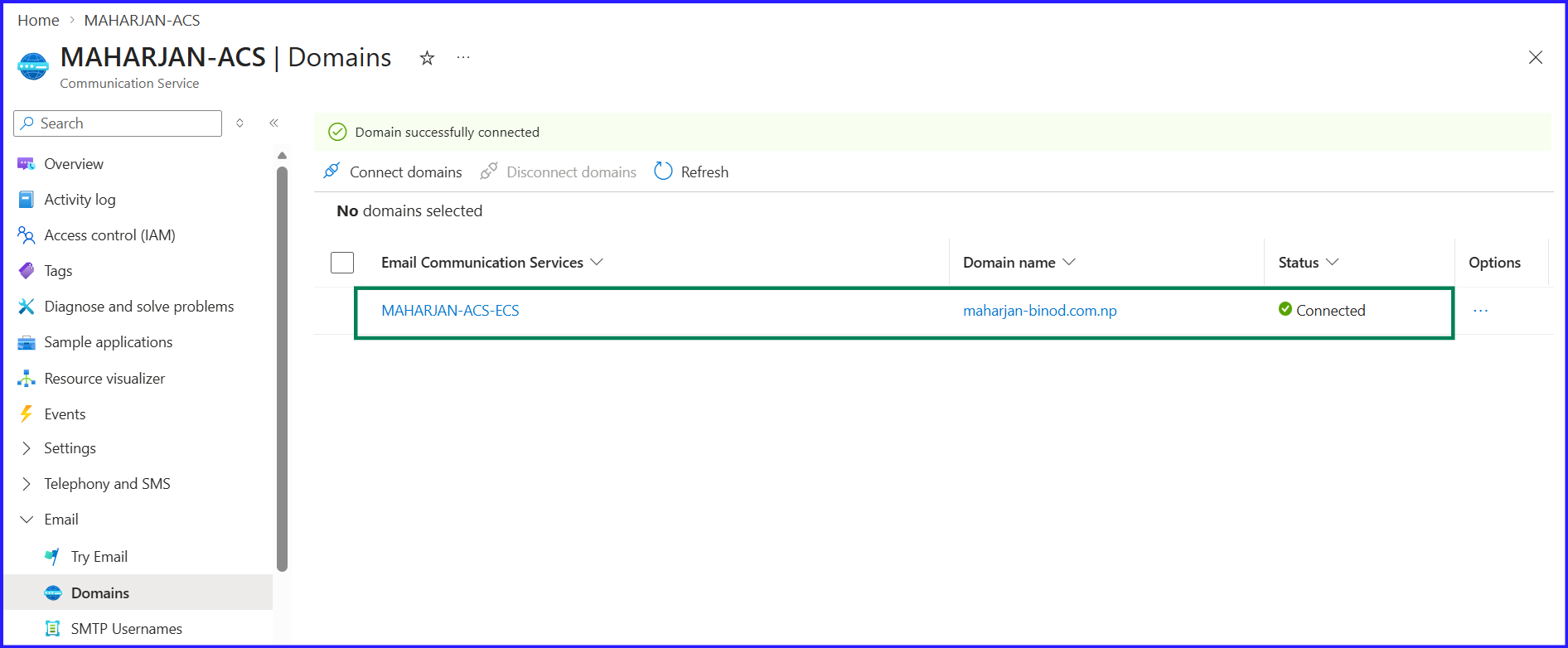
Generate SMTP Credentials
- Navigate to “Settings” → “Keys” in your ACS resource.
- Copy the Primary connection string.
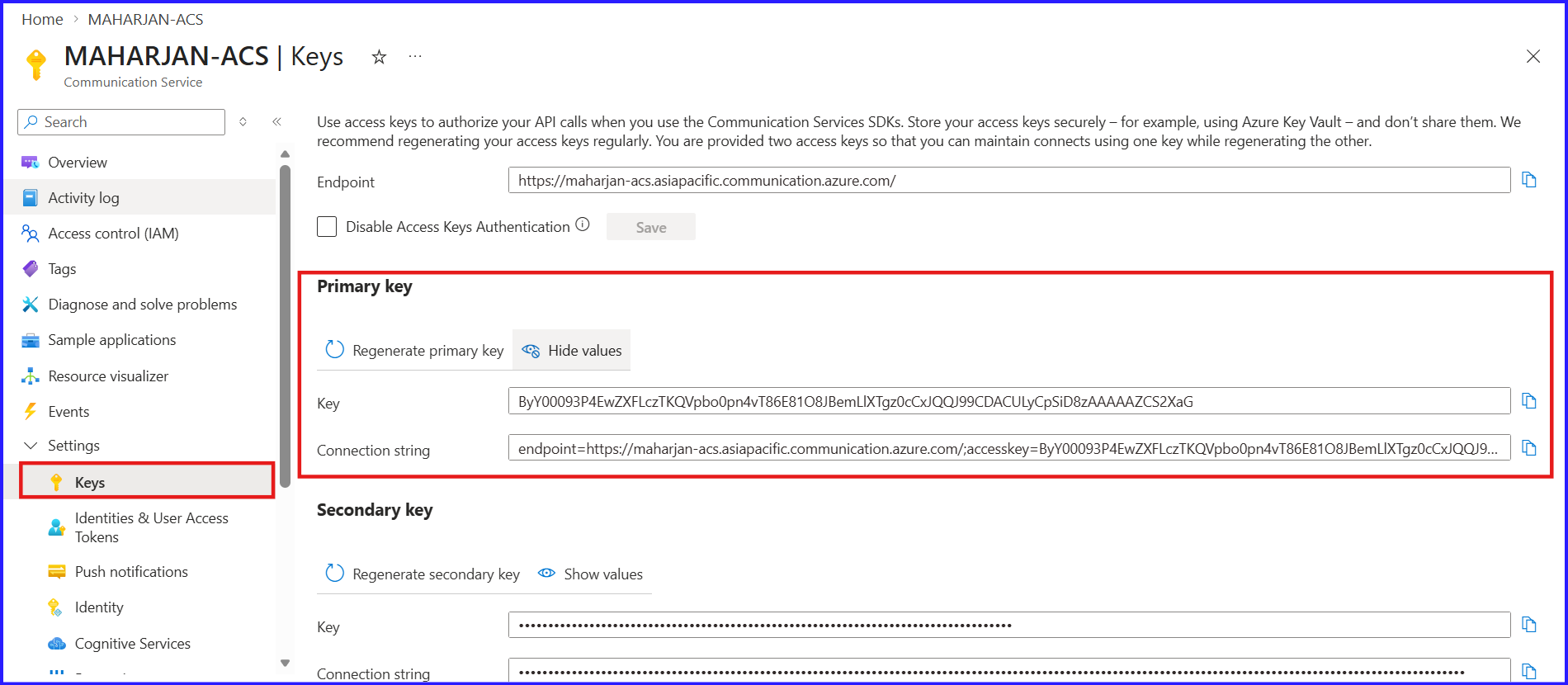
| Setting | Value |
|---|---|
| SMTP Host | smtp.azurecomm.net |
| SMTP Port | 587 (TLS) or 465 (SSL) |
| Encryption | STARTTLS |
| Username | <ResourceName>.<AccessKey> |
| Password | Your Base64-encoded Access Key |
| From Address | donotreply@<your-verified-domain> |
Send Your First Email via SMTP
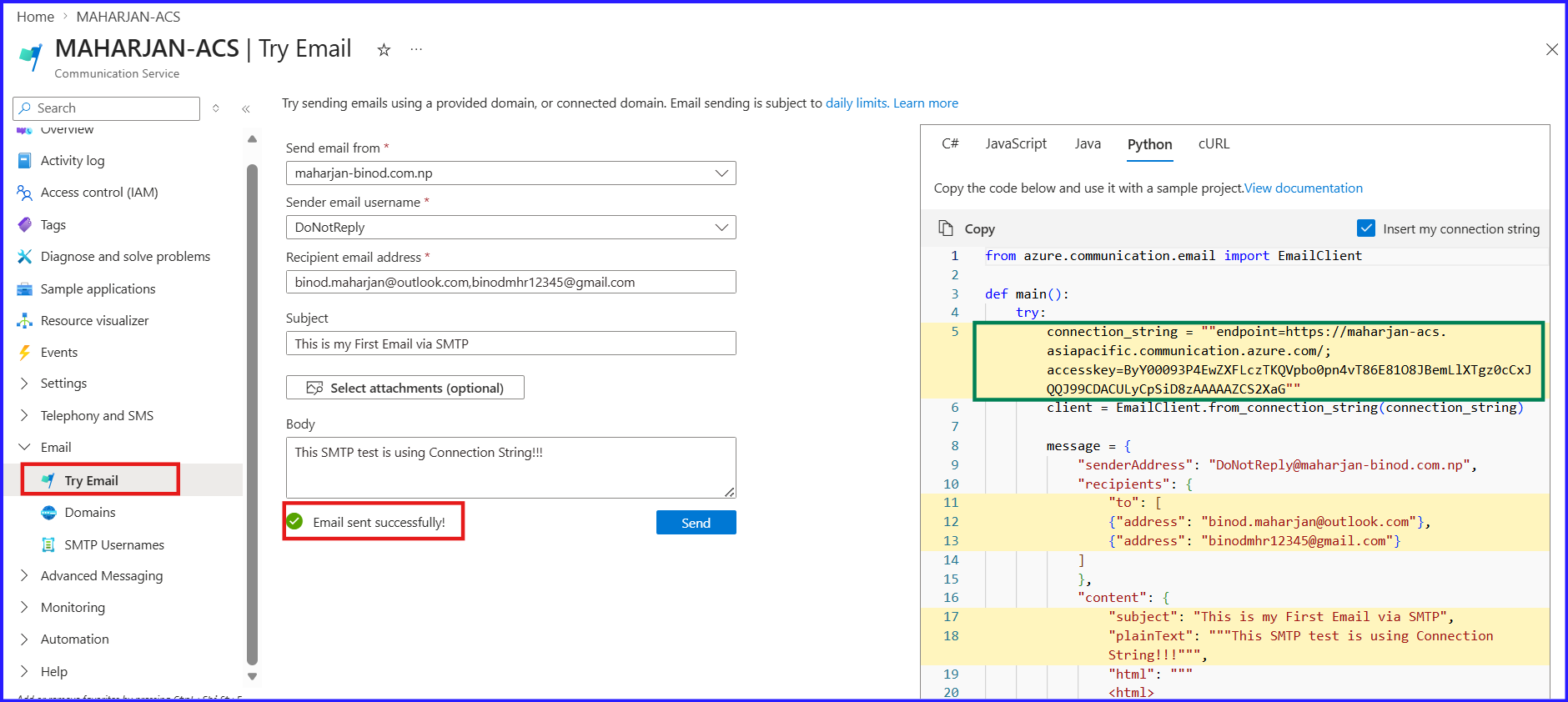
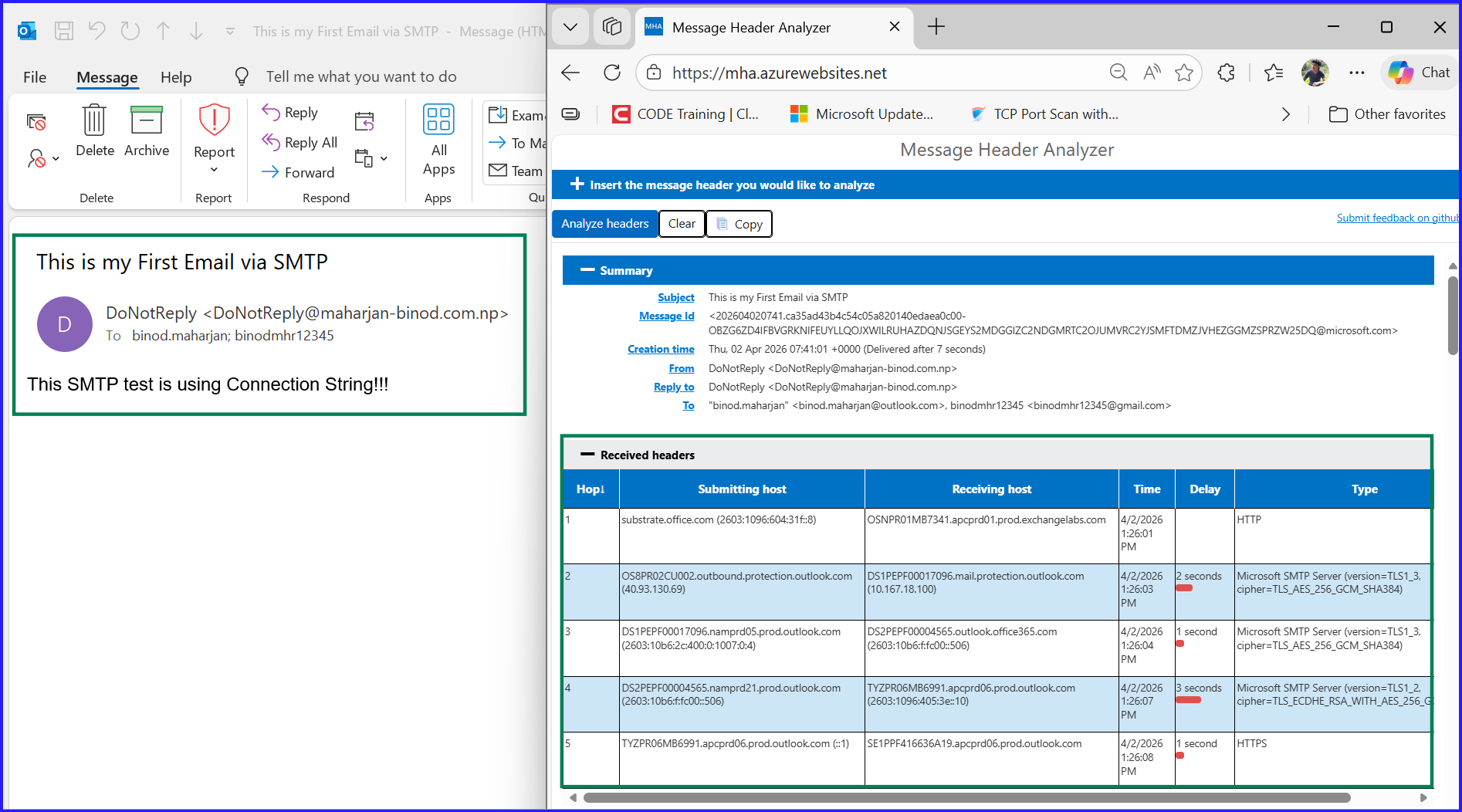
Send Email via PowerShell using SMTP Authentication (Relay)
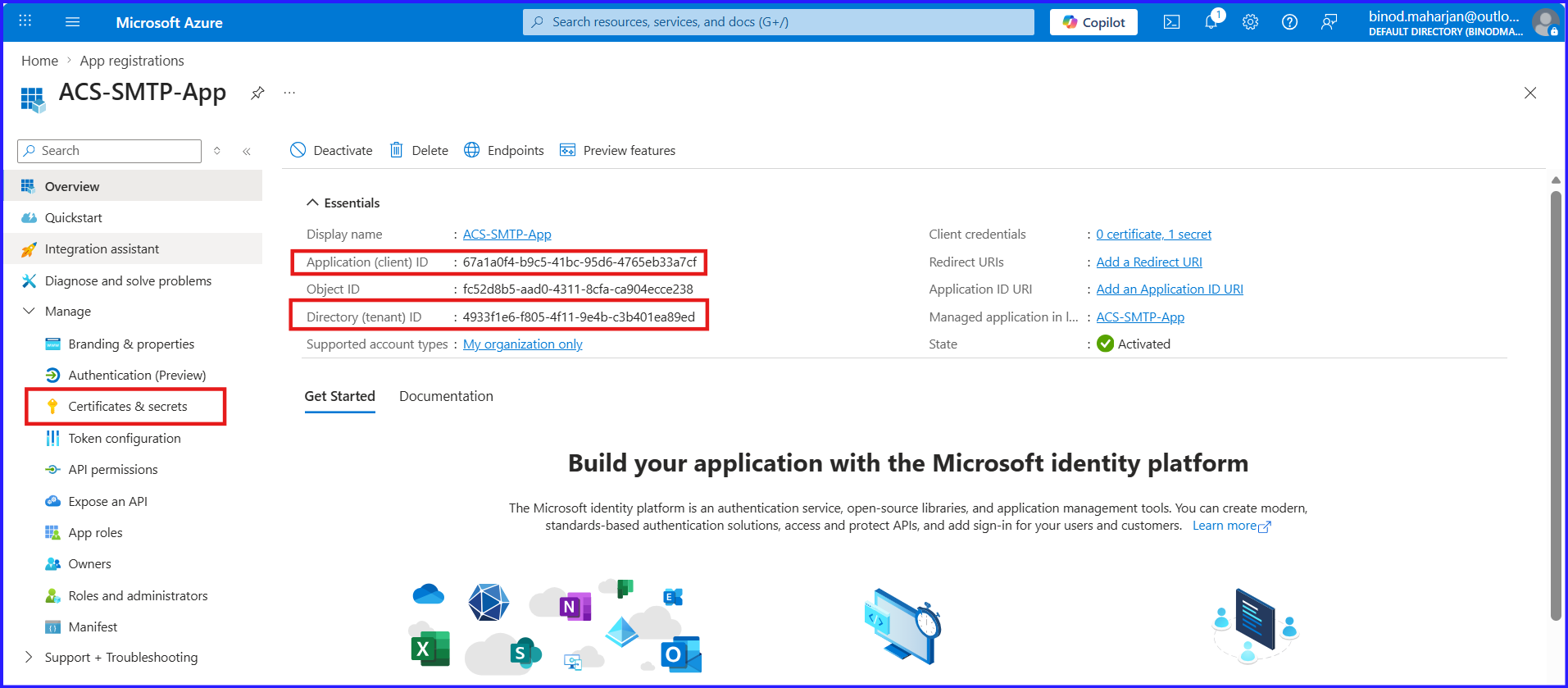
- Search for App Registration “New Registration” → “ACS-SMTP-App” Register.
- Copy the Application (Client) ID and Directory (Tenant) ID.
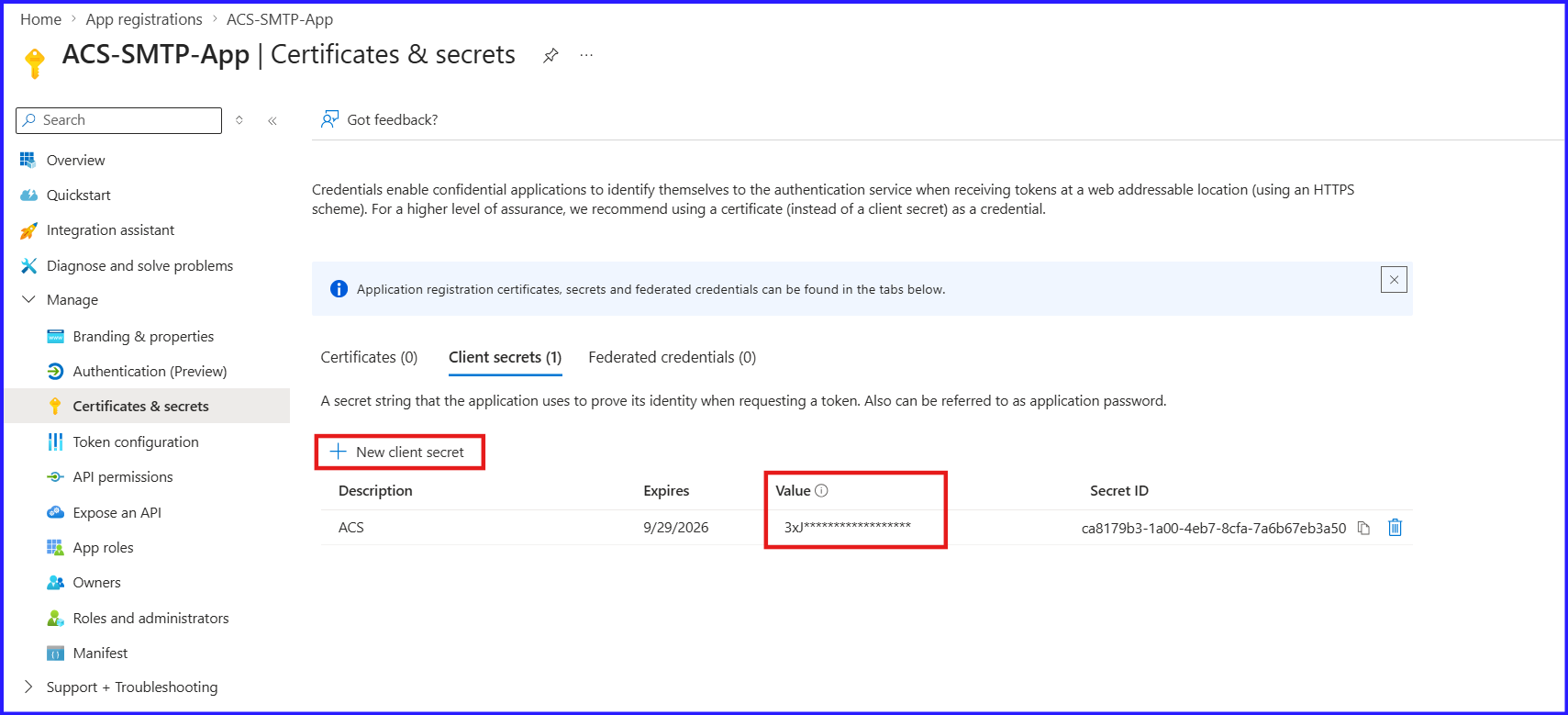
- Under Manage Click on Certificates & Secrets then Create New Client secret..
- Copy the Secret Value and close..
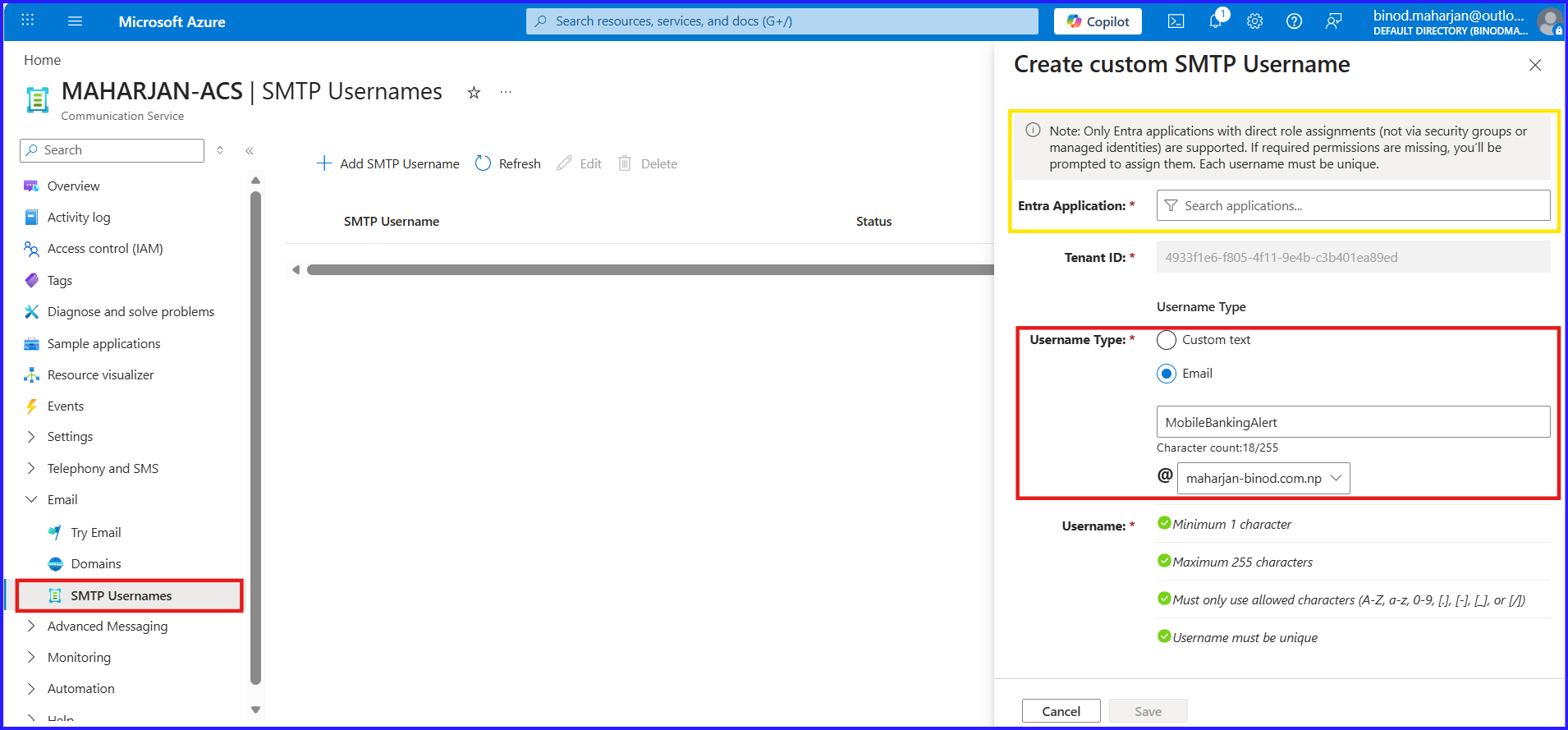
Back to Communication Service “MAHARJAN-ACS | SMTP Usernames”
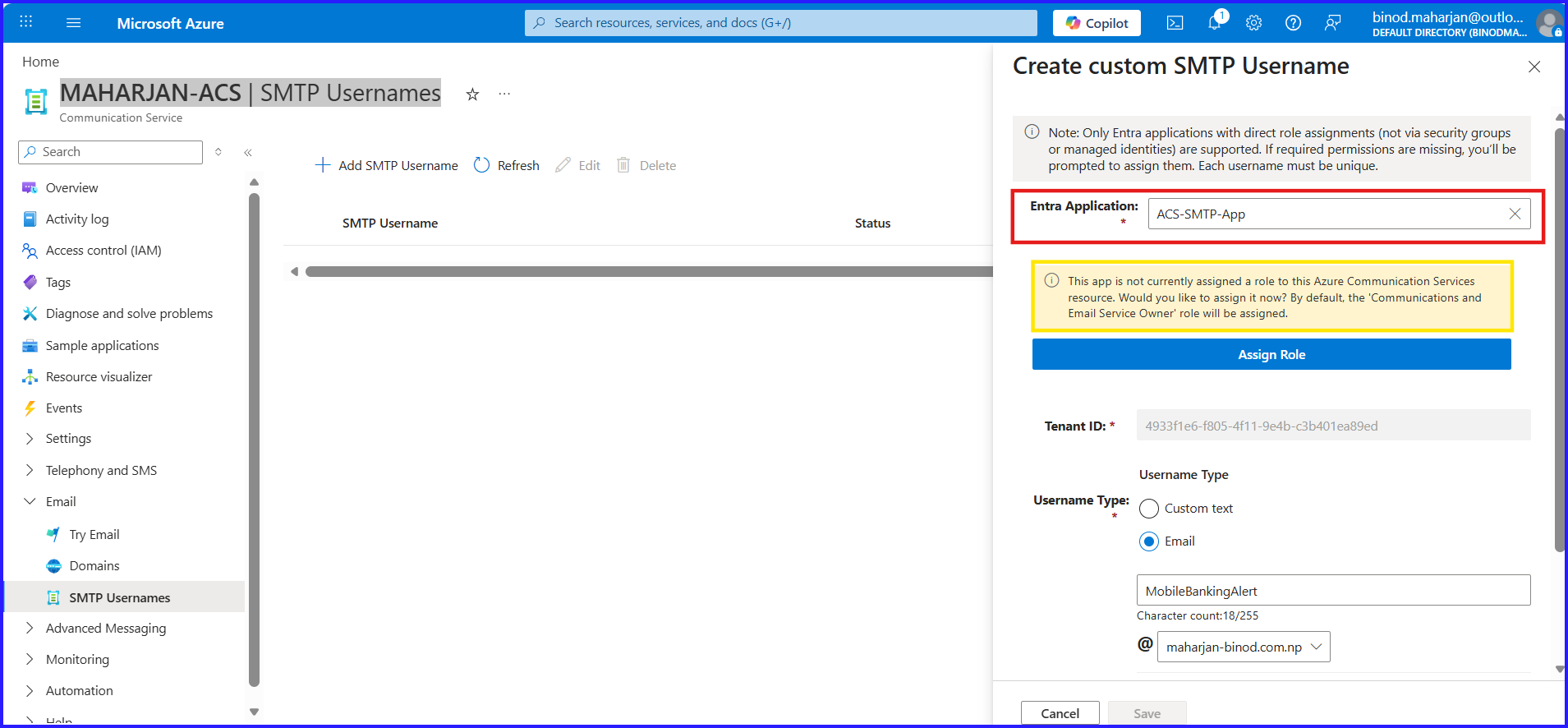
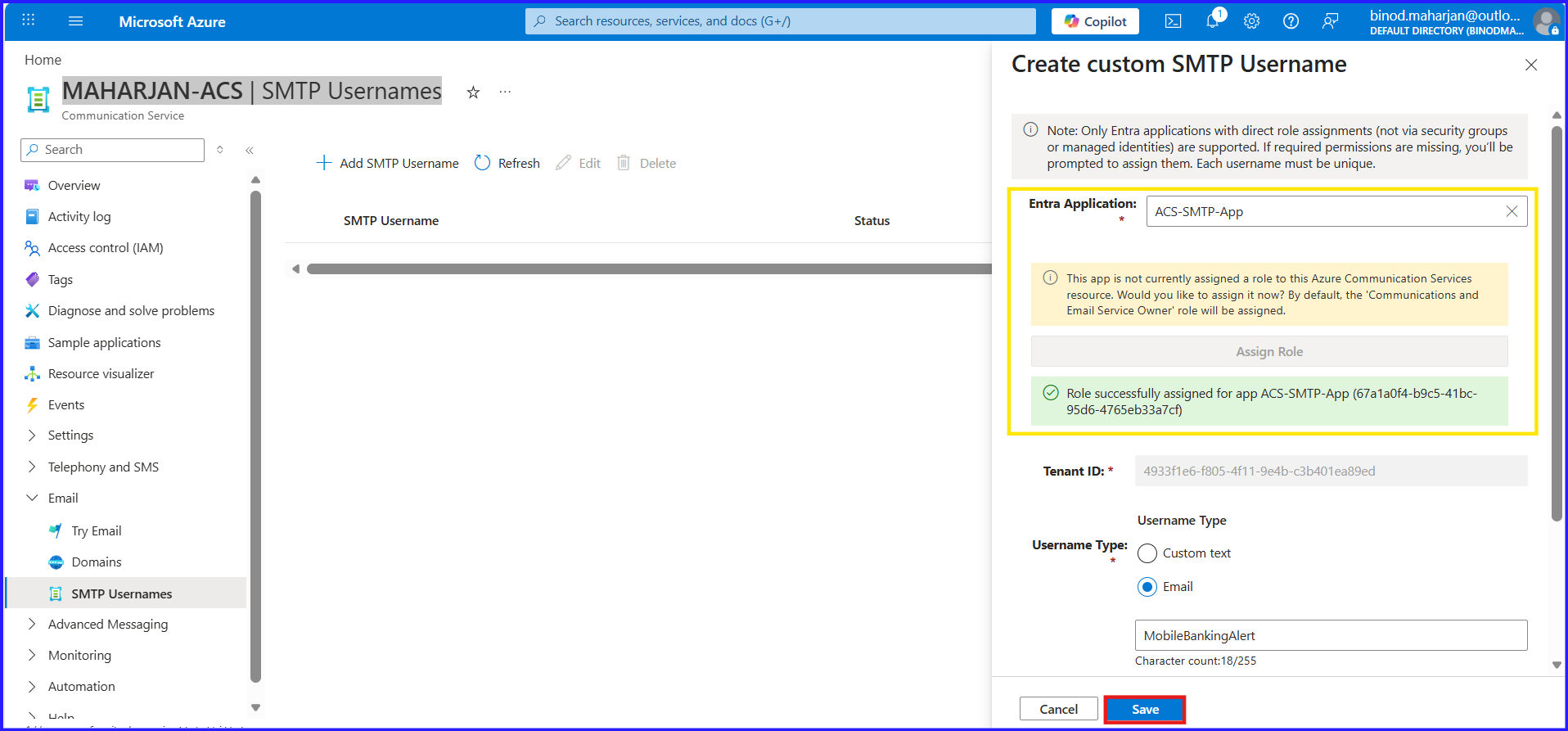
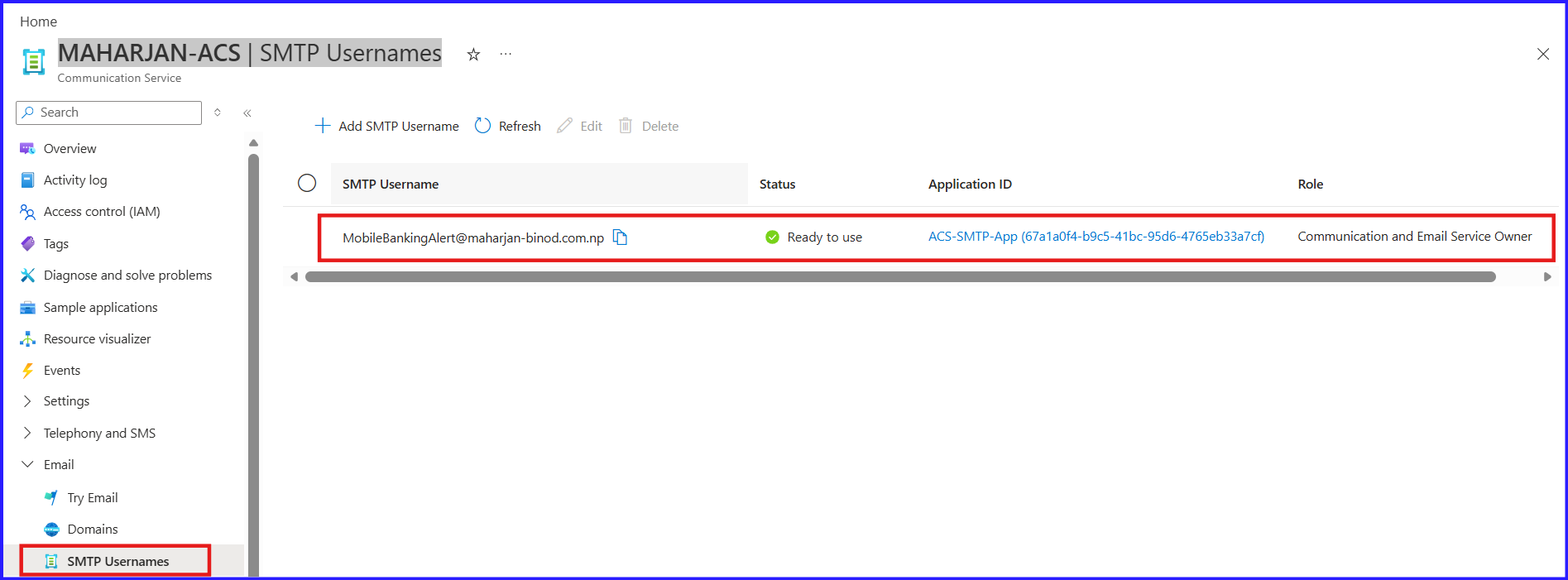
| Setting | Value |
|---|---|
| SMTP Host | smtp.azurecomm.net |
| SMTP Port | 587 (TLS) |
| Encryption | STARTTLS/SSL |
| Username | "[ACS_Resource_Name].[Entra_App_ID].[Entra_Tenant_ID]" |
| Password | “[Entra_App_Secret_Value]” |
| From Address | donotreply@<your-verified-domain> |
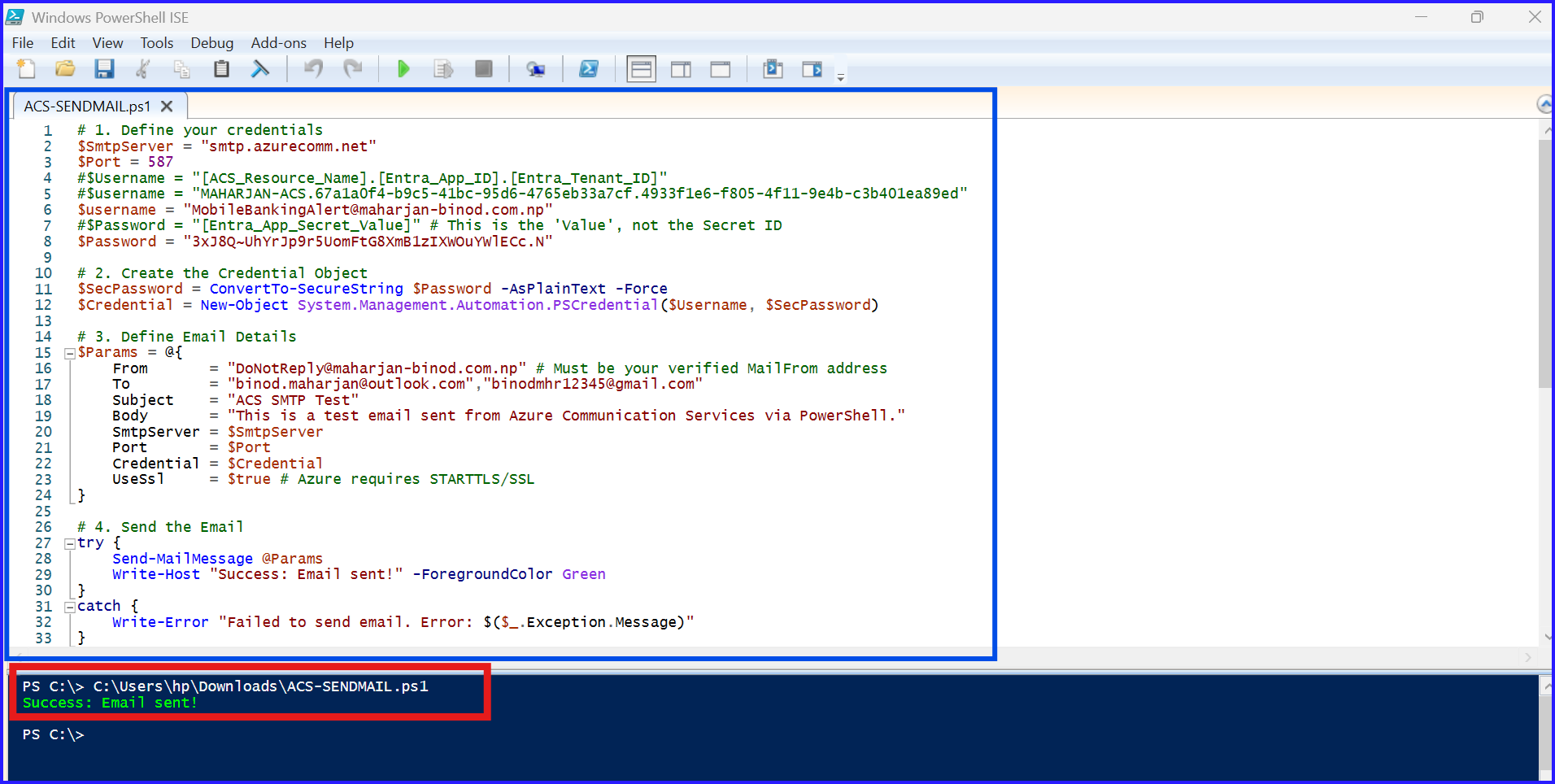
PowerShell — Send-MailMessage
# 1. Define your credentials
$SmtpServer = "smtp.azurecomm.net"
$Port = 587
#$Username = "[ACS_Resource_Name].[Entra_App_ID].[Entra_Tenant_ID]"
#$username = "MAHARJAN-ACS.67a1a0f4-b9c5-41bc-95d6-4765eb33a7cf.4933f1e6-f805-4f11-9e4b-c3b401ea89ed"
$username = "MobileBankingAlert@maharjan-binod.com.np"
#$Password = "[Entra_App_Secret_Value]" # This is the 'Value', not the Secret ID
$Password = "3xJ8Q~UhYrJp9r5UomFtG8XmB1zIXWOuYWlECc.N"

# 2. Create the Credential Object
$SecPassword = ConvertTo-SecureString $Password -AsPlainText -Force
$Credential = New-Object System.Management.Automation.PSCredential($Username, $SecPassword)

# 3. Define Email Details
$Params = @{
    From       = "DoNotReply@maharjan-binod.com.np" # Must be your verified MailFrom address
    To         = "binod.maharjan@outlook.com","binodmhr12345@gmail.com"
    Subject    = "ACS SMTP Test"
    Body       = "This is a test email sent from Azure Communication Services via PowerShell."
    SmtpServer = $SmtpServer
    Port       = $Port
    Credential = $Credential
    UseSsl     = $true # Azure requires STARTTLS/SSL
}

# 4. Send the Email
try {
    Send-MailMessage @Params
    Write-Host "Success: Email sent!" -ForegroundColor Green
}
catch {
    Write-Error "Failed to send email. Error: $($_.Exception.Message)"
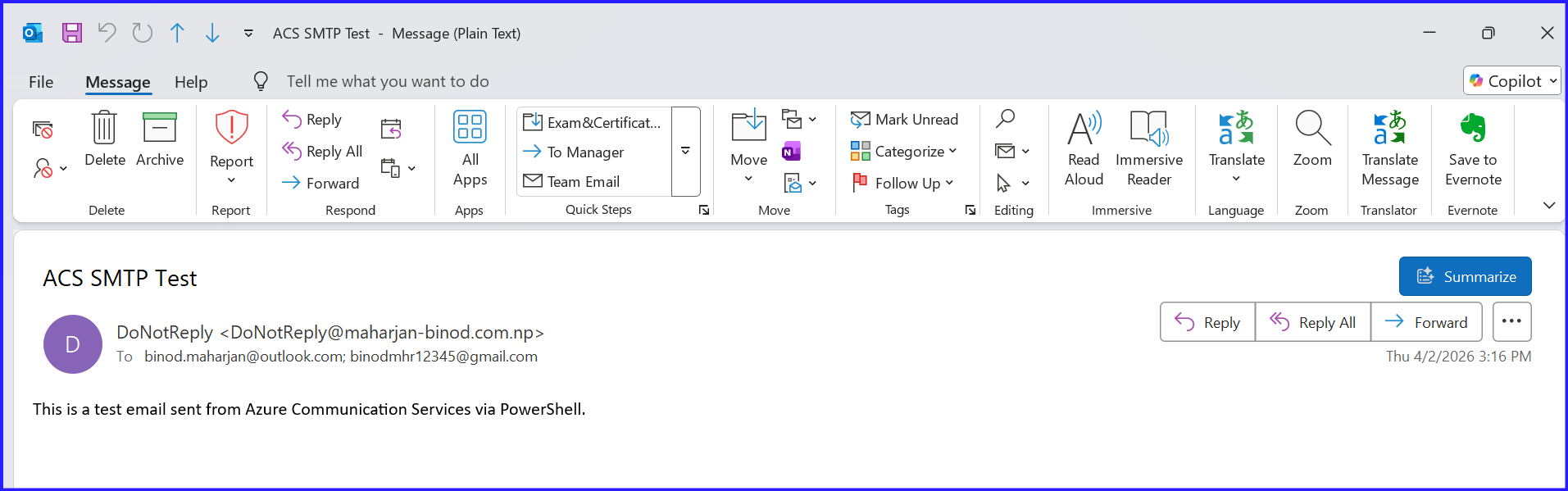
}
Monitor and Troubleshoot
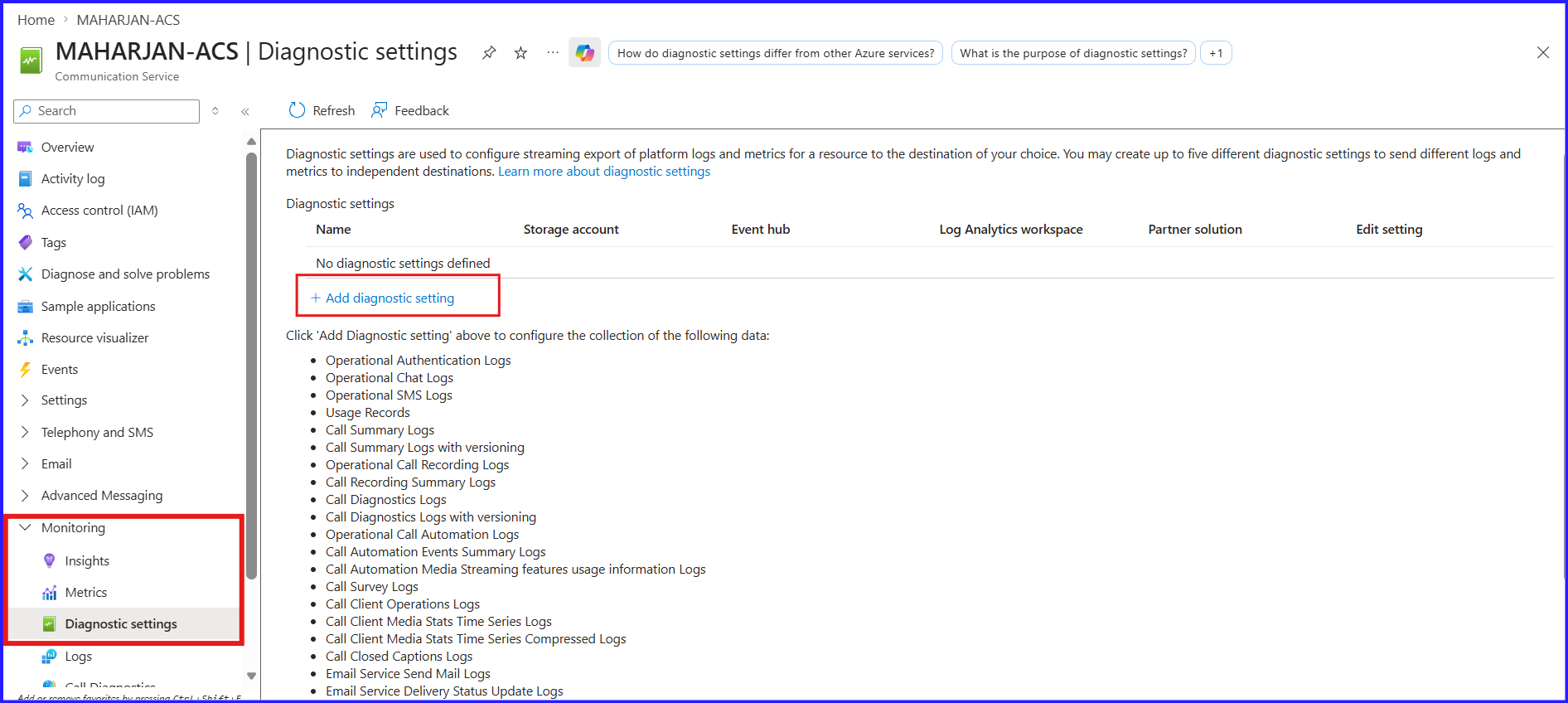
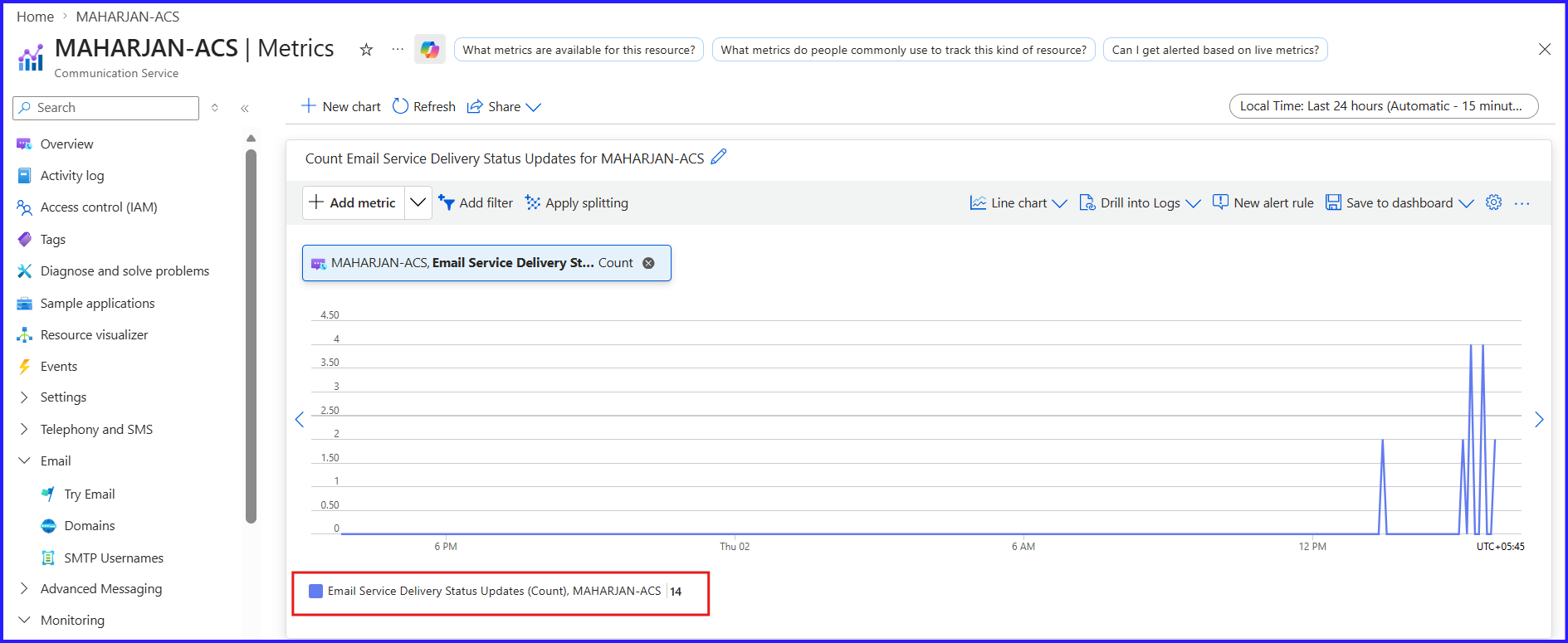
Enable Diagnostic Logging
- Navigate to “Monitoring” → “Diagnostic settings”.
- Click “+ Add diagnostic setting”.
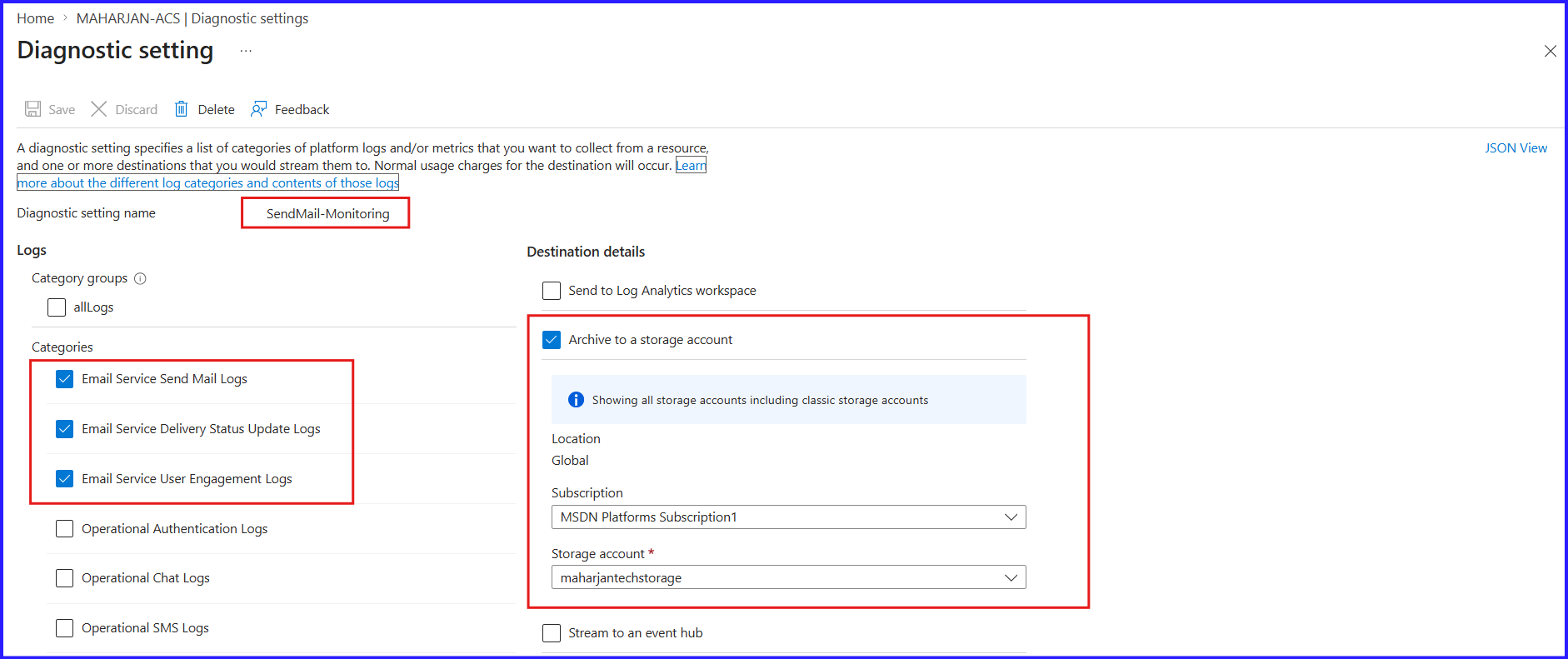
- Select
SendMailOperationalandDeliveryStatusUpdate. - Choose a destination and click “Save”.
Common Issues & Fixes
| Error | Cause | Fix |
|---|---|---|
| Auth failed (535) | Wrong username format | Use resource.accesskey format |
| Emails going to spam | Missing SPF/DKIM | Verify all DNS records in ACS |
| DNS not verifying | Propagation delay | Wait 60 min; check with MXToolbox |
| Connection timeout | Wrong port/firewall | Use port 587 with STARTTLS |
| From domain rejected | Domain not linked | Link verified domain in ACS |
| Rate limit exceeded | Too fast | Add exponential backoff |
Best Practices
Domain Authentication
- Always configure SPF, DKIM, and DMARC for your sending domain
- Use a dedicated subdomain (e.g.,
mail.yourdomain.com) - Never use a free email domain as your From address
Sending Reputation
- Start with low volume and ramp up gradually
- Keep bounce rate below 2% and unsubscribe rate below 0.1%
- Remove hard-bounced addresses immediately
Security
- Store credentials in Azure Key Vault — never hardcode them
- Rotate ACS access keys every 90 days
- Use Managed Identity where possible
Performance
- Use connection pooling for high-volume sending
- Implement retry logic with exponential backoff
- For 10,000+ emails/hour, use the ACS REST API with batching
Conclusion
Azure Communication Services provides a powerful, production-ready email infrastructure that removes the operational burden of managing your own SMTP servers. Whether you’re sending a handful of transactional emails or millions of notifications per day, ACS scales with you.
- Creating and configuring an ACS resource
- Setting up and verifying a custom sending domain
- Generating SMTP credentials
- Sending emails from Node.js, Python, and C#
- Monitoring, alerting, and best practices