Welcome to Part 6, the final installment of our MailVault Deployment Series. In Part 5, we configured the user interface with custom company branding and deployed a trusted SSL/TLS production certificate. With the infrastructure fully secure and optimized, we can now explore day-to-day operations: empowering users and running compliance-grade audits.
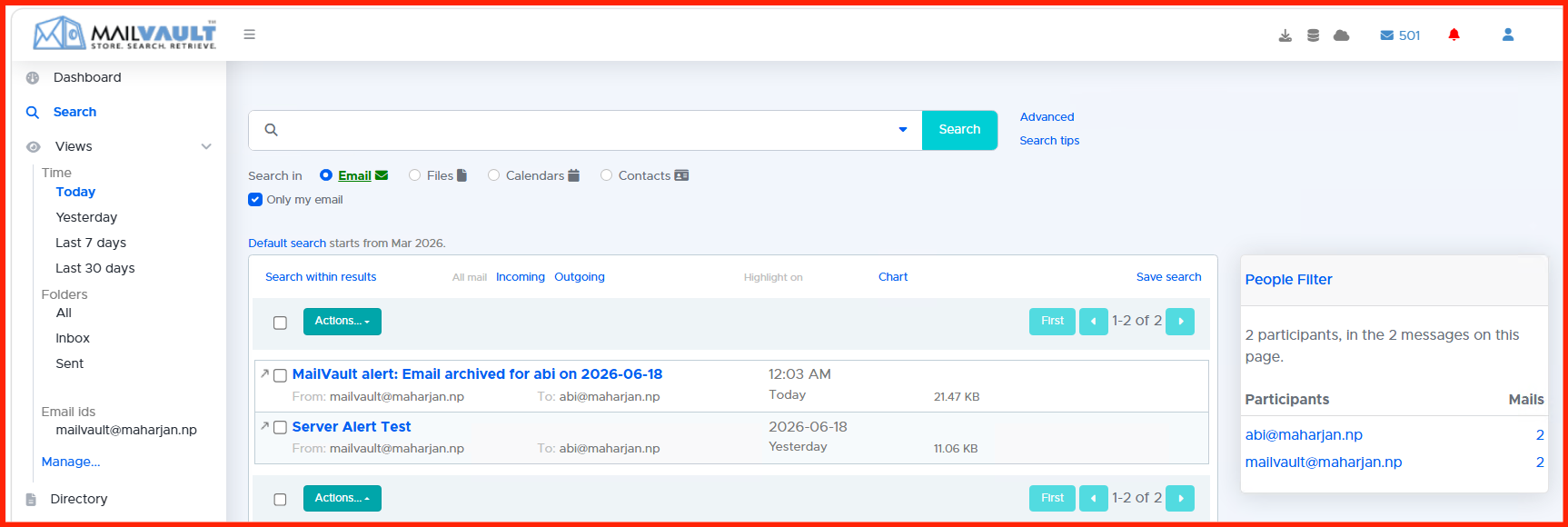
A primary benefit of an effective email archive is offloading historical search and recovery workloads from the IT helpdesk. By establishing self-service end-user console access, staff can search for and restore lost emails on their own. In this guide, we will look at using the search index for e-Discovery and restoring records directly back to live corporate inboxes.
1. Accessing the Self-Service End-User Console
Because we bound Active Directory identities to our infrastructure in Part 4, employees can log in directly using their standard desktop credentials. When a regular user logs in, MailVault automatically confines their visibility parameters.
Users only see a streamlined, intuitive search index window. Security boundaries ensure that standard accounts can never modify system settings, view storage logs, or query messages belonging to other employees.
2. Running e-Discovery & Advanced Queries
For administrative staff and compliance managers holding elevated auditor privileges, MailVault opens up the full **e-Discovery Interface**. This subsystem executes lightning-fast query indexes against millions of historical records across the entire enterprise directory.
Auditors can narrow down search parameters using granular filtering combinations:
- Metadata Queries: Search by specific sender domains, recipients, date arrays, or message sizes.
- Full-Text & Wildcards: Parse complex keyword combinations buried within message bodies.
- Attachment Context Deep Dives: Search text inside indexed attachments, including PDF documents, spreadsheets, and word processor files.
3. Executing Point-in-Time Mail Restoration
When an accidental deletion occurs or historical records need to be retrieved for an active audit, MailVault provides three core recovery paths:
- Direct-to-Inbox Recovery: MailVault establishes an active fallback connection over IMAP/SMTP to push the archived message straight back into the user’s active primary mailbox folder structure.
- Localized EML/EML zip Export: Users or auditors can download a cryptographically intact, compressed `.eml` or `.zip` packet directly to their local desktop for offline review.
- PST Container Building: For larger recovery operations, auditors can bundle thousands of discovered message results into a single standard Outlook `.pst` file.
Compliance Note: Restoring or exporting messages from MailVault does not alter or erase the original file within the repository. The master file remains locked within the immutable data layer until its official retention lifecycle schedule expires.
Series Conclusion & Maintenance Best Practices
Congratulations! You have successfully completed the deployment, integration, and operational rollout of your enterprise MailVault archiving environment. Your organization is now fully prepared for regulatory data audits, legal discovery demands, and point-in-time recovery situations.
To ensure long-term stability across your archiving ecosystem, follow this ongoing maintenance schedule:
- Monthly: Run integrity checks on your storage volumes and verify that your background indexing queues are matching current input metrics.
- Quarterly: Run a test backup restoration cycle to confirm the health and viability of your offsite archival data pools.
- Annually: Review your company retention policies with your legal team to ensure your storage rules remain aligned with any shifting regulatory updates.