Fixing Broken Inline Images in Exchange OWA
CVE-2026-42897 Side Effect & Resolution Guide
The Issue
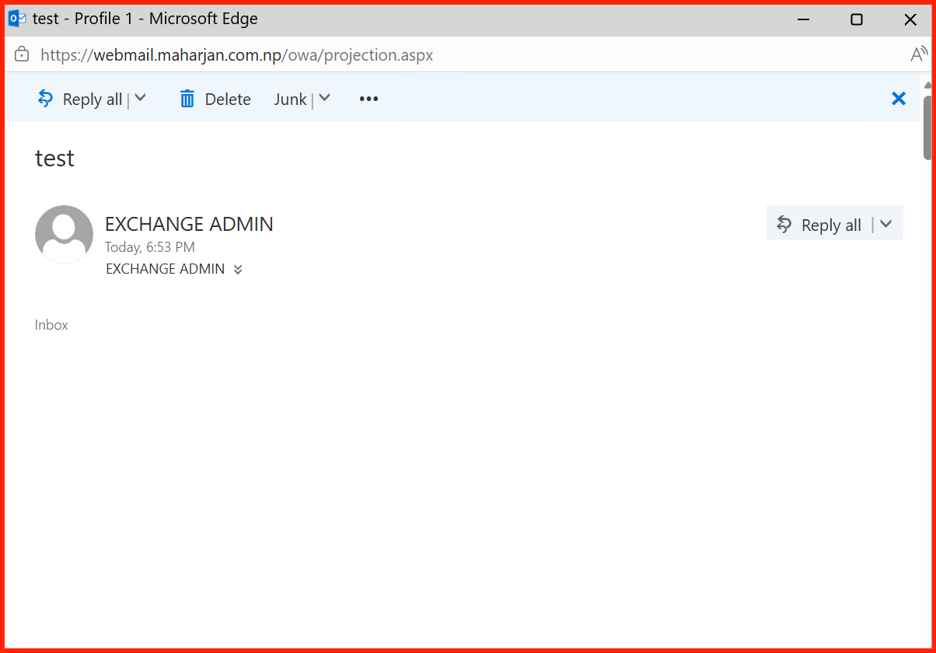
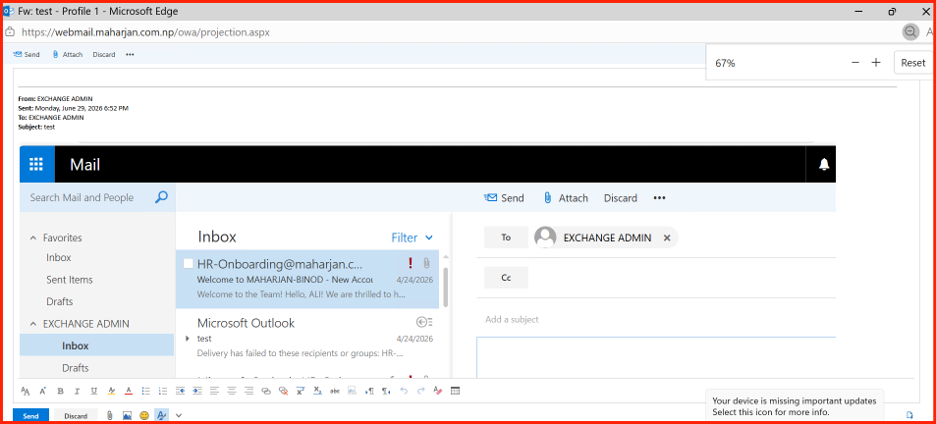
Following a recent backend security rollout, users will notice that clipboard-pasted screenshots or embedded inline images no longer render when viewing emails inside the Outlook Web App (OWA). Instead of the image, the reading pane displays blank spaces or generic download links.
Root Cause Analysis
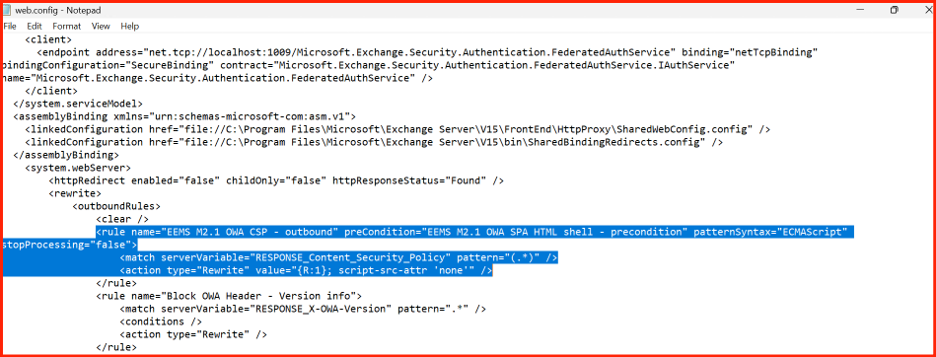
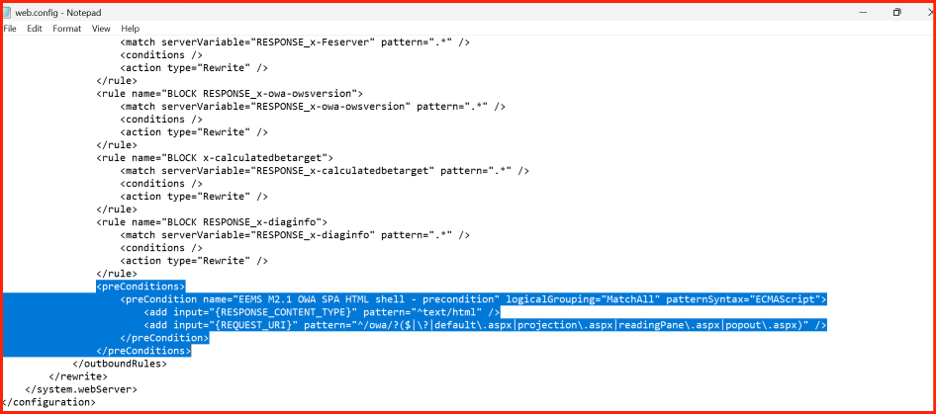
To defend against an active security flaw (CVE-2026-42897), the Exchange Emergency Mitigation Service (EEMS) automatically deployed an emergency rule to on-premises servers. This mitigation injects a Content Security Policy (CSP) header rule into the front-end OWA web.config file:
script-src-attr 'none'While this securely blocks cross-site scripting vulnerabilities, it has the side effect of breaking rendering engines for inline message objects natively wrapped in TNEF blocks.
The Solution
To restore inline image capabilities, the injected web rule must be manually extracted and EEMS must be told not to re-apply it.
Step 1: Edit the Front-End web.config
Locate the front-end proxy OWA configuration file at:
C:\Program Files\Microsoft\Exchange Server\V15\FrontEnd\HttpProxy\owa\web.configMake a safe backup copy, open the live file, and entirely delete the <rule name="EEMS M2.1 OWA CSP - outbound"> code block.
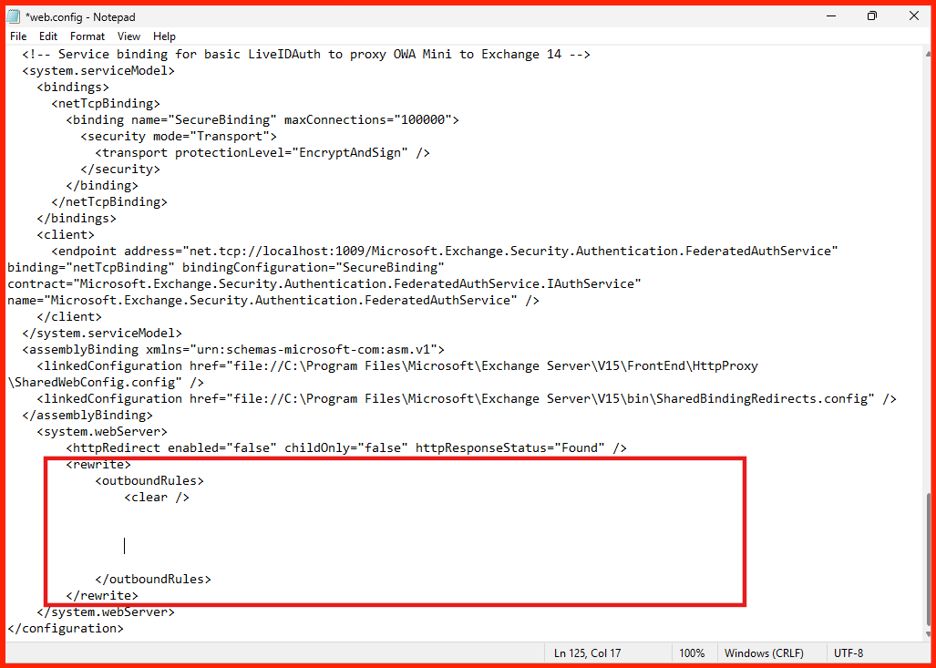

Step 2: Restart Web Services
Open an elevated command prompt and reset the local IIS engine to reload the modified configurations:
iisreset /noforceStep 3: Block EEMS From Overwriting Your Fix
Because EEMS runs automated checks every few hours, it will automatically overwrite your changes unless it is specifically configured to skip this rule. Run the command matching your environment version inside the Exchange Management Shell:
| Environment | Management Command | Action |
|---|---|---|
| Exchange 2016 | Set-ExchangeServer -Identity <ServerName> -MitigationsEnabled $false |
Disables EEMS tasks entirely |
| Exchange 2019+ | Set-Mitigation -Identity M2.1 -Action Disable |
Specifically blocks rule M2.1 while keeping EEMS active |
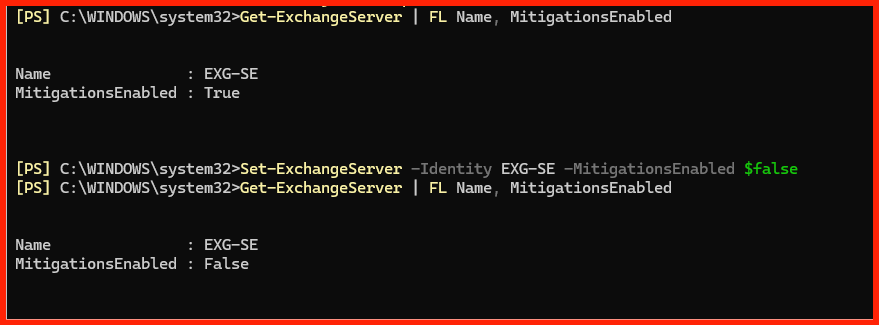
Once Microsoft releases a permanent cumulative security updates file, re-run your mitigation engine parameters with the $true or Enable actions to restore default system defenses.
Step 4: Test and Verify the Resolution
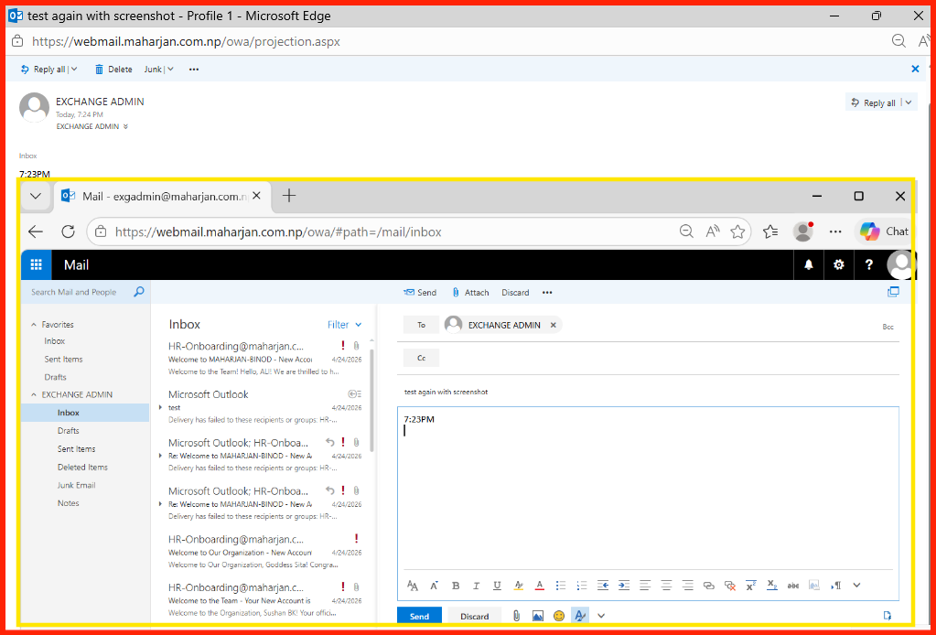
Verify if you can send the attachment by copying and pasting a screenshot into a new email. The inline image should now render correctly in both the compose and reading panes.
Permanent Resolution
Long-Term Approach
While the initial temporary mitigations provided a baseline defense against actively exploited Exchange Server flaws, they also introduced known user-experience and workflow limitations. The release of the official Microsoft patch delivers a stable, long-term fix that removes the necessity for these restrictive temporary workarounds. Implementing this patch transitions the infrastructure from a reactive mitigation state to a permanently secured and fully functional environment.
Deploying the Official Patch
To permanently resolve the underlying vulnerabilities (including the Outlook Web Access flaw identified under CVE-2026-42897), administrators must deploy the June 2026 Exchange Server Security Updates (SUs). This patch natively addresses the security loopholes without relying on virtual directory-level blocks. Additionally, deploying this update ensures that the Exchange Emergency Mitigation (EM) and Exchange Flighting services continue to receive future configurations and mitigations past July 2026.
Implementation Steps:
- Inventory Environment: Run the Exchange Server Health Checker script to verify current Cumulative Update (CU) and Security Update (SU) levels across all servers.
- Apply Security Updates: Download and install the June 2026 SUs applicable to your environment’s architecture:
- Exchange Server Subscription Edition (SE) RTM
- Exchange Server 2019 CU14 / CU15 (Requires enrollment in the Period 2 ESU program)
- Exchange Server 2016 CU23 (Requires enrollment in the Period 2 ESU program)
- Post-Install Verification: Reboot the host, verify all Exchange services have successfully restarted, and re-run the Health Checker.
- Mitigation Cleanup: Once the June 2026 patch is validated as stable, manually remove any previously applied temporary scripts or IIS-level blocks to restore full native system functionality.
Official Reference:
For full deployment instructions, download paths, and prerequisites, refer to the official Microsoft Security Advisory: Released: June 2026 Exchange Server Security Updates – Microsoft Community Hub