The M365 Admin Guide to Securing Guest Access in Microsoft Teams
Enabling external collaboration is crucial for modern productivity, but it presents a major challenge for IT departments: How do you allow external users into your environment without risking data leaks or losing directory control? Managing guest access in Microsoft Teams isn’t a single toggle; it requires configuring four distinct layout layers across Microsoft 365. This step-by-step framework will guide you through locking down your tenant while maintaining seamless day-to-day user collaboration.
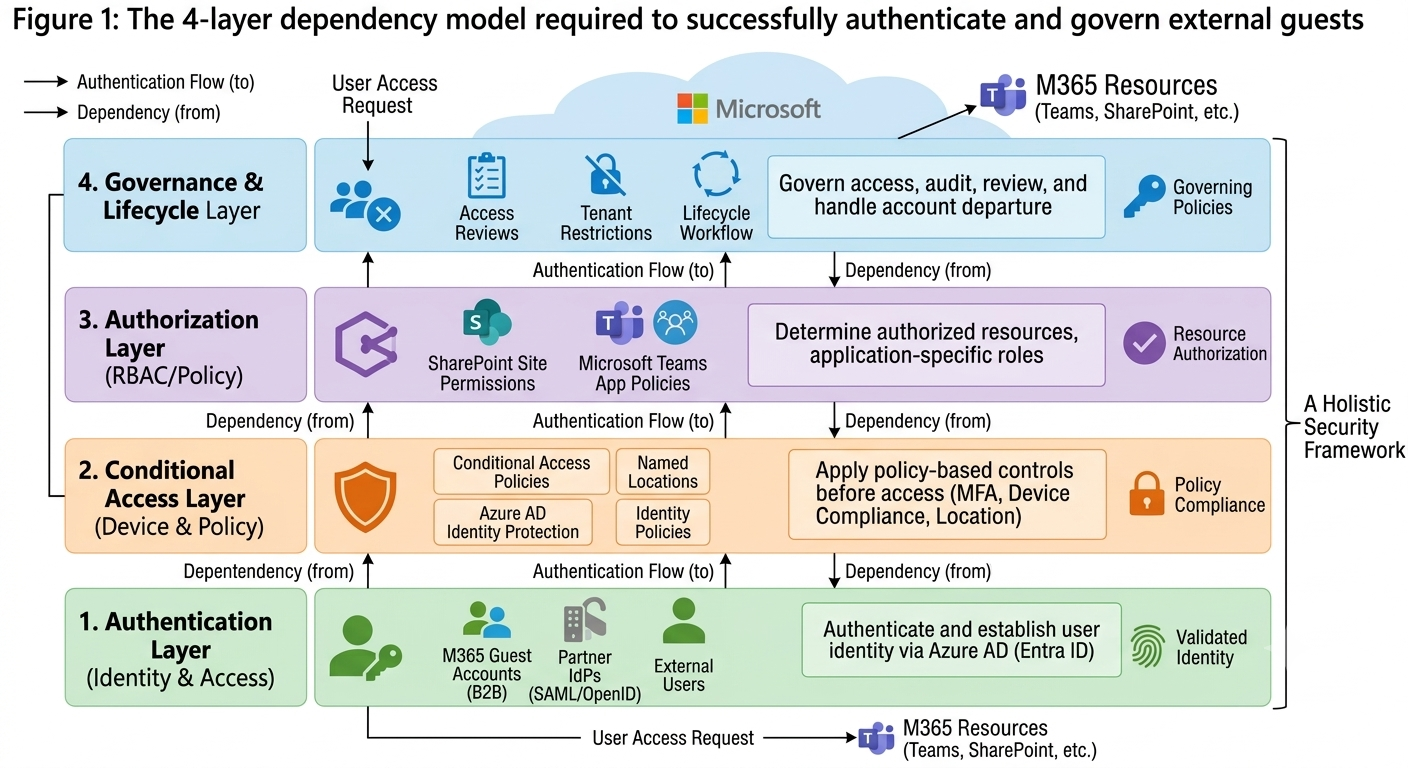
Stage 1: Enterprise-Wide Controls (Entra ID Configuration)
Before an external user can click a link to join a team, your underlying identity provider must authorize cross-tenant collaboration. This layer controls global cloud identity properties.
Step 1.1: Configuring External Collaboration Settings
To establish these controls, navigate to the Entra ID portal. Here, you will define exactly who can send out invitations to external people.
- Log into the Microsoft Entra Admin Center.
- Expand Identity > External Identities, then select External collaboration settings.
- Locate the Guest invite restrictions matrix.
- Set the option to
Member users and users assigned to specific admin roles can invite guest users including guests with member permissions.
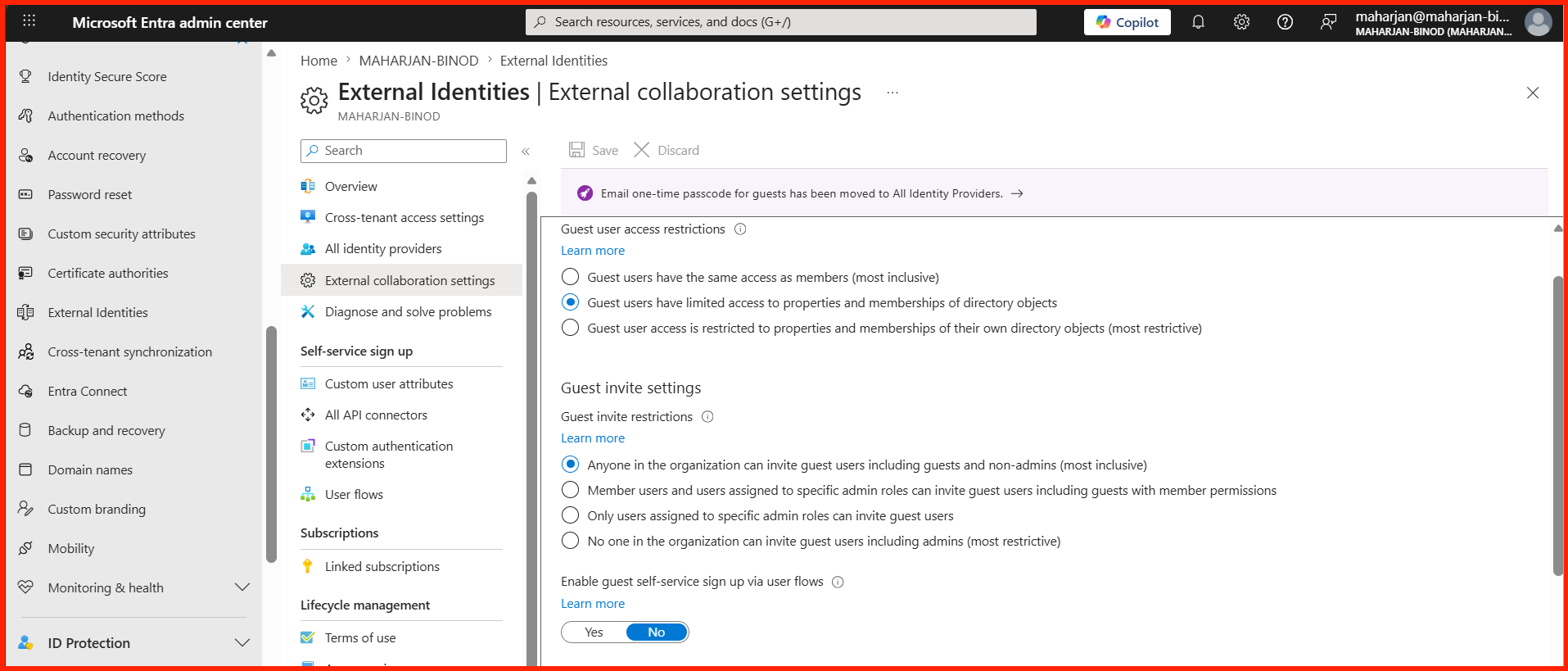
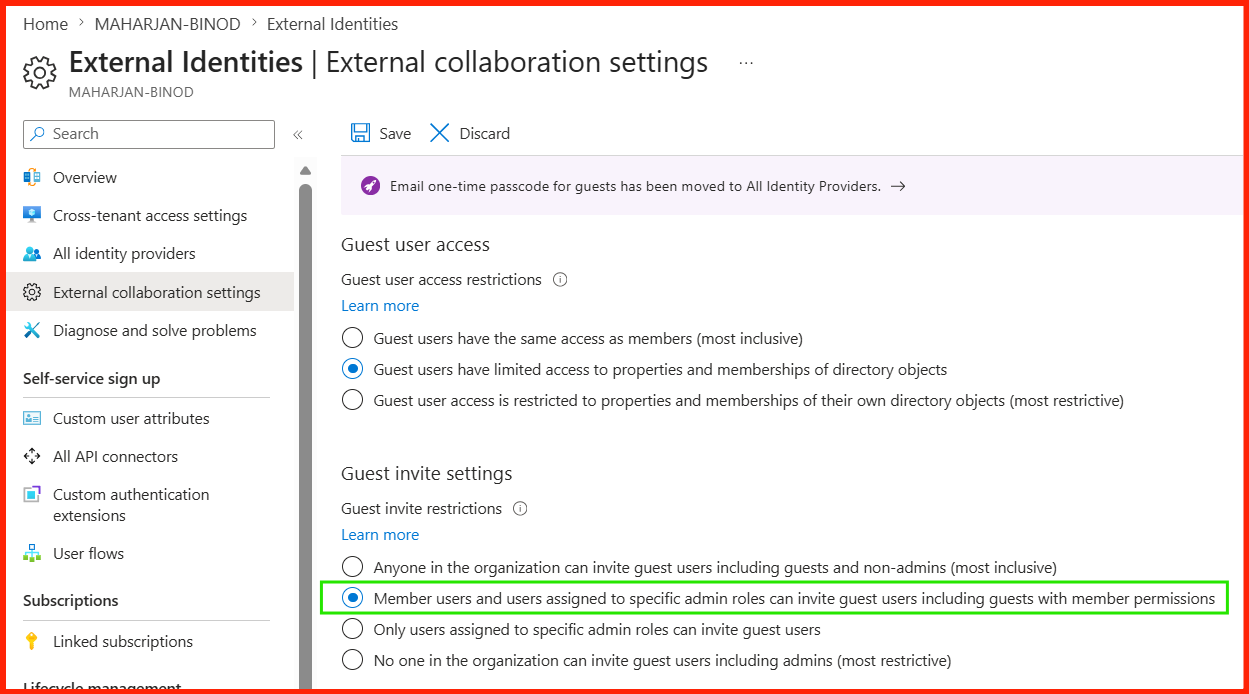
Never leave global options at “Anyone in the organization can invite guest users.” This allows contractors, vendors, and unvetted accounts to expand your tenant attack surface without management sign-off.
Step 1.2: Restricting Guest Directory Enumeration
By default, a validated guest user can search your entire enterprise global address list. To enforce privacy protection, you must immediately change this behavior.
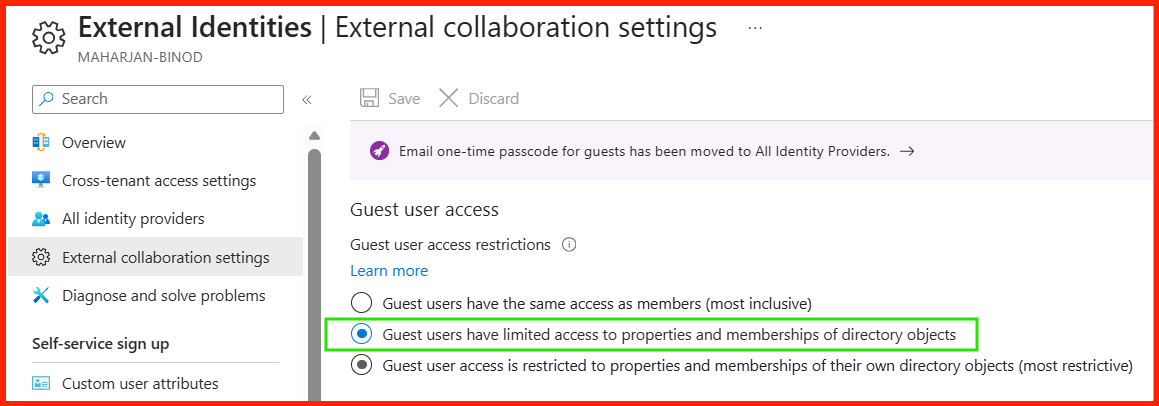
Set Guest user access restrictions to Guest users have limited access to properties and memberships of directory objects. This prevents external vendors from seeing other client listings or viewing structural corporate org charts.
Stage 2: Microsoft 365 Groups and SharePoint Governance
Because every single Microsoft Team relies on an underlying Microsoft 365 Group and uses SharePoint Online for document file repositories, you must grant permissions here next.
Step 2.1: Authorizing Core Group Sharing
If these settings are turned off, team owners will see errors when they try to add external domains, even if Teams guest settings are turned on globally.
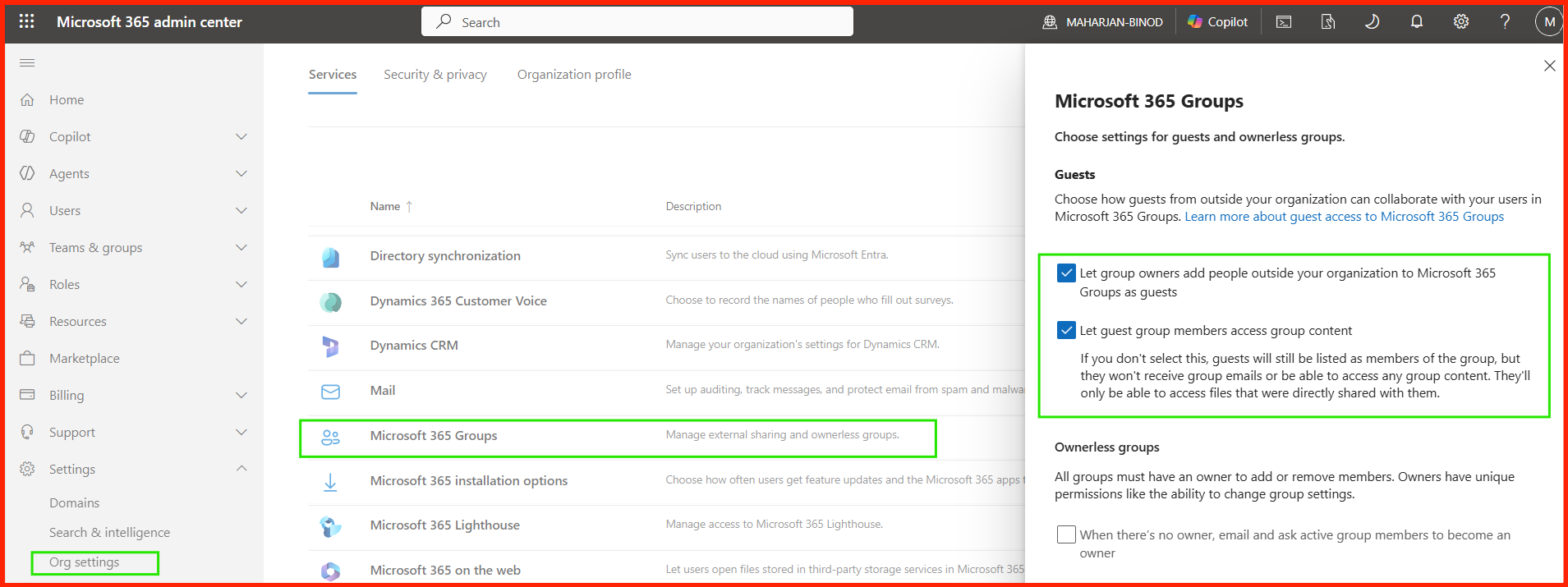
- Navigate to the Microsoft 365 Admin Center.
- Go to Settings > Org settings > Microsoft 365 Groups.
- Ensure both
Let group members outside your organization access group contentandLet group owners add people outside your organization to groupscheckboxes are active.
Step 2.2: Securing SharePoint File Collaboration Channels
Next, navigate to the SharePoint Admin Center to ensure files shared inside text chats remain secure from anonymous public exposure.
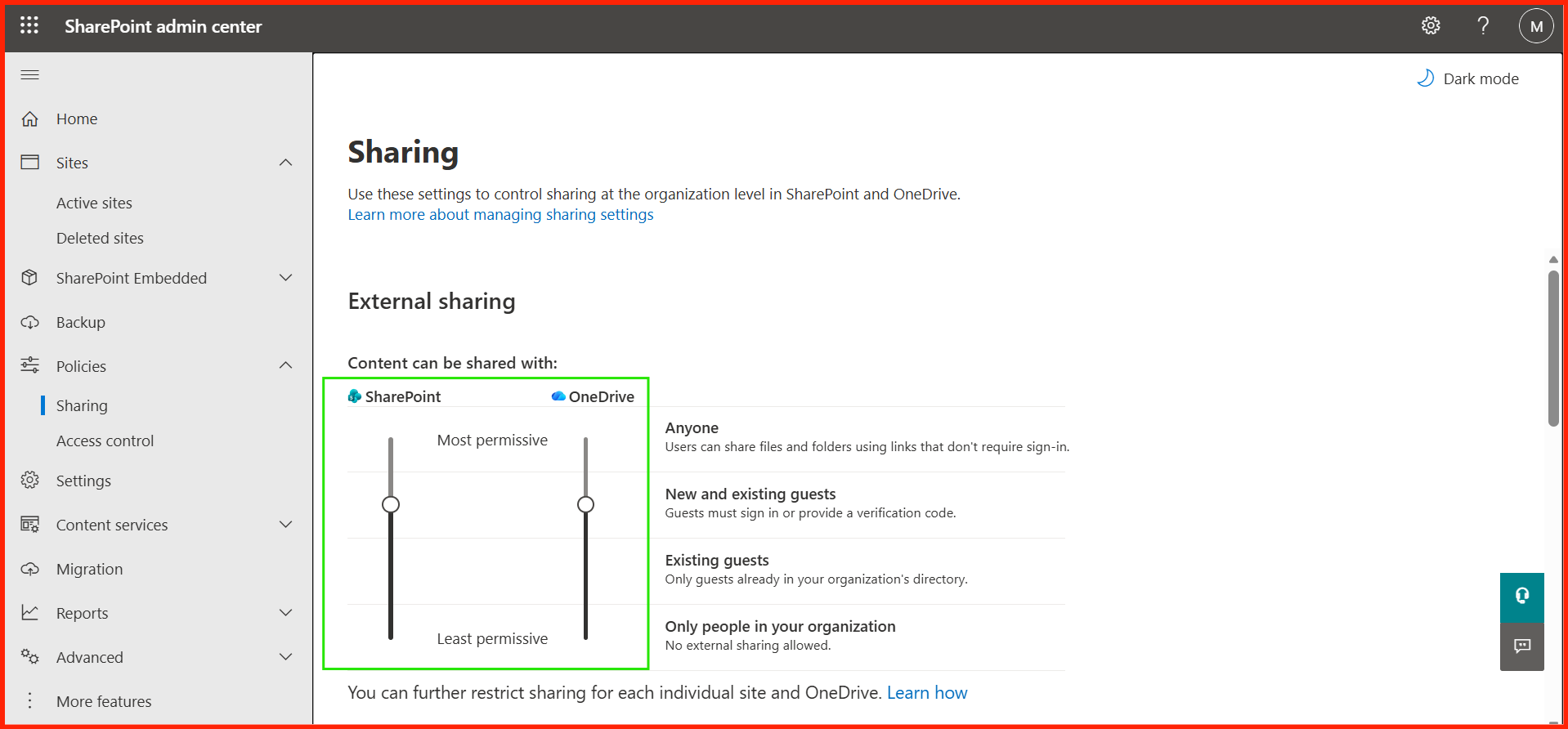
Set the SharePoint link restriction level to Existing guests or New and existing guests. Never select Anyone for production channels. Doing so enables users to create unauthenticated public download links that anyone on the web can access.
Stage 3: Fine-Tuning Teams Client Experience Controls
Now that the backend database infrastructure is configured, you can define the exact capabilities of guest users inside the actual Microsoft Teams application.
Step 3.1: Enforcing Global Guest Toggles
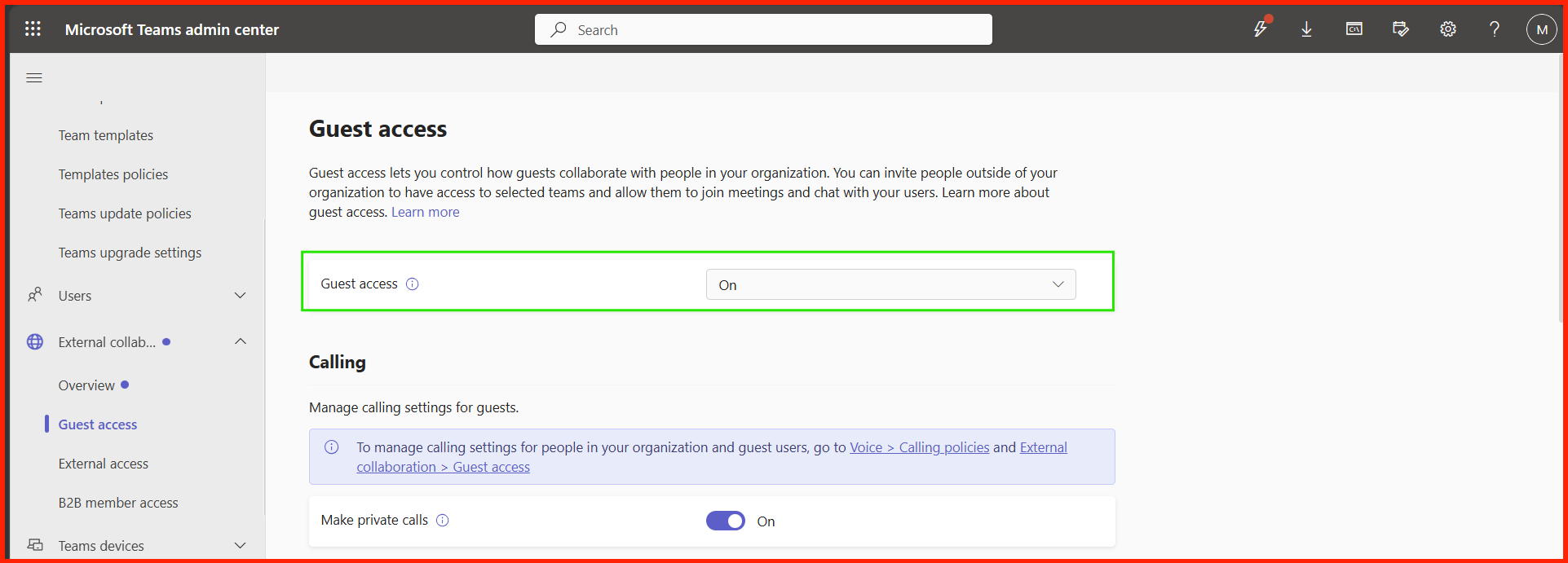
- Go to the Microsoft Teams Admin Center.
- Expand Users > Guest access.
- Turn the primary Allow guest access in Teams switch to On.
Step 3.2: Restricting Video, Screen Sharing, and Chat Controls
To protect sensitive intellectual property during active meetings, look at the calling and messaging subsections under the same panel.
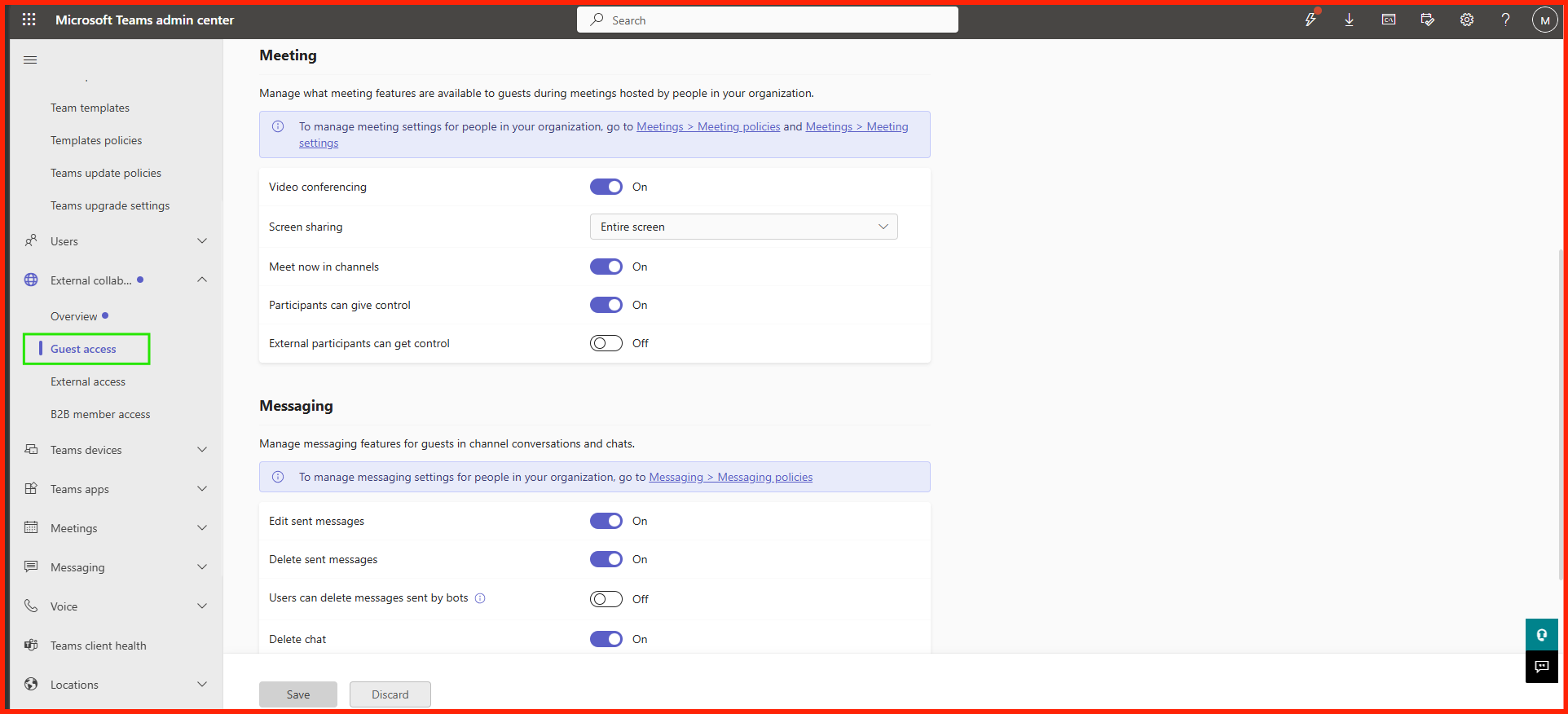
For optimal security, configure the following settings:
- Screen sharing mode: Change this to
Single Applicationrather than the entire desktop. This prevents guests from seeing accidental popups or open background documents. - Allow IP Video: Set to
On(orOffif your priority is strict bandwidth preservation). - Delete sent messages: Toggle this to
Offto preserve an unalterable audit log of guest conversations.
Stage 4: Setting Up Lifecycle Automation & Verification
The final step isn’t technical config—it’s continuous lifecycle maintenance. Left unmonitored, guest accounts accumulate over time, creating a major security risk.

If you have an Entra ID Premium P2 license, set up automatic **Access Reviews**. This policy automatically sends a monthly or quarterly email to team owners asking them: “Does this external vendor still need access to your team’s files?” If the owner does not respond or clicks ‘No’, the guest account is safely removed automatically.

- Replication Delay Check: Changes made to global guest policies can take **2 to 24 hours** to propagate across all web, desktop, and mobile endpoints. Do not panic if test invites fail immediately after configuration.
- Licensing Requirements: Basic guest restrictions are included in all M365 Business and Enterprise plans. Advanced automated auditing rules (like Access Reviews) require Microsoft Entra ID Governance or Premium tiering licenses.