Securing Windows Policies
Access Credential Manager as a Trusted Caller
A deep dive into the risky Windows user right — and how to secure it via GPO.
Table of Contents
1. What Does This Policy Actually Do?
The “Access Credential Manager as a trusted caller” policy is a local security policy user right in Windows. It specifically authorizes a process or user to call into the Credential Manager service (via its RPC interface) to perform backup and restore operations of saved credentials (Windows Vault).
By default, this privilege is not defined in the Local Security Policy. However, it is implicitly assigned to the Winlogon service (used during interactive logon) and certain system components to facilitate seamless credential roaming and backup.
SeTrustedCredManAccessPrivilege.
When a caller holds this right, the Credential Manager skips certain access checks, trusting the caller to handle credentials safely.
2. The Security Risks (Why You Should Care)
Granting this user right to a non-system account is extremely dangerous. An attacker or malicious insider with this privilege could:
- Develop a rogue application that calls the Credential Manager APIs to enumerate and extract saved domain passwords, web credentials, and generic Windows credentials of other logged-on users.
- Bypass the normal user consent prompts and directly dump the Windows Vault to disk.
- Pivot from a low-privilege account to domain admin if the vault contains privileged account credentials.
3. Compliance & Best Practice (STIG/CIS)
Both DISA STIG (Windows Server) and CIS Benchmarks explicitly address this policy.
- STIG V-220762: The “Access Credential Manager as a trusted caller” user right must not be assigned to any user or group.
- CIS Level 1: Ensure “Access Credential Manager as a trusted caller” is set to ‘No One’ or left blank.
The recommended configuration is to set this policy to an empty list (no defined users/groups). This ensures that only the system’s internal Winlogon service (which doesn’t appear in the list) can use it, effectively removing the attack surface.
4. Lab Guide: Verify & Harden
In this lab, we will test the impact of this policy on a Domain Controller (DC). We will start with a scenario where a saved credential works, apply the GPO hardening, and then verify that the saved credential is blocked.
Successful login without password prompt
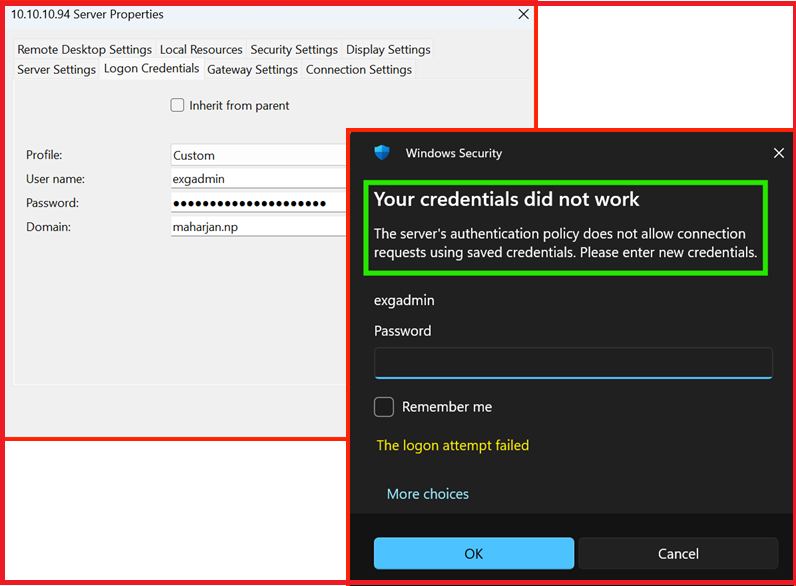
Before applying the policy, ensure you have a saved credential for the DC (e.g., via RDP or a network share). Initiate a connection to the DC server. Windows should automatically use the saved credential and grant you access without prompting for a password.
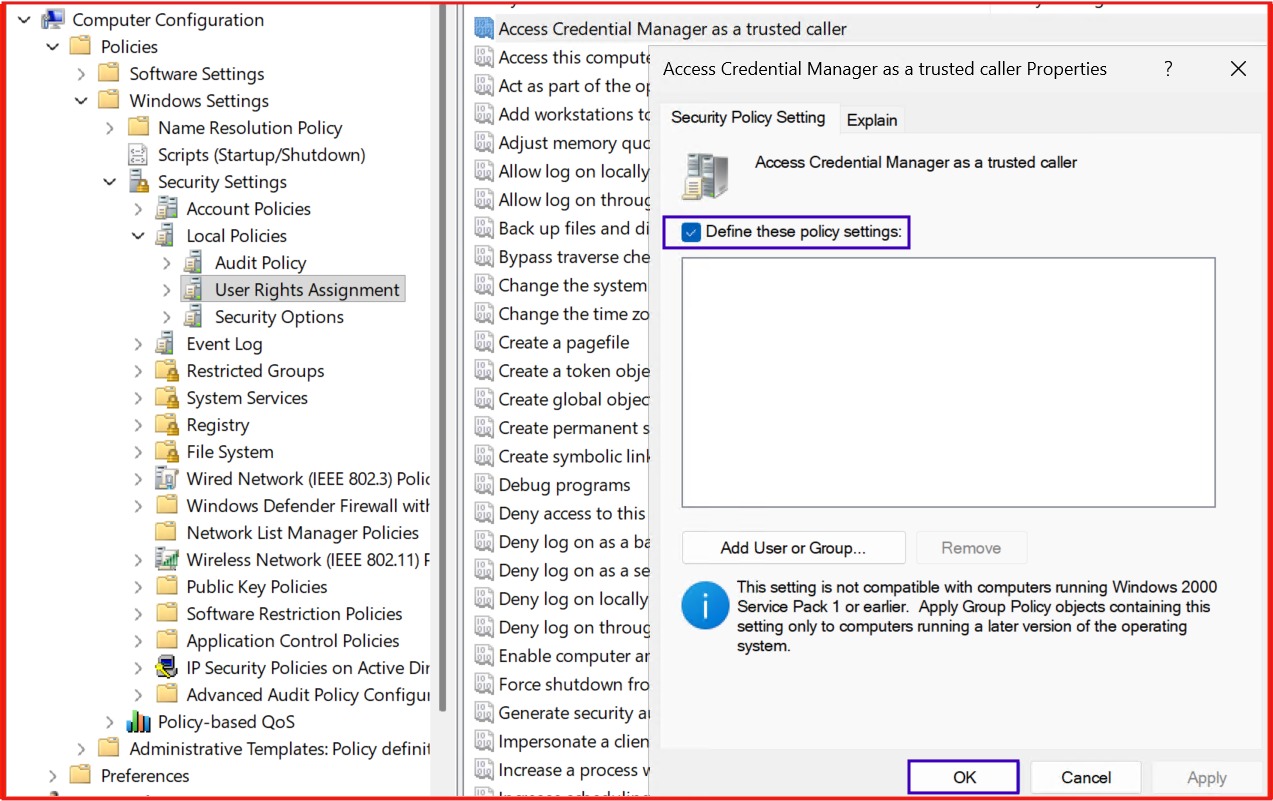
Configure the policy as “Enabled” with no users/groups
Open the Group Policy Management Editor on your DC. Navigate to:
Computer Configuration → Policies → Windows Settings → Security Settings → Local Policies → User Rights Assignment
Double-click “Access Credential Manager as a trusted caller”. Select “Define these policy settings”. If any users or groups are listed, remove them all, leaving the list completely blank. Click OK.
GPO Path: Computer Config → Policies → Windows Settings → Security Settings → Local Policies → User Rights Assignment
Error message appears – saved credentials are no longer allowed
Apply the policy immediately by running gpupdate /force on the DC. Now, attempt the exact same login task (RDP to the DC) again. This time, the saved credential is effectively blocked. Instead of logging in automatically, Windows displays the following error:
This confirms that the RDP client is no longer a “trusted caller” and cannot retrieve the saved password from Credential Manager. The user must now type the password manually.
Lab Completion Checklist
Check off each step as you complete it in your lab environment.
5. Final Thoughts
The “Access Credential Manager as a trusted caller” policy is a classic example of a powerful system privilege that should never be handed out to interactive users or standard service accounts. By ensuring this policy is explicitly defined in your GPO with an empty list, you close a significant hole that could otherwise lead to credential dumping and lateral movement across your network.
Takeaway: Always review User Rights Assignments as part of your security baseline. A simple misconfiguration here can completely undermine your endpoint protection.