Welcome to Part 4 of our MailVault Deployment Series. In Part 3, we locked down our data lifecycle automation rules and archival backup schedules. With data flowing and storing securely, our next administrative challenge is handling identity access management.
Manually provisioning separate local users inside an enterprise platform creates credential fatigue, security gaps, and high administrative overhead. To bypass this, system engineers connect MailVault directly to Active Directory (AD) or corporate LDAP servers. This guide walks you through linking your directory infrastructure and mapping Role-Based Access Control (RBAC) scopes.
1. Connecting MailVault to Active Directory / LDAP
To centralize identity lookups, log into MailVault with your master admin account and navigate to Settings > Authentication Modules > Directory Services. Change your primary provider state from “Local Only” to “Active Directory / LDAP”.
Within this configuration frame, you must carefully populate your environment’s baseline connection paths:
- LDAP Server String: The FQDN or IP address of your primary Domain Controller (e.g.,
ldap://pdc.maharjan.np:389). - Base DN (Distinguished Name): The root search point for your organization’s user tree (e.g.,
DC=maharjan,DC=np). - Service Account Bind DN: A dedicated, low-privilege service account string used by MailVault to securely query user information.
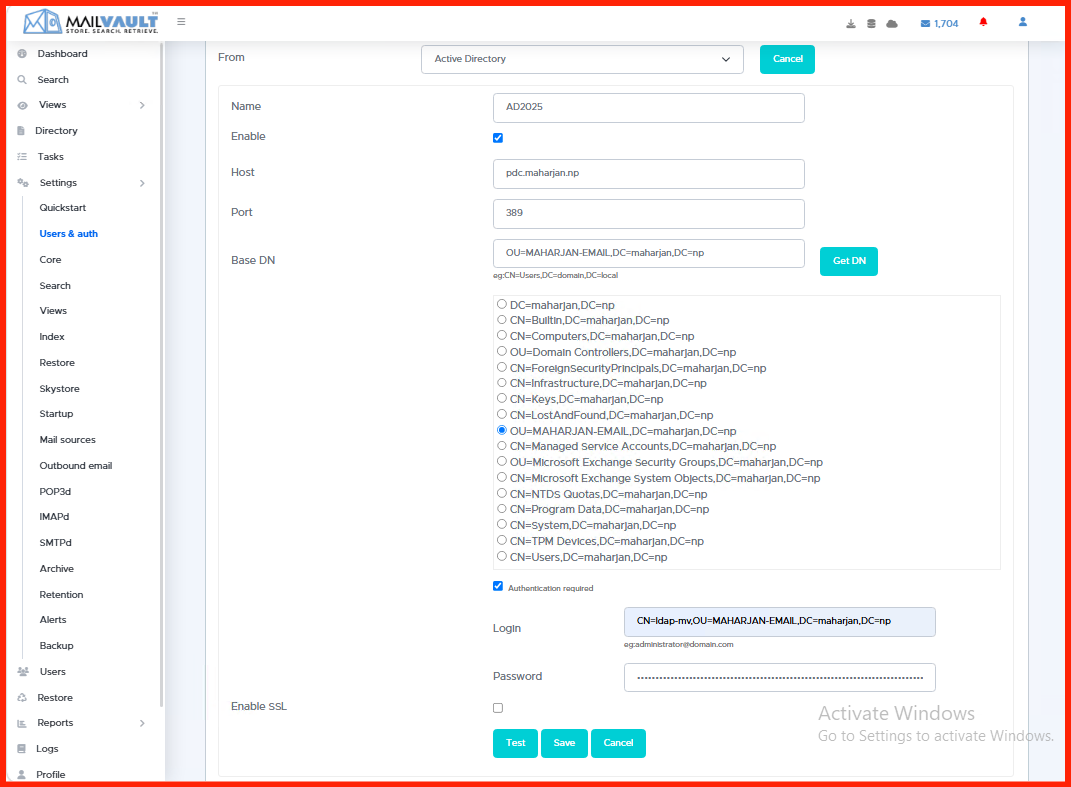 Import Users from AD:
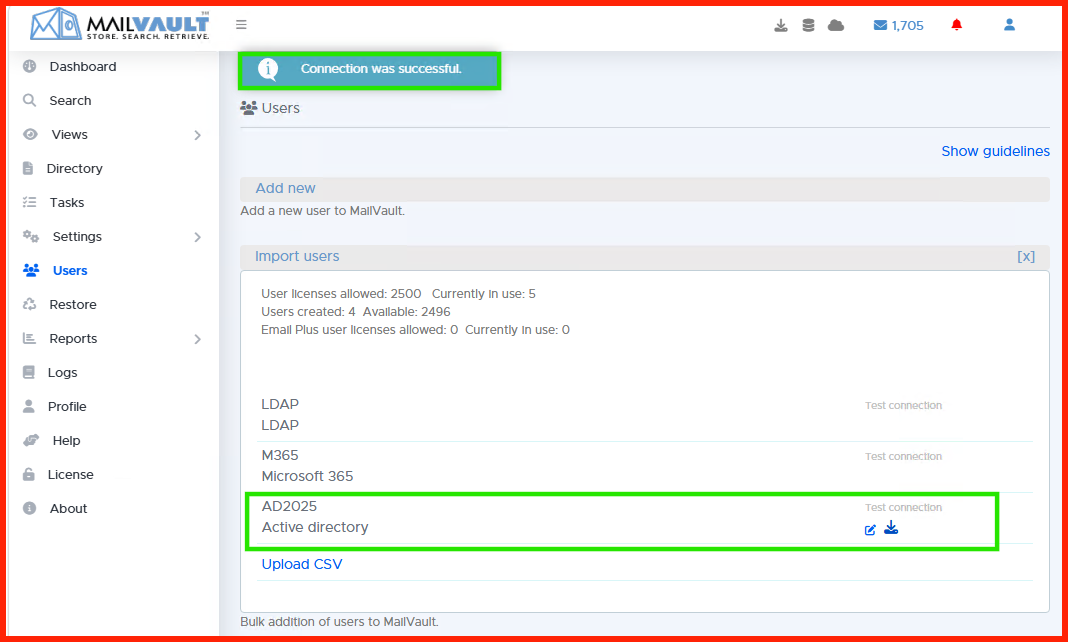
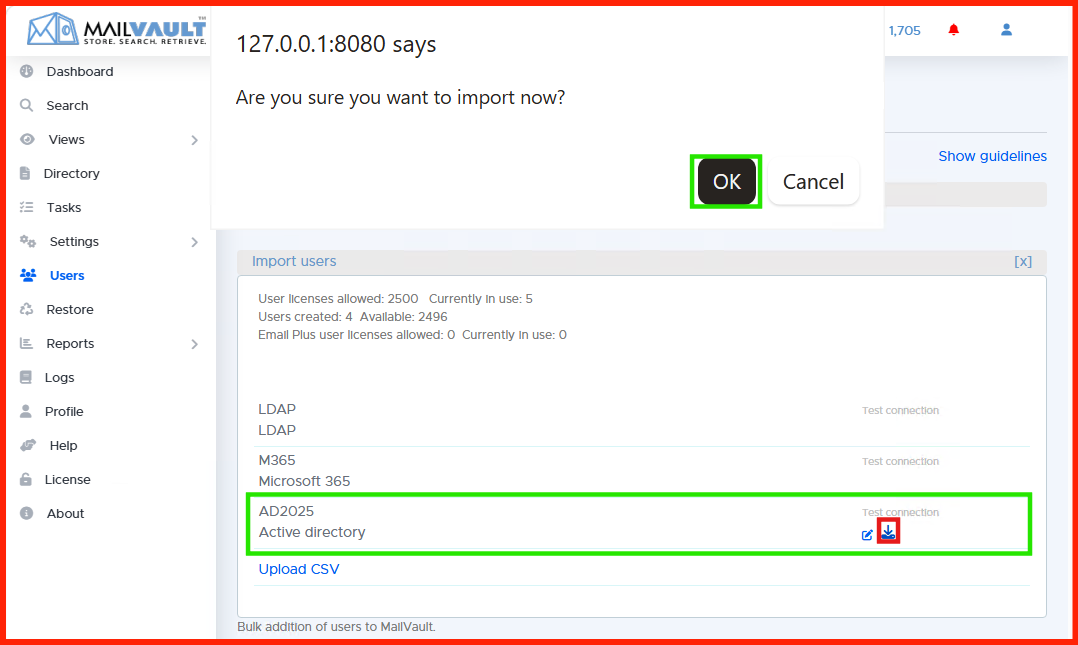
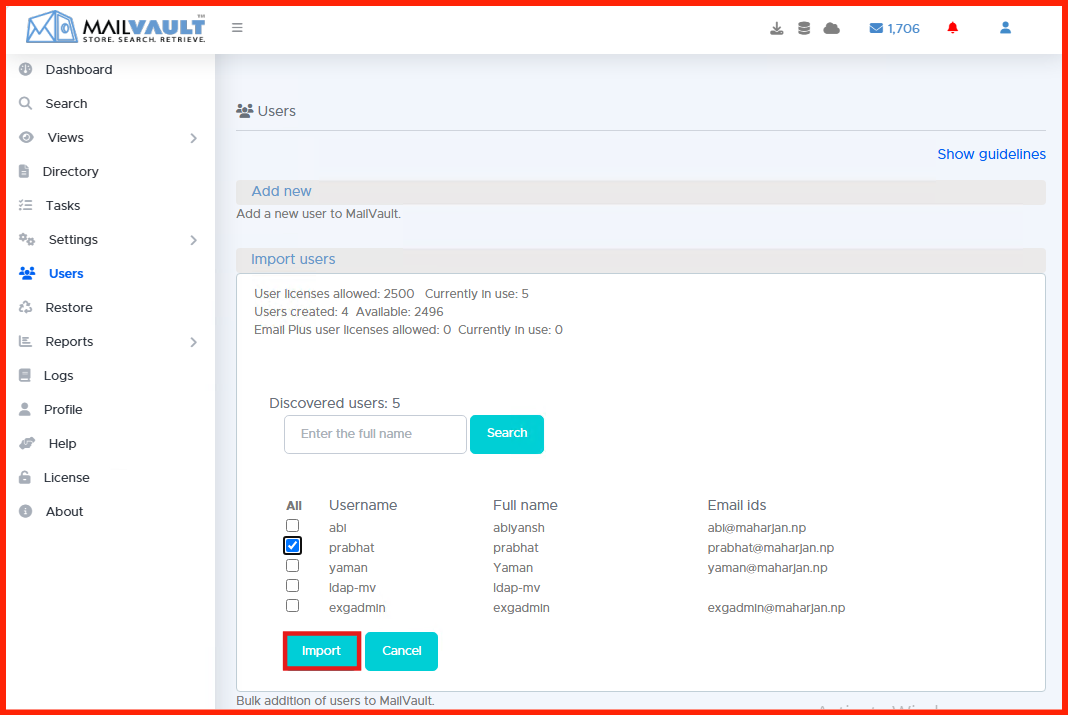
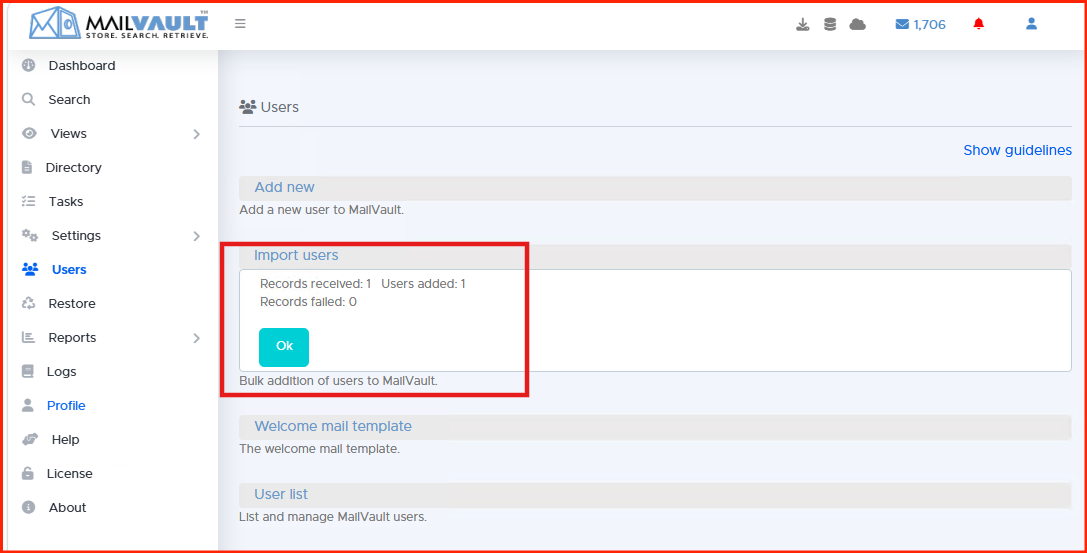
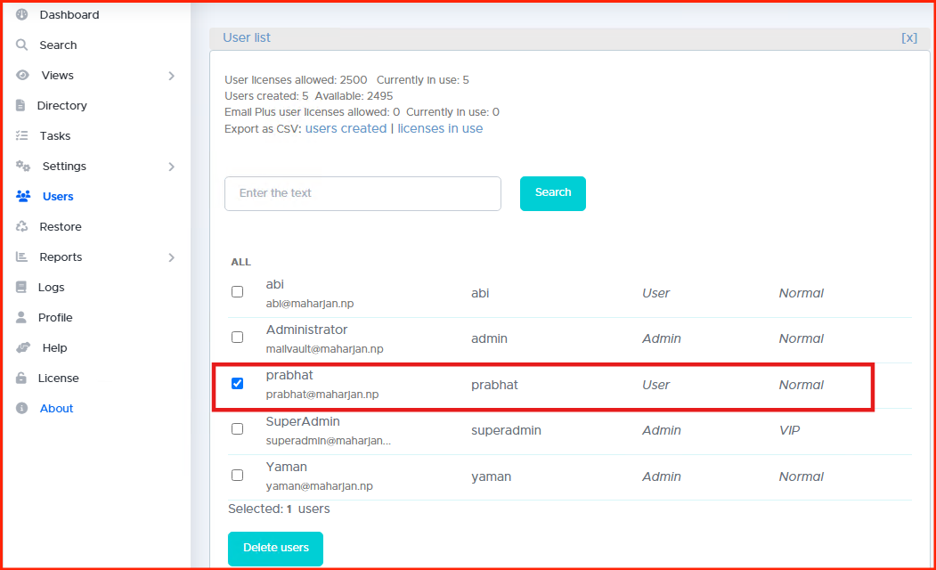
2. Defining Role-Based Access Control (RBAC) Mapping
Once identity links validate successfully, do not grant uniform open permissions across your infrastructure. MailVault relies on structural user permissions blocks to regulate visibility:
- Master Administrators: Full platform configuration rights, storage management, and global logs access.
- Compliance Auditors / HR Officers: Read-only global search permissions over all indexed company mailboxes to execute legal discoveries without configuration modify rights.
- Standard End Users: Strictly confined view scopes allowing individual users to log in and query only their own personal inbound and outbound email history.
Security Hardening Tip: Always prefer LDAPS (LDAP over SSL) on port 636 rather than standard plain LDAP over port 389. This prevents employee corporate credentials from passing across internal switches in cleartext.
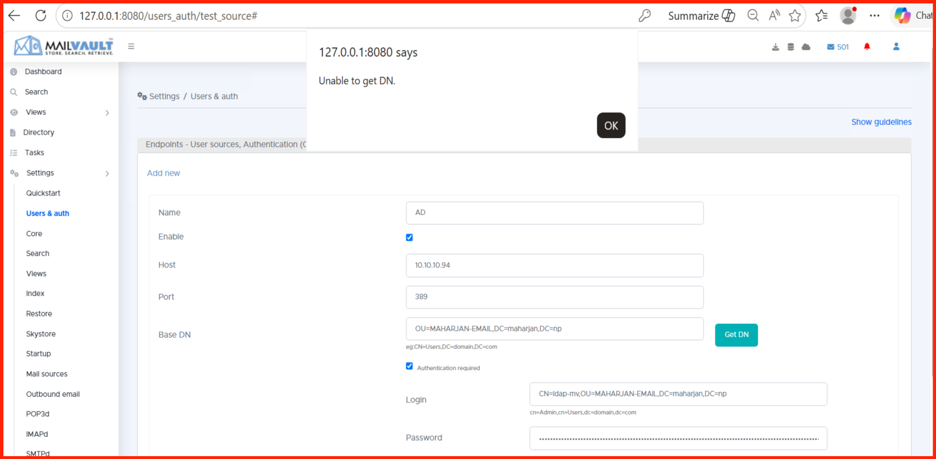
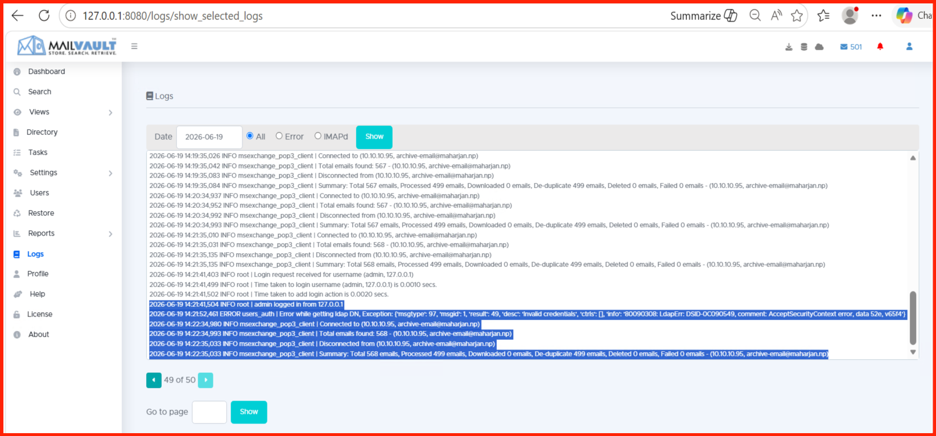
2026-06-19 14:21:52,461 ERROR users_auth | Error while getting ldap DN, Exception: {‘msgtype’: 97, ‘msgid’: 1, ‘result’: 49, ‘desc’: ‘Invalid credentials’, ‘ctrls’: [], ‘info’: ‘80090308: LdapErr: DSID-0C090549, comment: AcceptSecurityContext error, data 52e, v65f4’}
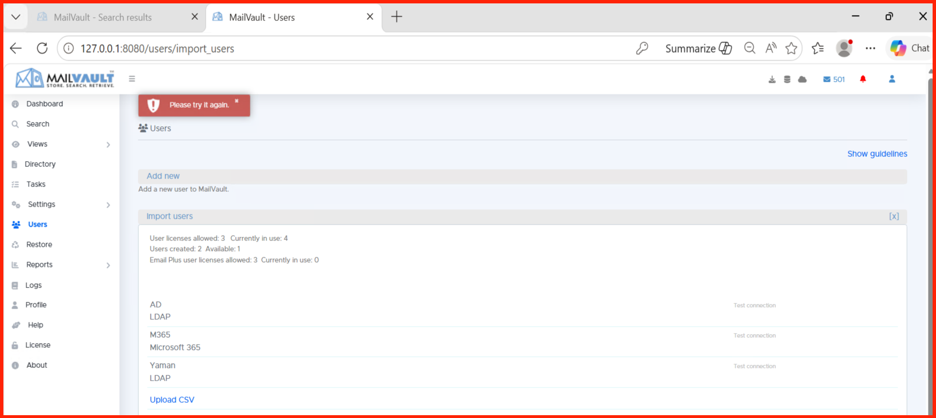 Resolution:
 In Windows Server 2025 OS, Active Directory LDAP Server Signing requirements set to LDAPS by default and restrict LDAP connection.
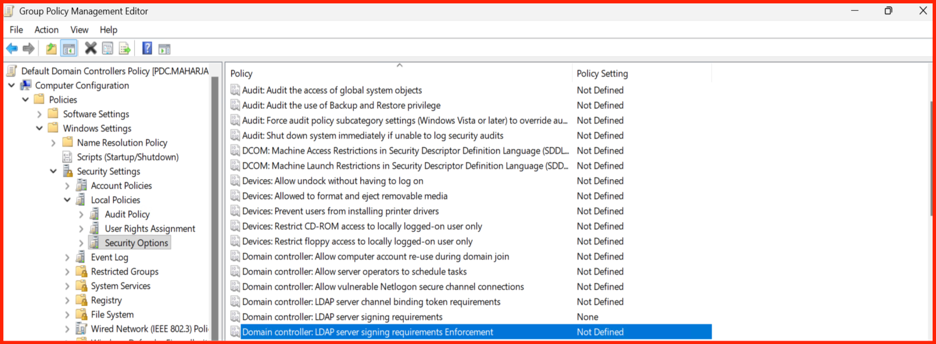
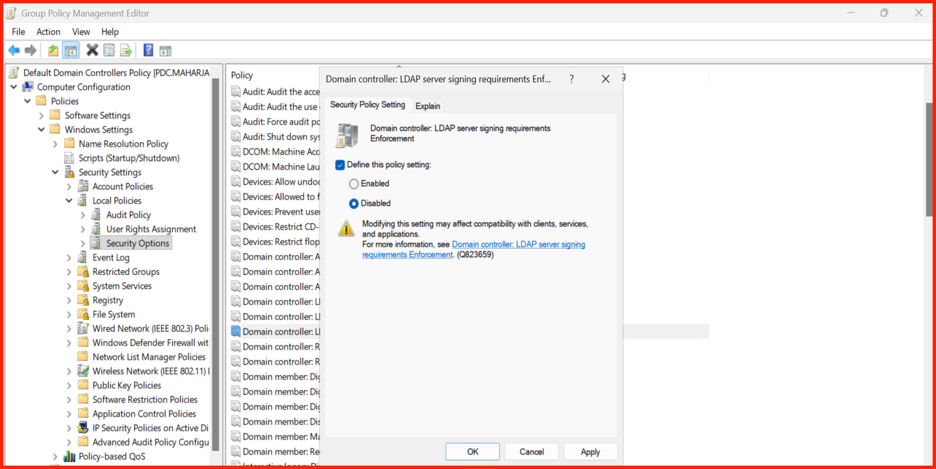
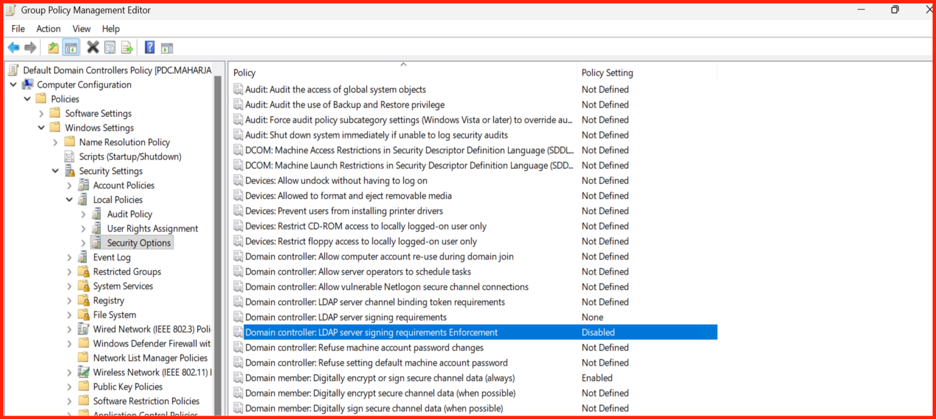
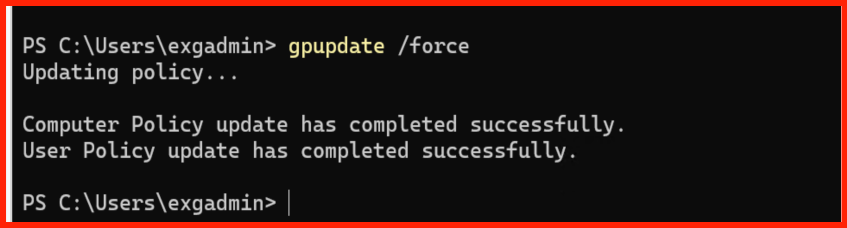
3. Verifying the Directory Handshake Sync
Save your configuration matrix and run an explicit “Sync Test”. MailVault will execute queries against your designated Organizational Units (OUs), map nested properties, and display account detection verification reports.
Once validated, users can use their regular corporate desktop passwords to securely log directly into the archiving platform portal.
Next Steps: Interface Customization & Communication Hardening
Now that your corporate identities are perfectly integrated and role boundaries are mapped, the platform is ready for broader exposure.
In Part 5: UI Corporate Branding and Custom SSL Certificate Hardening, we will customize the archiving portal by applying unified corporate branding styles and binding signed production SSL/TLS certificates to secure web interactions.