Welcome to Part 5 of our MailVault Deployment Series. In Part 4, we successfully bridged user identity profiles with Active Directory to enforce centralized login controls. Now that the platform is ready to be opened to users, we need to transform it into an official company resource.
Exposing a standard web interface with default software templates and unencrypted connection layers risks diminishing user adoption and exposing traffic to sniffing vectors. In this guide, we will step through styling MailVault with custom corporate branding and binding a production SSL/TLS certificate to secure internal web traffic.
1. Applying Corporate UI Branding & Custom Styles
A tailored user interface provides immediate reassurance to workforce teams that they are interacting with an officially approved internal system. MailVault lets administrators update look-and-feel assets directly inside the control layer.
Log in with your administrator profile and navigate to Settings > Core Settings > Client Customization / Branding. From this console panel, you can inject custom brand layouts:
- Application Logos: Upload high-resolution PNG or SVG logo files to overwrite default product graphics on the login panel and sidebar.
- Theme Customizations: Adjust primary accent palettes to align matching CSS color codes with your organization’s design manual.
- Custom Notice Disclaimers: Append legal notification footprints onto the root login screen (e.g., *“Authorized corporate tracking portal only. Sessions are actively recorded.”*).
2. Binding Custom SSL/TLS Certificates
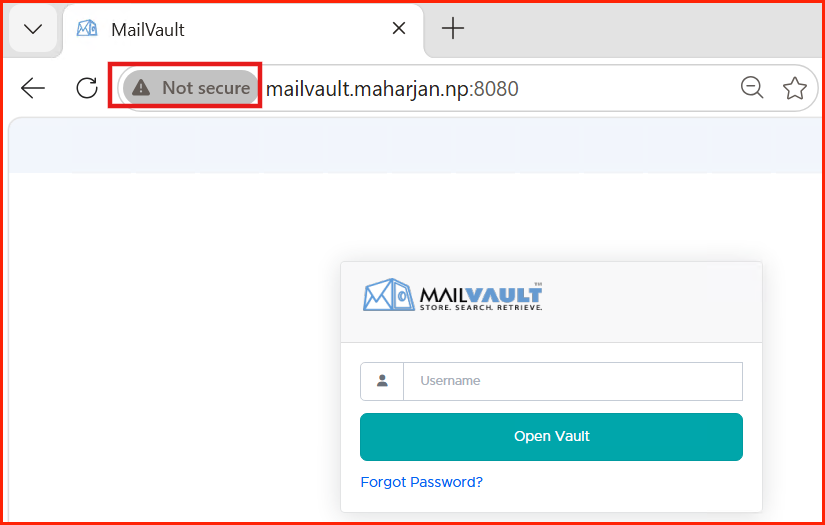
To eliminate dangerous “Not Secure” browser certificate warnings and ensure user query sessions are encrypted end-to-end, you must replace the default self-signed certificate with a trusted, enterprise-grade production SSL certificate.
Navigate to Settings > Core Configurations > SSL Certificate. Toggle the secure web service connector protocol and prepare to input your certificate block strings:
- Private Key (.key): Paste the encrypted string generated alongside your primary CSR file. Keep this string private.
- Server Certificate (.crt / .pem): Paste your public base certificate key file supplied by your external Public CA (e.g., DigiCert, Let’s Encrypt) or your internal Microsoft Active Directory Certificate Services (AD CS) infrastructure.
- Certificate Chain / Intermediate: Supply intermediate bundles to guarantee root trust verification across edge endpoints.
Hardening Tip: After adding production certificate profiles, disable the legacy non-SSL port (HTTP 8080) entirely, or force a permanent HTTP-to-HTTPS redirect rule to push all active traffic to port 8443 securely.
3. Testing Web Endpoint Integrity
Save your configuration settings and restart MailVault’s internal web server daemon when prompted. Open a fresh browser window and navigate to your fully qualified domain name path (e.g., https://mailvault.maharjan.np).
Verify that your custom business logos populate cleanly on the screen and that the browser address bar confirms a valid, secure HTTPS handshake without any encryption warnings.
Next Steps: Opening User Self-Service Portals
With an officially branded interface and data lines locked down with production-grade SSL/TLS certificates, your instance is fully ready for enterprise-wide adoption.
In Part 6: End-User Console Access, e-Discovery, and Mail Restoration, we will explore the end-user experience, focusing on executing search queries and successfully running point-in-time point recoveries directly back to user inboxes.