Introduction
The Local Administrator Password Solution (LAPS) is a Microsoft solution that addresses the critical security challenge of managing local administrator passwords on domain-joined computers. With LAPS, you can automatically manage and rotate local admin passwords, store them securely in Active Directory, and control access using standard AD permissions.
Windows Server 2025 brings the new Windows LAPS (built‑in) as a native feature, replacing the legacy MSI‑based LAPS. This guide walks you through the entire implementation process on a Windows Server 2025 Active Directory domain controller.
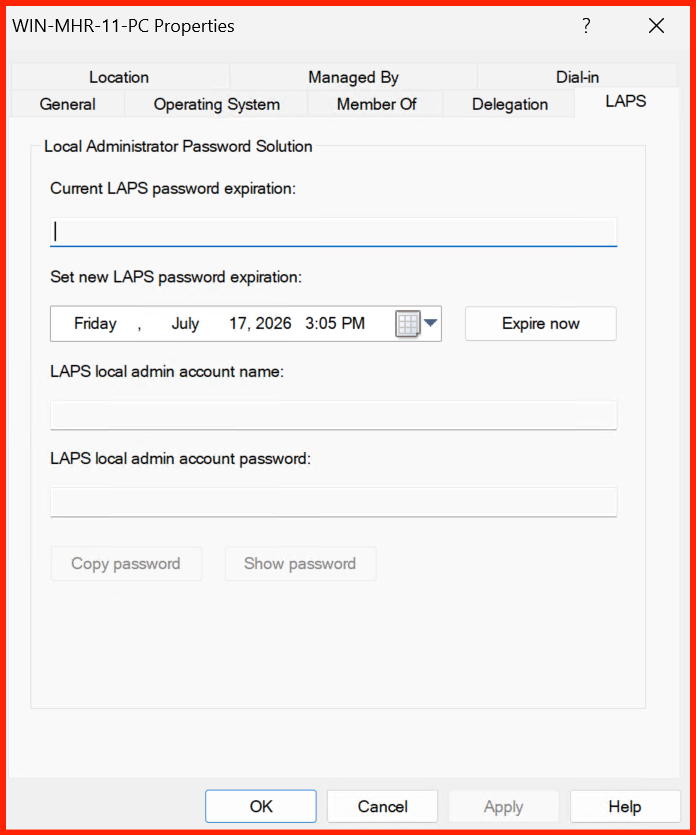
Prerequisites
Before you begin, ensure your environment meets the following requirements:
- Windows Server 2025 with the AD DS role installed.
- Active Directory domain functional level at least Windows Server 2016.
- Schema Admin and Domain Admin privileges (for schema extension and GPO configuration).
- Windows 11 / Windows Server 2025 client machines (for the LAPS client component).
- PowerShell 5.1 or later (comes pre‑installed).
- Network connectivity between domain controllers and clients.
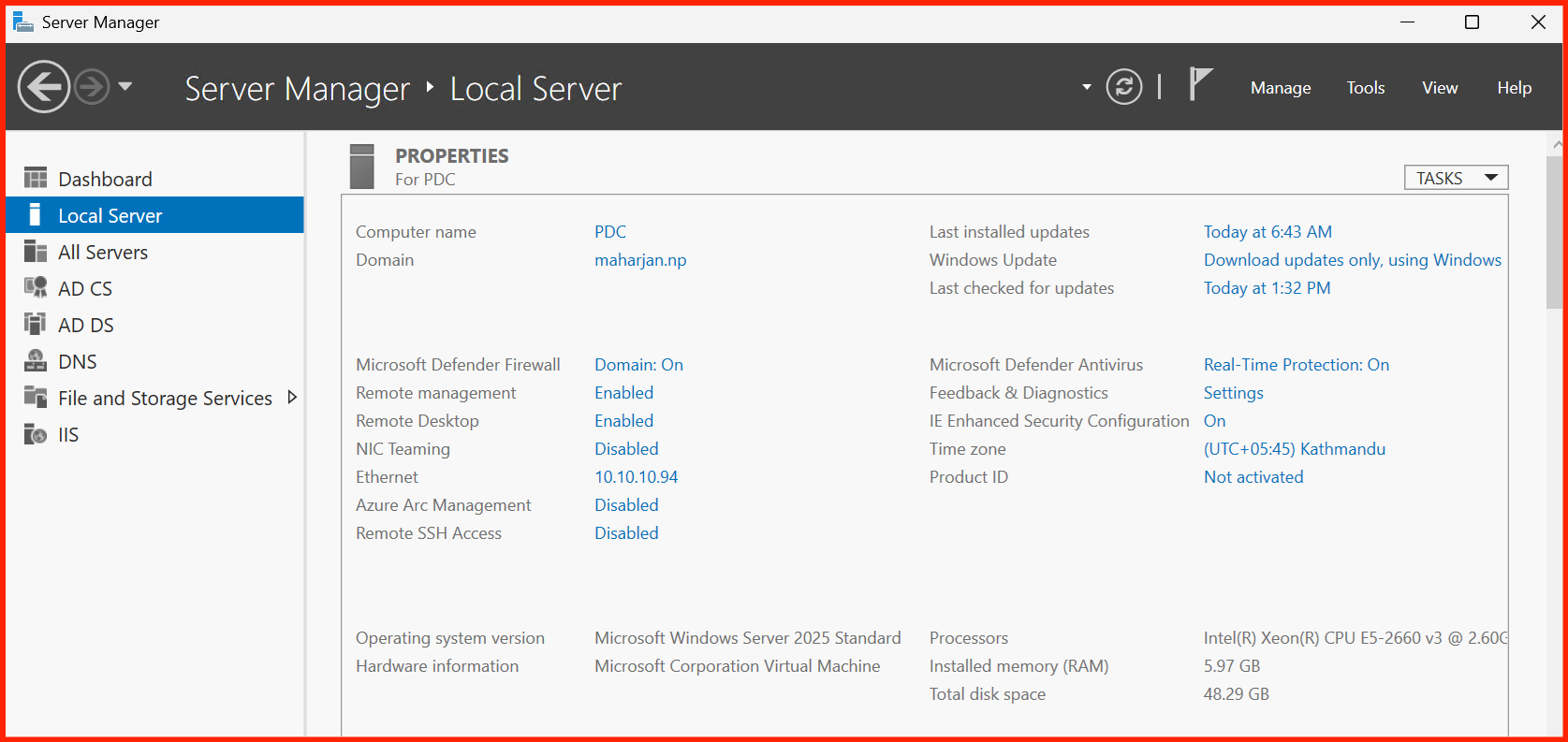
Extend the Active Directory Schema
Windows LAPS requires additional attributes in the AD schema to store password metadata. The schema extension is a one‑time operation that must be performed by a Schema Admin.
Run the following PowerShell command on the schema master DC:
Update-AdmPwdADSchema instead.
However, for Windows Server 2025, Windows LAPS is the recommended approach.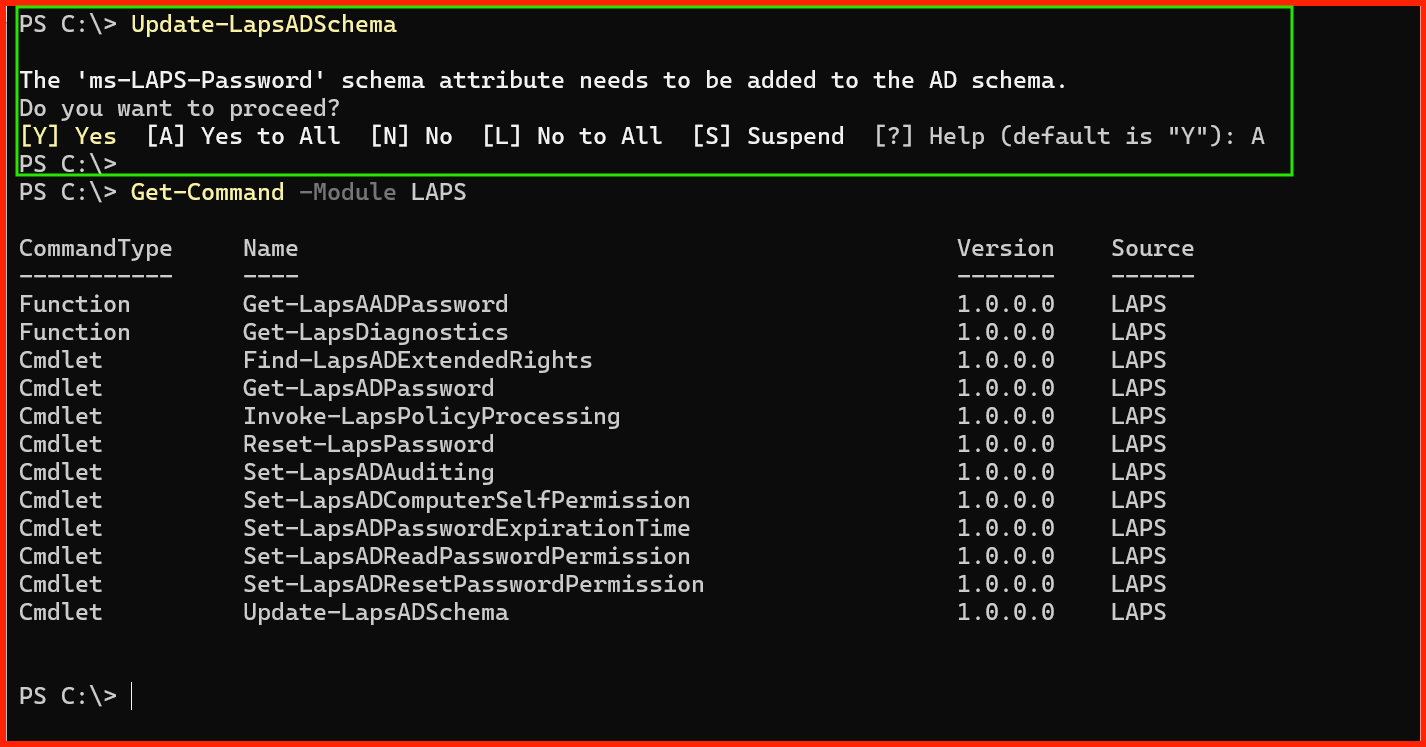
Update-LapsADSchema to extend the AD schema for Windows LAPS.Configure Group Policy for LAPS
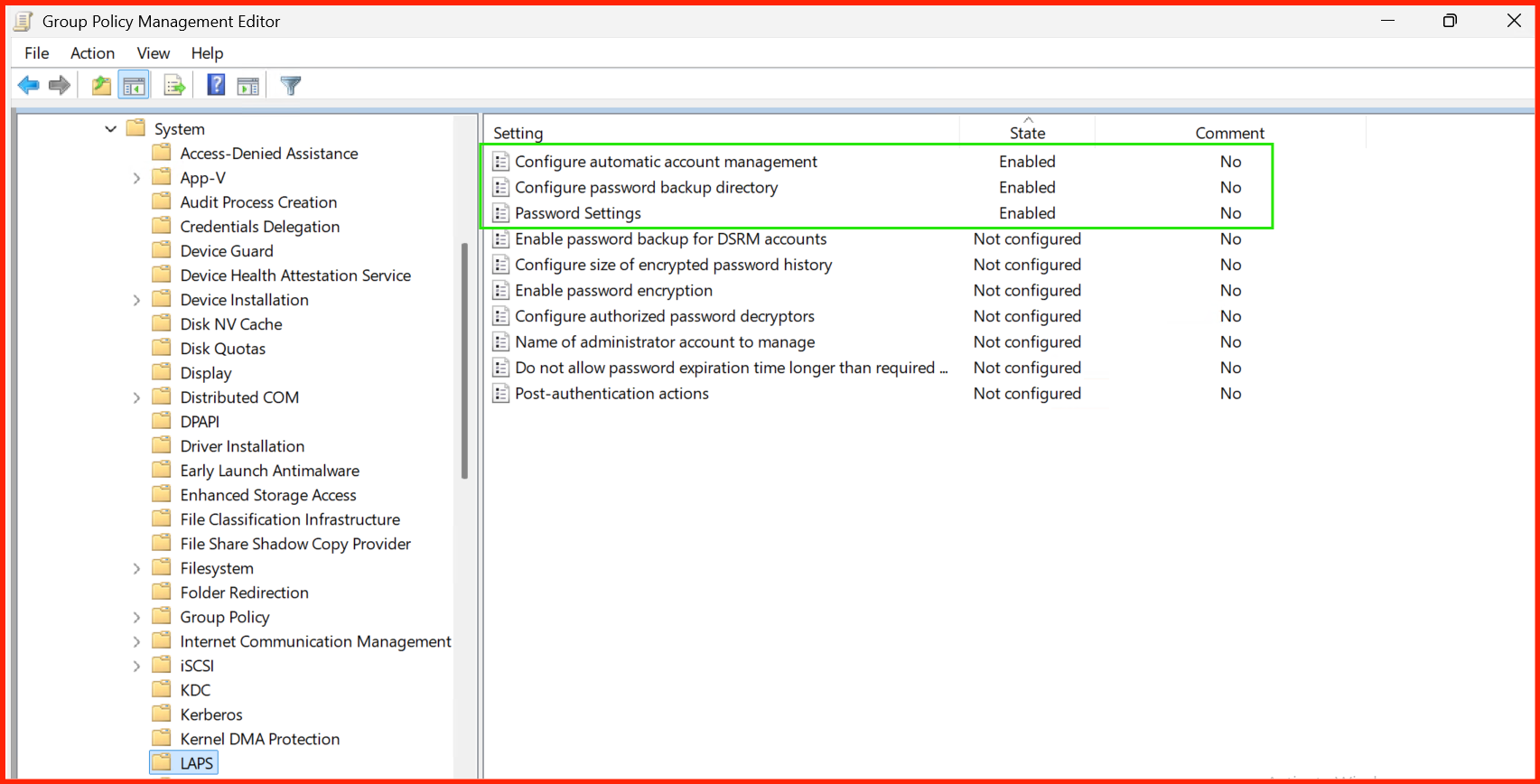
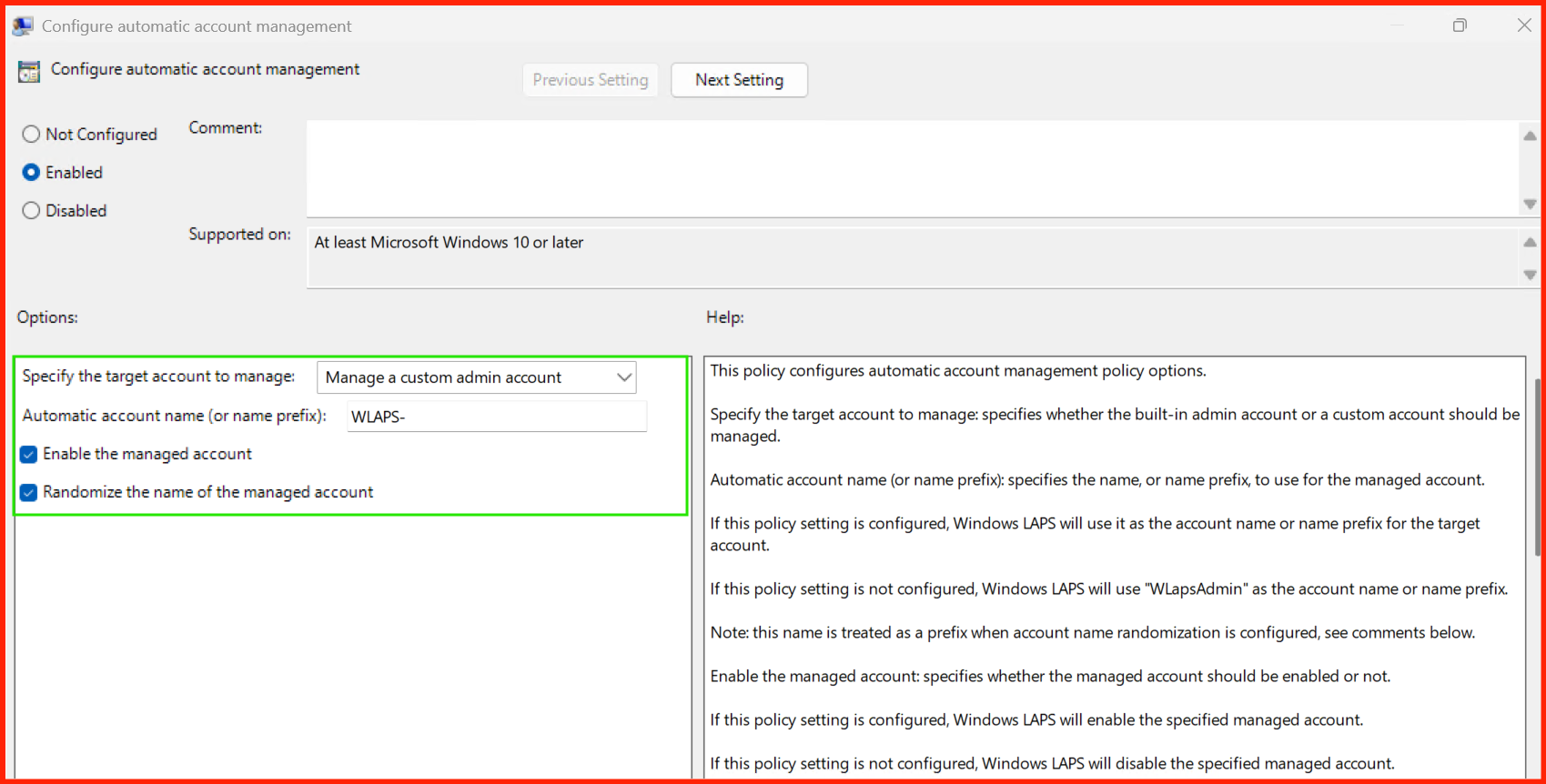
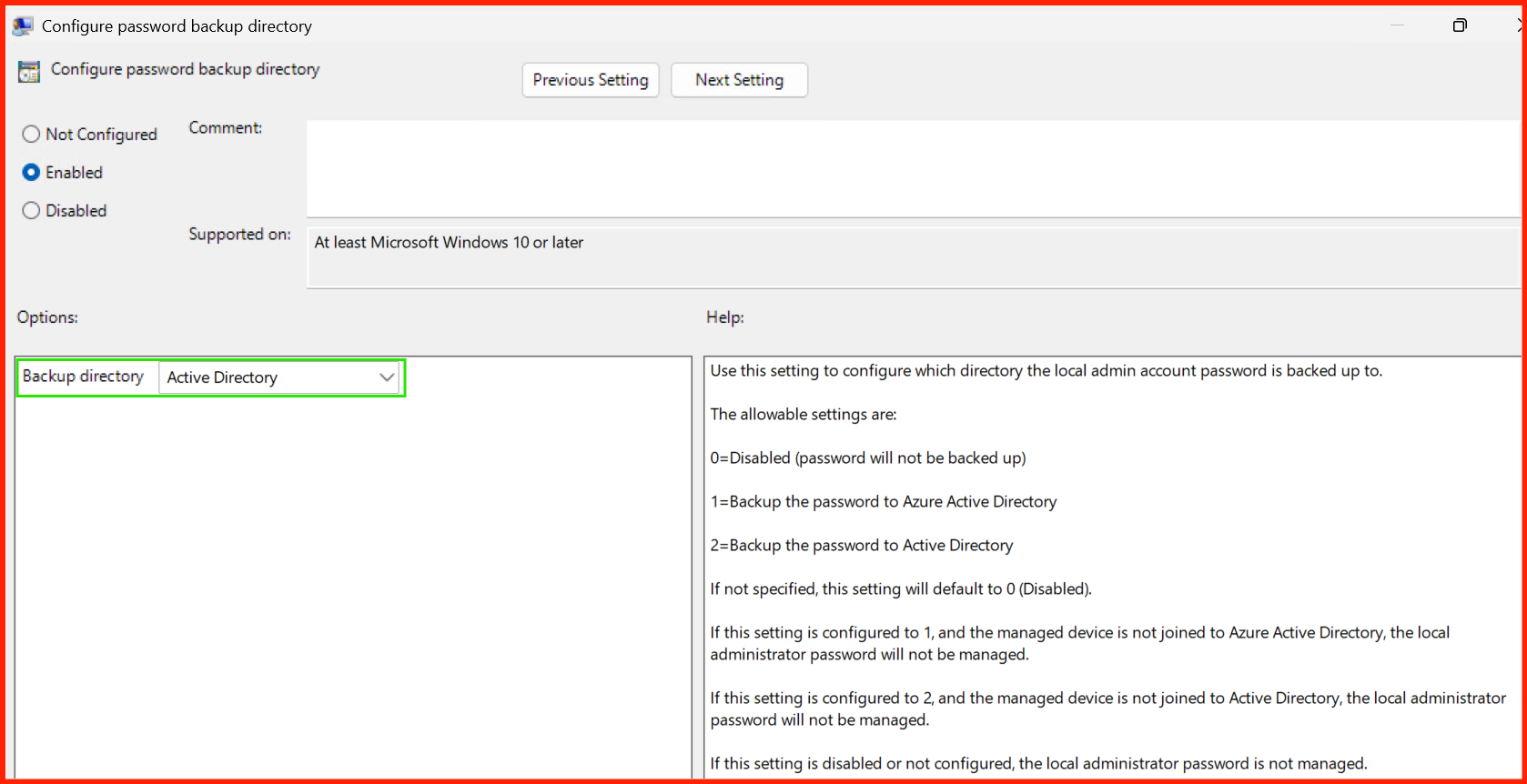
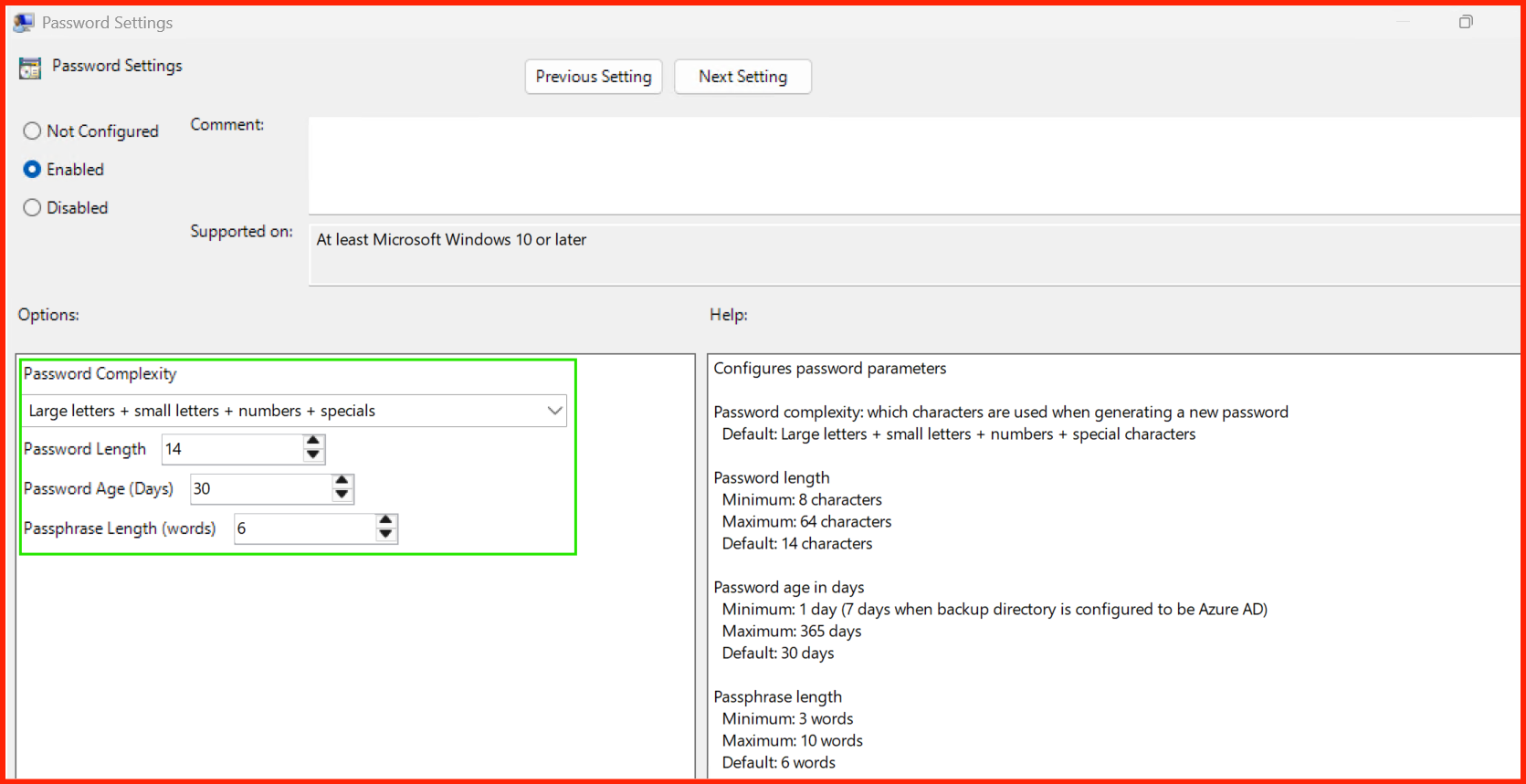
LAPS settings are managed through Group Policy. You need to define password complexity, rotation frequency, and which accounts to manage.
- Open Group Policy Management Console (GPMC).
- Create a new GPO (e.g., Windows LAPS – Settings) or edit an existing one.
- Navigate to:
Computer Configuration → Policies → Administrative Templates → System → LAPS - Configure the following policies:
| Policy Setting | Recommended Value | Description |
|---|---|---|
| Enable password backup | Enabled | Stores passwords in AD. |
| Password complexity | Enabled (14 chars, uppercase, lowercase, digits, special) | Ensures strong passwords. |
| Password age (days) | 30 | Rotation interval. |
| Enable password encryption | Enabled | Encrypts password in AD. |
| Authorized password readers | Domain Admins, LAPS_Readers group | Controls who can read passwords. |
Set Active Directory Permissions
To allow LAPS to write and read password data, you need to set appropriate permissions on the AD computer objects. This is done using PowerShell.
Use the following command to set the required permissions:
To grant read access to a specific group (e.g., LAPS_Readers):
LAPS_Readers)
for password read access. Add only authorized helpdesk or security personnel to this group.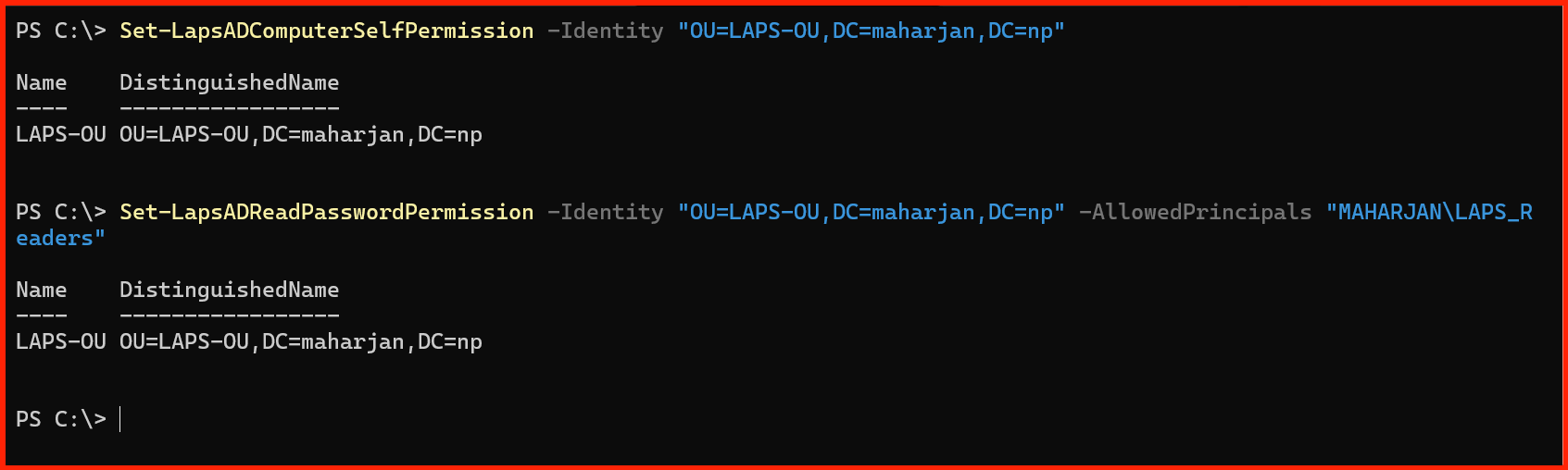
Set-LapsADComputerSelfPermission and Set-LapsADReadPasswordPermission.Deploy LAPS to Clients & Manage
Once the server‑side configuration is complete, you need to deploy the LAPS client component to your domain‑joined machines. On Windows 11 and Windows Server 2025, the LAPS client is built‑in and enabled via Group Policy.
Client‑Side Configuration
The LAPS client is automatically activated when the GPO settings are applied. Ensure the GPO is linked to the OUs containing your workstations and servers.
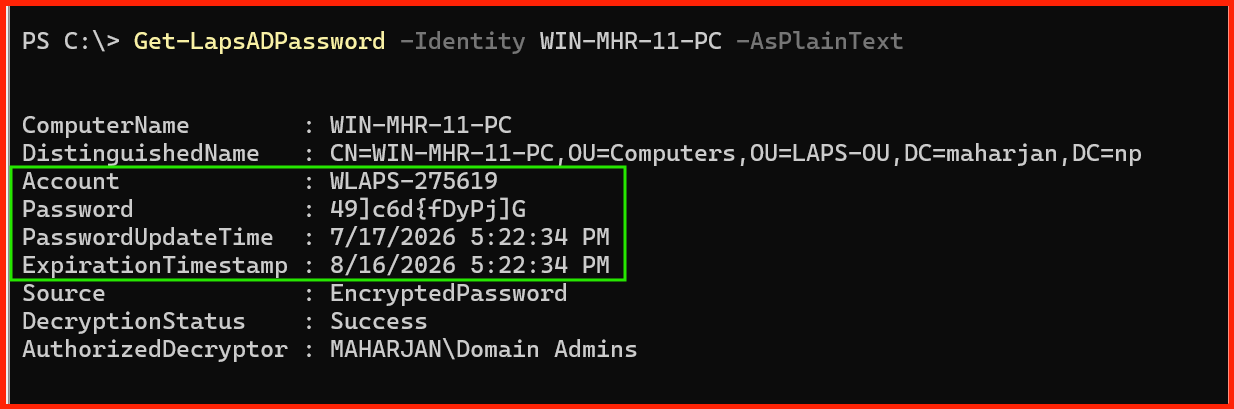
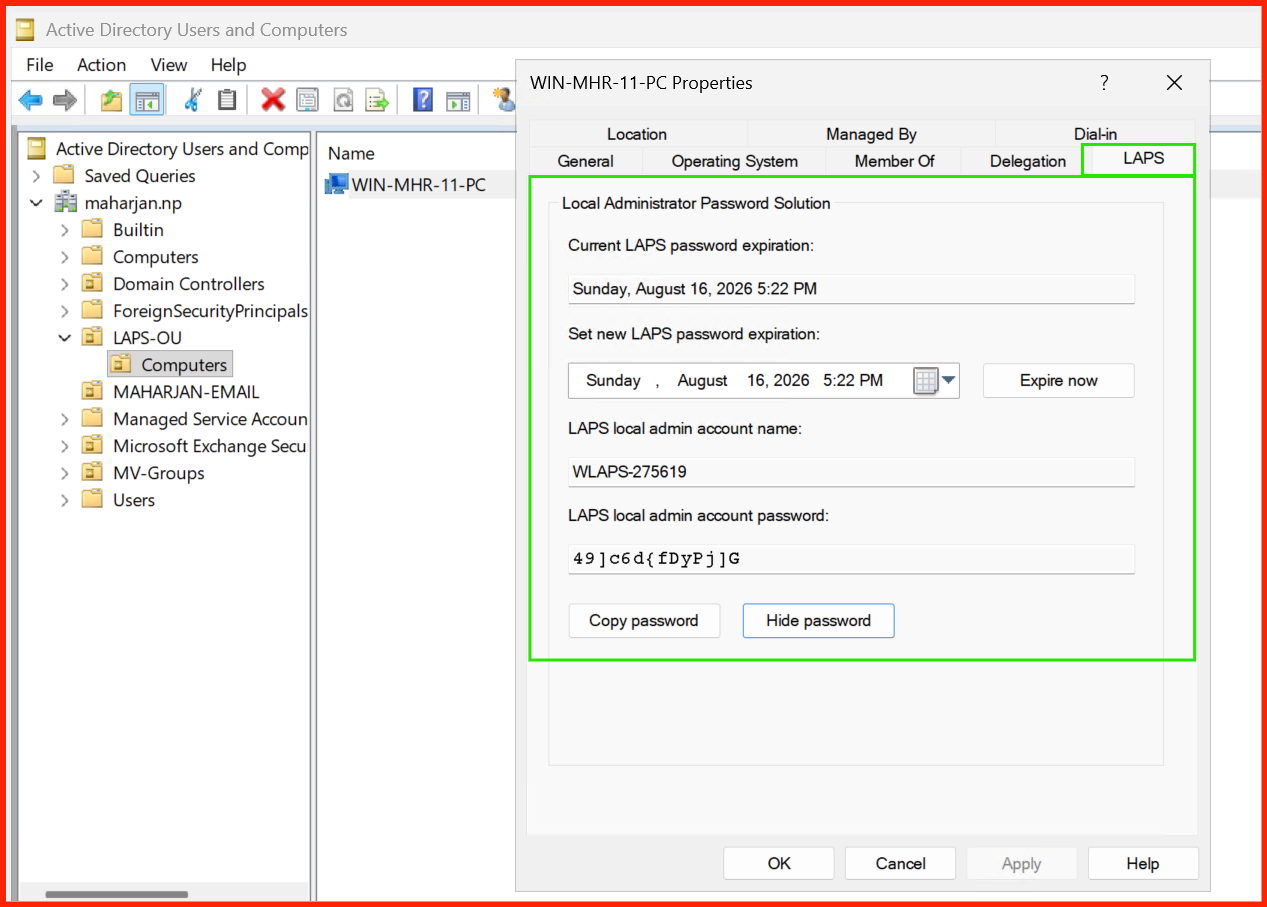
Managing LAPS with PowerShell
View the LAPS password for a specific computer:
Conclusion
Implementing LAPS on Windows Server 2025 is a straightforward process that significantly enhances your Active Directory security posture. By following this step‑by‑step guide, you have:
- Extended the AD schema with LAPS attributes.
- Configured Group Policy to enforce password complexity and rotation.
- Set appropriate AD permissions for secure password storage and retrieval.
- Deployed LAPS to clients and learned key management PowerShell commands.
Event ID 10001–10005 under Applications and Services → Microsoft → Windows → LAPS)
and consider integrating with your SIEM for proactive security monitoring.With LAPS in place, you have eliminated the risk of static local admin passwords across your entire Windows fleet. Your systems are now more resilient against lateral movement and credential theft attacks.
Happy securing! 🚀