Welcome to Part 3 of our MailVault Deployment Series. In Part 2, we successfully bridged our email server traffic layers to ingest real-time corporate message streams. However, simply capturing data is only half the battle. Storing records indefinitely without rules risks inflating physical storage expenses and breaching compliance laws like GDPR’s “right to be forgotten.”
To operate a sustainable archiving standard, engineers must enforce lifecycle automation. In this guide, we will step through configuring granular data retention schedules, defining compliance exceptions, and structuring secure underlying storage backups to ensure business continuity.
1. Managing Archiving Retentions & Compliance Windows
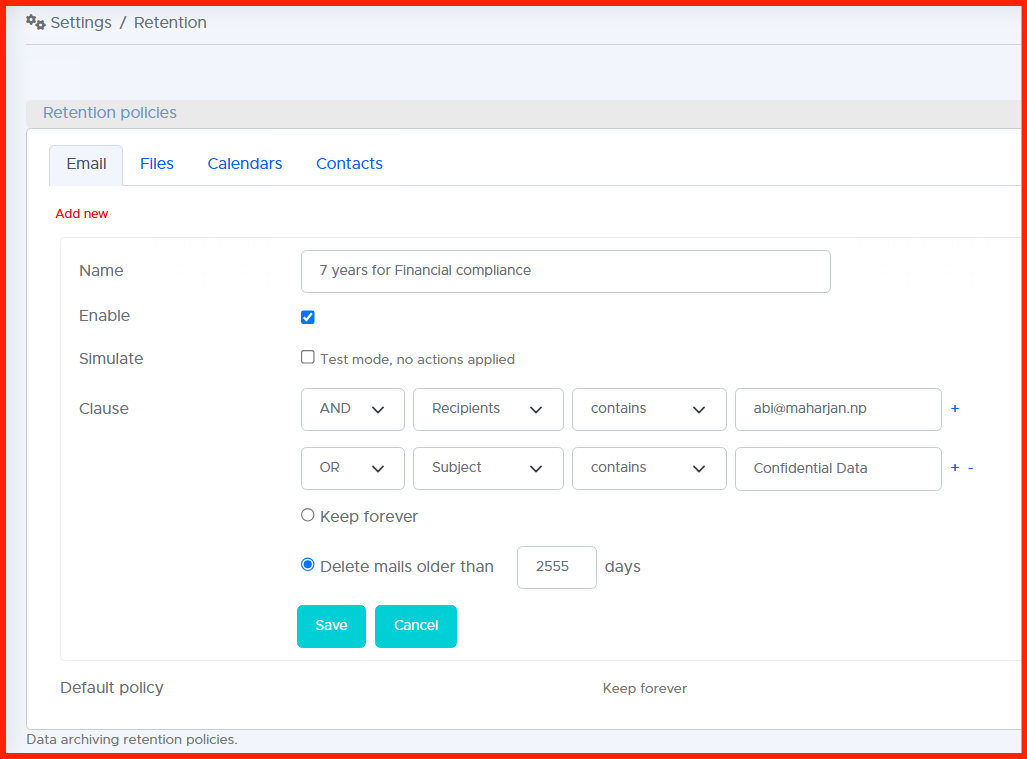
MailVault allows administrators to build time-bound rules that automatically prune or move old records when they exceed specified age thresholds (e.g., purging general emails after 3 years, while preserving financial records for 7 years to satisfy audit requirements).
Log into your management panel and navigate to Policies > Retention Schedules. Here, you can establish your default storage lifespans and create specialized pattern filters using sender scopes, header types, or specific domain criteria.
2. Implementing Legal Holds for Active Audits
There are operational scenarios where automated deletion rules must be temporarily bypassed—such as an ongoing corporate lawsuit or a pending financial audit. For this, MailVault implements a feature known as a Legal Hold.
When a Legal Hold is applied to a mailbox, specific user, or search query result, MailVault completely freezes all deletion routines for those files. Even if a background retention rule dictates that an email is due for absolute purging, the system will preserve it until an authorised compliance officer manually revokes the hold flag.
Compliance Best Practice: Always restrict Legal Hold assignment access to senior data controllers. Standard IT administrative roles should not have permission to single-handedly clear or implement audit holds without oversight.
3. Configuring Archival Volume Backup Paths
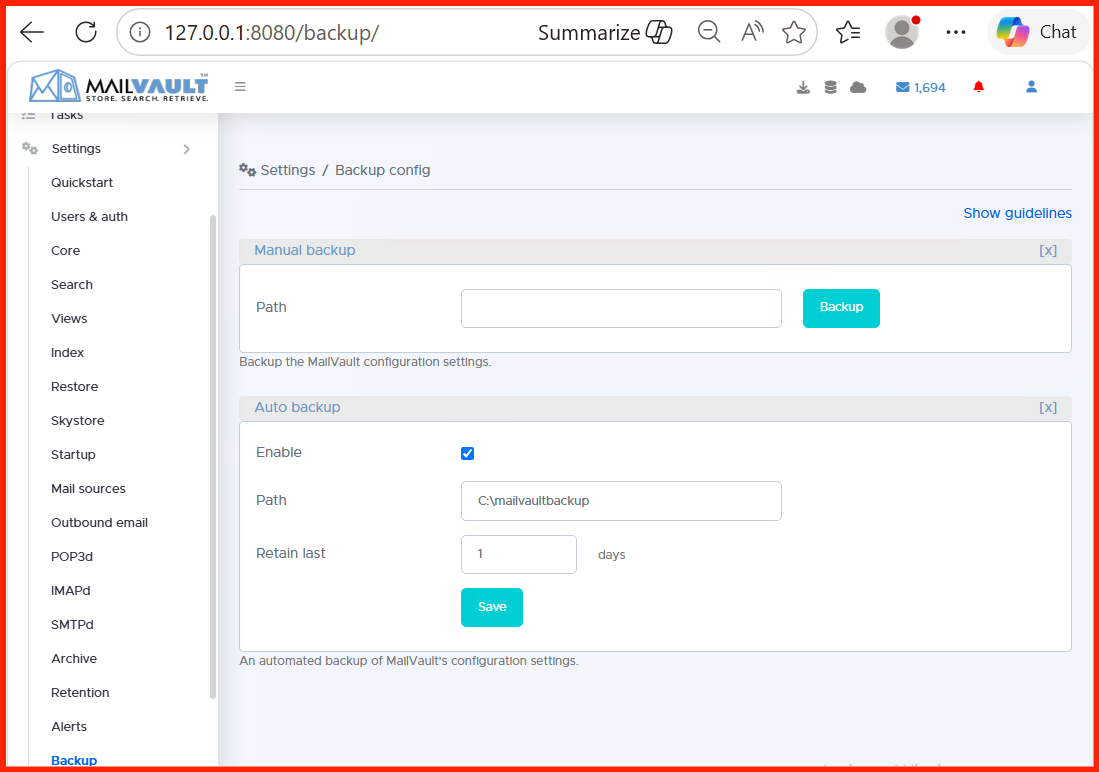
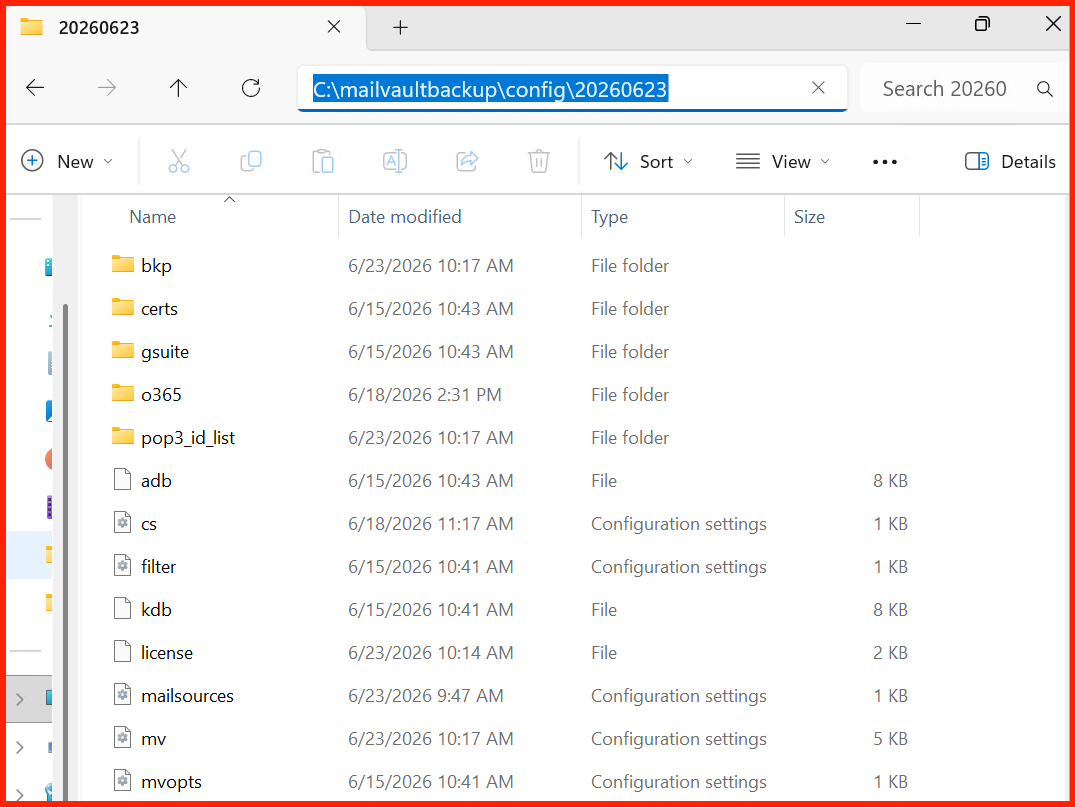
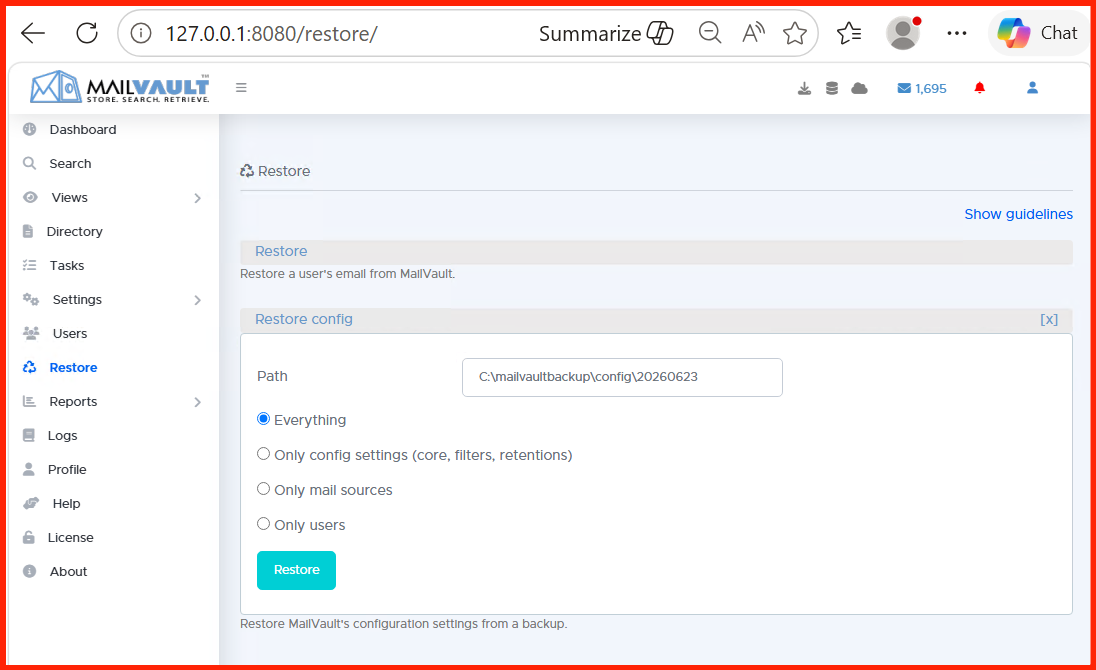
An archive is only as secure as its resilience against physical drive failures. Because MailVault stores indexes and raw message stores distinctly, a consistent background backup routine is mandatory.
To specify your target storage paths, go to Core Settings > Backups. For small-to-medium topologies, map local block stores to secondary, physically separated internal arrays. For enterprise environments, route your encrypted backup payloads toward decoupled endpoints such as secure network shares (SMB/NFS) or immutable cloud object containers.
Next Steps: Centralizing Access Management
With data streams streaming securely and automated storage lifecycles actively governed by your compliance rules, the next milestone is defining who can access the archive.
In Part 4: Active Directory & LDAP Integration for Identity Management, we will connect MailVault to your corporate directory services to map user permissions and enforce unified role-based access control (RBAC).