DSRM Password Reset with LAPS: The Complete Guide
Master Directory Services Restore Mode — from manual resets with ntdsutil to fully automated management with Windows LAPS. Includes real lab screenshots and step-by-step verification.
dsrm-password-reset-laps-guide
Picture this: Your domain controller won’t start, Active Directory is corrupted, and you can’t log in with your domain credentials. Your only lifeline? The Directory Services Restore Mode (DSRM) password — the one you probably set years ago and promptly forgot.
The DSRM account is a local administrator account in Windows Server used to restore or repair the server’s Active Directory (AD) database. Think of it as the “break glass in case of emergency” account for your domain controllers.
In this guide, we’ll walk through exactly what DSRM is, why it’s a security risk if neglected, how to reset it using ntdsutil, and finally how to automate and secure it using Windows LAPS — complete with screenshots from a real lab environment.
What is Directory Services Restore Mode (DSRM)?
DSRM is a special boot mode available only on domain controllers. In DSRM, Active Directory services do not run, allowing you to perform offline maintenance on the AD database.
When you promote a Windows server to a domain controller, you’re prompted to set a DSRM administrator password. This password is for the local Administrator account used to log in while in DSRM mode. The DSRM account possesses full administrative rights on that specific domain controller, but not domain or network access rights.
- Performing AD database repairs
- Compressing or moving AD database and log files
- Restoring Active Directory from backup or snapshot
- Restoring individual objects
Why is the DSRM Password So Important?
The Security Imperative
The DSRM password is incredibly powerful. With a weak or known password, someone with local access to the domain controller can reboot the server and copy or modify the Active Directory database without leaving any trace.
| Risk | Impact |
|---|---|
| Adversary Persistence | Attackers can dump the DC hash and modify DsrmAdminLogonBehavior for persistence. |
| Undetected Compromise | Infrequent changes allow attackers to maintain a backdoor. |
| Recovery Failure | A forgotten password delays disaster recovery during an outage. |
| Backdoor Access | The DSRM account provides a direct backdoor to the AD database. |
Compliance Requirements
Security benchmarks like STIG mandate that DSRM passwords must be changed at least annually. If not, it’s a compliance finding.
How to Reset the DSRM Password Using NTDSUtil
You don’t need to reboot into DSRM mode to change the password. In Windows Server 2003 and later, use the ntdsutil command-line tool while the DC is running normally.
Step-by-Step Password Reset
- Open an elevated command prompt.
- Type
ntdsutiland press Enter. - At the Ntdsutil prompt, type
set dsrm password. - To reset locally, type
reset password on server null. For a remote DC, usereset password on server servername. - Type the new password when prompted (no characters will appear).
- Type
qtwice to exit.
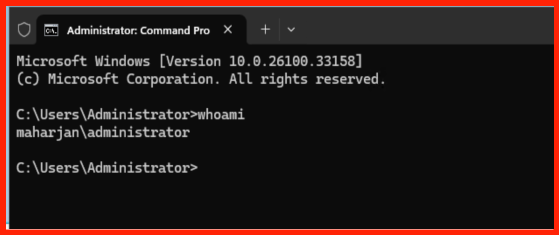
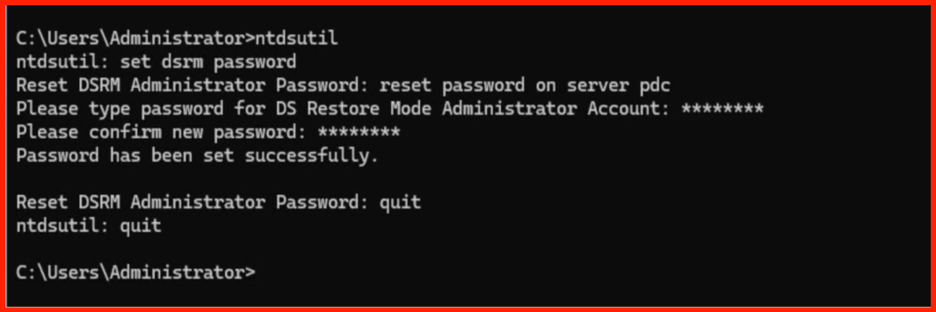
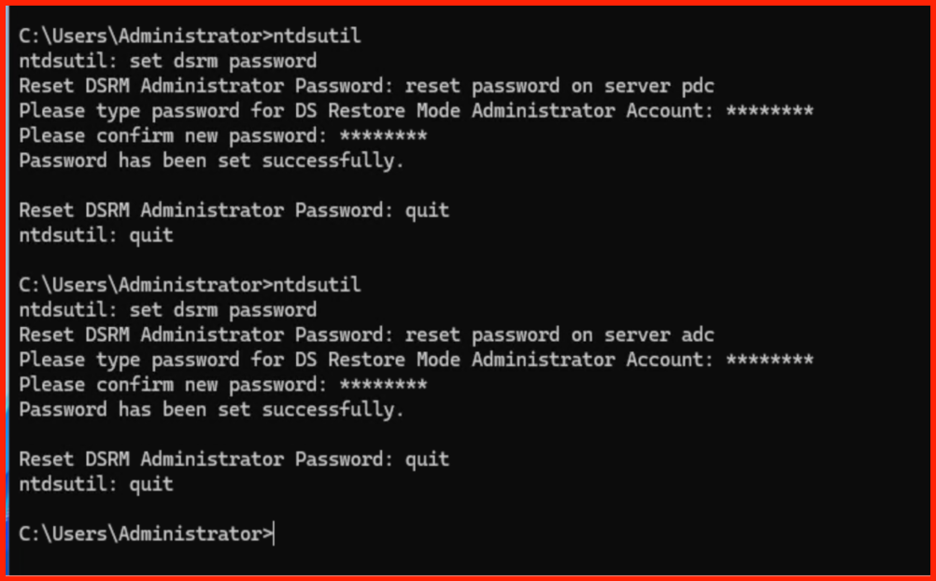
Using ntdsutil to securely reset the DSRM password without rebooting.
PowerShell One-Liner
ntdsutil "set dsrm password" "reset password on server null" q qHow to Verify Your DSRM Password
Your lab document shows the exact method to test the DSRM password using msconfig to force a DSRM boot.
Step 1: Configure Boot Options
Press Win + R, type msconfig, and go to the Boot tab. Select Safe Boot and Active Directory repair (DSRM).
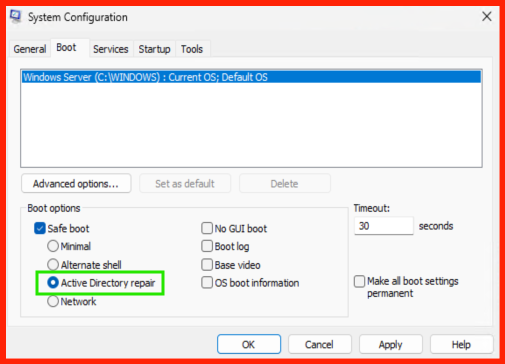
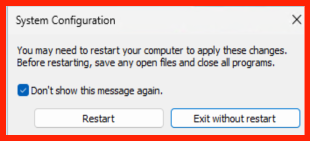
Configuring msconfig to boot into Directory Services Restore Mode for testing.
Step 2: Login with DSRM / Local Administrator Account
Reboot the server. It will automatically boot into DSRM mode. Log in using the local Administrator account (e.g., .\Administrator) with the DSRM password.
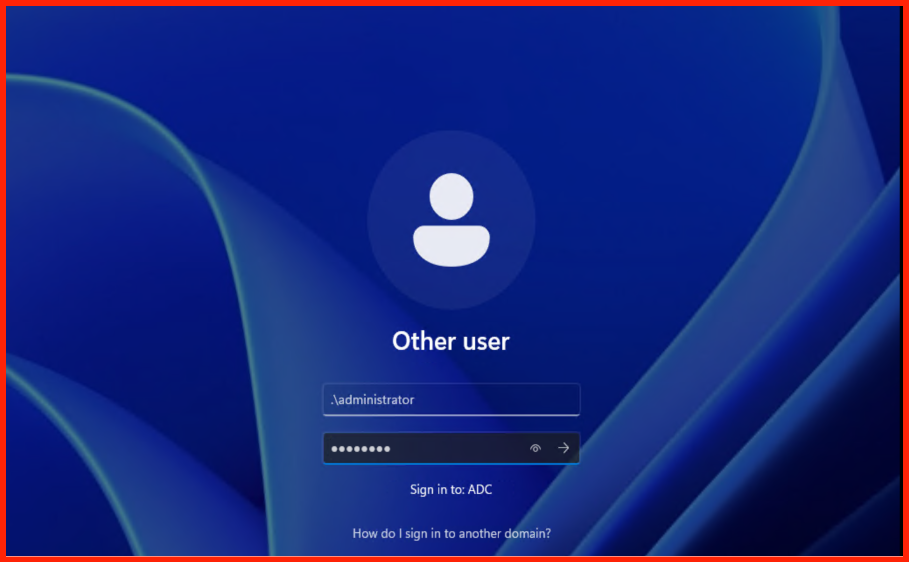
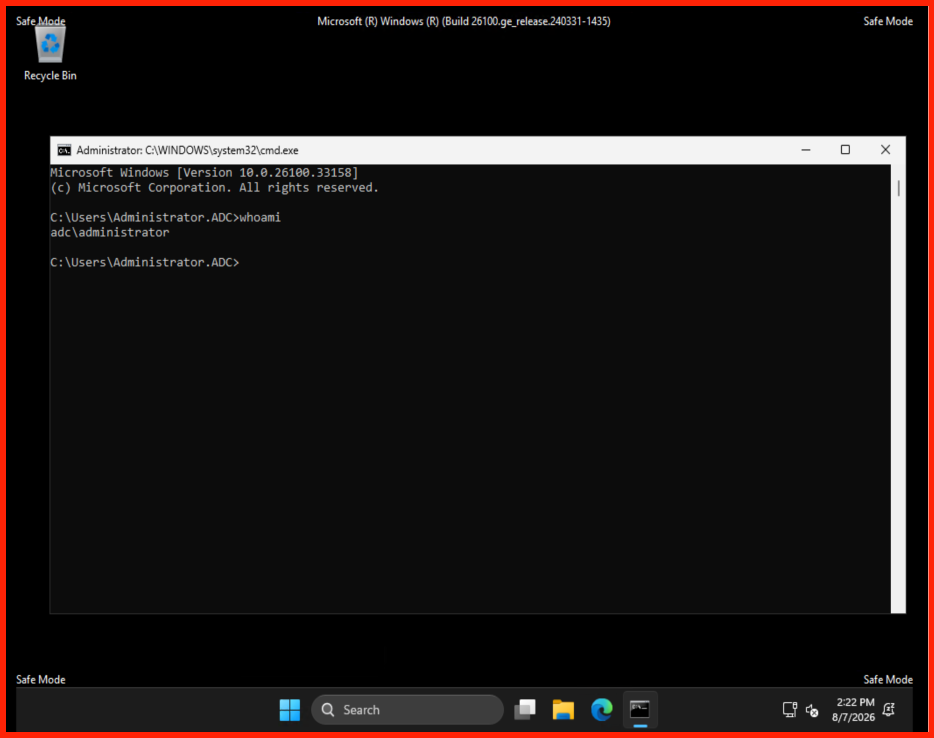
Successfully logging in with the DSRM local administrator account.
DsrmAdminLogonBehavior to value 2, they can use the DSRM account for domain persistence. Always revert this key to 0 after testing.
Step 3: Revert Back to Normal Boot
After verifying, open msconfig again, uncheck Safe Boot, and reboot normally to return to standard operation.
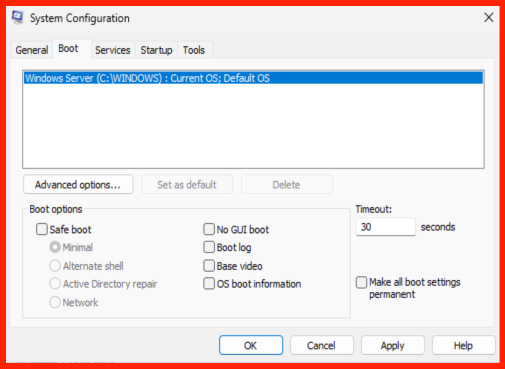
Reverting the boot configuration to standard (normal) startup.
Recommendation: Automate with Windows LAPS
What is Windows LAPS?
Windows Local Administrator Password Solution (LAPS) is a built-in Windows feature (Server 2019+) that automatically manages and backs up local admin and DSRM passwords on domain controllers.
Why Microsoft Recommends LAPS for DSRM
| Feature | Benefit |
|---|---|
| Automated Rotation | Passwords are rotated automatically based on policy. |
| Centralized Storage | Passwords are stored securely in Active Directory. |
| Unique Passwords | Each DC gets a unique DSRM password, preventing lateral movement. |
| Access Control | Fine-grained ACLs and optional encryption. |
Prerequisites & Configuration
- Domain Functional Level 2016 or higher
- Windows Server 2019 or later (2016 and earlier do not support DSRM management via LAPS)
- Update AD schema:
Update-LapsADSchema
GPO Path:
Computer Configuration -> Policies -> Administrative Templates -> System -> LAPSKey GPO Settings for DSRM:
- Enable password backup for DSRM accounts
- Configure Password Backup Directory → Active Directory
- Configure Authorized Password Decryptors
- Configure password settings (length, complexity, expiration)
Retrieving the DSRM Password with LAPS
Get-LapsADPassword -Identity 'DC01' -AsPlainText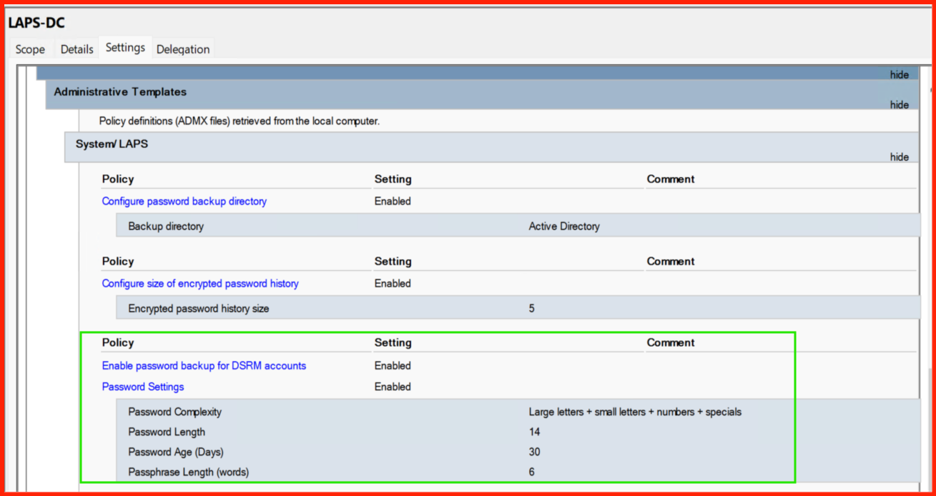
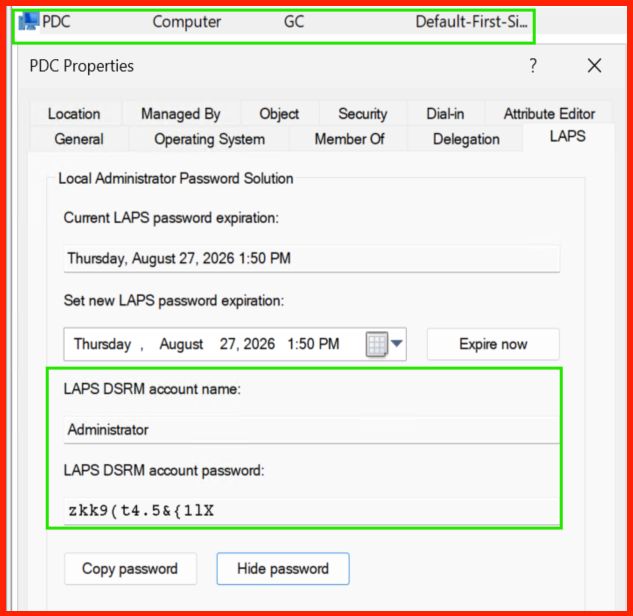
Administrator can view the DSRM Password from ADUC Console of Multiple Domain Controllers.
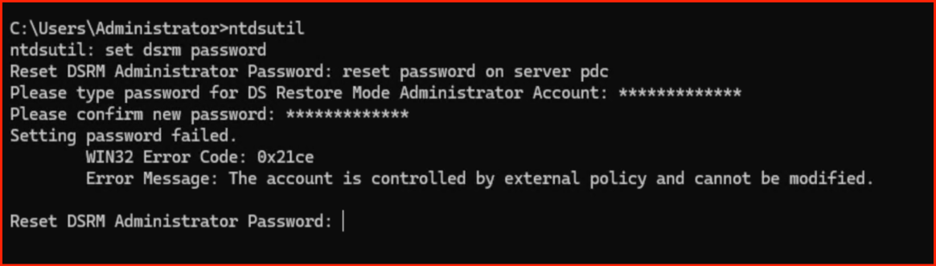
Administrator do not need to manage DSRM Password of multiple Domain controllers manually, GPO LAPS policy will take care of it.
Frequently Asked Questions
ntdsutil steps above.DsrmAdminLogonBehavior is set to 2. Always keep it at 0 unless actively testing.Summary
Your lab walkthrough proves just how easy it is to test and verify the DSRM password using msconfig and ntdsutil. But manual processes are prone to human error and neglect.
- Understand the risk — DSRM is a powerful backdoor if compromised.
- Reset regularly — At least annually, per STIG.
- Use unique passwords — Never reuse DSRM passwords across DCs.
- Automate with LAPS — Eliminate manual overhead and improve security.
- Test your recovery — Use the
msconfigmethod to periodically validate your DSRM password.
Don’t wait for an emergency to discover your DSRM password is forgotten. Implement Windows LAPS today and use the verification steps from your lab to ensure your Active Directory recovery capability is always secure and battle-ready.
💡 Ready to secure your DSRM passwords?
Follow the steps above, and automate with LAPS.
Have questions? Reach out to our team!