Resolving the RPC Server Unavailable Error (0x800706ba) When Enrolling CA Certificates from an ADFS Server
Problem Description
In a Windows Server environment, when an ADFS (Active Directory Federation Services) server attempts to request a certificate from an Enterprise CA (Certificate Authority) server, you may encounter the following error:
certlm (Local Machine Certificates MMC) displays:
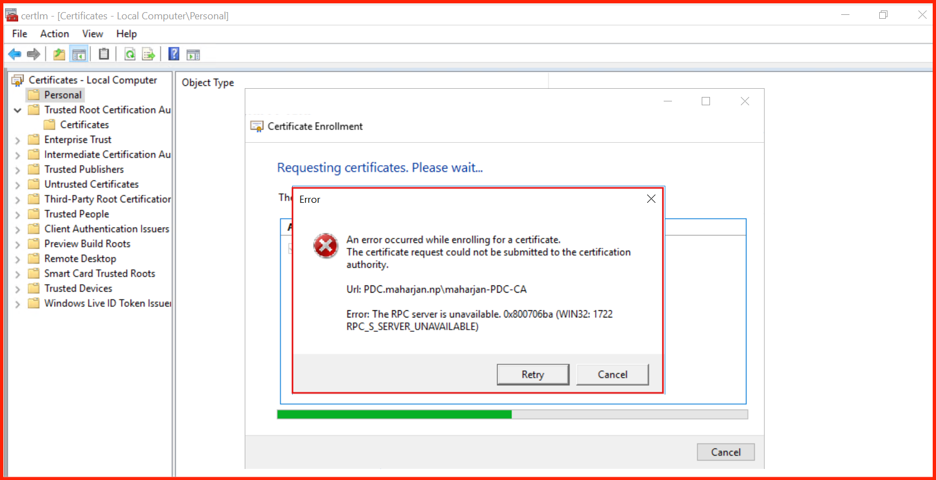
Error Message:
Error: The RPC server is unavailable. 0x800706ba (WIN32: 1722 RPC_S_SERVER_UNAVAILABLE)Error Troubleshoot
certutil -ping test results:

1. Network Connectivity is Normal but RPC Communication Fails
Using Test-NetConnection to test port 135 (the RPC endpoint mapper port) on the CA server shows that the connection is successful:
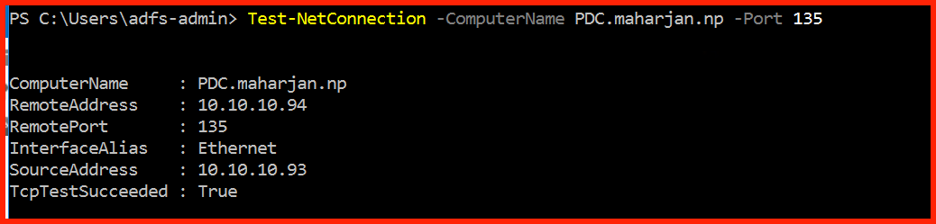
This indicates that basic network connectivity is functioning normally. The issue is not that the firewall is blocking port 135, but rather a higher-level DCOM/RPC permission or configuration problem.
Error Analysis
2. Root Cause: Insufficient DCOM Permissions
During the certificate enrollment process, the client needs to communicate with the CA server via DCOM (Distributed Component Object Model). When DCOM permissions on the CA server are not configured correctly, the RPC call is denied access.
On the CA server’s Event Viewer, you will likely see a DCOM error similar to the following:
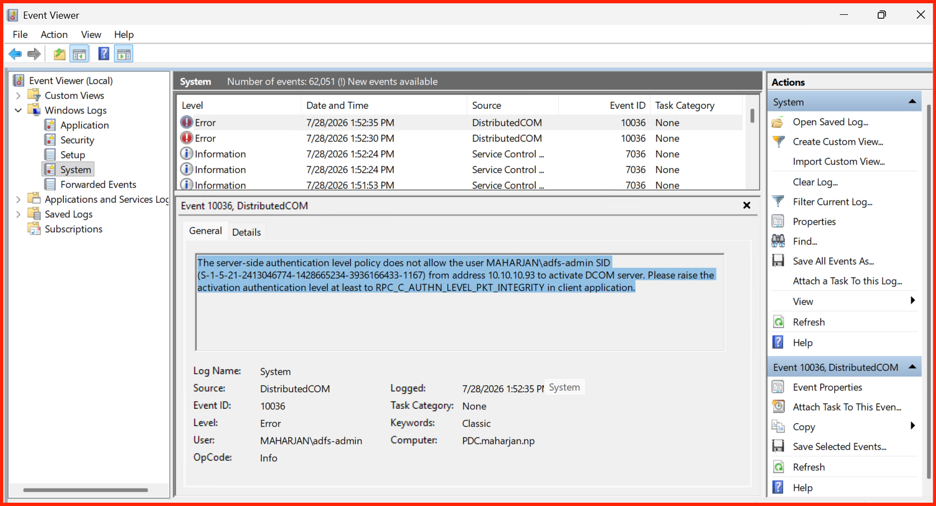
The error (Event ID 10036) is caused by DCOM Server Hardening (CVE-2021-26414).
Windows Server 2025 strictly mandates RPC_C_AUTHN_LEVEL_PKT_INTEGRITY (Packet Integrity) for all DCOM activation requests. Your Windows Server 2016 (ADFS) machine is initiating the certificate request using legacy, un-elevated DCOM packet levels, causing Server 2025 to block the connection immediately.
Solution
Because Microsoft permanently enforced DCOM Hardening, you cannot disable the requirement on Server 2025. The fix must be applied on your Windows Server 2016 (ADFS) client so that its DCOM stack automatically elevates outgoing requests.
Option 1: Force DCOM Authentication Level via Group Policy / Registry
If updating the ADFS server immediately isn’t an option, force the minimum DCOM authentication level on the ADFS server:
- Open dcomcnfg on the ADFS Server.
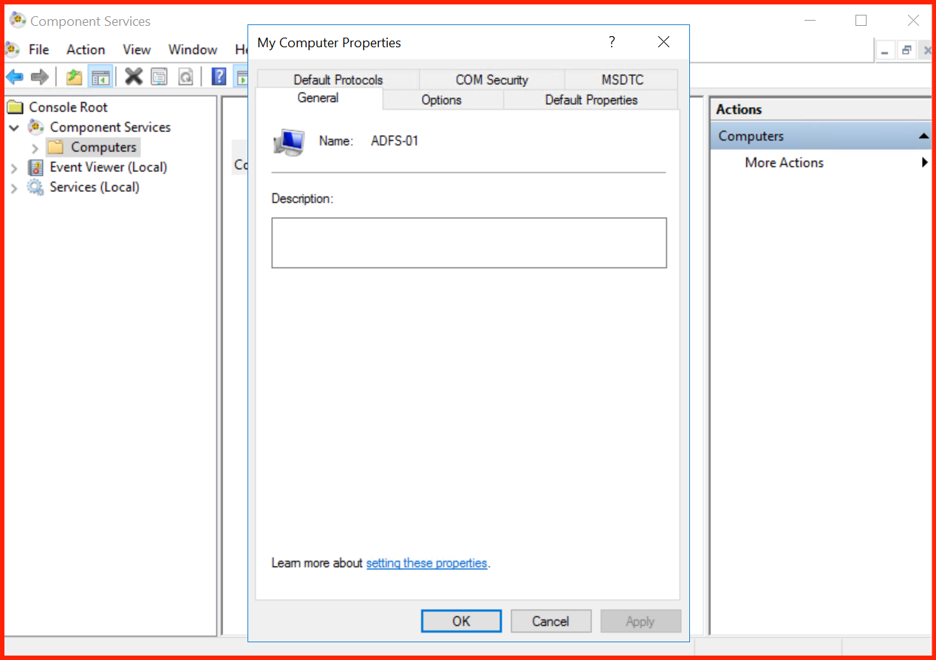
- Navigate to Component Services → Computers → Right-click My Computer → Properties.
- Under the Default Properties tab:
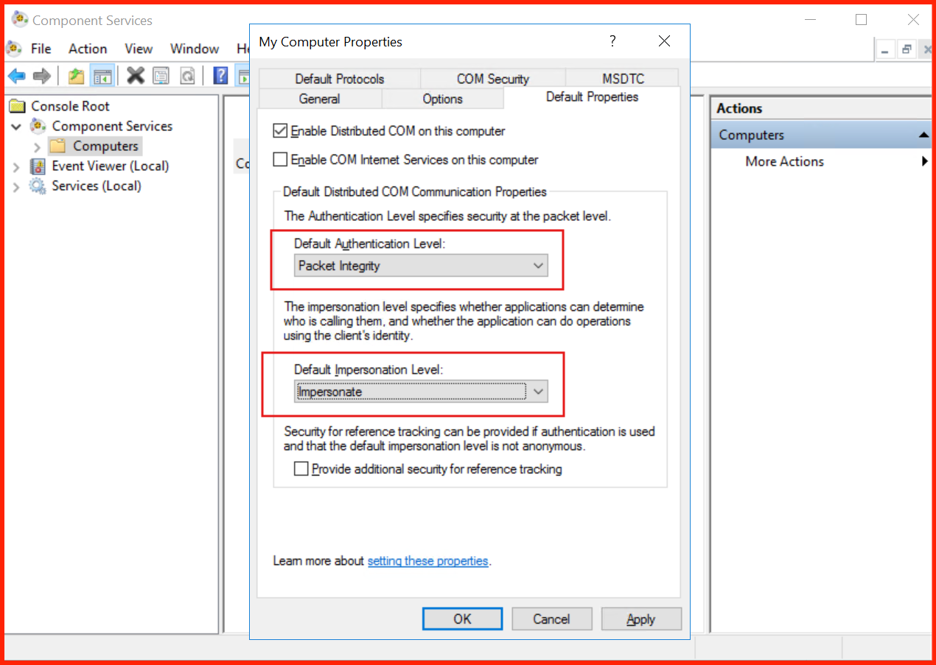
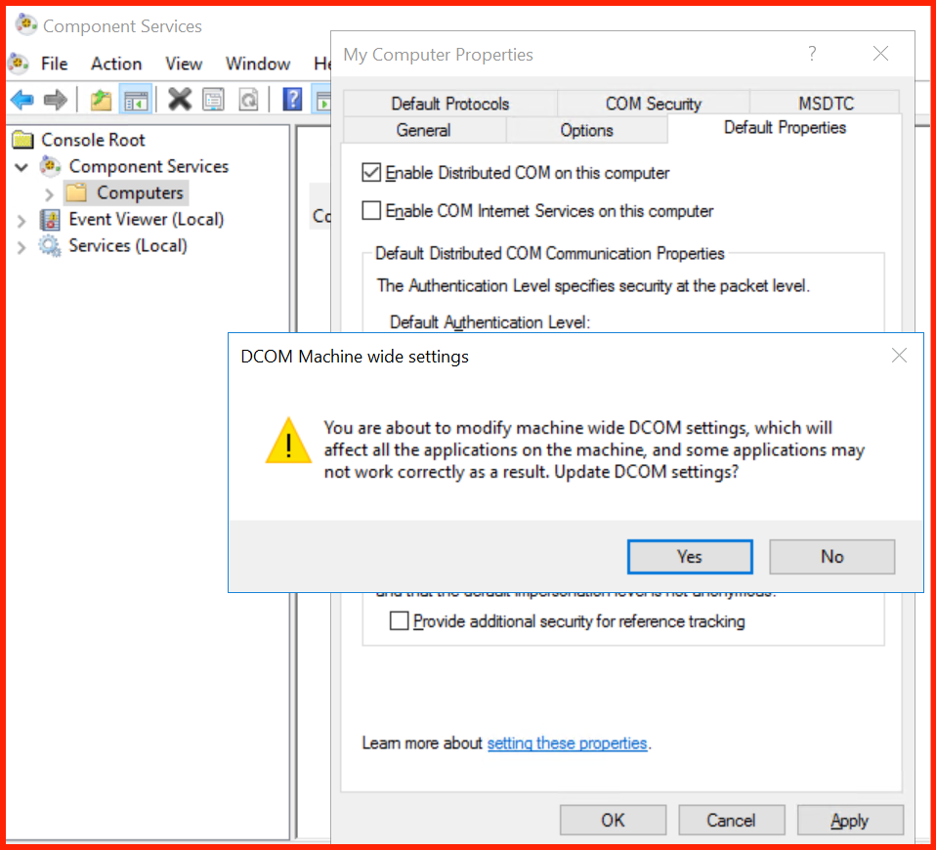
- Set Default Authentication Level to
Packet Integrity(orPacket Privacy). - Set Default Impersonation Level to
IdentifyorImpersonate.
- Set Default Authentication Level to
- Click Apply and OK.
- Restart the ADFS server or run
gpupdate /force.

Verification of Success
Once the configuration is correct, certutil -ping should return a successful response:
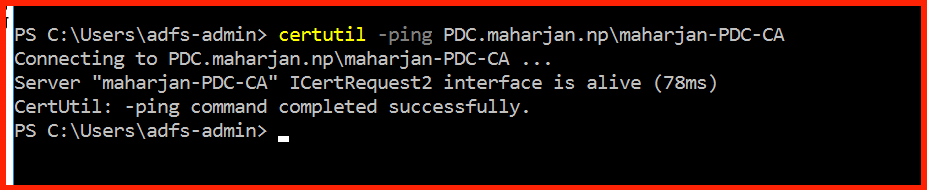
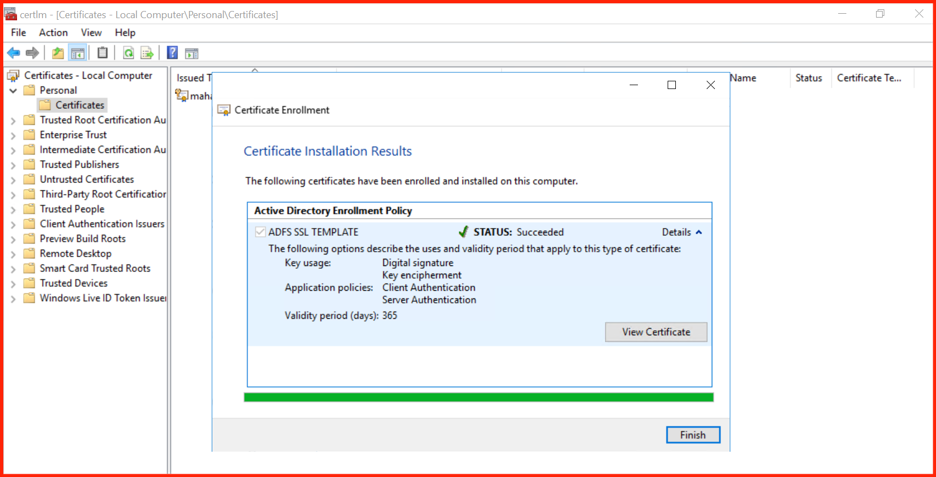
CertUtil: -ping command completed successfully.Additionally, the ADFS server should now be able to request and obtain the required certificate from the CA:
Conclusion
In this article, we have successfully diagnosed and resolved the RPC server unavailable (0x800706ba) error that occurs when an ADFS server (Windows Server 2016) attempts to enroll a certificate from a CA running on Windows Server 2025.
The root cause was identified as DCOM Server Hardening (CVE-2021-26414), which mandates Packet Integrity authentication level for all DCOM calls. The legacy ADFS server did not meet this requirement, resulting in an access denied response from the CA.
The fix is straightforward: raise the default DCOM authentication level on the ADFS client to Packet Integrity (or higher) via dcomcnfg. This ensures that outgoing DCOM requests are compatible with the hardened security policy of Windows Server 2025.
After applying the change, connectivity was restored, and certificate enrollment completed successfully, as verified by certutil -ping and the actual certificate request.
Key takeaways:
- Always check the DCOM authentication level when integrating older Windows Server versions with newer platforms that enforce stricter security.
- Network connectivity (port 135) may be fine, but the actual DCOM packet level matters.
- Group Policy or registry settings can be used to enforce the required authentication level across the domain.
By following the steps outlined above, you can avoid this common pitfall and ensure seamless certificate enrollment between ADFS and CA servers in mixed-version Windows environments.
Summary of Common Causes
| Causes | Checkpoint | Resolution |
|---|---|---|
| Insufficient DCOM permissions | Missing members in the “Certificate Service DCOM Access” group | Add Authenticated Users or relevant domain groups |
| DCOM is disabled | DCOM disabled in Component Services | Enable DCOM in the “Default Properties” tab |
| CA service is not running | CertSvc service status | Start the Active Directory Certificate Services |
| Group Policy overrides local settings | DCOM security settings are grayed out | Check and correct Domain Group Policy |
| DCOM Hardening (CVE-2021-26414) – new | Server 2025 requires Packet Integrity | Raise DCOM authentication level on the client (ADFS) as described above |