Welcome to Part 1 of our comprehensive MailVault Deployment Series. Corporate email archiving is no longer just an operational luxury; it is a strict legal and regulatory necessity. Whether you are dealing with storage limitations on your core mail server or aiming to satisfy compliance mandates like GDPR or HIPAA, a dedicated archiving solution is vital.
In this initial guide, we will focus on building a resilient architectural foundation. We will cover environment prerequisites, running through the base server installation, configuring the deployment properties via the startup setup wizard, and successfully entering the web-based management dashboard for the first time.
1. Pre-Deployment Architecture & System Prerequisites
Before launching the installer, ensure your targeted virtual machine or physical host adheres to the following minimum footprint configuration to prevent indexing bottlenecks:
- Operating System: Windows Server 2022 / 2025 or a modern Linux distribution (Ubuntu LTS / RHEL).
- CPU & RAM: Minimum 4 vCPUs and 8GB RAM (scale upward based on concurrent archiving streams and active seat count).
- Storage Allocation: Separate fast-performance block storage (SSD/NVMe) for the database indexes, and cost-effective bulk storage (NAS, SAN, or cloud object tiers) for raw compressed mail payloads.
2. Running the MailVault Base Installation
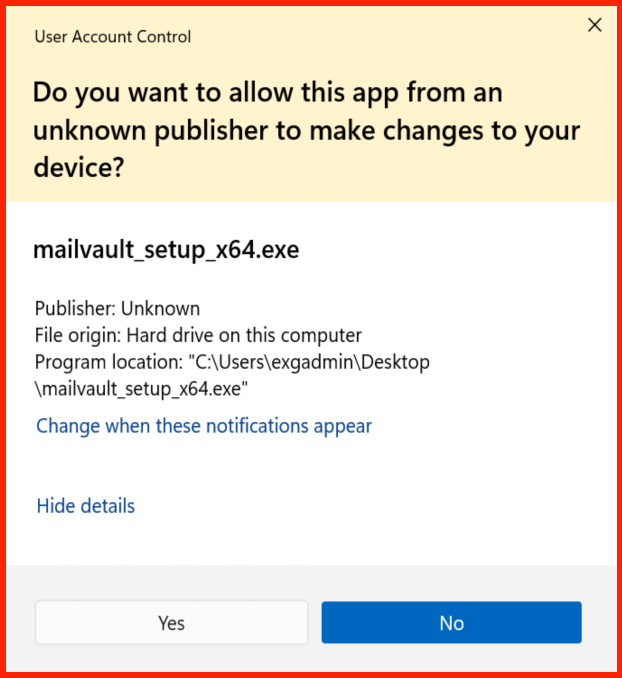
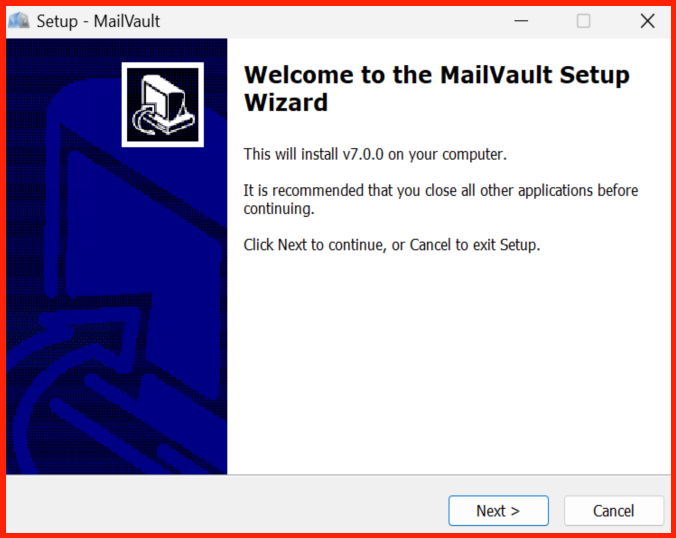
Download the official corporate MailVault installer package onto your host machine. Run the setup execution binary with administrative permissions to safely instantiate core background dependencies and local framework environment values.
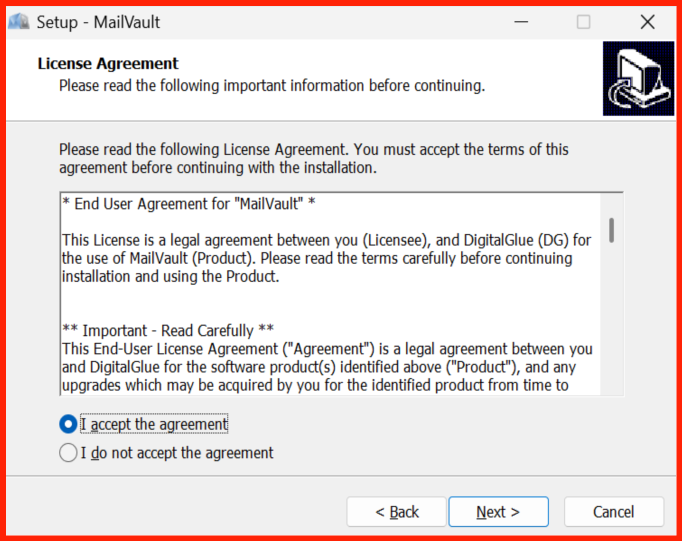
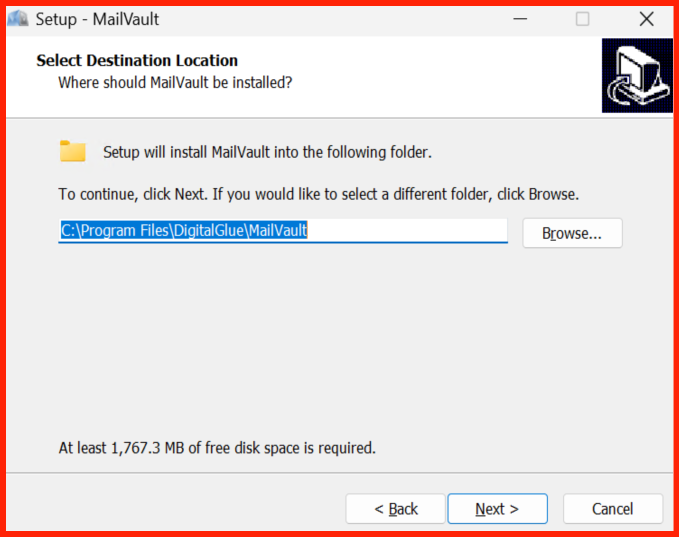
Follow the prompt directions to map default binary execution path roots. The underlying process automatically positions service dependencies and prepares localized communication ports.
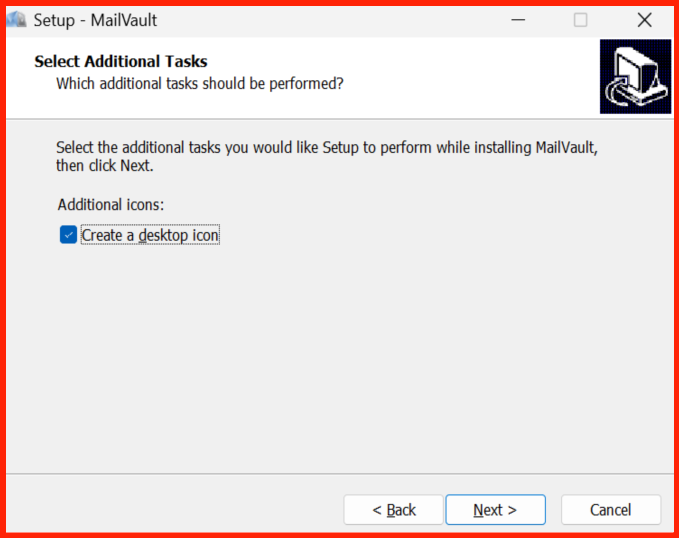
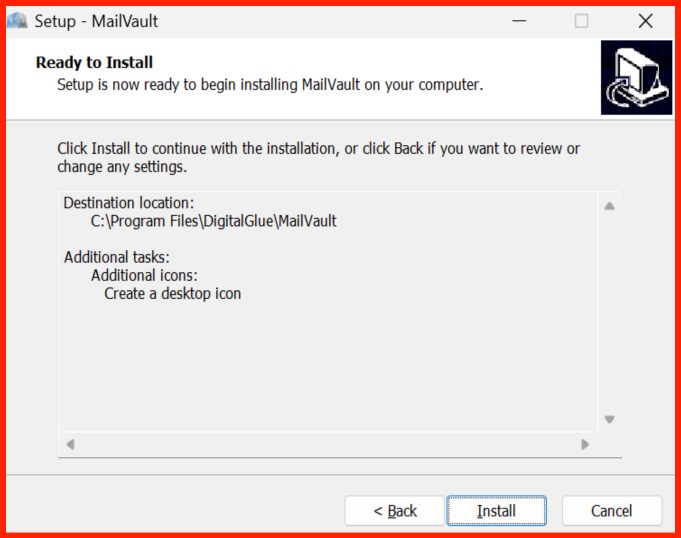
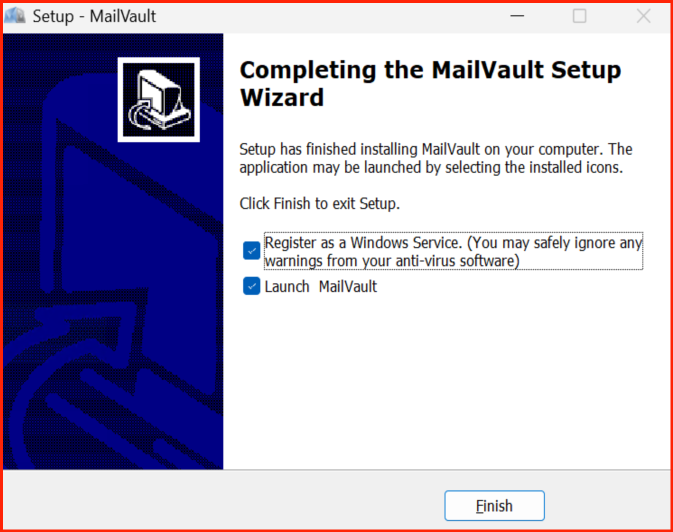
3. Initial Web Setup Wizard & License Activation
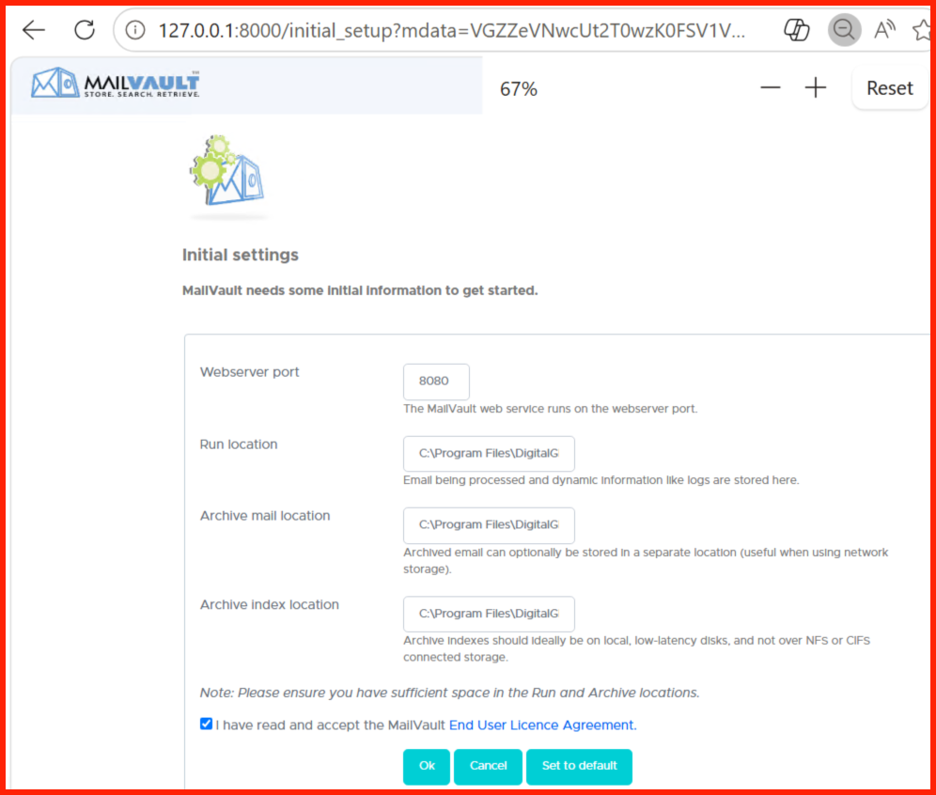
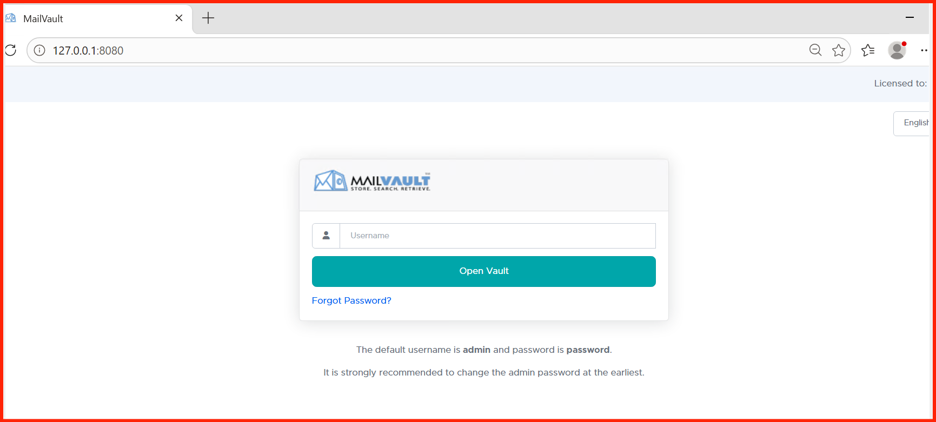
Once base scripts finalize installation steps, launch your browser and target your configured deployment node via port 8080 (or your custom assigned interface listener port). On your first visit, MailVault will redirect you to an automated initial configuration wizard environment.
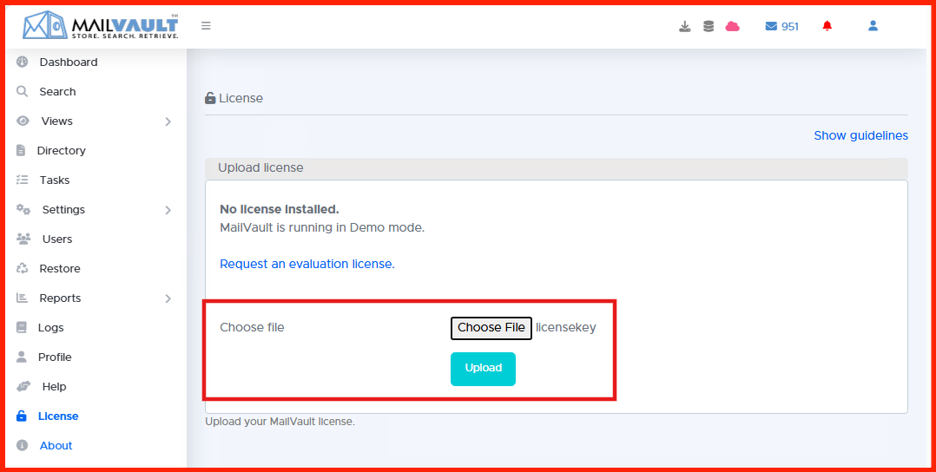
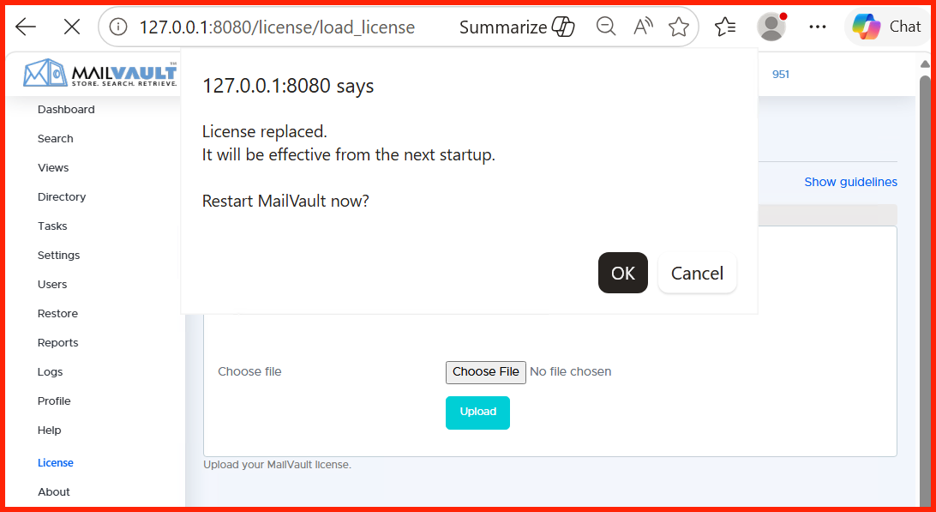
Here, you will read and accept the terms of use, provision security settings, and apply your corporate subscription authorization key file to unlock full feature availability.
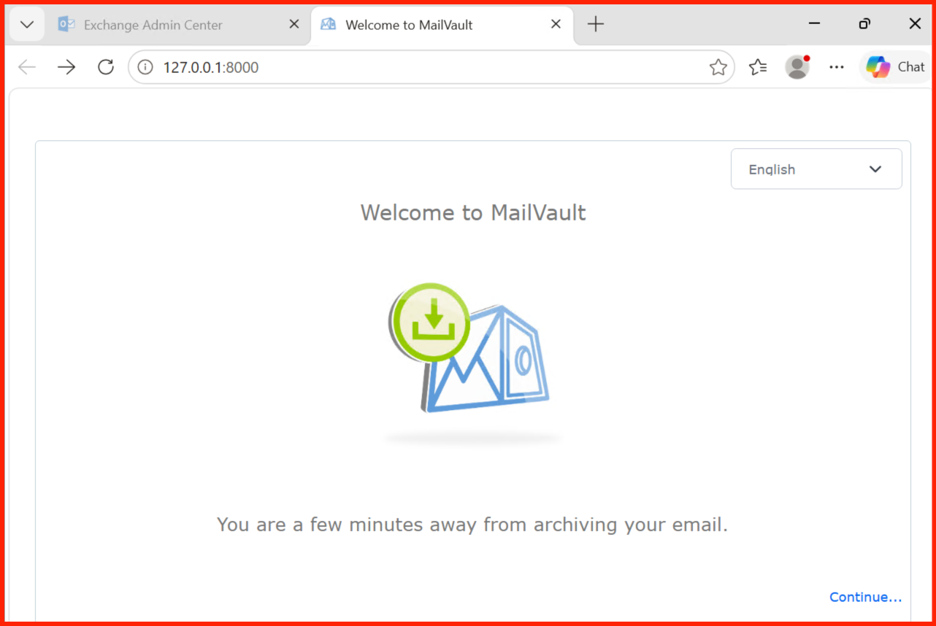
4. Core Configuration: Creating the Master Administrator
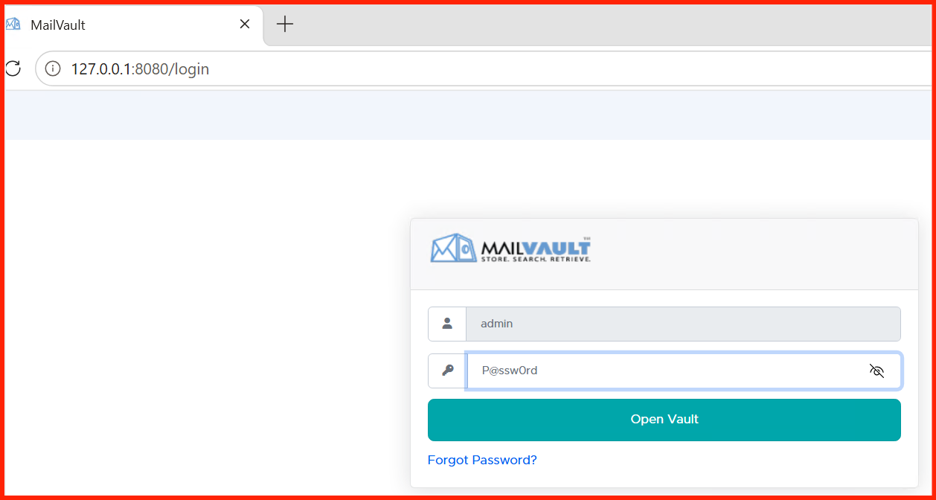
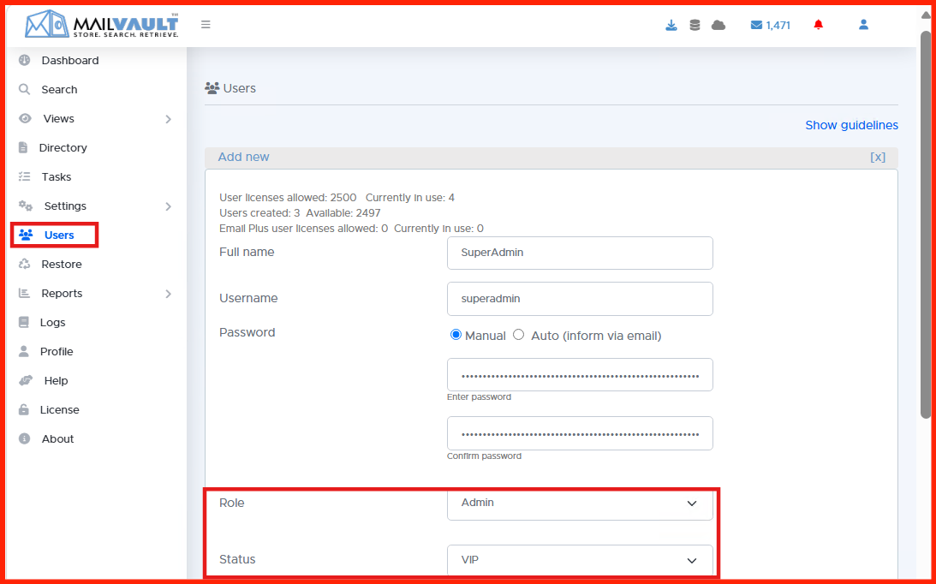
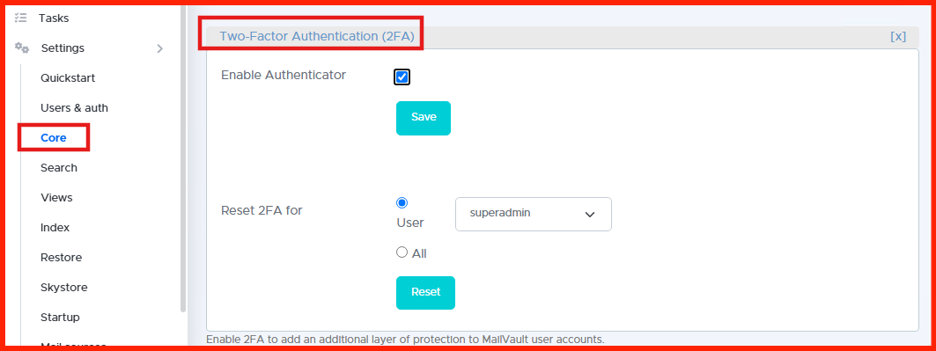
With licensing approved, the next structural stage requires establishing the master admin identities profile. It is critical to enforce rigid password entropy standards here, as this administrative user holds absolute visibility over system setups, retention logs, and global archive querying options.
Security Best Practice: This initial master account should be used strictly for core system administration. In Part 4 of this series, we will integrate directory access maps (Active Directory / LDAP) to allocate daily operational roles to specific IT personnel teams.
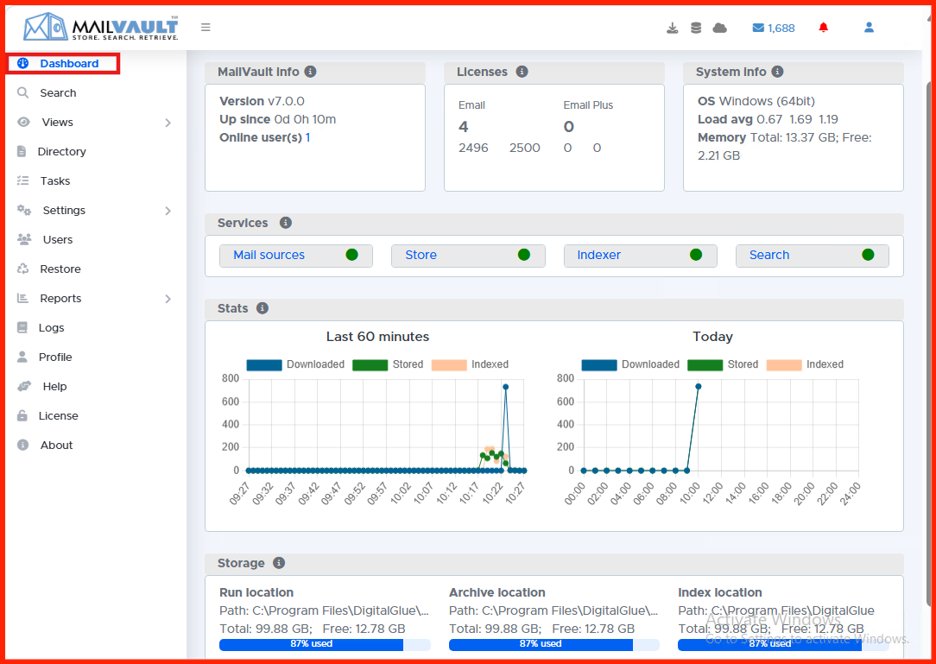
5. Accessing the Administrative Dashboard Dashboard
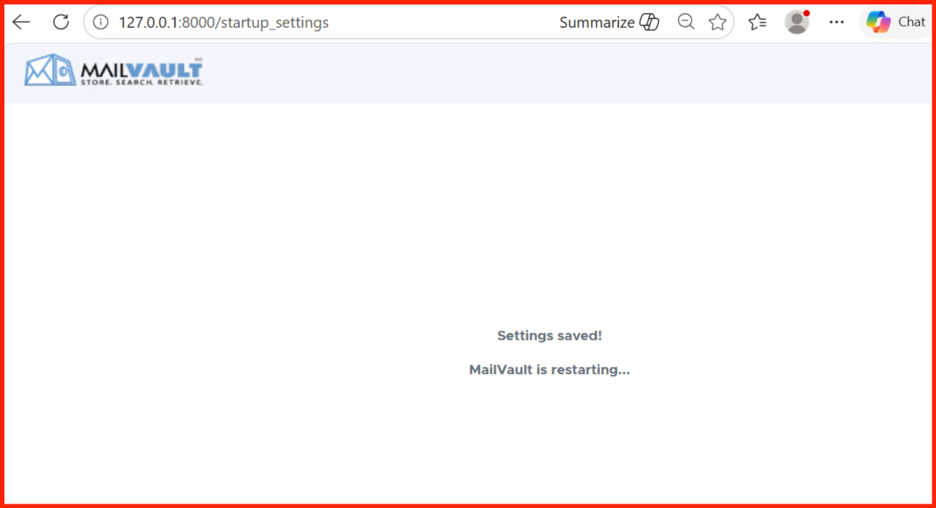
Upon finishing the onboarding setup wizard configurations, MailVault will cycle its internal application background instances and route you to the definitive administrative web cockpit interface.
From here, you are ready to monitor system resource metrics, track indexing jobs, and keep an eye on storage consumption levels across your archive volumes.
Next Steps: Building Out Your Mail Streams
Now that your foundational MailVault instance is fully installed, configured, and running securely, you’re ready to start ingesting live corporate email data.
In Part 2: Configuring Email Sources and Multi-Platform Journaling, we’ll dive into connecting your email infrastructure (such as Microsoft 365, Exchange, or Postfix servers) to MailVault using automation listeners to seamlessly archive your data in the background.