Welcome to Part 2 of our MailVault Deployment Series. In Part 1, we walked through establishing our server foundation and configuring the primary administration dashboard. Now that the platform is operational, it is time to connect it to our mail environments and stream data into our repository.
To capture corporate email seamlessly without relying on manual client interventions, MailVault uses “Journaling” (or automated mail stream fetching). In this guide, we will configure global email sources and step through setting up secure retrieval endpoints across Microsoft Exchange environments using POP3 and IMAP mechanisms.
1. Navigating to Mail Sources in MailVault
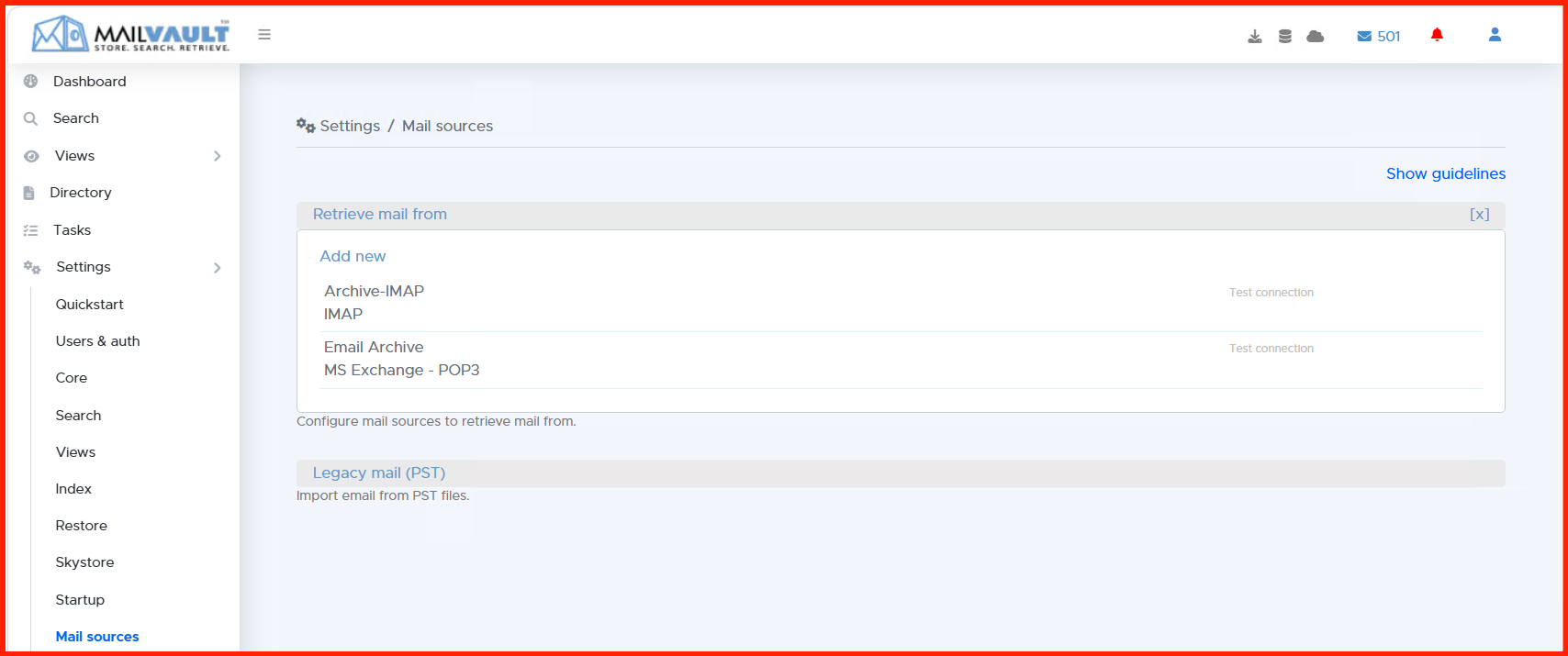
To begin routing emails, log into your MailVault management dashboard as a master administrator. From the primary interface panel, navigate to Settings > Email Sources. This screen lists all current ingestion connectors and houses the tools needed to mount new background listeners.
MailVault supports various fetching mechanics depending on your underlying topology, such as standard multi-drop IMAP/POP3 boxes, Exchange Envelope Journaling, or cloud-based ingestion paths.
2. Architecture Setup: MS Exchange POP3 Integration
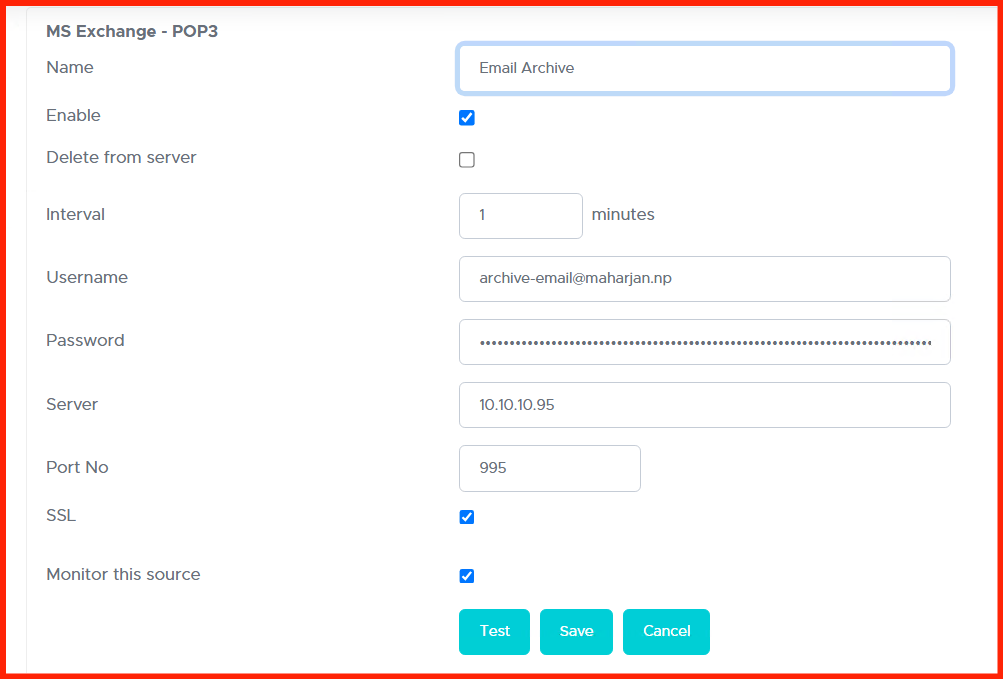
If your organization utilizes a local Microsoft Exchange server deployment and you intend to leverage POP3 data extraction mechanisms, add a new mail source entry and select the POP3 protocol connector block.
Within this configuration modal, supply your target mail infrastructure settings:
- Server Hostname: The internal FQDN or IP of your Exchange server access array.
- Authentication: Dedicated service account credentials allocated to watch the exchange journal mailbox.
- Security Handshake: Bind encryption rules to POP3S over port
995or leverage explicit TLS negotiation.
3. Alternative Protocol Path: MS Exchange IMAP Configuration
For deployment topologies where IMAP is the preferred protocol across network zones due to its distinct polling and flagging benefits, MailVault provides a discrete IMAP source module.
Select the IMAP option, then populate your connection strings. Ensure your firewall boundaries permit MailVault to talk outward over port 993 (IMAPS) toward your core mail routing layer. Once completed, always fire the connection validator test to ensure that authentication states pass successfully.
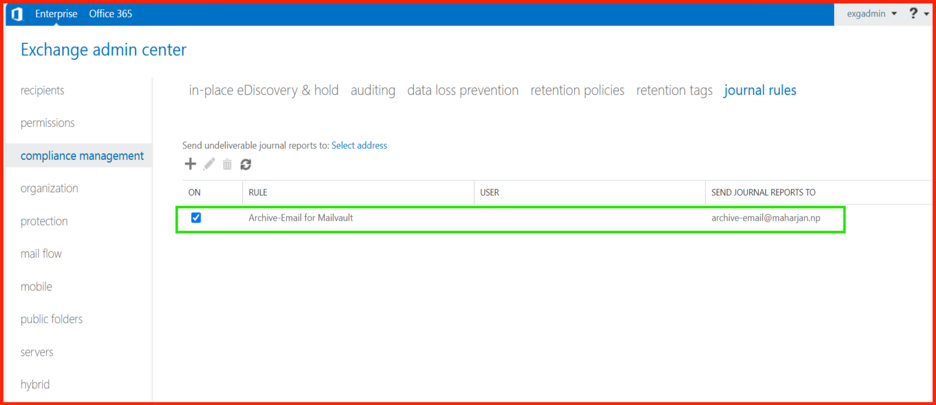
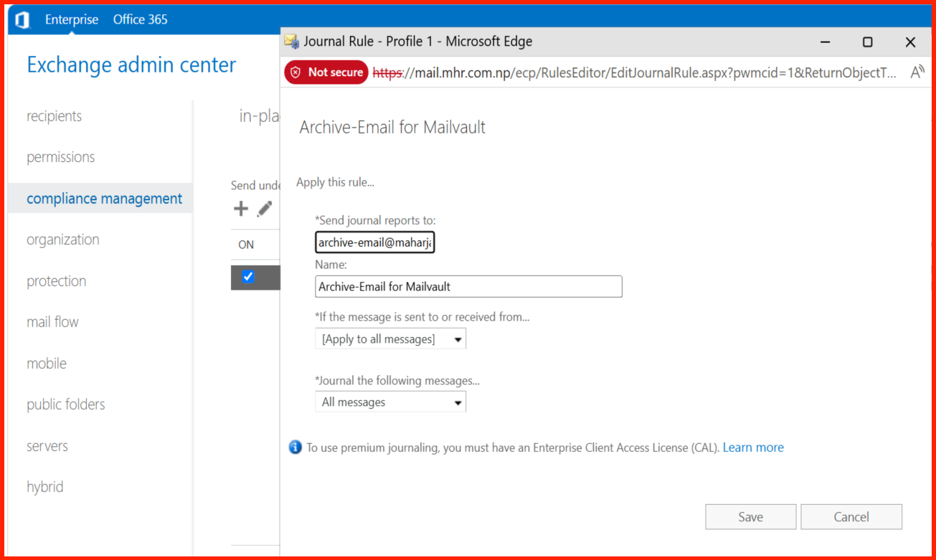
Note on Exchange Journaling: Regardless of whether you poll over POP3 or IMAP, make sure your Exchange Server has an active Journaling Rule configured to blind-copy (BCC) all inbound and outbound domain traffic directly into this target tracking mailbox.
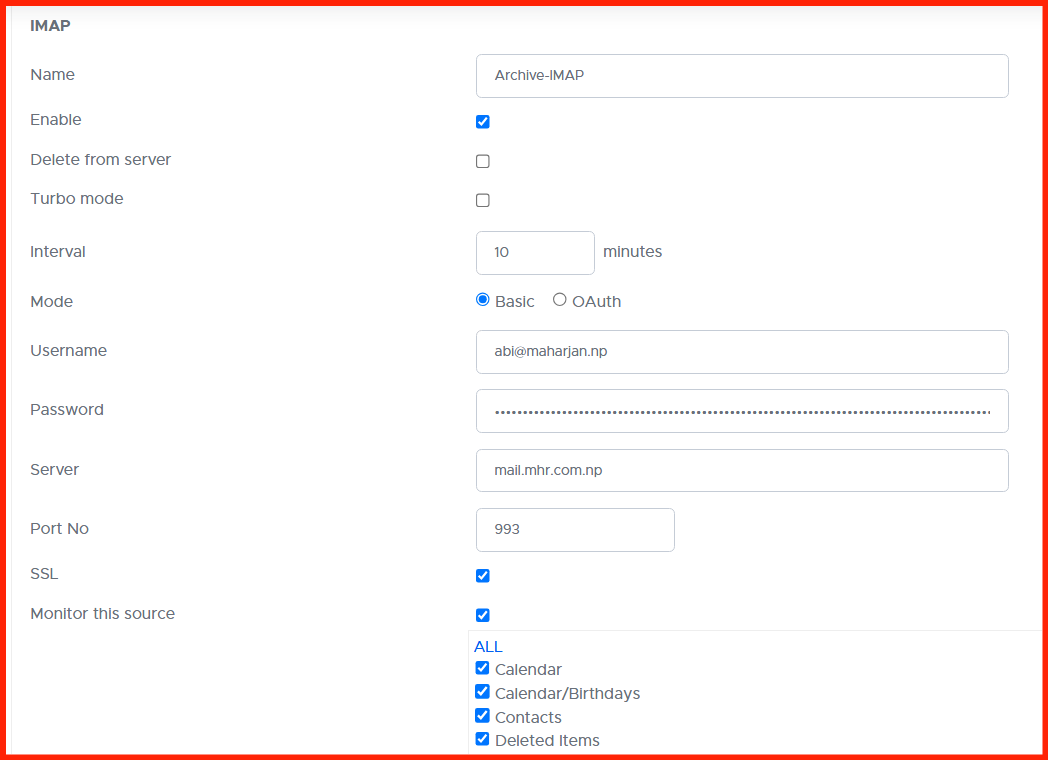
4. Monitoring Active Data Ingestion Streams
Once you click save, MailVault’s background polling daemon will spin up and start ingesting items. You can verify that transmissions are operating as expected by returning to your primary status display panel.
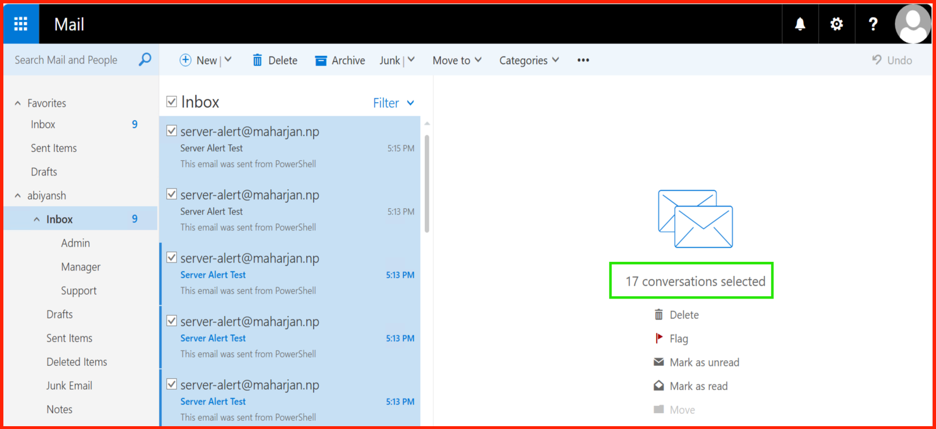
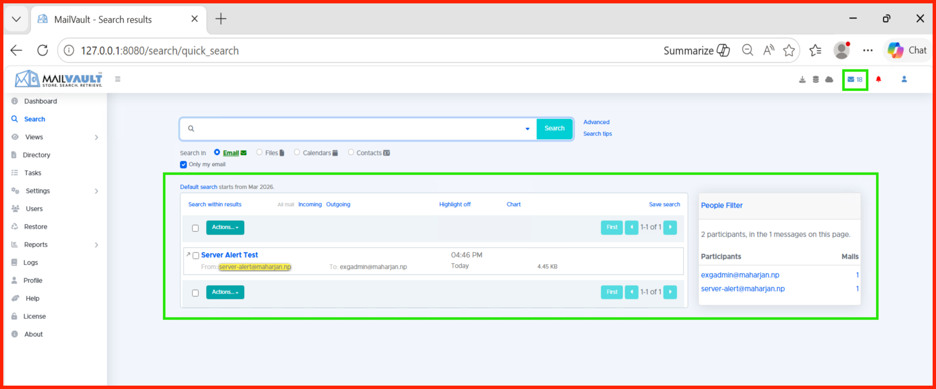
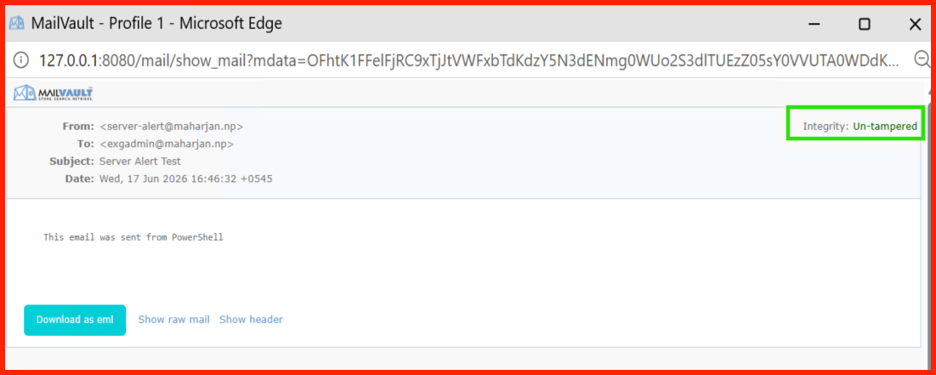
The solution will showcase raw logs streaming inward, parsing your envelope headers, deduplicating recurring attachments on the fly, and systematically distributing them straight to index storage blocks.
Note:De-duplication features seen. Out of 17 same emails received in OWA, Mailvault synced 17 total but keeps only one mail.
Next Steps: Securing Data Lifecycles
Now that your MailVault node actively ingests and mirrors corporate communications in real time, you need to govern the longevity and security of those records.
In Part 3: Retention Schedules, Compliance Rules, and Storage Backup, we will configure strict operational data retention lifespans to satisfy legal requirements and implement a backup framework for your archival volumes.