Every systems administrator eventually faces “The Request.”
A sneaky piece of malware bypasses your standard email gateway because it was tucked inside a password-protected .zip or .7z file. The standard filters couldn’t peer inside, the user clicked it, and suddenly security operations is dealing with a containment issue.
The security team’s immediate, logical reaction? “Block all compressed and encrypted archives at the perimeter.” It sounds perfect on paper. In reality, it instantly breaks two critical business functions:
- The HR Bottleneck: Your HR team relies on bulk resume submissions from external recruitment agencies, almost always sent as
.zipfiles. - The Client Disconnect: Your internal teams still need to safely send files out to external clients without the system nuking the attachments.
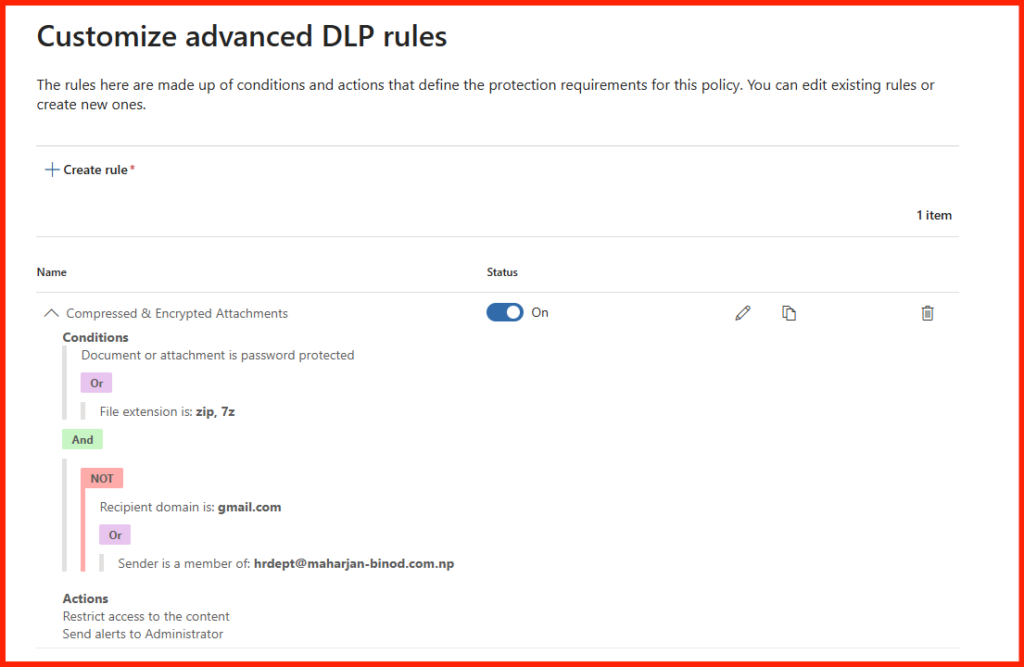
So, how do you enforce a strict security posture without turning the IT department into the productivity police? You build an intelligent, conditional Exchange Transport Rule.
Here is how to deploy a “Blanket Block with Smart Exceptions” blueprint in Microsoft 365.
Step-by-Step Implementation Guide
Log into the Microsoft Purview compliance portal (https://purview.microsoft.com/), navigate to Data loss prevention > Policies, and click Create policy.
Choose locations: Toggle Exchange email to On. Turn all other locations (SharePoint, OneDrive, etc.) Off.
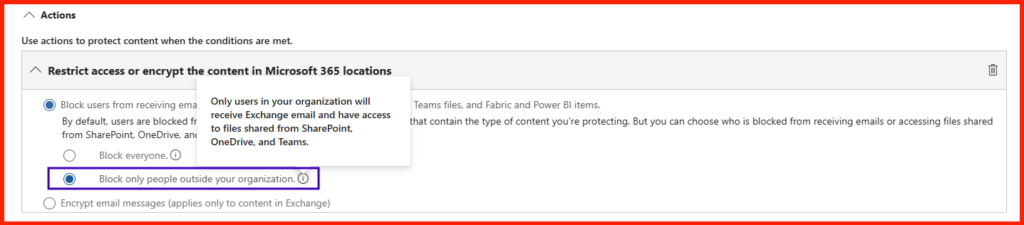
Actions:
- Action: Restrict access or block the users > Block everyone.
Demonstration:
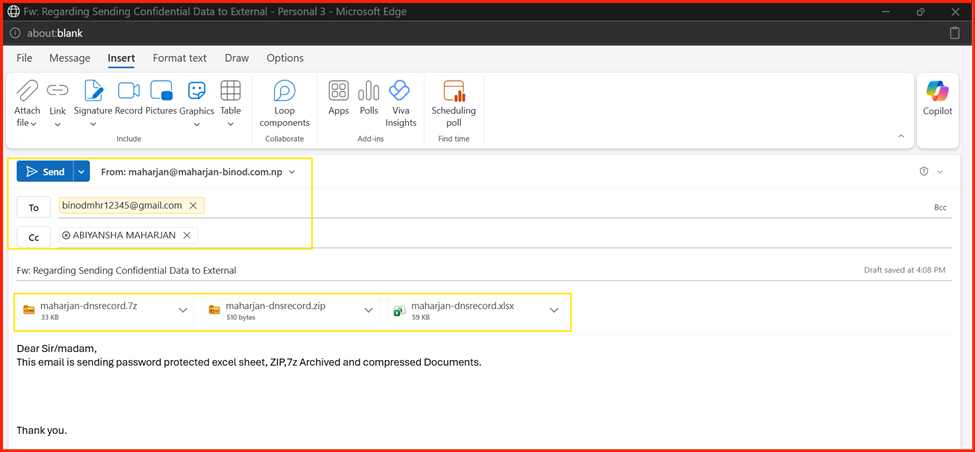
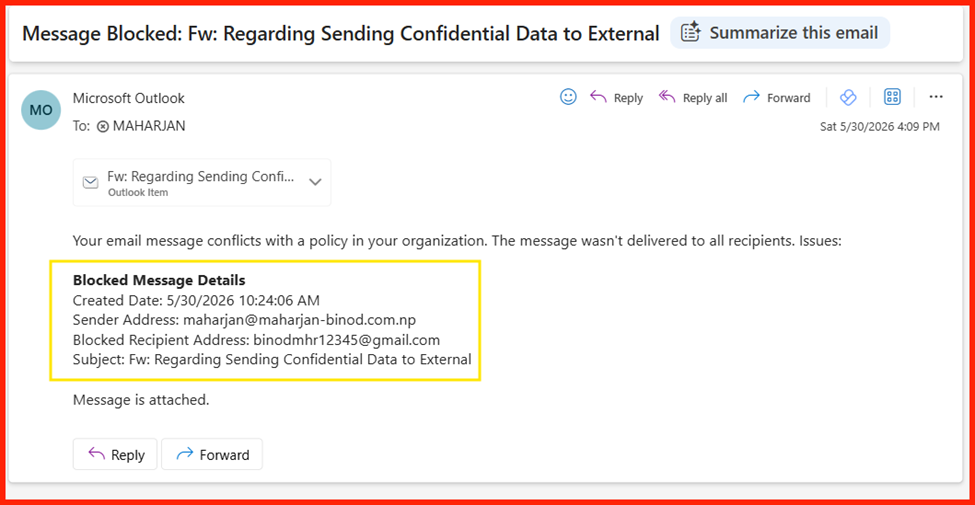
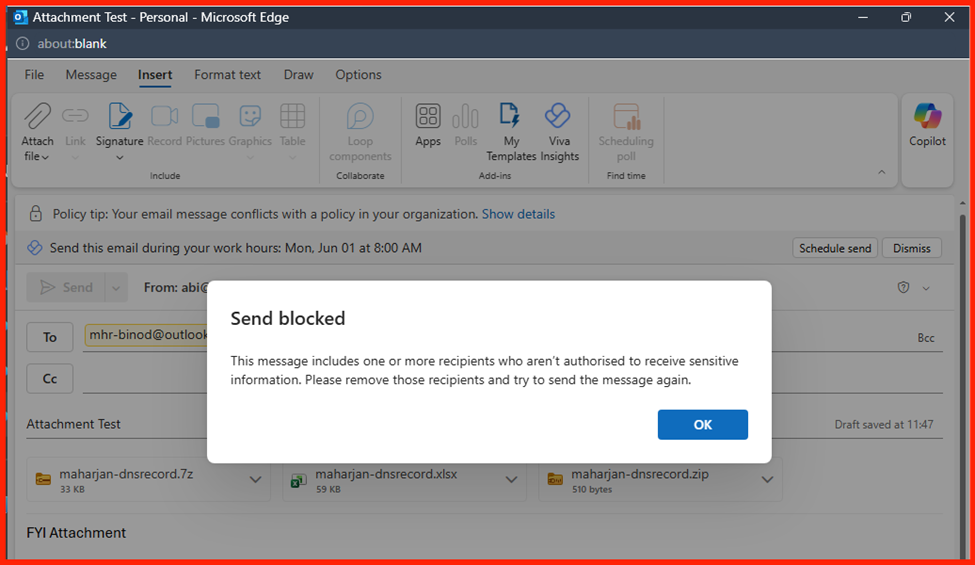
Scenario 1: Standard Data Exfiltration Attempt (The Block)
- Action: Have a regular internal staff member attempt to send a
.zipfile to a personalgmail.comor external address. - Expected Result: Blocked. The user is stopped from sending the file out.
Scenario 2: Approved HR Workflow (The Pass)
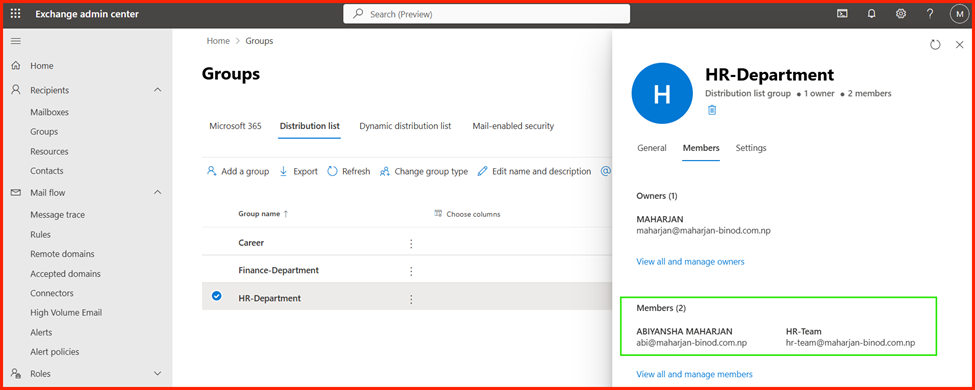
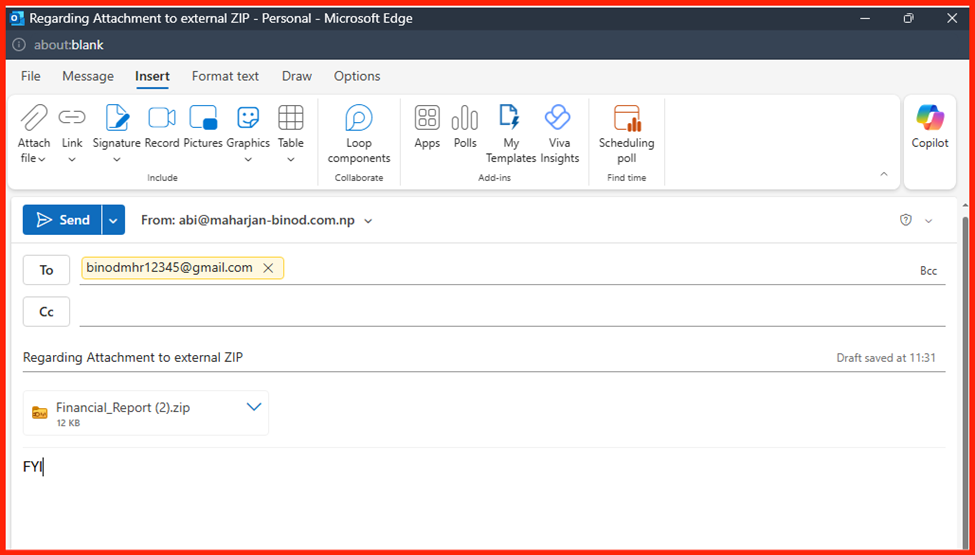
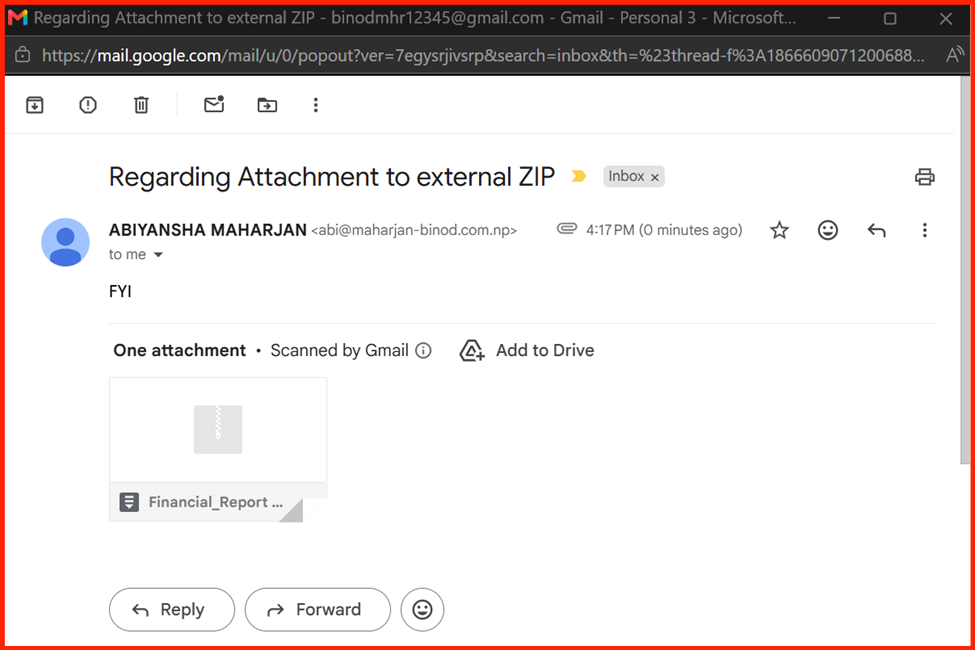
- Action: Have a member of
hrdept@maharjan-binod.com.npsend a.7zor.zipfile out to agmail.comaddress. - Expected Result: Allowed. The email delivers successfully because it hits both parameters of your exception block.
Scenario 3: HR Out-of-Bounds Attempt (The Block)
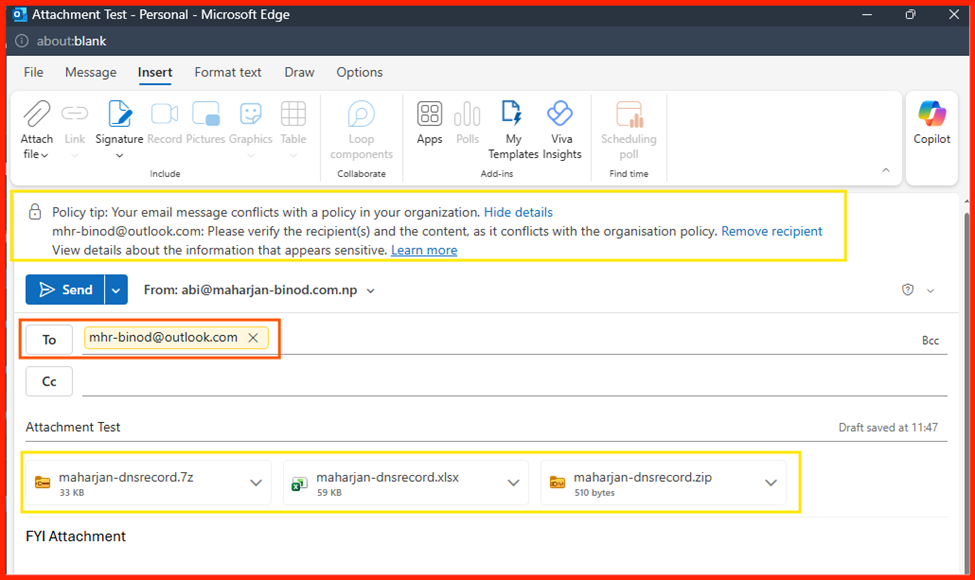
- Action: Have a member of
hrdept@maharjan-binod.com.npsend a.zipfile to an unapproved external domain (e.g.,yahoo.comorpartner-firm.com). - Expected Result: Blocked. Even though they are in HR, they didn’t send it to the designated
gmail.comtarget domain.
Conclusion: Balancing the Shield and the Gear
Every systems administrator eventually faces “The Request,” but as we’ve seen, the answer isn’t a blunt instrument that grinds operations to a halt. Securing an enterprise environment isn’t about building an impenetrable wall; it’s about building an intelligent gate.
By deploying this “Blanket Block with Smart Exceptions” blueprint using Microsoft Purview DLP policies, you effectively disarm the threat of blind-spot malware hidden inside .zip, .7z, and password-protected attachments. Instead of a total lockdown, Purview allows you to isolate these high-risk formats globally while seamlessly carving out exceptions for the groups that rely on them—ensuring your HR department keeps receiving resumes and your internal teams can still collaborate with clients. You prove that IT doesn’t have to choose between being the “productivity police” or a passive bystander. With the right conditional logic, you can be both a rigid defender of the perimeter and an enabler of the business.
Now It’s Your Turn
Take two minutes to picture how these scenarios would play out in your own environment. What if, instead of naming specific individuals for your exceptions, your DLP rules targeted entire departments—like allowing password-protected files only if the sender is a member of the HR distribution group, or routing specific archives to an isolated finance-team mailbox for inspection? Or, what if you shifted the focus entirely—restricting these un-scannable archives only when they cross the external perimeter to outside organizations?
Change the Action: Instead block everyone, Only block outside the organization