In today’s regulatory landscape, email is no longer just a communication tool—it is a critical business record. From compliance audits to storage optimization, organizations require a foolproof strategy to preserve corporate communications. Enter MailVault, a powerful, centralized email archiving solution designed to securely capture, index, and store your enterprise emails.
In this comprehensive guide, we will walk you through the implementation, core configuration, and verification steps to roll out MailVault effectively within your corporate network.
Why Choose MailVault for Email Archiving?
MailVault offers seamless interoperability with major email platforms (including Microsoft 365, Google Workspace, Exchange, and standard Postfix/IMAP servers). Key benefits include:
- Regulatory Compliance: Meets strict data retention mandates (HIPAA, GDPR, SOX).
- Storage Optimization: Deduplicates attachments and compresses emails, reducing mail server load by up to 80%.
- Rapid e-Discovery: Powerful search index allows admins and users to retrieve lost emails within seconds.
Note: Before starting, ensure you have administrative access to both your primary MailVault server instance and your organization’s core email server/service provider layout.
Step 1: Accessing the MailVault Administrative Dashboard
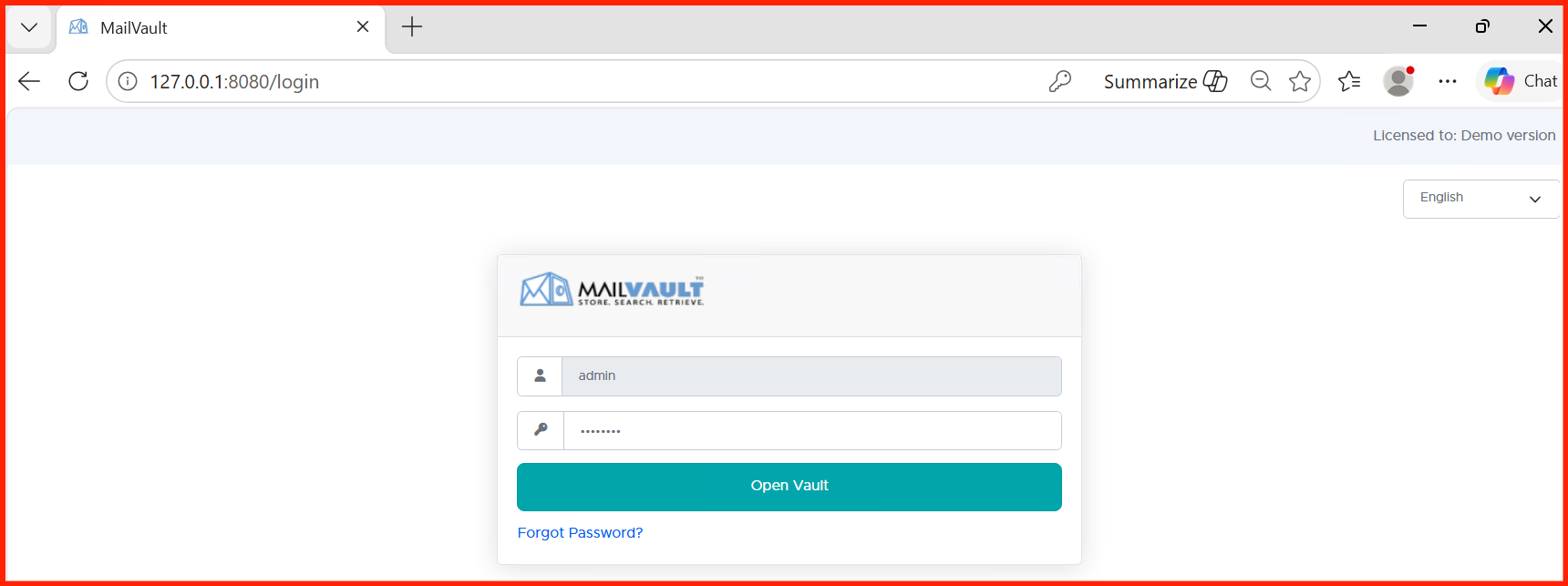
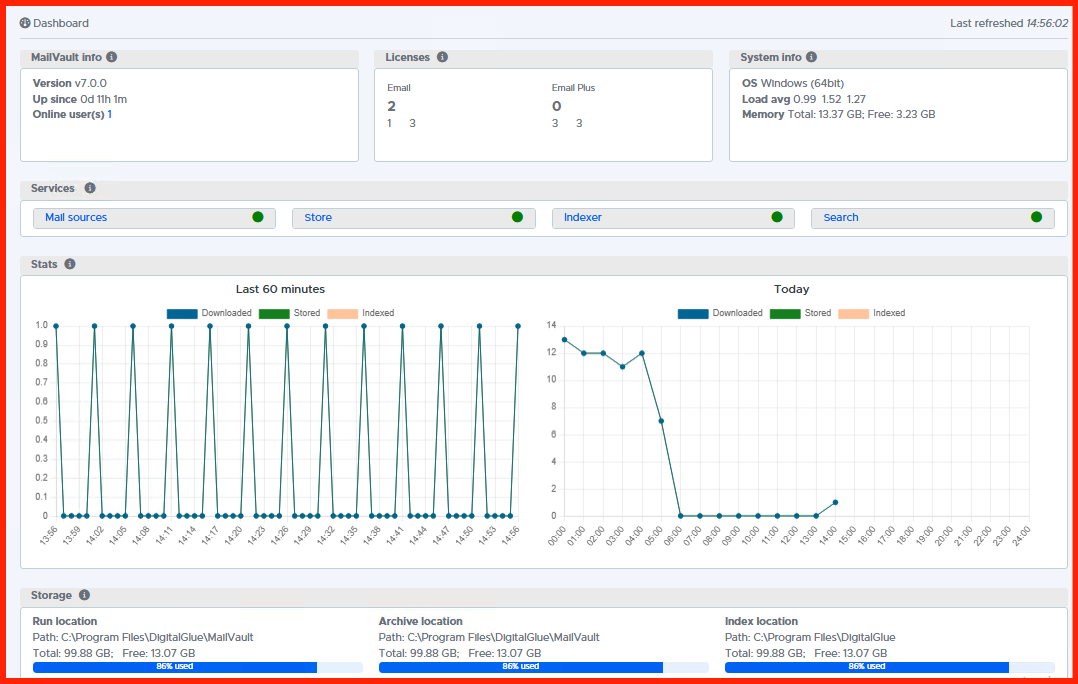
Once deployed, log into your MailVault instance using your secure administrator credentials. The initial landing dashboard provides a high-level view of system health, active archiving storage metrics, and disk space usage indicators.
Step 2: Configuring the Email Source & Journaling
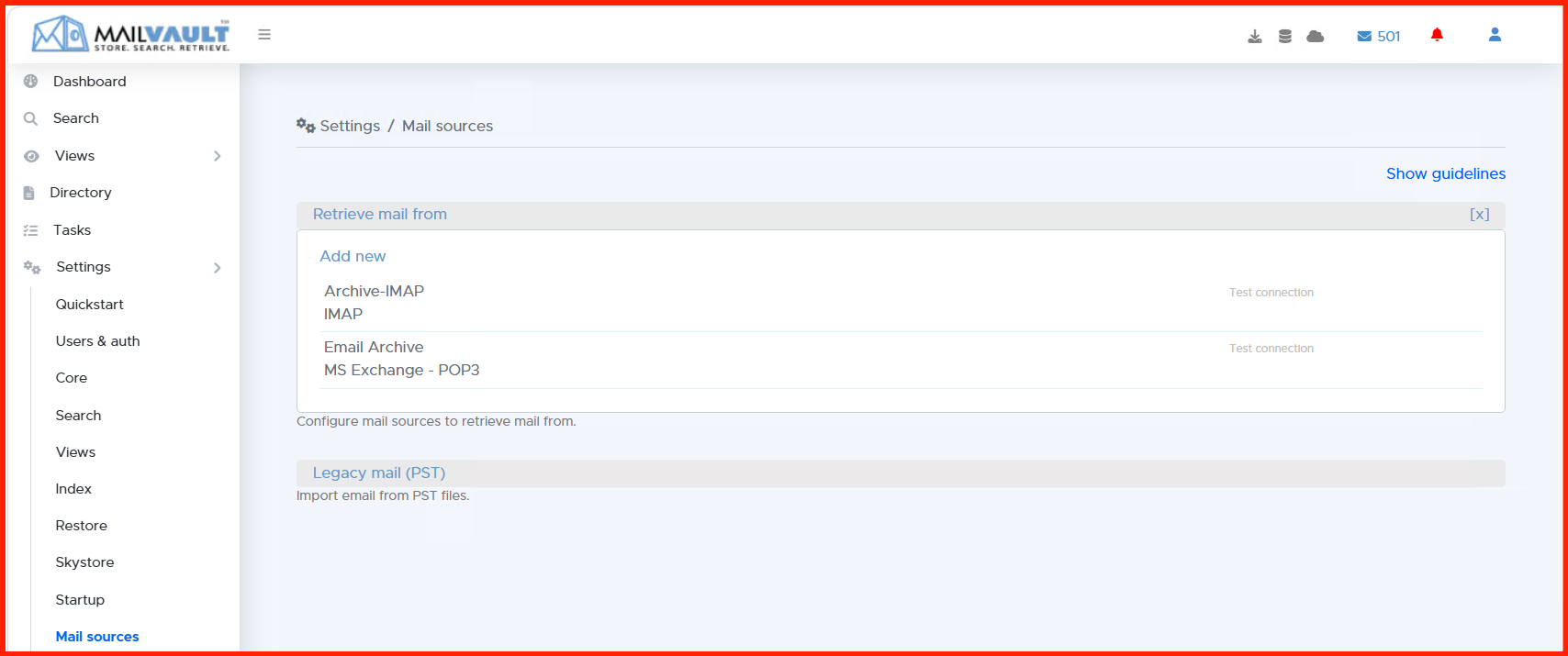
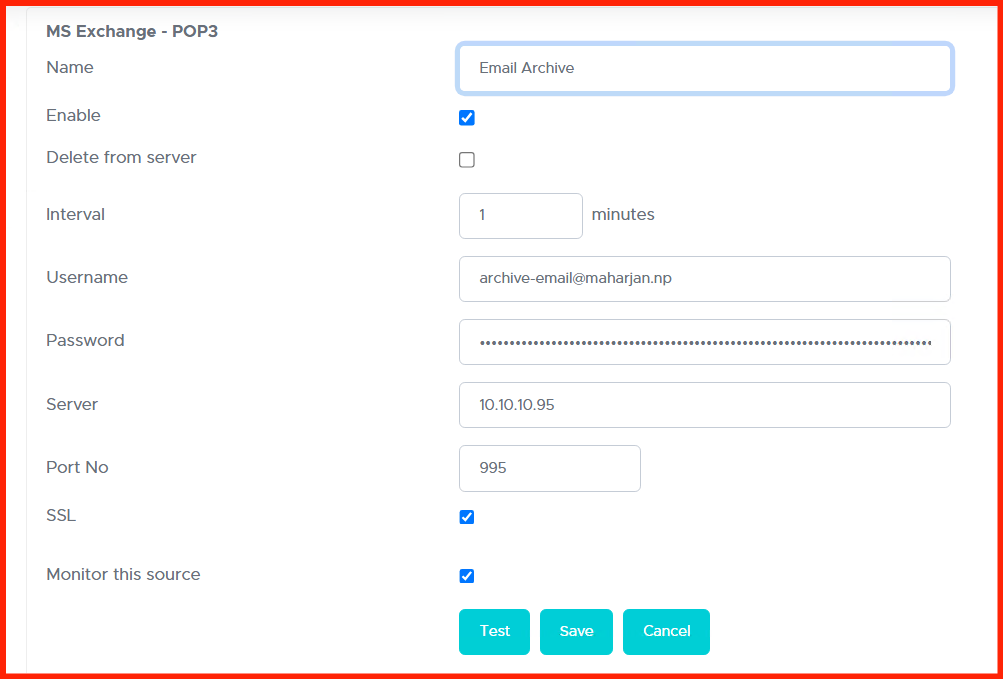
To capture all incoming and outgoing mail automatically, MailVault uses “Journaling” or “Forwarding”. In this section, define the primary mail server settings so MailVault can reliably fetch your organization’s traffic.
Navigate to Settings > Email Sources and select your architecture type (e.g., IMAP Journal, Exchange Envelope Journaling, or Office 365 connector setup).
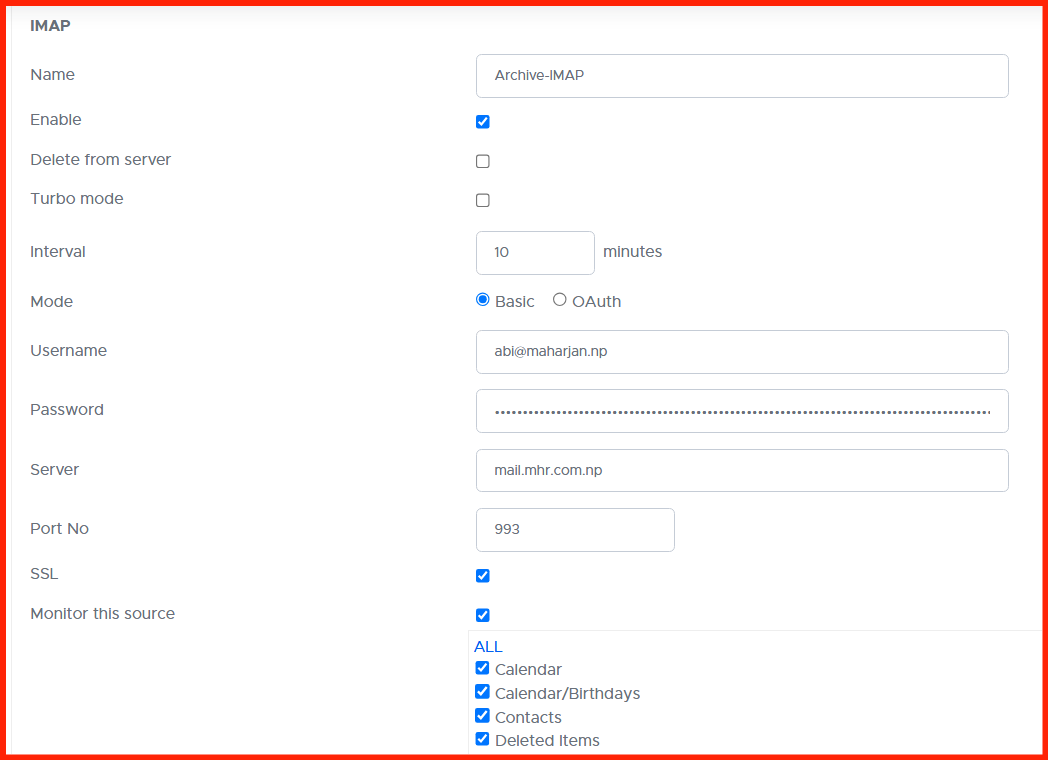
Step 3: Setting Up Retention and Archiving Policies
Not all emails need to be stored forever. MailVault allows you to establish rules to purge or transition older emails after a specific duration (e.g., 7 years for financial compliance).
Go to Policies > Retention Schedules to assign default lifespans to your incoming records.
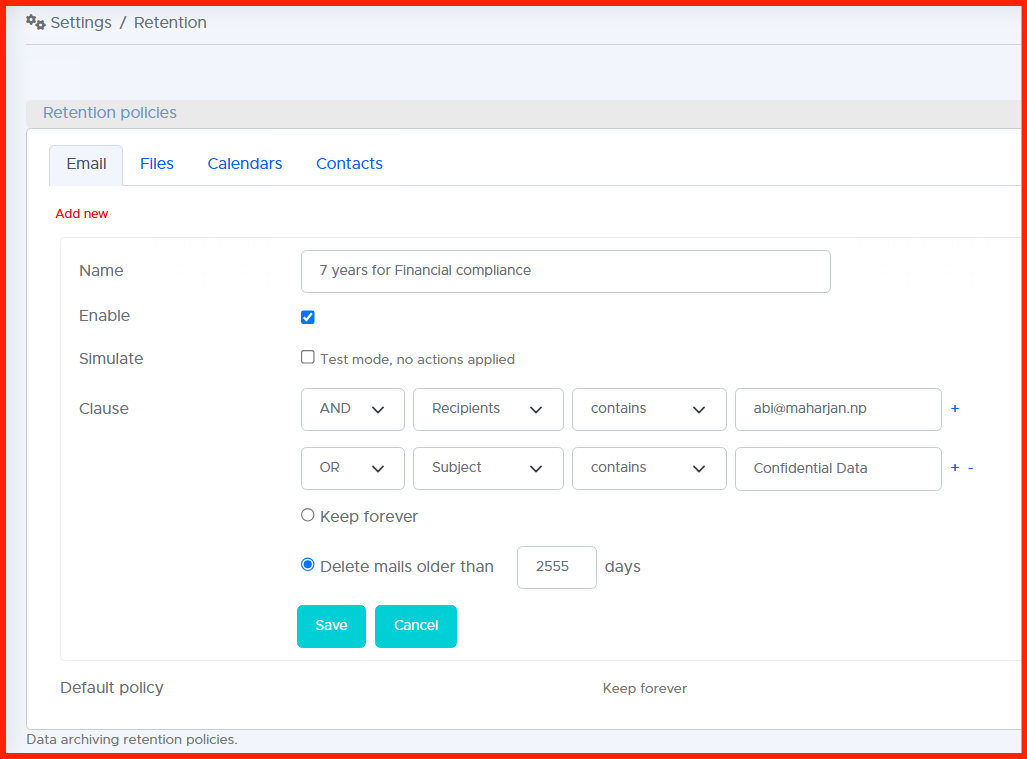
Step 4: Verifying the Archiving Output & e-Discovery
With configurations active, run a verification test. Send a test email from a corporate account and monitor how MailVault processes it. Next, head over to the Search / e-Discovery interface to make sure the message was parsed, indexed, and successfully saved.
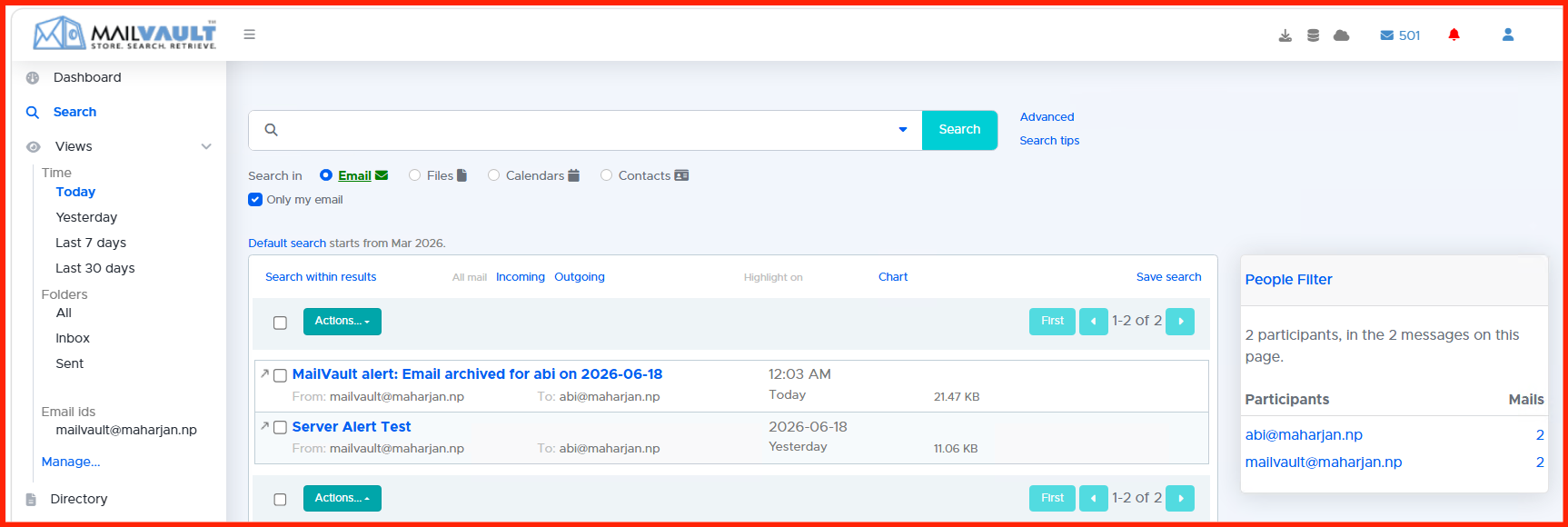
Conclusion & Next Steps
Your MailVault instance is now actively safeguarding your company’s intellectual capital and ensuring regulatory readiness. Regular maintenance tasks should include checking backup integrity and validating storage volume thresholds monthly.
Enterprise Email Archiving & Compliance
A practical, multi-part engineering guide to deploying, scaling, hardening, and integrating MailVault into infrastructure environments.
MailVault Series Part 1: Installation, Initial Setup, and Core Configuration
Lay down a solid foundations guide. Walk through system requirements, platform deployment footprints, initial wizard configurations, and verifying the administrative dashboard metrics.
MailVault Series Part 2: Configuring Email Sources and Multi-Platform Journaling
Establish persistent archiving rules. Connect MailVault to MS Exchange, Microsoft 365, or IMAP/POP3 servers via envelope journaling configurations to automate passive background data capture.
MailVault Series Part 3: Retention Schedules, Compliance Rules, and Storage Backup
Enforce strict corporate compliance rules. Configure precise storage data paths, retention durations, legal hold properties, and secondary underlying storage backups.
MailVault Series Part 4: Active Directory & LDAP Integration for Identity Management
Unify user access controls. Map MailVault directory properties with Active Directory/LDAP servers to automate security boundaries and role-based administrative permissions mapping.
MailVault Series Part 5: UI Corporate Branding and Custom SSL Certificate Hardening
Customize the platform and protect transit lines. Deploy custom corporate logos, alter UI interface themes, and bind production SSL/TLS certificates to secure internal administrative traffic.
MailVault Series Part 6: End-User Console Access, e-Discovery, and Mail Restoration
Empower your workspace users. Configure self-service access controls, perform e-Discovery queries, and seamlessly execute complete point-in-time recoveries back to user inboxes.